Follow these steps to generate a secure App Password for your Gmail account. This password is required for third-party applications to access your Gmail securely.
You must have 2-Step Verification (2SV) enabled on your Google Account before you can generate an App Password.
Open your browser and sign in to https://myaccount.google.com using your Gmail email address and password.
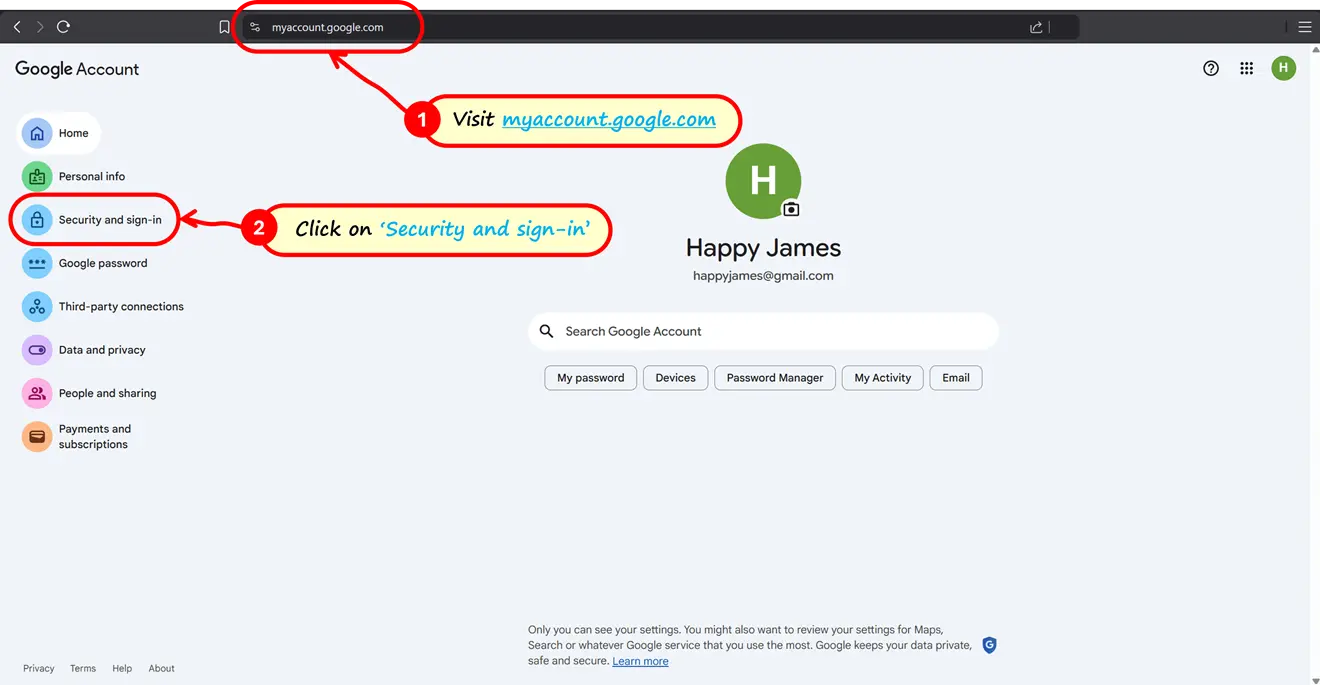
From the left panel, click on Security. Locate the 2-Step Verification option in the "How you sign in to Google" section.
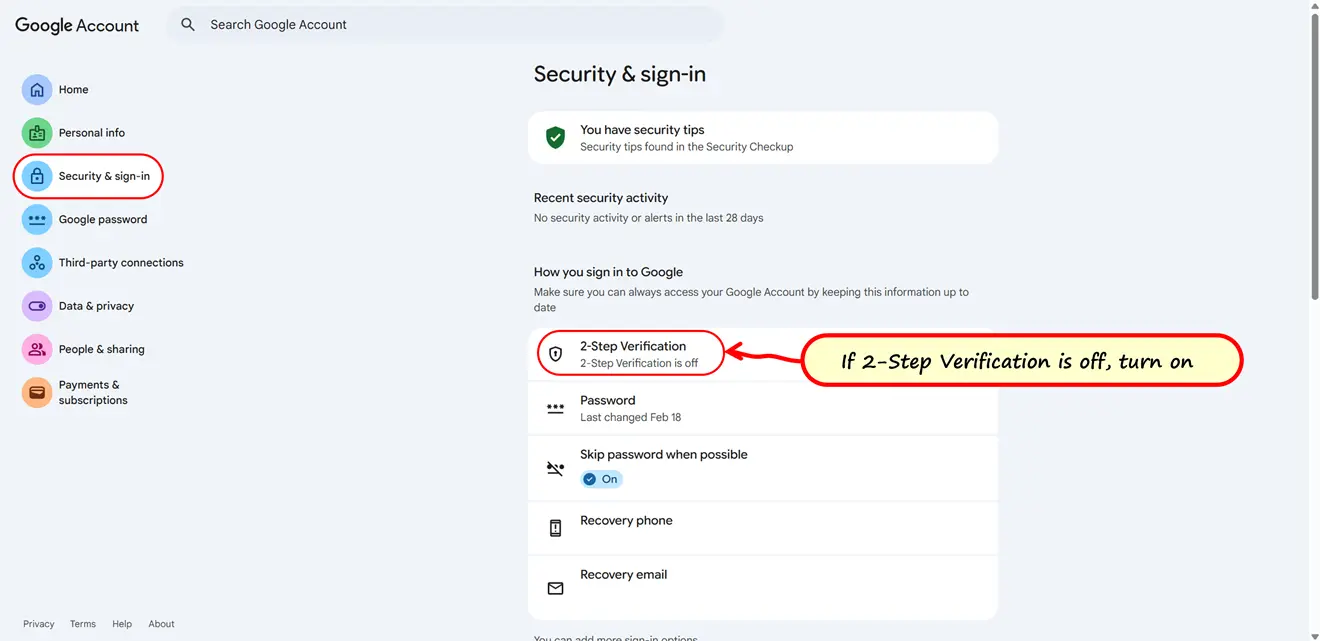
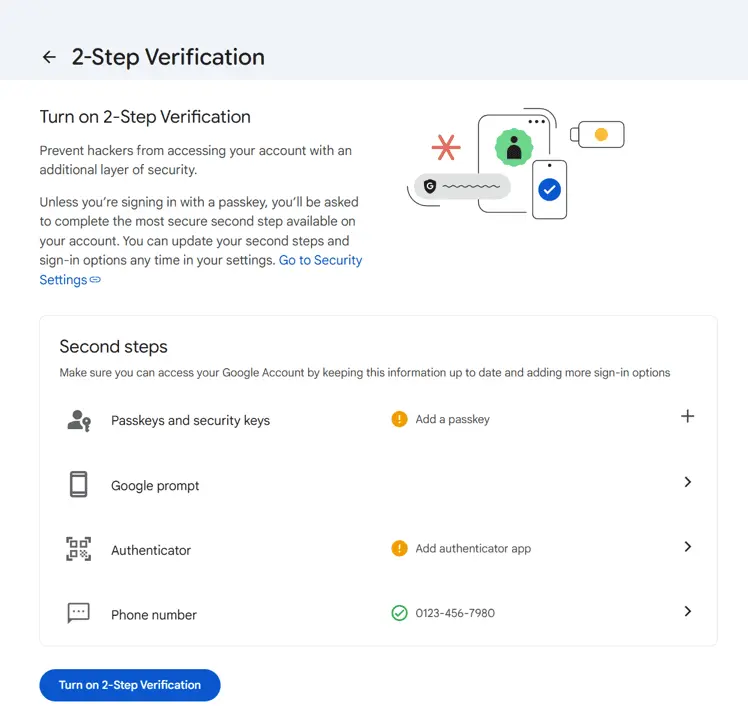
Enable 2-Step Verification if it is turned off. Sign in again when prompted and complete the verification process.
💡 Recommendation: If enabling 2-Step Verification temporarily, choose Phone number (SMS or call) for faster setup.
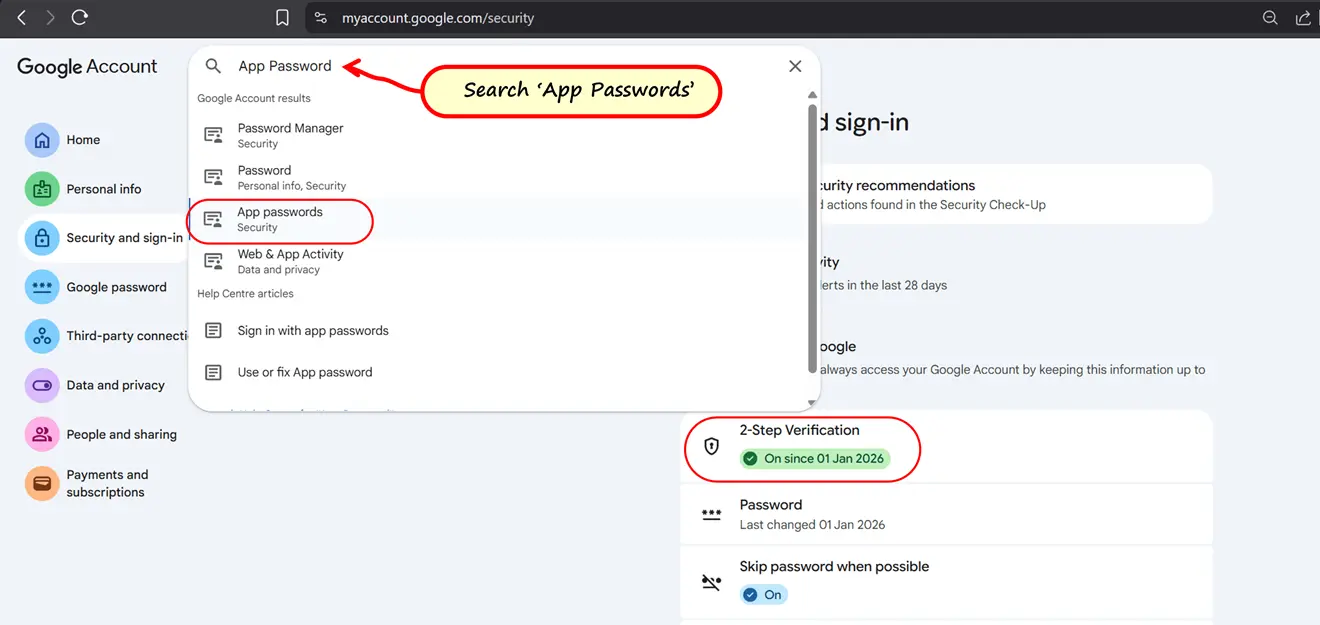
Once 2-Step Verification is enabled, use the search bar at the top of the account page. Search for "App passwords" and open it.
Enter a custom name for the app password (for example: EmailBackup, Gmail Backup, or Migration Tool) and click Generate.
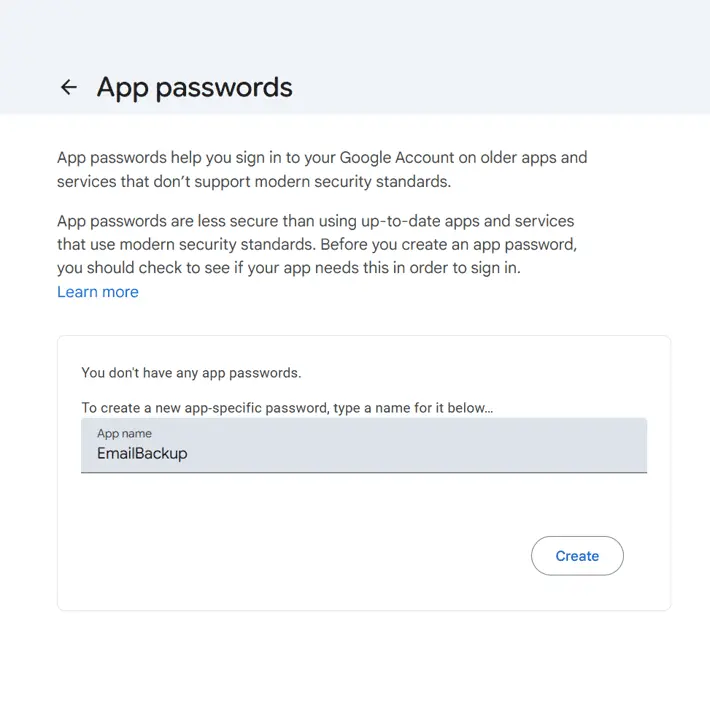
Google will display a 16-character App Password. Copy the password exactly as shown (including spaces) and use it in the application instead of your Gmail password.
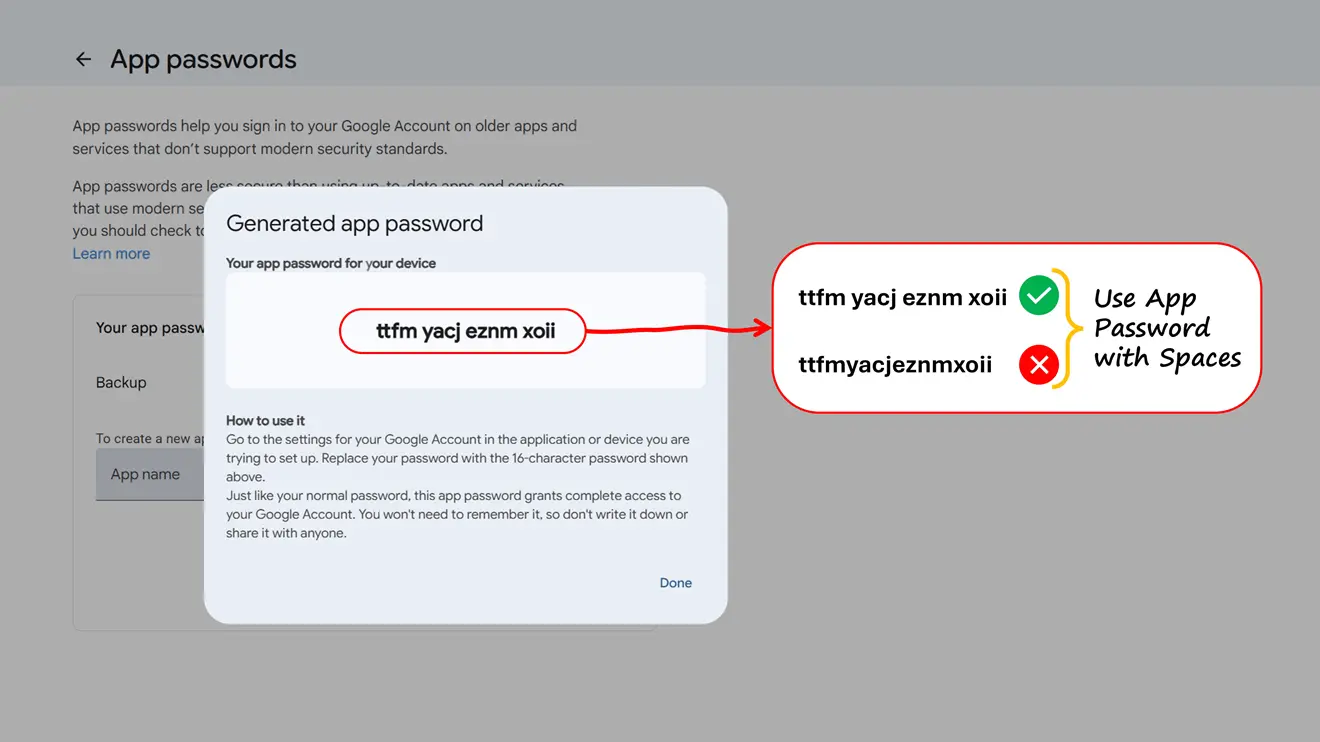
You have successfully generated a Gmail App Password. Use this 16-character password in RecoveryTools software instead of your regular Gmail password.

 Support
  Blog
Blog  +1 7025533020