Follow these steps to authenticate your Gmail account using OAuth for secure backup and migration. OAuth provides a secure way to grant access without sharing your password.
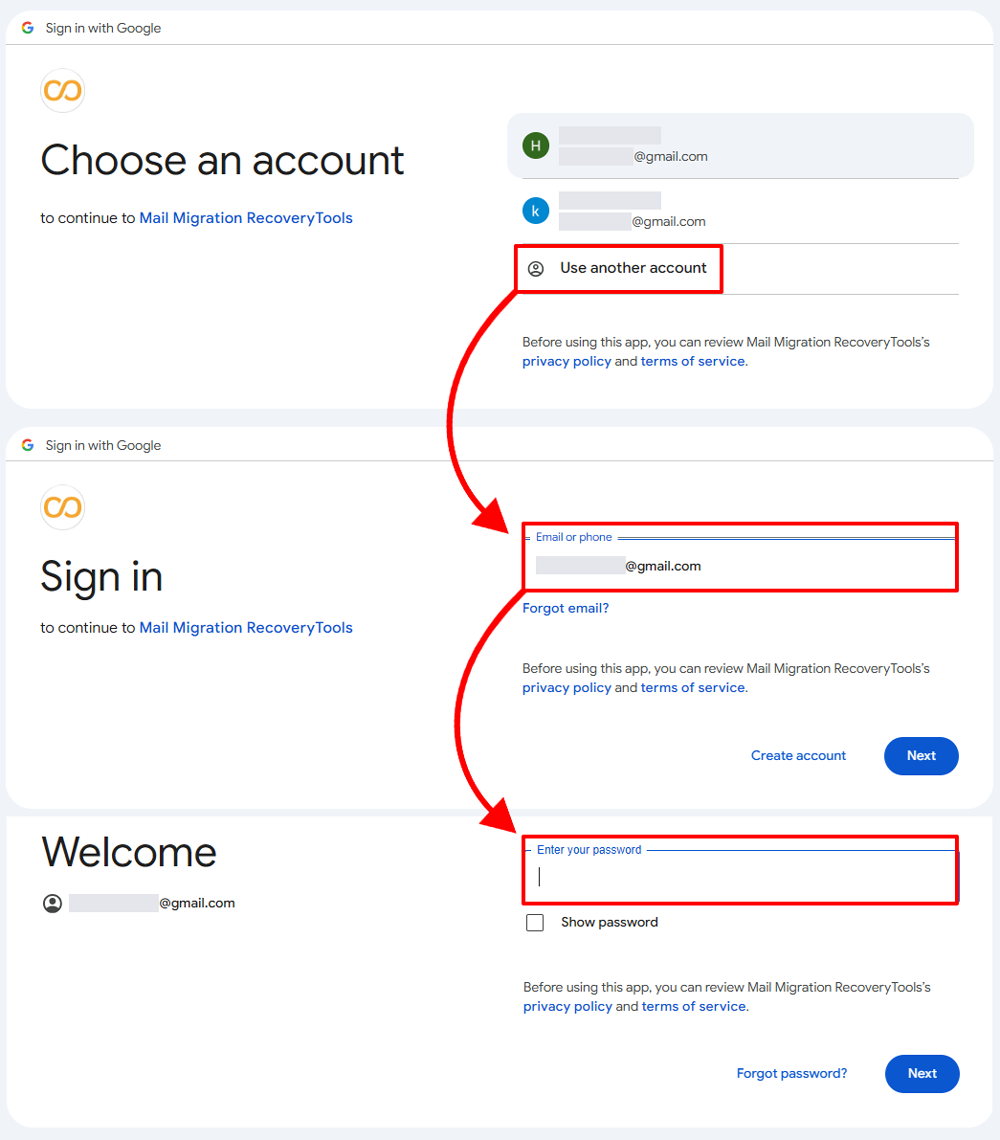
The "Sign in with Google" page will open in your browser. Enter or select the same Gmail email address that you entered in the tool, along with your Gmail password.
💡 Tip: Make sure you use the exact same email address that you entered in the RecoveryTools software interface.
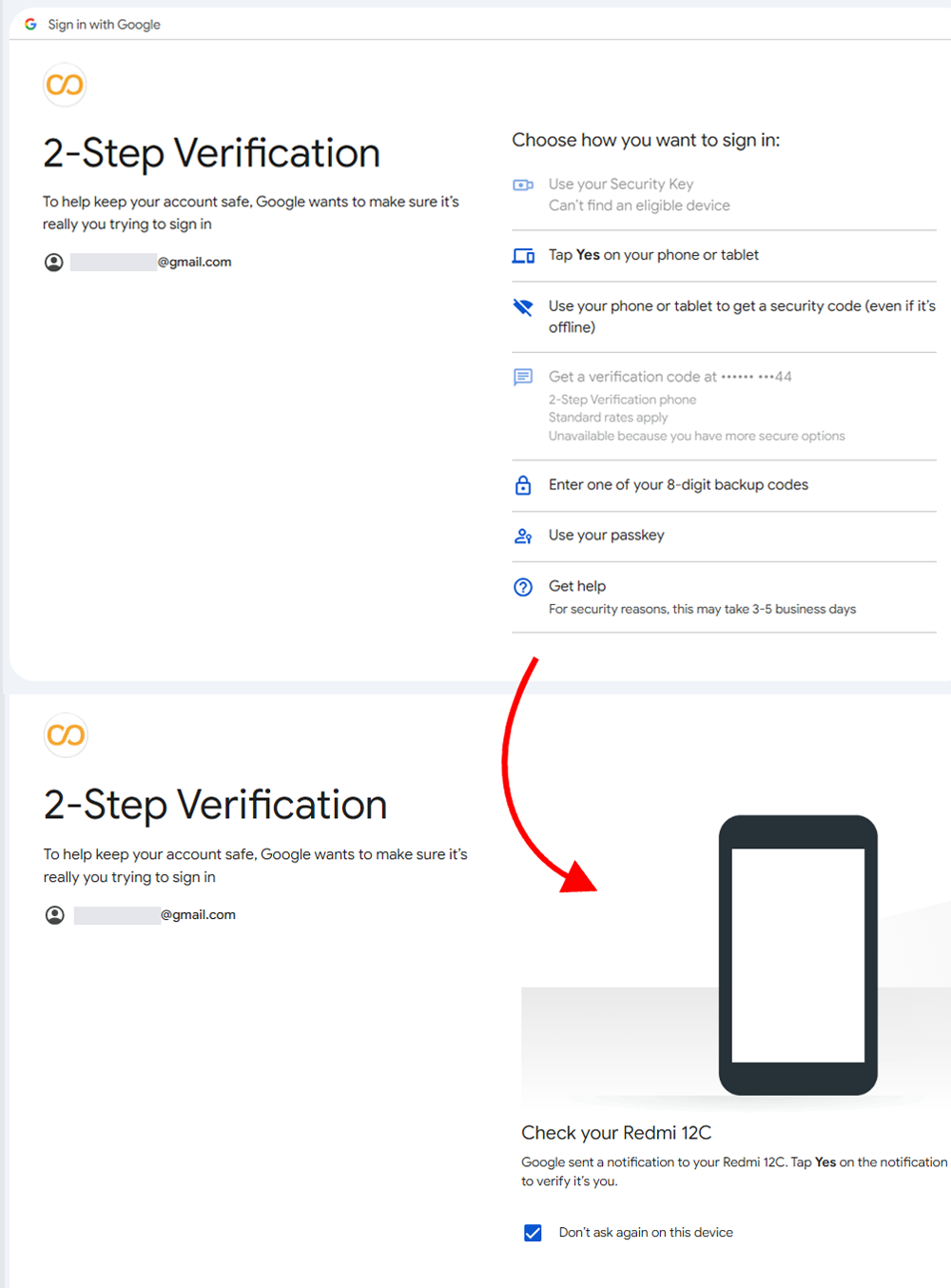
After clicking on Continue, you will receive a 2-Step verification prompt to verify your identity. You can select any method from the available options in the prompt.
Available verification methods include:
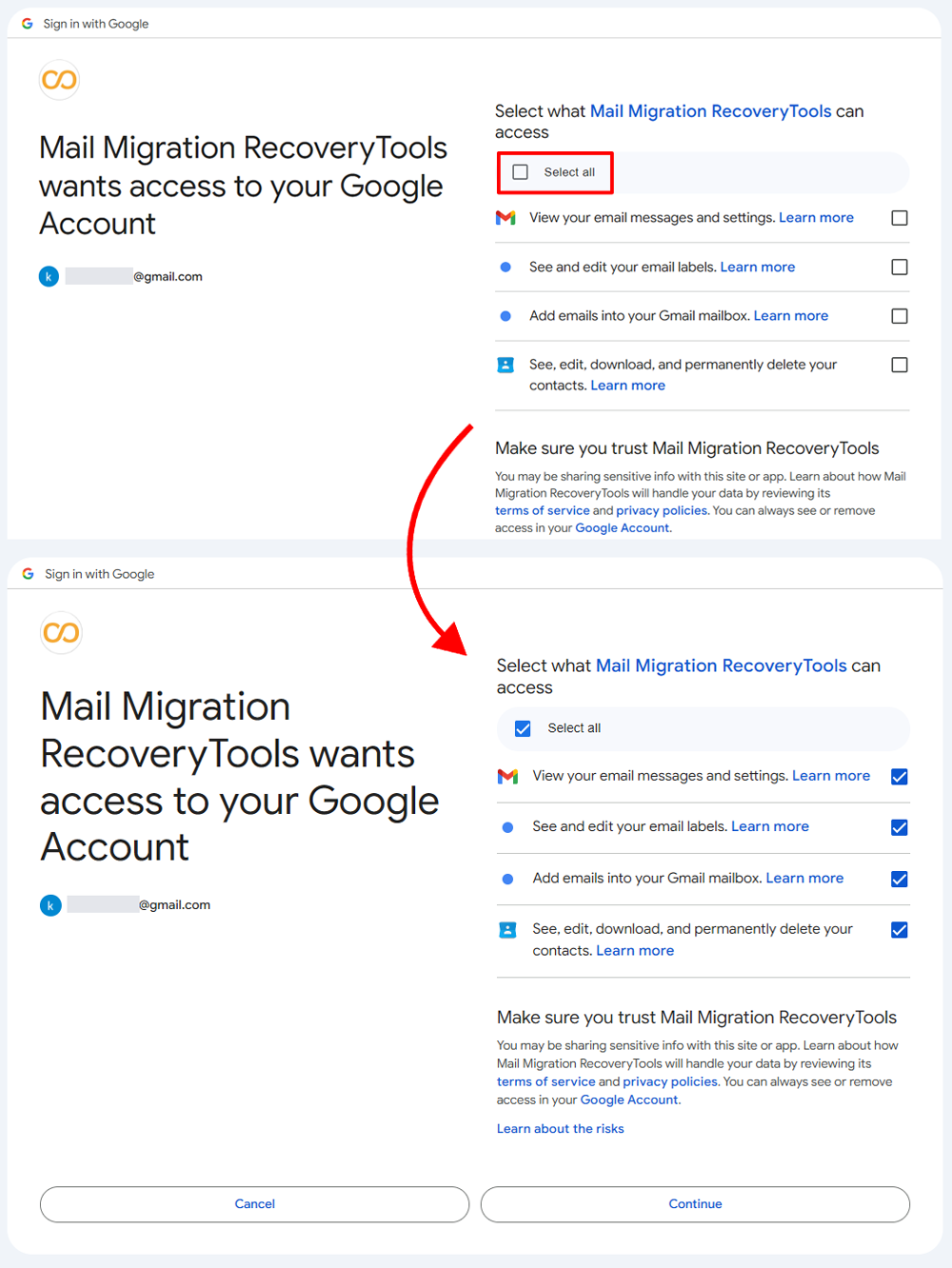
After verifying the 2-Step verification, you will be redirected to the "Mail Migration RecoveryTools wants access to your Google Account" page. Select "Select All" and grant full access to continue the backup or migration process.
⚠️ Important: If you select limited access rather than "Select all", the software will not be able to perform the operation without these permissions. Full access is required for complete backup/migration.
Once you've granted the permissions, you can close this browser window and return to your software interface. The authentication is now complete and the tool is ready to perform the backup or migration.
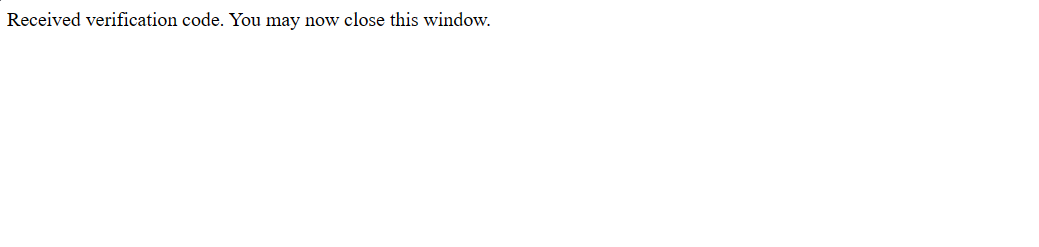
Your Gmail account is now authenticated via OAuth. You can proceed with your backup or migration operation in the RecoveryTools software.

 Support
  Blog
Blog  +1 7025533020