Follow these simple steps to open your converted PST file in Microsoft Outlook (Classic). This guide will help you import and view all your emails, contacts, and calendar items.
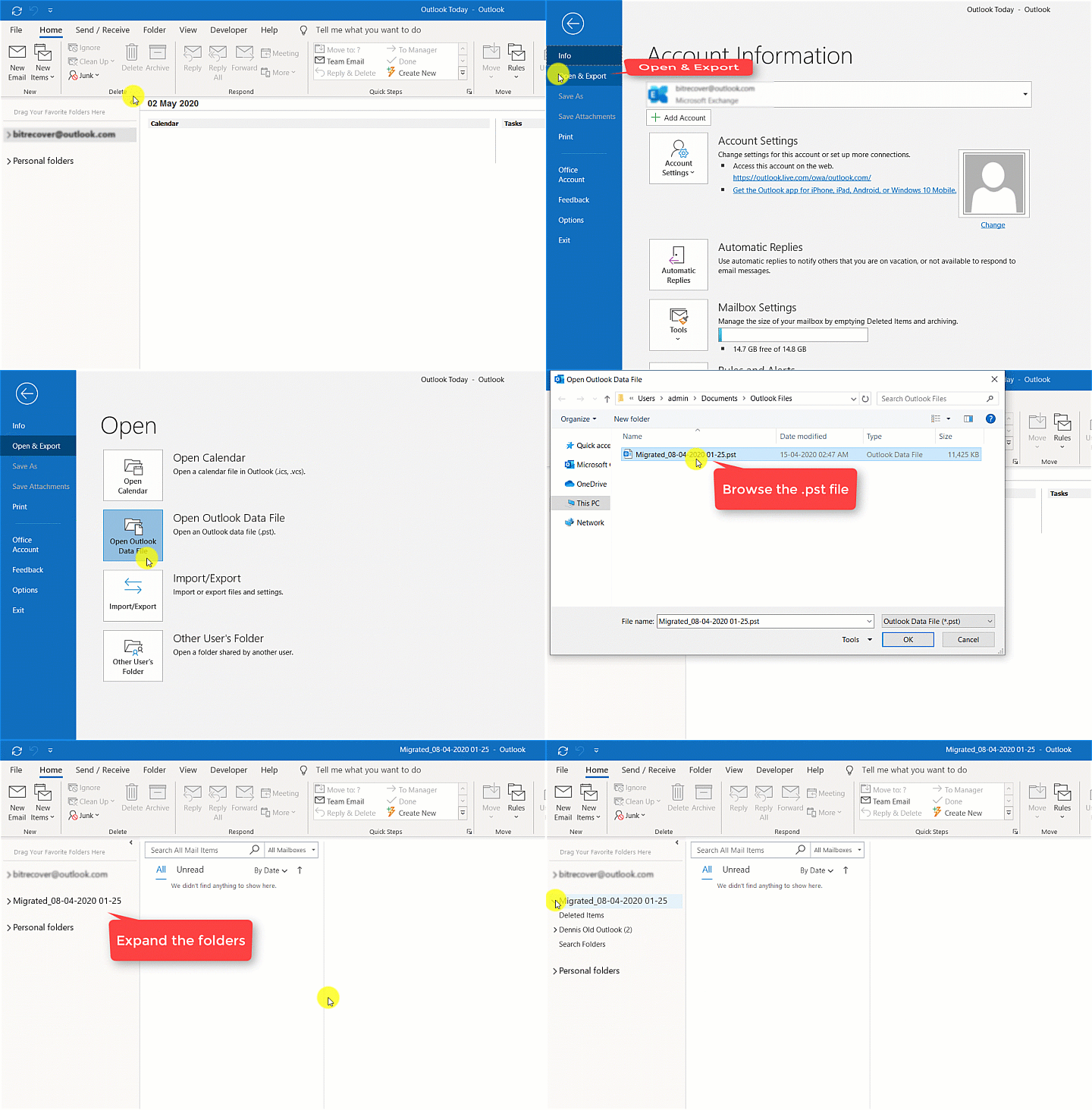
👆 Watch the complete process in action
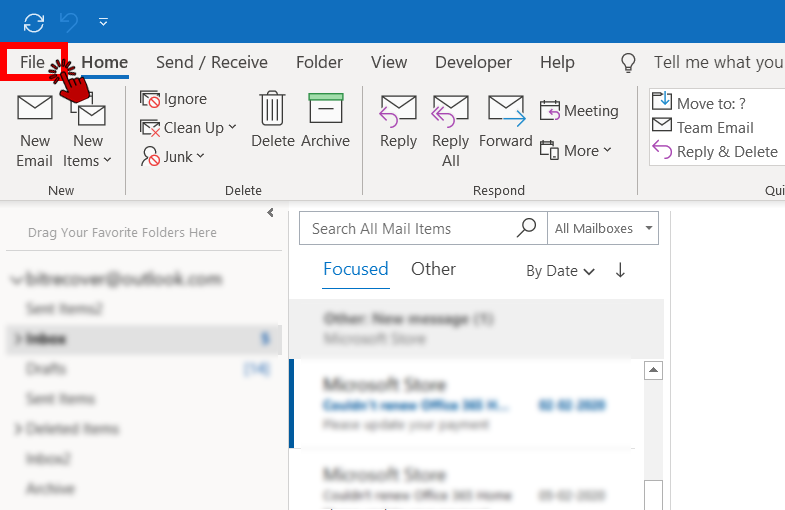
Launch Microsoft Outlook on your computer and locate the File menu in the top-left corner of the ribbon.
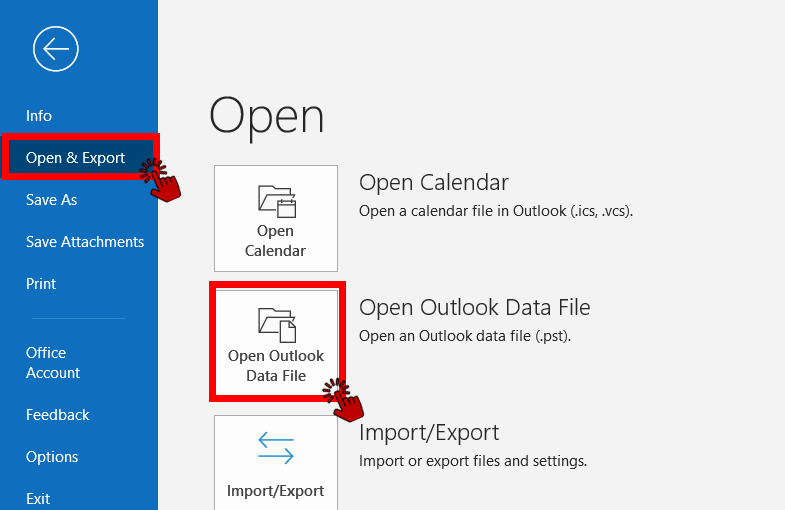
In the File menu, select Open & Export from the left sidebar, then click on Open Outlook Data File option.
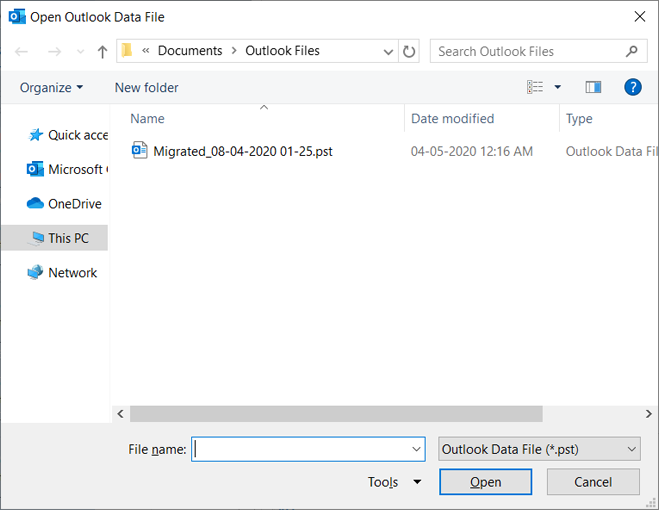
Navigate to the location where your PST file is saved, select it, and click the Open button to import it into Outlook.
In Outlook (Classic), look at the Folder Pane on the left side. You'll see a newly created folder. Expand this folder to view all the contents of the opened PST file including emails, contacts, and calendar items.
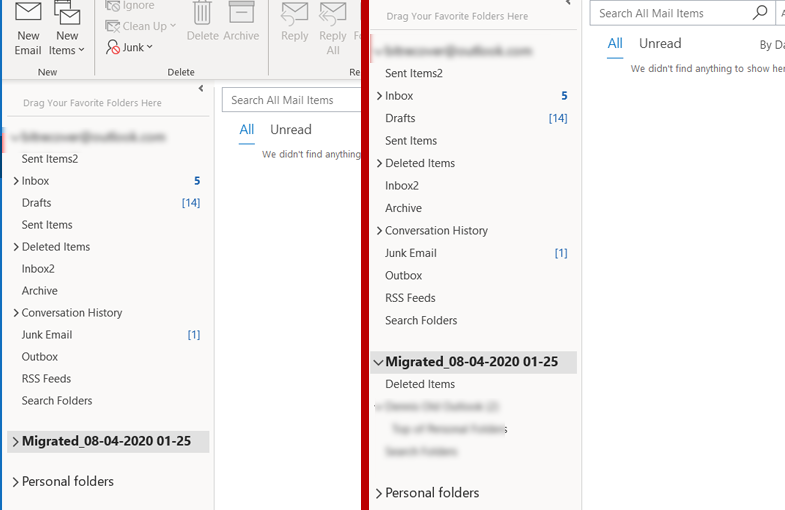
You have successfully opened your PST file in Microsoft Outlook. You can now access all your emails, contacts, and calendar items.

 Support
  Blog
Blog  +1 7025533020