
There is no built in button to copy a SharePoint page to another site. Copy to works inside one site only. For other sites use PnP PowerShell, Power Automate or a migration tool, or rebuild the page. Permissions, version history and old image links need a check after every copy.
Someone builds a good page on one site. A policy page, a team home page or a news post. Then another team asks for the same page on their site. You look for a button, and the only one you find copies inside the same site.
That gap is real, and I see it often. This guide shows five ways to copy SharePoint page to another site, what travels with the page and what you must fix by hand.
Can you copy SharePoint page to another site?
Yes, but not with a built in button. In the Site Pages library, Copy to and Copy of this page work inside one site. For modern pages, Microsoft Q&A answers say there is no built in feature to copy a page between sites.
So you have two choices. Build the page again on the new site, or copy it with a script, a flow or a migration tool. Which one you use depends on how many pages you have and how much custom work sits on them.

A copied page can look perfect and still be wrong. The images often still point at the old site, so check them before anyone sees the page.
Jamie Kaler Marketing Head and Content Strategist, RecoveryTools
How do you copy SharePoint page to another site step by step?
This order fits every method below. Steps 1 to 3 prepare the page. Steps 4 to 8 copy SharePoint page to another site and fix what breaks.
- Check your access. You need owner rights on the source and destination sites. A person with only read access cannot create the page on the new site.
- Publish the source page. Copy tools take the latest published version. A page that was never published can arrive blank.
- List what the page uses. Write down the web parts, images, files, lists and links on the page. This is your fix list for later.
- Copy the images and files first. Move the pictures and documents the page shows to the destination site, so the links have somewhere to land.
- Choose a method. Use the table in this guide. One simple page can be rebuilt by hand. A set of pages needs PowerShell, a flow or a tool.
- Copy the page. Use the method you chose. For a script, test on one page before you copy the rest.
- Fix links and web parts. Open the new page in edit mode. Point images and files at the new site and re-add any web part that shows a blank box.
- Check permissions and publish. The copy takes the destination site's permissions. Compare them with the source, then publish and test the page as a normal user.
Step 4 is the one people skip. Without it, every image on the new page can still load from the old site until that site is deleted.
Which method fits your page?
Here is the short version. The detail for every method follows.
| Method | Works across sites | Best for | The catch |
|---|---|---|---|
| Copy to or Copy of this page | No | One more page on the same site | Not available for the home page |
| Save as template | No | Reusing a layout on the same site | Template stays with the site |
| Copy and paste by hand | Yes | One simple page | You rebuild every web part |
| Power Automate flow | Yes | A few pages on a schedule | Image and file links point at the old site |
| PnP PowerShell | Yes | Many pages in one tenant | Latest published version only, permissions removed |
| Migration tool | Yes | Pages with the rest of the site | Works at site level |
How do you copy a page inside one site?
These three are built in and take a minute. They never leave the site you are on.
- Copy to: open the Site Pages library, select the page, choose Copy to and choose a location. Then open the copy, edit it and publish.
- Copy of this page: open the page, select Edit, then New, then Copy of this page. This option is missing for the home page.
- Save as template: open the page, select the arrow beside Edit or the page menu, and choose Save as template. Create a new page from it under New, then Page.
If you only need a second copy of a layout on the same site, stop here. For another site, keep reading.
How do you copy SharePoint page to another site with PowerShell?
PnP PowerShell has a cmdlet built for this. It takes a page from one site and creates it on another, and it can handle many pages in a loop.
Connect-PnPOnline -Url https://contoso.sharepoint.com/sites/Source -Interactive -ClientId <your-app-id>
Copy-PnPPage -SourceSite https://contoso.sharepoint.com/sites/Source -DestinationSite https://contoso.sharepoint.com/sites/Target -PageName "Welcome.aspx"
Get-PnPPageCopyProgress
The PnP documentation lists two limits. Only the latest published version moves, and all permissions are removed. Use Get-PnPPageCopyProgress to watch the job. Recent versions of PnP PowerShell need an Entra app registration of your own, so set that up before the first sign in.
Some admins prefer a second route. They export the page with Export-PnPPage into a local .pnp file and apply it to the new site with Invoke-PnPSiteTemplate. That route also needs the page's SiteAssets folder copied, because the images live there.
Can Power Automate copy a SharePoint page?
Yes, with a Copy file action. A page is a file in the Site Pages library, so a flow can copy it like any other file.
- Sign in to Power Automate and create an Instant cloud flow with a manual trigger.
- Add the Copy file action from the SharePoint connector.
- Enter the source site address, the page file and the destination site address.
- Set the destination folder to the Site Pages library and choose what happens if a page with that name exists.
- Save, test the flow and open the new page.
One admin guide ties this to a list. Every list item holds a source site, a page name and a destination site, and the flow starts when an item is created. That works well for a steady stream of pages. The catch is the same in both versions. The flow copies the file and nothing else, so image and document links still point at the old site until you fix them.
When is copy and paste by hand enough?
For one or two simple pages, rebuild the page. Create a new page on the destination site, choose the same layout and add the web parts again. Copy the text across, upload the images fresh and set the links.
It is slow, but it gives you a clean page with no old links. I use it for a home page that I want to rethink anyway. For ten pages it is a bad idea.
What stays behind when you copy a SharePoint page?
The page arrives, but not everything around it. This is the check list I use after any copy.
| Item | What happens | What to do |
|---|---|---|
| Permissions | The copy takes the destination site's access | Compare with the source and fix restricted pages first |
| Version history | Only the latest published version moves | Keep the source site until you are sure |
| Images and file links | Still point at the old site | Copy the files first, then relink them |
| List and library web parts | Tied to the old site, so they show blank | Re-add them and choose the new list |
| Custom web parts | They are code, so no copy method carries them | Install them on the new site again |
| Comments and page feedback | Do not come across | Export anything you need to keep |
Links are the biggest trap, and I explain how they break in how SharePoint sharing links behave after a migration. For access, my guide on how to migrate SharePoint permissions to another tenant shows what to rebuild first.
Need to copy pages with the entire site
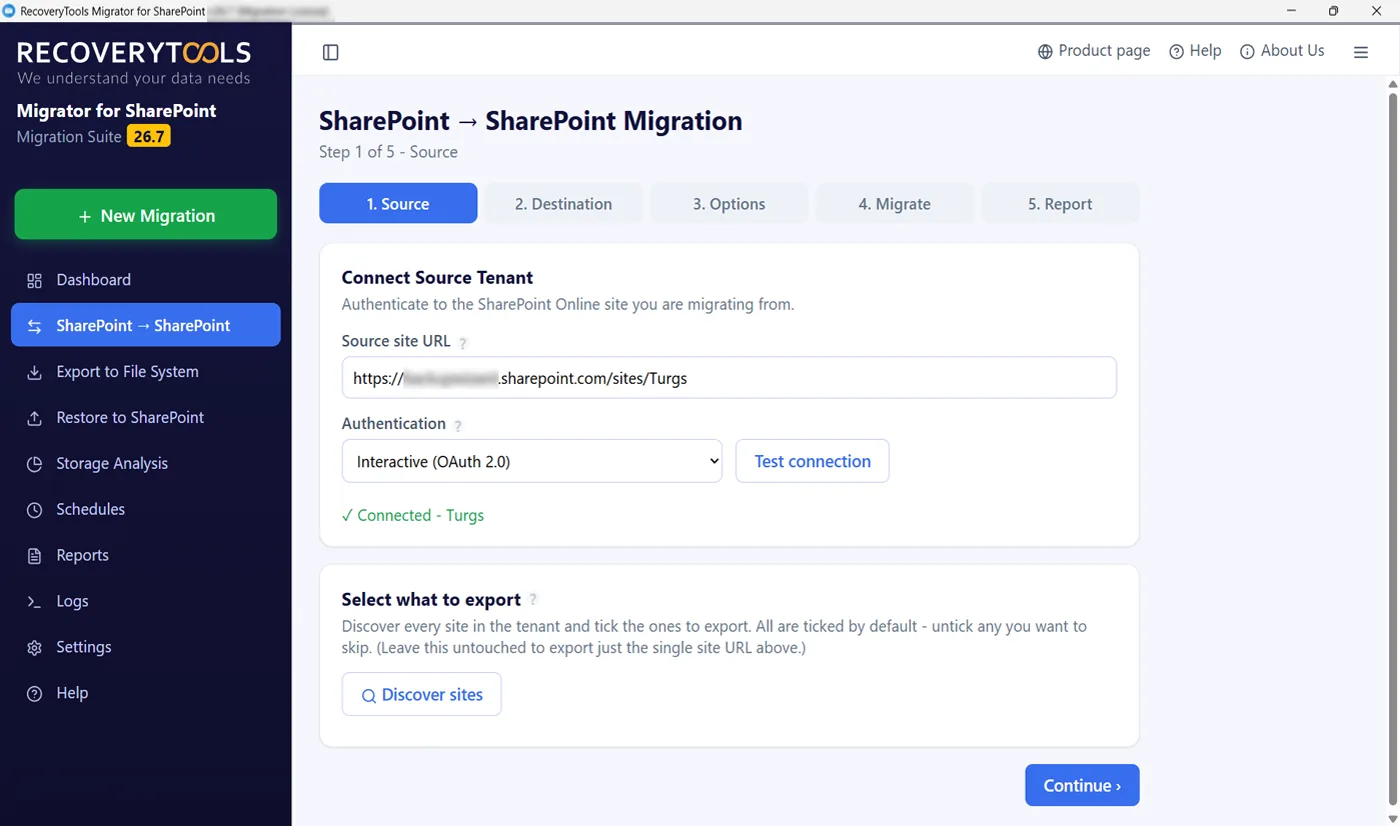
RecoveryTools SharePoint Migrator moves sites between two Microsoft 365 accounts. Classic and modern pages, news posts and their web parts are recreated at the destination, along with libraries, lists, permissions and versions. It works at site level, so to move pages you move the site. Custom web parts, workflows and Power Automate flows stay behind.
No credit card, no sign-up. Works on Windows 11, 10 and Windows Server 2022.
Which mistakes break a copied SharePoint page?
Five mistakes show up again and again when people copy SharePoint page to another site.
First, copying a page that was never published. Second, moving the page before its images and files, so every link points home. Third, trusting the page because it looks right in read mode. Fourth, forgetting that the copy takes the new site's permissions, which can open a restricted page to everyone. Fifth, deleting the source site before anyone checks the copy.
If you need more than a few pages, copy the site. My guide on how to migrate a SharePoint site to another tenant covers that. Lists have the same problem, and I cover them in how to copy a SharePoint list to another site.
My verdict on copying a SharePoint page
For one page on the same site, use Copy to and be done in a minute. For one simple page on another site, rebuild it by hand. For several pages, use PnP PowerShell and test on one first.
Whatever you choose, fix the links before you publish. A page that loads fine for you may still pull every image from a site that will not exist next year.
Frequently asked questions
Is there a Copy to button for pages across sites?
No. Copy to and Copy of this page work inside one site. For modern pages there is no built in feature to copy a page between sites, so use PnP PowerShell, Power Automate, a rebuild by hand or a migration tool.
Does Copy-PnPPage keep version history?
No. Only the latest published version moves, and all permissions are removed. Keep the source site until you have checked the copy.
Why is my copied SharePoint page blank or missing images?
The source page may never have been published, or its images may still point at the old site. Publish the source page, copy the images first and relink them on the new page.
Do web parts copy to the new site?
Standard web parts and their settings usually move. Web parts tied to a list or library on the old site show blank. Custom web parts are code, so install them on the new site again.
Can I copy many SharePoint pages at once?
Not by hand. PnP PowerShell can loop through a list of pages, and a Power Automate flow can copy one page for every list item. A migration tool moves pages with the full site.
Do page permissions copy to the other site?
No. The copy takes the permissions of the destination site. Compare them with the source, because a restricted page can become visible to everyone.
Jamie blends strategic marketing insight with technical writing, turning migration and recovery topics into guidance that works for technical and general readers alike.
Published 14 October 2026. Page limits come from the PnP PowerShell documentation for Copy-PnPPage and from Microsoft Q&A answers on copying a page between sites.