
There are five ways to copy a SharePoint list to another site. The built in copy keeps columns and views but no rows. A template carries rows up to 50 MB. Excel, Power Automate and PowerShell move rows but drop lookups and permissions. Choose by list size and column types.
A team asks me for this every few weeks. A project ends, a department splits or a new site needs the same tracker. Someone opens the old list, looks for Copy to and finds it only on files.
SharePoint has no Copy to button for a list. You copy the structure and the rows in separate steps, and some parts cannot be copied at all. This guide shows five ways to copy SharePoint list to another site, what every one keeps and which one fits your list.
What does it take to copy SharePoint list to another site?
A list has three parts. The structure is the columns, views, formatting and rules. The rows are the items, with their attachments. The third part is everything around the list, like permissions, flows and forms, and it never travels with a copy.
Most methods do one part well. The built in copy gives you structure and no rows. Excel gives you rows and guesses the structure. A template can give you both, but only for a small list. Knowing which part you need is half the job.

Copy the structure first and test it with ten rows. A broken column is easy to fix before ten thousand rows sit on top of it.
Jamie Kaler Marketing Head and Content Strategist, RecoveryTools
How do you copy SharePoint list to another site step by step?
This order works for every method below. Steps 1 to 3 are checks. Steps 4 to 8 copy SharePoint list to another site and prove the result.
- Check your access. You need read access to the source site and permission to create lists on the destination site. A site owner has both.
- Count the rows and the size. Note the item count, the attachments and the total size. A list over 50 MB cannot go through a template with content.
- List the columns that point elsewhere. Write down every lookup, Person or Group, managed metadata and calculated column. These are the ones that break.
- Choose a method. Use the decision table in this guide. A simple list can use Excel. A large list with attachments needs PowerShell or a migration tool.
- Copy the structure. Create the new list from the existing list or from a template. Open it and check the columns and views.
- Copy ten rows first. Move a small test batch, open a record and read every field. Fix the column types before you move the rest.
- Copy the rest and rebuild what stays behind. Move the full set of rows, then rebuild permissions, rules beyond the first two, flows and forms by hand.
- Compare the counts. Match the item count on both sites and open five records at random. Keep the source list until both checks pass.
Skipping step 6 is the mistake I see most. A wrong column type on 10 rows costs a minute to fix. On 10,000 rows it costs an afternoon.
Which method fits your SharePoint list?
Choose by what you must carry and how big the list is. Here is the short version, then the detail for every method.
| Method | Structure | Rows | The catch |
|---|---|---|---|
| Create from existing list | Yes | No | Copies only the first two list rules |
| Template with content | Yes | Yes, up to 50 MB | Not supported on group connected team sites |
| Excel export and import | Guessed from the sheet | Yes | No Person or Group columns, no attachments |
| Power Automate flow | No | Yes | Slow on big lists. Created By shows the flow account |
| PowerShell with PnP | Yes | Yes | Needs scripting skill and an app registration |
How does the built in copy from an existing list work?
This is the fastest way to get the structure. It copies columns, views and formatting to a new list on the site you choose. It does not copy the rows. Microsoft says this plainly on its help page.
- Open the destination site. Select New, then List.
- On the Create a list page, select From existing list.
- Choose the site that holds the source list, select the list and select Next.
- Enter a name and an optional description. Check Show in site navigation if you want a link.
- Select Create.
If the source list has automated rules, only the first two come across. Add the others by hand. Microsoft does not say whether permissions copy, so open the new list and check them yourself. The new list is a separate copy. A change to one never reaches the other.
How do you copy SharePoint list to another site with a template?
A list template is a file with a .stp ending. It can hold the structure and, if you ask, the rows. This is the only built in method that moves both parts in one go.
- Open the source list. Go to Settings, then List Settings.
- Under Permissions and Management, select Save list as template.
- Enter a file name without an extension, a template name and a description.
- Check Include Content to save the rows. Select OK.
- Open Site Settings, then List templates, and select the template name to download the .stp file.
- On the destination site, open the List Template Gallery and select Upload Document.
- Create a new list from the template in Site contents.
Three limits decide if this works for you. A template with content has a default size limit of 50 MB, and attachments count toward it. SharePoint group connected team sites, which includes most sites behind a Microsoft 365 group or a team, do not support list templates at all. And if the Save list as template link is missing, your admin may have turned off custom scripts.
A template also does not keep security settings, and it only works between sites of the same type. Calendar overlays need to be deleted and added again after the new list is created.
Can Excel or Power Automate move the rows?
Yes, and both are common when a template is too big. They solve the same problem in two different ways.
Excel export and import
Open the source list and select Export, then Export to Excel. On the destination site, select New, then List, and choose From Excel. Format the data as a table first, because SharePoint reads columns from that table. You can also build the structure with the built in copy, open the new list in grid view and paste the rows in.
This works for plain columns. Create list from Excel has no Person or Group column type, so those columns are never created. Attachments and item history do not come through either.
Power Automate flow
A flow reads rows from the source list and creates them on the destination list. Use a Get items action with pagination switched on, because it returns only 100 items by default. Then add a Create item action for every row and map every column by hand.
I use this when rows keep arriving in the old list while the move is going on. It is slow on big lists, and a Created By column shows the account behind the flow instead of the real author. Person columns need an email address or claim, so test them with care.
How do you copy a list with PowerShell?
PnP PowerShell can pull a list out of one site as a template, add its rows to the file and apply the file to another site. It handles bigger lists than the built in template and can include more data.
Connect-PnPOnline -Url https://contoso.sharepoint.com/sites/Source -Interactive -ClientId <your-app-id>
Get-PnPSiteTemplate -Out Projects.xml -Handlers Lists -ListsToExtract "Projects"
Add-PnPDataRowsToSiteTemplate -Path Projects.xml -List "Projects"
Connect-PnPOnline -Url https://contoso.sharepoint.com/sites/Target -Interactive -ClientId <your-app-id>
Invoke-PnPSiteTemplate -Path Projects.xml
Recent versions of PnP PowerShell need an Entra app registration of your own, so set that up before the first sign in. Test the commands on a small list first. Item IDs on the new list are new numbers, so a lookup that points at another list will not resolve. Move parent lists before child lists, as I explain in how to migrate SharePoint lists and their columns.
What stays behind when you copy a SharePoint list?
Every method leaves some things behind. This is the list I check after any copy.
| Item | What happens | What to do |
|---|---|---|
| Permissions | The new list inherits the destination site | Set unique permissions again if the source had them |
| Power Automate flows | Not copied with the list | Rebuild them and point them at the new list |
| List rules | Only the first two come across | Add the rest by hand |
| Lookup columns | Point at the old list or stay empty | Copy parent lists first, then rebuild the pointers |
| Person or Group values | Fail when the user is missing from the target | Map users before you move rows |
| Attachments and item history | Lost with Excel and flows | Use a template, PowerShell or a migration tool |
I cover the flow side in what happens to Power Automate flows in a SharePoint migration. For access, my guide on how to migrate SharePoint permissions to another tenant shows what to rebuild first.
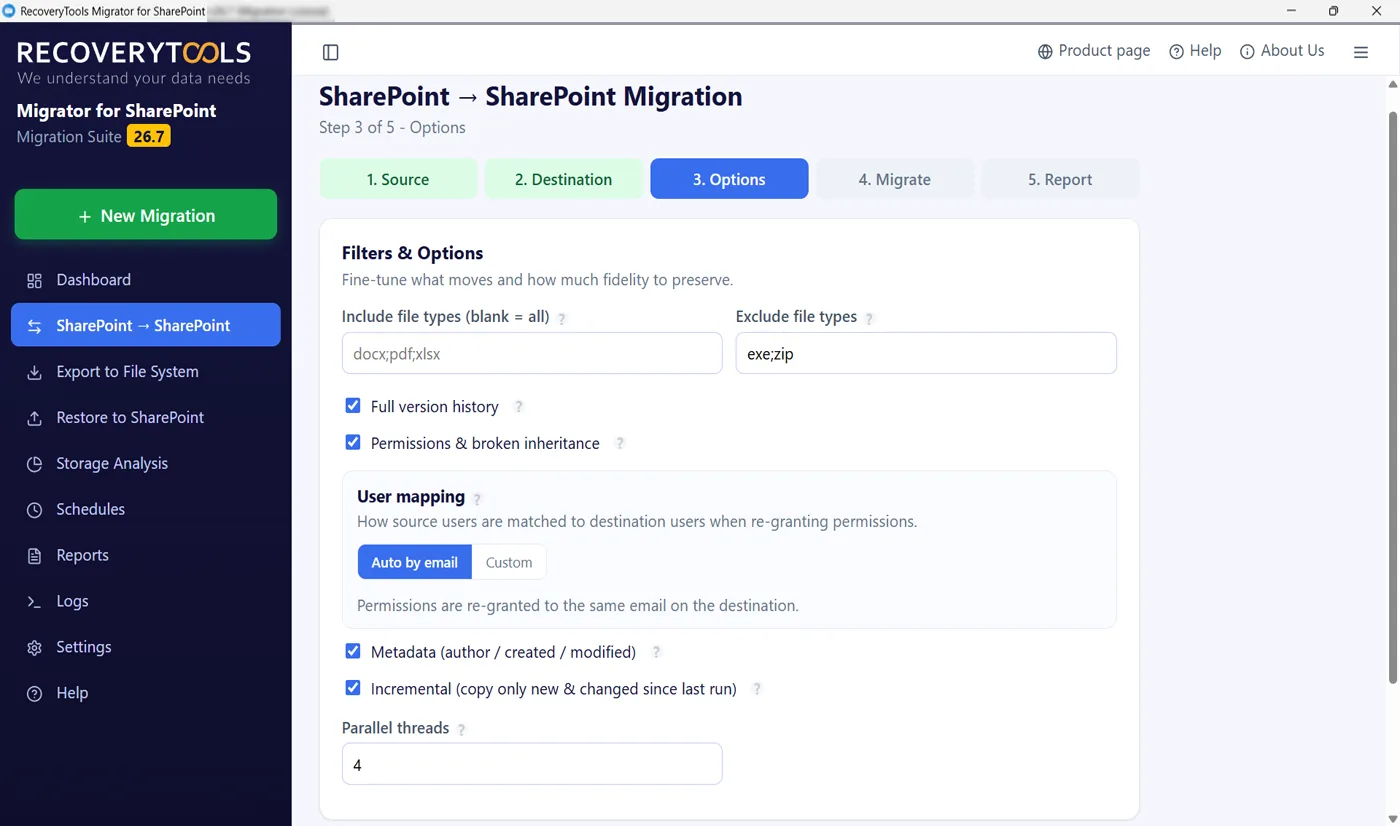
Need to copy SharePoint lists to another Microsoft 365 account
RecoveryTools SharePoint Migrator copies lists and list items between two Microsoft 365 accounts. It keeps permissions, versions and metadata, and the source stays read only. Lookup and calculated columns, workflows and Power Automate flows stay behind, so rebuild those by hand. For a copy inside one tenant, try the built in methods above first.
No credit card, no sign-up. Works on Windows 11, 10 and Windows Server 2022.
Which mistakes break a copied SharePoint list?
Five mistakes show up again and again when people copy SharePoint list to another site.
First, moving rows before the structure is tested. Second, missing the 50 MB template limit until the save fails. Third, copying a child list before its parent, so every lookup comes back empty. Fourth, forgetting that permissions and flows stay behind. Fifth, deleting the source list before the counts match.
If the list sits in a site you plan to move, copy the site instead of the list. My guide on how to migrate a SharePoint site to another tenant covers that, and the Microsoft 365 migration planning checklist puts lists on the same plan as everything else.
My verdict on copying a SharePoint list
To copy SharePoint list to another site with structure only, use the built in copy and finish in five minutes. For a small list with rows, a template is the cleanest route. For anything with attachments, history or a lot of rows, use PowerShell or a migration tool.
Whatever you choose, test with ten rows and compare counts before you delete anything. The copy is the easy part. The pointers inside the rows are where lists go wrong.
Frequently asked questions
Can I copy a SharePoint list to another site with its data?
Yes. A list template with content, an Excel export, a Power Automate flow and PowerShell all move rows. The template is limited to 50 MB. Permissions, flows and lookup values always need a rebuild.
Does Create from existing list copy the items?
No. It copies the columns, views and formatting but not the content. If the source list has rules, only the first two come across.
What is the size limit for a SharePoint list template with content?
The default limit is 50 MB, and attachments count toward it. SharePoint Online does not let you raise it, so save without content or use another method for a bigger list.
Why is Save list as template missing?
SharePoint group connected team sites do not support list templates. On other sites, your admin may have turned off custom scripts. Use the built in copy or PowerShell instead.
Can I copy a SharePoint list to a site in another tenant?
The same methods work, because a template or Excel file can be uploaded anywhere. Users, lookups and managed metadata are where it breaks, so map them before you move rows.
Do list permissions copy to the new site?
No. A template does not keep security settings, and the new list inherits permissions from the destination site. Set unique permissions again if the source list had them.
Jamie blends strategic marketing insight with technical writing, turning migration and recovery topics into guidance that works for technical and general readers alike.
Published 14 October 2026. Steps and limits come from Microsoft Support pages on creating a list from another list and managing list templates.