Teams Threads Are Not Files
Copy a document and you have that document. Copy a conversation badly and every message says it was posted today by whoever ran the tool. Threads survive but their meaning does not, and nobody can tell who decided what.

RecoveryTools · Secure Microsoft Teams migration software for Office 365 administrators
Migrate Teams chats and channels between Microsoft 365 accounts, whole teams or single channels. Channel messages, shared files, members and permissions come across with metadata.
No credit card, no sign-up. Run one channel through it before planning bigger.
Screenshot of team and channel selection
Why Teams Is Harder Than Files
Documents are objects. A channel is a conversation, and that is why Microsoft Teams migration breaks in ways a file copy never does.
Copy a document and you have that document. Copy a conversation badly and every message says it was posted today by whoever ran the tool. Threads survive but their meaning does not, and nobody can tell who decided what.
Same person, different address at the destination, is the normal case, some accounts never existed there, and external guests belong to the old organisation entirely. Membership has to be worked out rather than assumed.
Messages live in the chat service. Files live in the SharePoint site behind the team. A migration that moves one without the other leaves a channel full of conversations that point at nothing.
This tool was built around those three problems rather than around a file copy that happens to reach Teams.
Office 365 administrators, IT teams, MSPs and consultants who hold Microsoft Partner status reach for this Teams migration software through company mergers, divestitures and the rebrands and restructures that follow, for organizations and businesses of enterprise size. They come back for one reason you will recognise: the messages arrive with the right names and dates on them.
Read partner storiesScreen By Screen
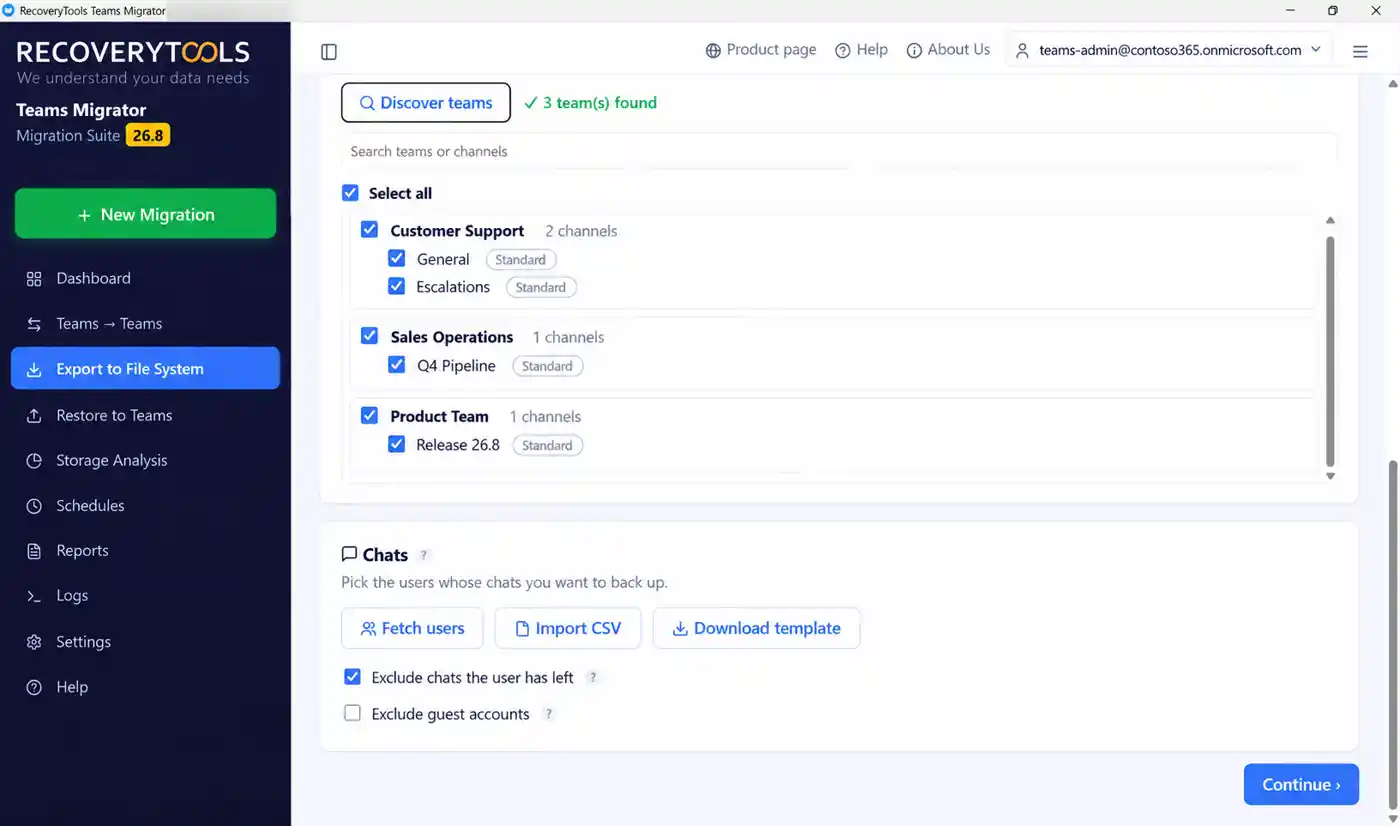
Discover teams asks Microsoft 365 what exists and lists it back with a count. Each team expands to show its channels and the type of each one. Select all is there for a full move, or search and tick a handful when only one department is going. Nothing is assumed on your behalf.
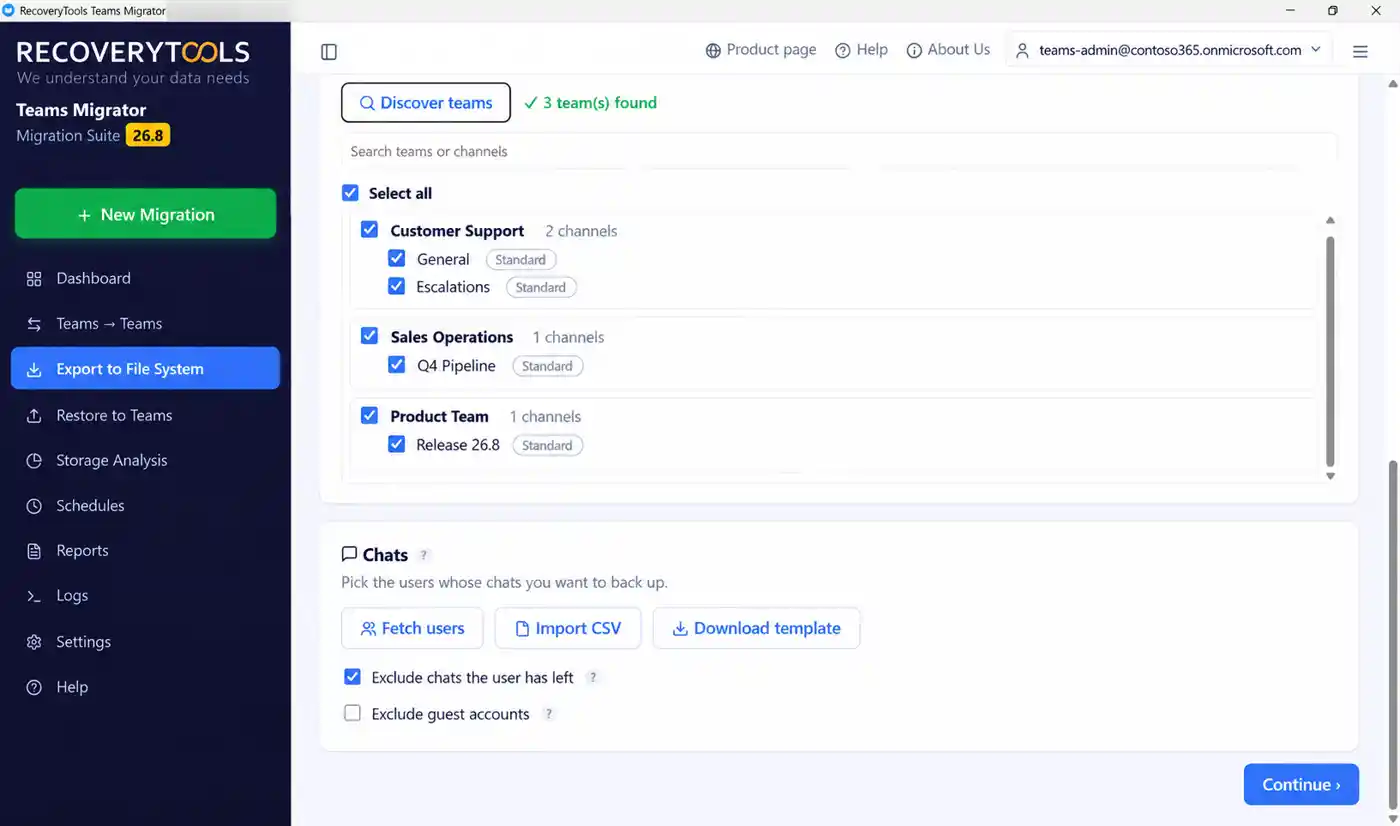
Channels are only half of Teams. Fetch users pulls the people whose chat history can be included, or import a CSV when the list comes from HR rather than the directory. One to one, group and meeting chats are all captured, though to disk rather than into another organisation. Nobody can write chats back into Teams yet, because the part of Microsoft’s platform that would allow it has not left beta.
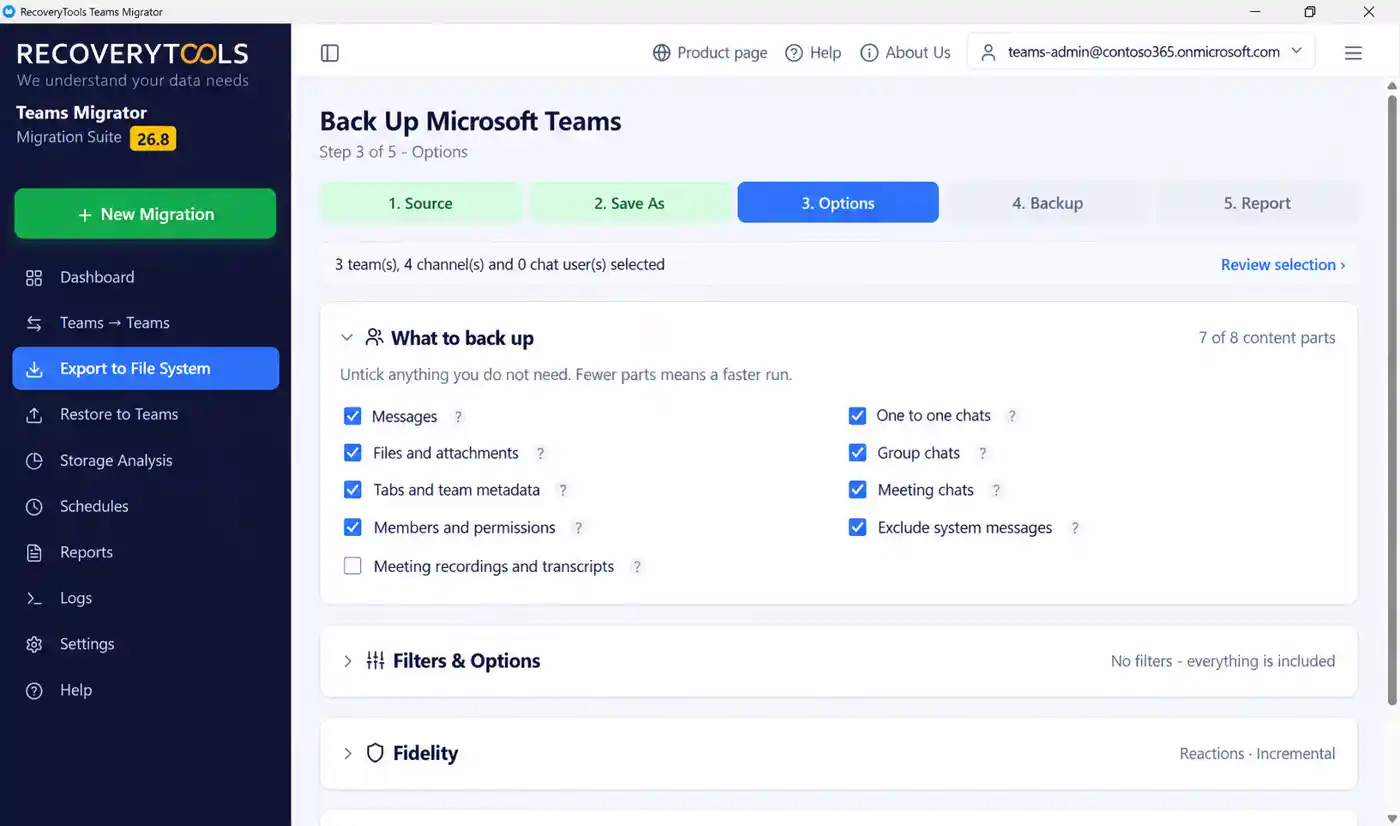
Runs are assembled from parts rather than copied wholesale. Messages, files and attachments, tabs and team metadata, members and permissions, meeting recordings and transcripts, one to one chats, group chats and meeting chats each have their own switch. Untick what you do not need and the run gets shorter.
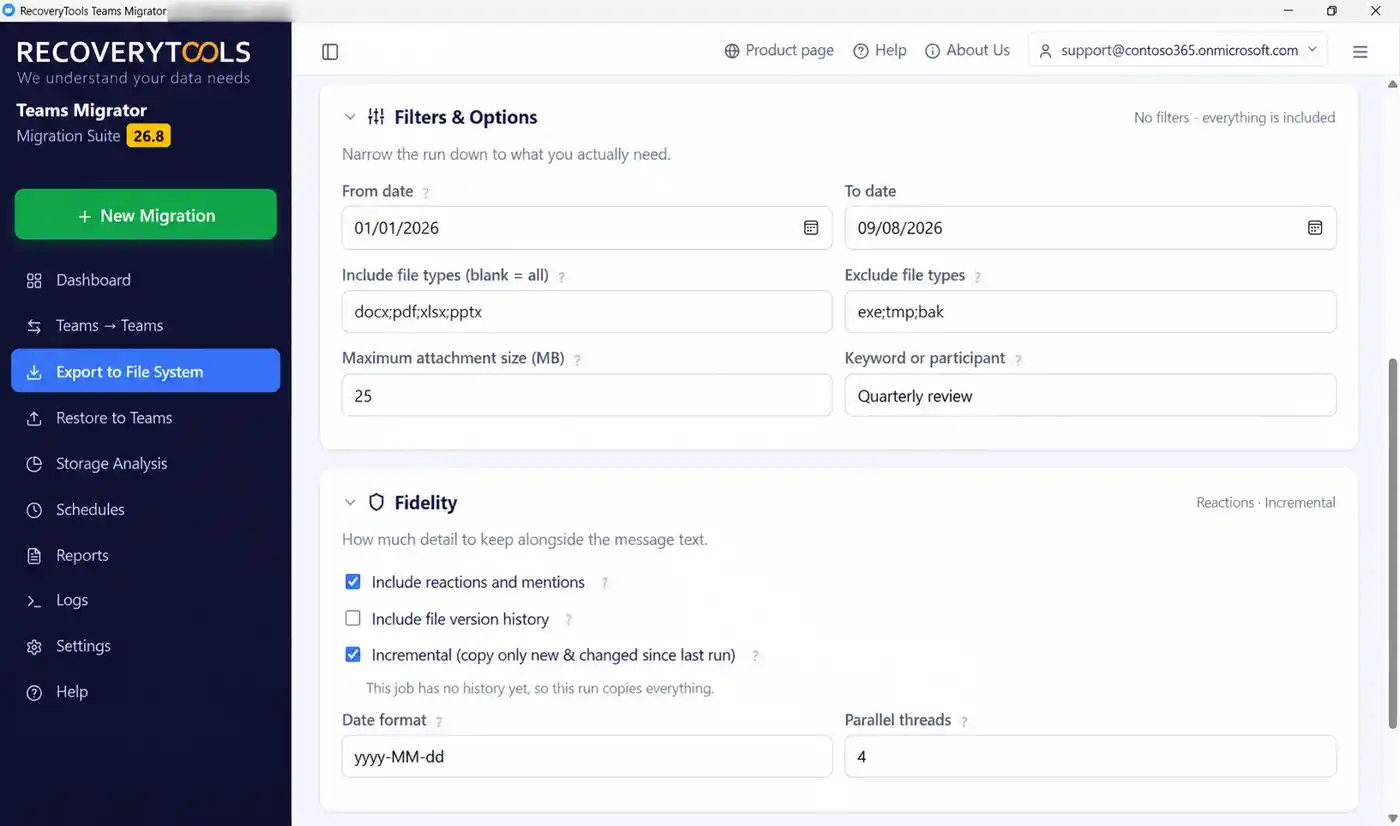
Filter panel takes a date range, file types to include or exclude, a maximum attachment size and a keyword or participant. Underneath, the Fidelity panel decides how much of the conversation survives: reactions and mentions, file version history and incremental, so a second run moves only what is new. Data fidelity is the whole argument here, since a thread stripped of its context is not worth moving.
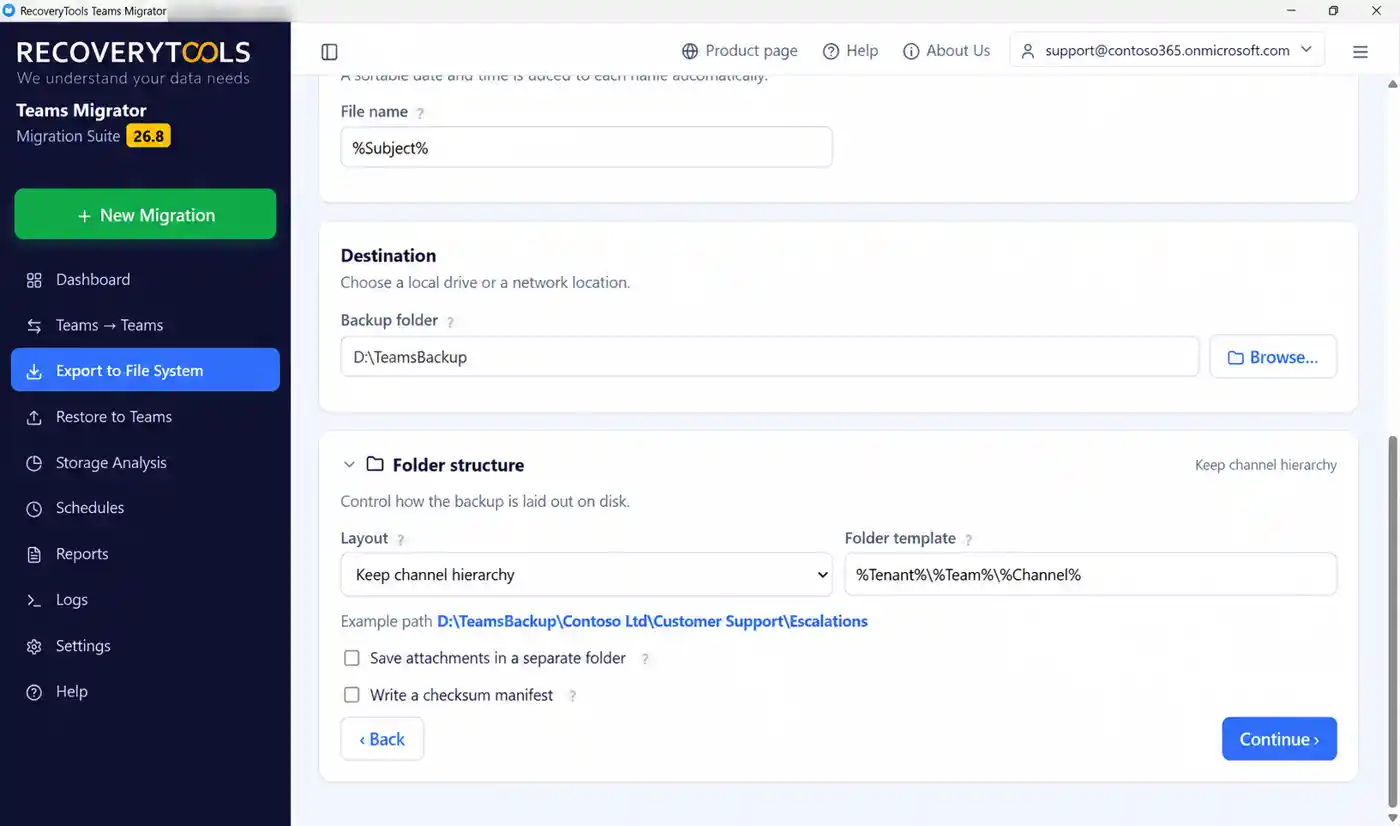
Where content lands on disk is a template rather than a fixed shape. Keep channel hierarchy is the default, and the folder template spells out the pattern with the example path updating as you type. Attachments can sit in their own folder, and a checksum manifest can be written alongside.
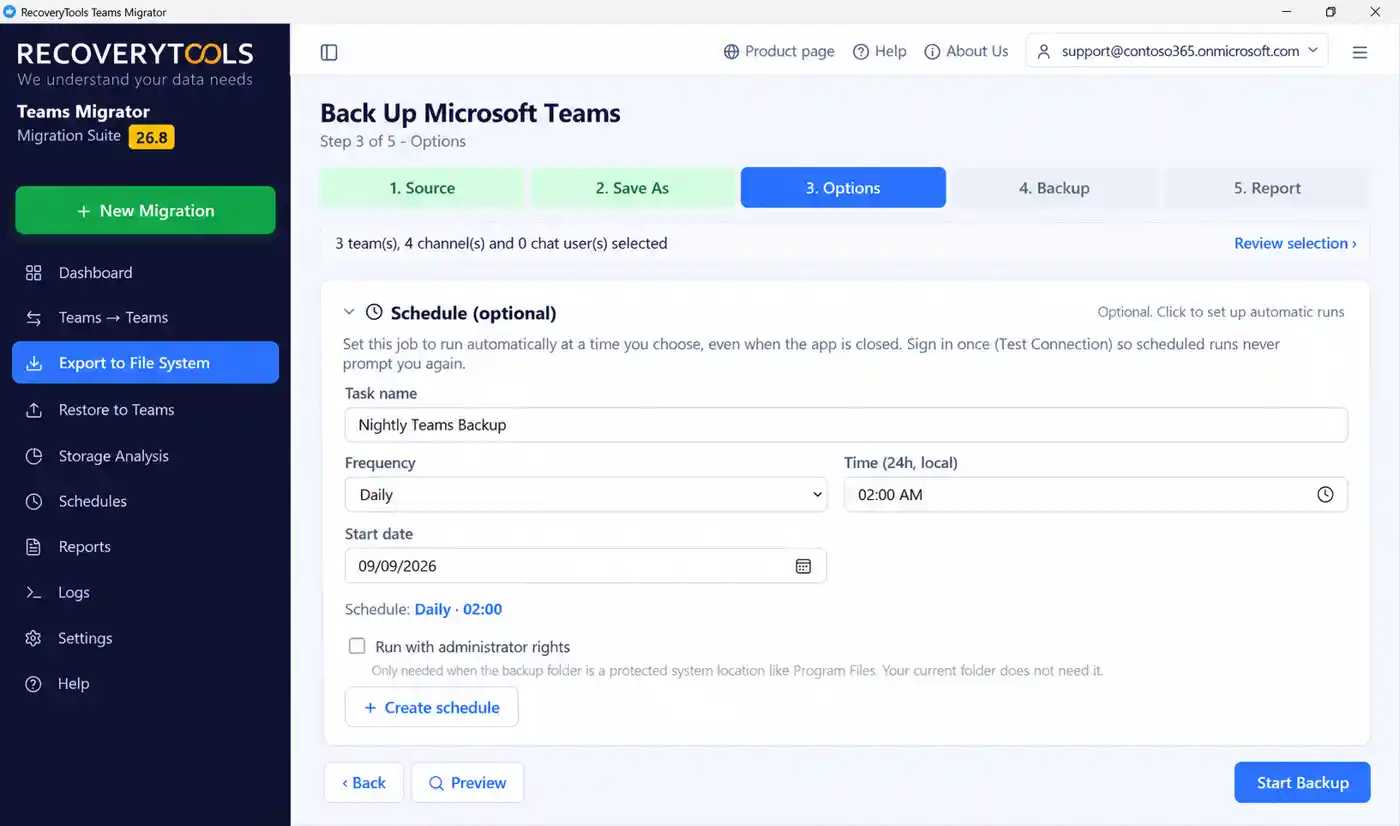
Preview reads back what the current settings have actually selected before a single message moves. That is the moment to catch a filter that was doing more than you thought. When it looks right, either start it or name a task and let it run daily at an hour of your choosing with Teams Migrator closed.
What Arrives On The Other Side
Moving the words is the easy part. Data integrity is everything else, and it decides whether the conversation arrives intact or merely arrives.
Meeting recordings and transcripts are their own switch and are off by default. They are usually the largest content of all, and Microsoft bills per minute to retrieve them, so leave that box clear unless you know you need them.
Where A Teams Move Usually Goes Wrong
Copying is rarely the problem. It is the wrong author, the duplicate second pass and the run nobody was watching. Doing it by hand is slow, and a script is only as safe as whoever maintains it.
The Microsoft Teams migration tool starts in validate-only mode until you switch it off. Its dry run shows the connection between source and destination teams, listing every channel with no match, so a typo is caught before any message is posted.
Source is opened read-only and never written to, so people keep working through business hours while a run happens. Nothing is locked, nothing is moved and there is no disruption to plan around.
Run it once during the week and again at cutover. The delta pass moves all newly arrived data in the source teams. Only newly added items are migrated, and anything already across is counted separately, without the fear of duplicate items.
Date filters, file types, attachment size, keyword or participant. It fully supports granular migration, so a five year channel becomes one quarter, and thousands of messages into the ones that still matter.
Set how many items move at once for simultaneous migration of multiple Teams site data. Microsoft 365 throttling is what slows a large estate down, so raising thread count is how you speed up a run when the service allows it.
Once, daily, weekly or monthly at an hour you choose. It runs with Teams Migrator closed, which is how a delta pass happens the night before cutover with nobody watching it. Progress is written to the log so you can monitor it after the fact.
Interrupted runs continue from where they stopped, and transient errors like a dropped connection or throttling are retried on their own. The one thing to know: a completed channel import cannot be undone, which is exactly why validation runs first.
Export detailed and summary report from one pass. A current status report while it runs, then a final summary and detailed report carrying the count of channel messages, files and channels plus the time consumed for the completion. It is the audit record months later.
Automatic mapping of Teams sites matches people by sign-in address. Where they differ, manually map sites between the source and target, or use the option to import CSV file, so each message posts under its right author.
Four Jobs, One Sidebar
Teams to Teams migration, export to disk, put a backup back into Teams, and a read-only look at what your team sites are using. One licence covers all four.
What You Get To Control
Tick a team and every channel underneath it comes along with its settings.
Or tick one channel out of forty, when only one project is actually moving.
Pick the people whose one to one and group conversations should come across.
Messages, files, tabs, members, recordings and three kinds of chat, each its own switch.
Every message lands under the person who wrote it, dated when they wrote it.
Kept alongside, because they carry as much meaning as the text does.
Separate tick, since carrying every draft costs time you may not want to spend.
Client secret or certificate lets scheduled runs work with nobody there to approve a prompt.
Whole interface and its help switch language live, including the panel text.
Total, moved, already done, skipped and failed, updating while the run works.
Settings restated at the top, then each item as it goes, so nothing looks frozen.
HTML report and plain-text log land in your Documents folder, and failed items are copied out for review.
Options step restates how many teams, channels and chat users are selected.
Six Steps From Install To Cutover
Microsoft Teams migration in six steps, using the guided five-step wizard every job shares. Treat the first channel as a dry run, every time. Planning and pre-migration best practices matter more here than tool choice.
Prerequisites for the Microsoft Teams migration tool are short: any Windows 10 or 11 machine, outbound access to Microsoft 365 through your firewall, and an admin account that can reach both sides. There is no PowerShell to write and no script to maintain, so the manual work and the risk that comes with it both go. It is agentless: nothing is deployed into Microsoft 365 and nothing is left running there afterwards. Install, connect and press Test connection. Sign in as yourself, or open Advanced sign-in and pick admin access across the organisation when the move covers other people.
Run Discover teams and tick what moves, then select specific teams. Whole teams, single channels or a short list found through the search box. Filter options narrow it further, and messages posted in multiple Teams channels come across in one pass. Add the chat users separately when migrating Microsoft Teams personal chat, preserving the complete message history where the API allows it.
Eight switches decide what actually travels, from an announcement down to inline images and special characters. Leave recordings and transcripts off unless you need them, since they are usually the heaviest content of all.
Cut the date range down if the whole history is not needed, then decide on reactions, mentions and file version history. Message formatting, importance and anything marked urgent follow the message body either way. Incremental stays ticked so a second pass is cheap.
Destination team and channel have to exist already, so create them first. The validation run then lists anything whose name has no match. Fix those, migrate a single channel and look at it in Teams before going further.
Start the full run, or schedule it overnight. On cutover day run it once more with incremental on, so only what changed since then has to move.
Exporting And Re-posting Yourself
You can pull the conversations out and put them back without a Teams migration tool. Manual methods and PowerShell scripts do arrive at the words. Almost nothing attached to them does.
What to settle before a single channel moves. Which teams are actually in scope, how identities get matched and what to confirm at the far end before anyone is told the move is done.
PDF · no email required
Before You Install
What Admins Ask Before They Run It
Yes, and it is the reason the tool exists. A message posted by a colleague in 2023 arrives at the destination attributed to that colleague, keeping created and last modified time as 2023, including messages and their replies and all types of formatting, rather than to whoever ran the job, dated today. Without that it becomes a list of text nobody can search properly, because the first thing anyone looks for in a thread is who said it and when.
That is the primary job of this Microsoft Teams migration tool: migrating Microsoft Teams data between Microsoft 365 accounts, directly migrating the entire data from one Teams account to another. Sign in at source, discover teams, create mapping between source and destination, then press Start migration. It runs without the need for sophisticated scripting or coding skills. Whole teams or individual channels, with the chats of named users alongside when private conversations are in scope. A migration project usually starts for one of four reasons: an acquisition, a divestiture or separation, a consolidation of two organisations into one, or an internal reorganisation that moves channels between teams. A rebrand is the fifth.
Reactions, emojis, GIFs and mentions are a fidelity option, switched on by default, since an emoji was frequently the only approval anyone gave and a mention explains how a person ended up in the thread. Migrate files and attachments as their own content part, which keeps the file folder structure and maintains a perfect folder and site hierarchy with created and last modified time, and land in whatever format they started in, with no conversion step. Version history on those files is a separate tick for libraries where old drafts still count.
Yes, granular migration is the normal case, and you can migrate single as well as bulk teams and channels. Discovery lists every channel under every team, each ticked on its own, so migrating one Teams channel to another team is possible while the rest stays put. Narrow it further with date filters, a file type rule or an attachment size cap, or by naming somebody who took part when a single thread is all that matters.
Team members and member permissions are a content part of their own, so team membership travels rather than being rebuilt by hand. Files sitting on the team site behind a channel are a SharePoint job, and the SharePoint Migration Tool in the same installer covers those. Support for Teams guest permission is the exception, since guest accounts stay with whoever invited them. Guests are a different matter, since a guest account belongs to the organisation that invited it. There is a switch to exclude guest accounts from chat selection, and whoever owns the far end re-invites the ones it still needs.
Not necessarily. A non-technical operator can run the Microsoft Teams migration tool from its user-friendly interface. Migrate Teams data in bulk with an admin account, or as yourself for your own data. It is worth saying how the sign-in stays secure. It secures authorization with Office 365 via OAuth 2.0, through an app registration in Azure Active Directory, now Entra ID, with the API permissions consented once. It supports multi-factor authentication. MFA and conditional access still apply exactly as your policy sets them. It does not collect any user credentials, which will never be compromised or stored, and all data remains encrypted on the machine. Signing in as yourself covers your own data. Once other people's teams and chats are in scope, the Advanced sign-in panel offers organisation-wide administrator access instead. If your security team would rather not use our application, that same panel accepts an Azure app registration of your own. Writing into Teams needs the Teamwork.Migrate.All permission granted on the destination, so the access required is named rather than vague. Content travels straight across and is never held by us, which is usually the privacy line a GDPR questionnaire is actually asking about.
For any Microsoft Teams migration the item count decides it far more than total size, because Microsoft 365 throttles per request rather than per gigabyte. Batch migration and bulk migration of multiple teams run simultaneously up to whatever thread count you set. Parallel threads is the lever for pushing harder on a quiet weekend. Scheduling turns the job into a task that fires at an hour you pick while nobody is at the machine, which is how most projects handle the delta pass the night before cutover.
Yes, and most Microsoft Teams migration projects do exactly that. Incremental migration only migrates the data items that are not present at the destination, so if an item is available in both source and destination it is counted rather than sent twice. Retry failed items migrates those items that were not migrated, and re-run full migration picks up items that may have been skipped. It is what makes the usual pattern viable: a long run during the week, then a short catch-up at cutover.
99 US dollars per machine, per year, with 30 days money back. The demo version, or trial version, is the same build with a volume cap. 24x7 free tech support is included, and technical support, live chat and customer service come with both. One Microsoft Teams migration tool licence covers all four jobs in the installer rather than being sold per user or per gigabyte, so a forty user move and a four thousand user move cost alike. Trial caps each channel and each chat at 25 items and unlocks everything else. That is usually the cheapest way to run a one-off project, since per-seat tools bill for every account whether or not their content moves. Trial unlocks every option and caps only the volume, which is enough to send a real channel across and check the names and dates that landed.
Not yet, and the reason sits with Microsoft rather than with this Teams migration tool. The Microsoft Graph API chat import route is still in beta. Microsoft Graph API limitations apply to all third-party Teams migration tools, so private 1:1 chat migration is blocked for every vendor, so no tool can write one-to-one (1:1) chat conversations, private group chats or channel chats into another organisation today. Chat titles and threaded conversations survive the capture to disk even so. Private chat migration is blocked at the platform level for everyone. What this does do is capture all three kinds of chat to disk, per user, with the sender and the send time intact, so the record exists and is ready for the day that API opens. Channel messages migrate between organisations now.
Yes, all three types are handled, standard as well as private and shared, and it preserves the original channel structure, which is worth checking against whatever else you are evaluating, because shared channels in particular are where several tools stop and skip. Automatically create Teams and channels at the destination first, or let the wizard do it, then let the validation pass tell you which names have no match.
Yes. Alongside the usual browser sign-in there is app-only access using either a client secret or a certificate, with the client ID from your own app registration. The certificate option does not expire, which is the one to pick for a schedule you intend to leave alone. If creating the app registration yourself sounds like a chore, one click during a single admin sign-in creates it, sets its permissions and issues a secret for you.
Parts people worry about are handled by design rather than by care. The Microsoft Teams migration tool opens sources read-only, so nothing in the organisation you are reading from is modified at any point, which keeps data integrity intact on the side you cannot afford to break. Every write is preceded by a validation run. Client secrets are encrypted for the Windows account that stored them and are never written to disk in the clear, and it makes no registry writes of its own. What remains is the one irreversible step, a completed channel import, which is why validation is on until you turn it off.
Each Microsoft Teams migration run writes its results to your Documents folder in two forms, one to read and one to search, and both stay there for the next time somebody asks. It shows the status and type of the migrated items, listing every message and file as succeeded, already migrated, skipped or failed, so you can check the status of each migrated item. A comprehensive text-based log report summarizes the migrated items and their count. View log opens it as text, and you can save in CSV format, which simplifies the verification of the migration and lets you verify the migrated items from each folder. A failure carries the reason with it rather than an error code. Anything that failed is copied out to a Desktop folder so you can look at the actual items instead of hunting through a log. That is the audit trail for the project file.
Our engineers can look at both sides with you and tell you honestly what will come across, what will not and which parts need doing by hand whichever tool you buy.
Ten minutes with the Microsoft Teams migration tool tells you more than any feature list. Look at what landed and check names and dates on them.
Teams Migrator walkthrough · add the video file here