
What does not migrate in Microsoft Teams comes down to eight gaps: chats written back, guests, videos, cross posts, federated content, data behind tabs, recordings and files on private channel sites. Most are Microsoft limits, not tool faults. List them before cutover and give every item a plan.
The first call I get after a Teams cutover is never about what moved. It is about what is missing. A chat thread, a guest, a tab that opens an empty page.
This guide lists what does not migrate in Microsoft Teams, why every gap exists and what to do about it. If you still need the move itself, read how to migrate Microsoft Teams to another tenant first.
What does not migrate in Microsoft Teams?
Eight items need a plan. Most channel content moves well: posts, replies, authors, dates, reactions, mentions, files and members. The gaps are the parts Microsoft does not let tools write, or parts that live outside Teams.
Microsoft's own import rules set the edges. They cover messages in standard, private and shared channels, and they leave out videos, cross posts and links generated by SharePoint. Content from another tenant cannot be imported at all. The rest of the gap list comes from where Teams keeps its data.

Every Teams migration has a gap list. The projects that go well are the ones where the owners saw that list before cutover, not after.
Jamie Kaler Marketing Head and Content Strategist, RecoveryTools
How do you find the gaps before a Teams migration?
Do this audit before you touch a migration tool. It takes a few hours and saves a week of cleanup.
- List the scope. Write down every team and channel that will move, with its owner.
- Mark the channel types. Standard channels share the team site. Private and shared channels have their own SharePoint sites, so their files need a separate check.
- List the guests. Note every guest in every team, and who invited them.
- List the tabs and apps. Open every channel and write down the tabs. Planner, Forms, Whiteboard, Loop and website tabs all point at data that lives somewhere else.
- Find the recordings. Channel meeting recordings sit on the channel's Files tab in SharePoint. Other recordings sit in the organizer's OneDrive Recordings folder.
- Choose one verb per item. Migrate, rebuild, export or drop. Do not leave an item without a verb.
- Save the chats. Capture the chats you need to disk before cutover, per user, so the record exists.
- Tell the owners. Send every team owner their own gap list and a date, so nobody finds out on cutover day.
If you can only do one step, do step 4. Tabs hide the most surprises, because a tab looks migrated when it is only a shortcut.
Why does every gap stay behind and what do you do?
The table gives the reason and the fix for every item. I use it as the cutover checklist.
| Item | Why it stays behind | What to do |
|---|---|---|
| 1:1, group and meeting chats | Microsoft's chat import calls are still in the beta reference | Save them to disk per user, with sender and time, and keep the record |
| Guests | A guest account belongs to the tenant that invited it | Re-invite the guests you still need |
| Videos and cross posts | Outside the scope of Microsoft's import | Re-share the video link and post again where it matters |
| Federated content | Imported content must come from the tenant you signed in to | Ask the other tenant to share it again |
| Links generated by SharePoint | Outside the scope of Microsoft's import | Check links in key posts and fix them by hand |
| Data behind tabs | Planner, Forms, Whiteboard and Loop keep data in other services | Re-add the tab, then plan that service on its own |
| Meeting recordings | Large files kept in OneDrive or SharePoint | Move them as a separate job, or leave them off |
| Private and shared channel files | Every channel has its own SharePoint site | Check these sites by hand after the move |
Why do Teams chats not move?
Because Microsoft has not finished the door. Microsoft's import page lists 1:1 and group chat messages in scope, but the chat calls still point to the beta reference. RecoveryTools says this blocks every vendor, so no tool writes private chats into another tenant today.
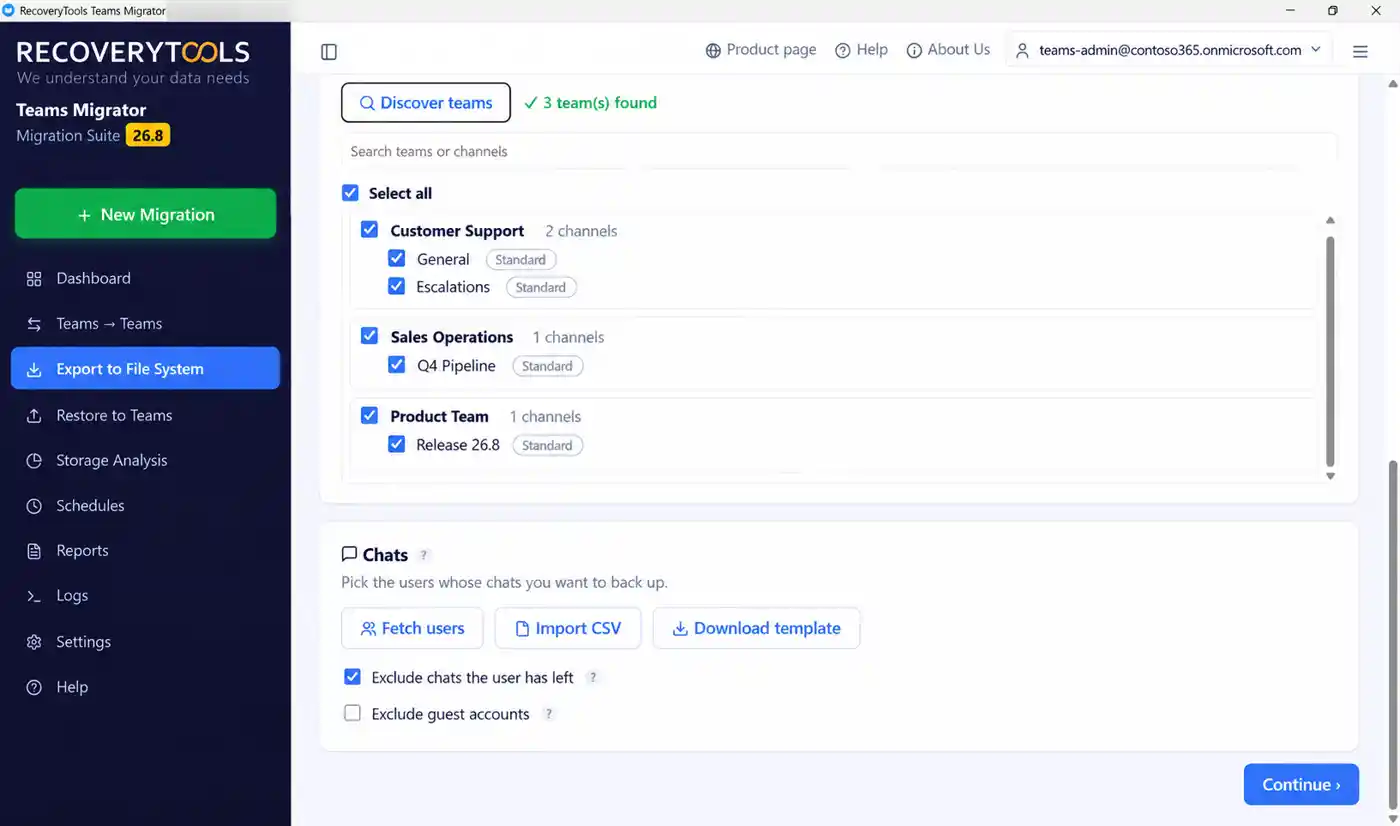
What a tool can do is capture the chats. RecoveryTools Teams Migrator saves 1:1, group and meeting chats to disk, per user, with the sender and send time intact. The record exists and can be loaded when Microsoft opens the route. Channel messages migrate between tenants now.
Where do channel files and recordings live?
Not in Teams. Microsoft says all standard channels in a team share one SharePoint site, while every private channel and every shared channel has its own site. Only the channel members can open it. A migration that moves the team site can miss these channel sites, so check them by hand.
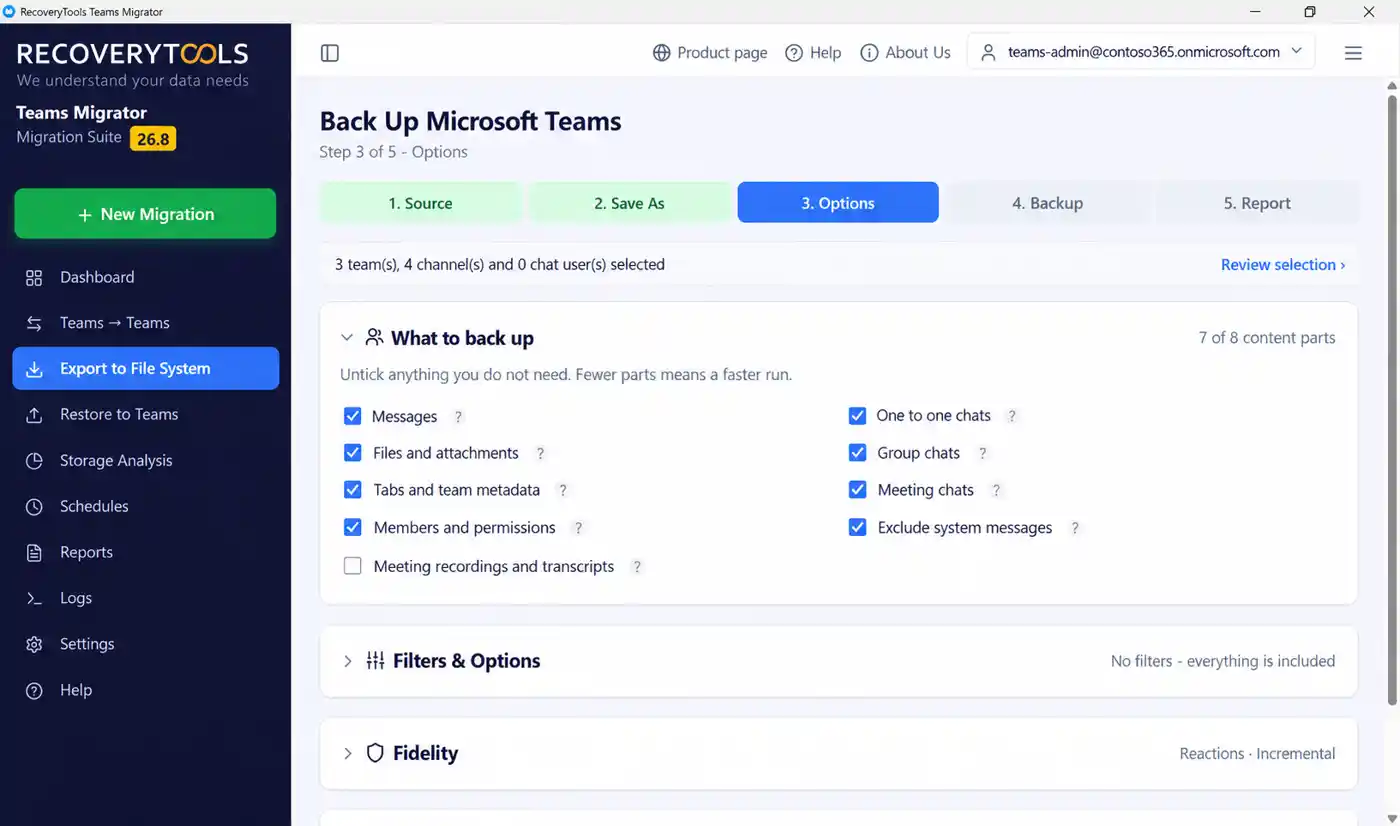
Recordings follow a similar split. Channel meeting recordings are stored in the channel's SharePoint site, on the Files tab. Other meeting recordings go to the organizer's OneDrive, in the Recordings folder. They are the largest files in most teams, so Teams Migrator keeps recordings and transcripts off by default.
For the file side of a Teams move, my guide on how to migrate a SharePoint site to another tenant covers the site job.
Plan for the gaps before you move
RecoveryTools Teams Migrator copies entire teams or single channels between Microsoft 365 tenants. Messages keep their author and date, and reactions, mentions, files, tabs and members come along. Chats are saved to disk, not written back, and guests stay with the tenant that invited them. A completed channel import cannot be undone, so validate first.
The trial unlocks every option and caps volume at 25 items per channel. Works on Windows 11, 10 and Windows Server.
Which mistakes hurt most after a Teams migration?
Five mistakes show up in almost every post move review.
First, trusting a tab because it appears in the new channel. It may open an empty page. Second, forgetting guests, who simply lose access. Third, missing the files on private and shared channel sites. Fourth, promising users that chats will arrive. Fifth, switching off the old tenant too early. Keep the source in place, read only, until every owner has signed off on their team.
My verdict on Teams gaps
Write down what does not migrate in Microsoft Teams first and share it early.
Most gaps are limits that every tool shares, so a calm list does more good than a promise of a perfect copy. Give every item one verb, save the chats and tell the owners what to rebuild. Teams moves go quietly when nobody is surprised.
Frequently asked questions
What does not migrate in Microsoft Teams?
Chats are saved to disk, not written back. Guests, videos, cross posts, federated content and data behind tabs stay behind. Files on private and shared channel sites and recordings need their own checks.
Do Teams chats migrate to another tenant?
Not today. Microsoft's chat import calls are still in the beta reference. RecoveryTools Teams Migrator saves chats to disk per user with the sender and time instead.
What happens to guests in a Teams migration?
They do not move. A guest account belongs to the tenant that invited it, so the new owners re-invite the guests they still need.
Do Teams tabs move to the new tenant?
The tab shell can arrive with the team, but the data behind it often lives in another service. Re-add the tab and check what it opens.
Where are Teams meeting recordings stored?
Channel meeting recordings are stored in the channel's SharePoint site, on the Files tab. Other recordings go to the organizer's OneDrive, in the Recordings folder.
Can a finished Teams migration be undone?
Not a finished channel import. Microsoft says to delete the team, create it again and re-migrate. Test one channel before you move the rest.
Jamie blends strategic marketing insight with technical writing, turning migration and recovery topics into guidance that works for technical and general readers alike.
Published 13 October 2026. Rules and storage details come from Microsoft Learn and Support pages on importing external messages to Teams, Teams and SharePoint integration and Teams meeting recordings.