
To migrate Microsoft Teams to another tenant, plan the scope, create matching teams at the destination, map users and move channels with a tool that keeps authors and dates. Validate on one channel first. Chats and guests do not move the same way, and a finished channel import cannot be undone.
I hear this request after a merger, a spin-off or a rebrand. Two tenants become one, or one splits in two, and the teams must follow the people. Everyone assumes there is a button. There is not.
A Teams move touches the chat service, a SharePoint site and your user directory at once. This guide shows what moves, what does not and the order that keeps the history readable.
Can you migrate Microsoft Teams to another tenant?
Yes, but not with one copy button. Microsoft lists Teams in its tenant to tenant planning and says Teams content depends on Exchange mailboxes, so mailboxes should move before or alongside Teams. For the messages themselves, Microsoft gives tools a migration mode in Microsoft Graph that lets them import past messages with the original author and date.
That is why a plain copy fails. Posted by hand, every message shows the person who pasted it, dated today. Nobody can tell who decided what.

A Teams move is not a file copy. A copied document is still that document. A copied conversation is only worth moving if it keeps who said what and when.
Jamie Kaler Marketing Head and Content Strategist, RecoveryTools
How do you migrate Microsoft Teams to another tenant step by step?
Use this order. Steps 1 to 3 prepare both sides. Steps 4 to 8 move the data and check it.
- Plan the scope. List every team, its channels and its owners. Drop dead teams and agree a date after which nobody posts in the old tenant.
- Prepare the destination. Create the users in Microsoft Entra ID first, then create matching teams and channels. Standard, private and shared channels all need to exist before messages arrive.
- Grant the access. Sign in to both tenants. Writing into Teams needs the Teamwork.Migrate.All application permission on the destination, with admin consent.
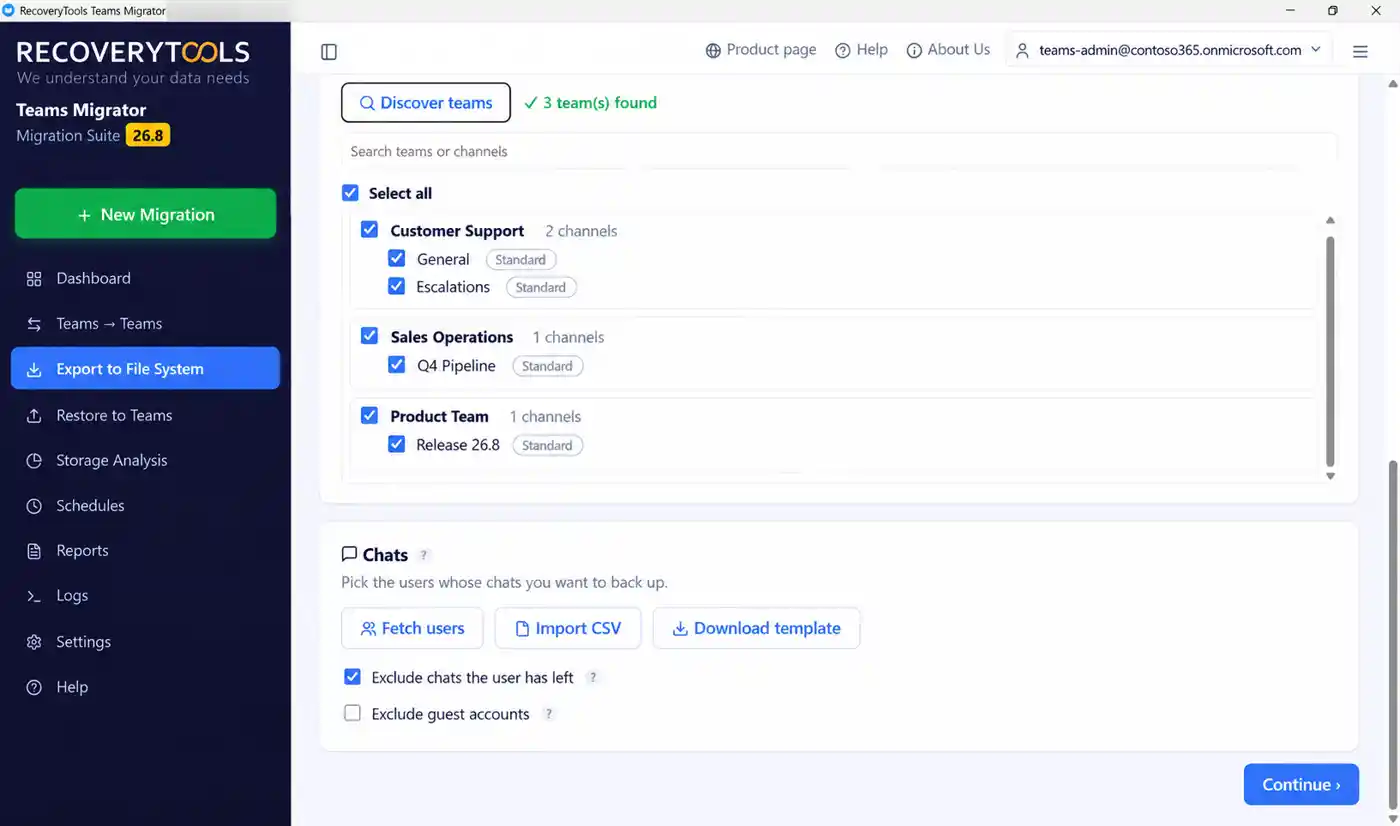
- Discover teams and select channels. Choose entire teams or single channels. Narrow the list with date, file type, size or keyword filters if you only need part of the history.
- Map the users. Match people by sign-in address. Where addresses differ, map them by hand or import a CSV file, so every message lands under the right author.
- Choose what moves. Select messages, files, tabs, members and permissions. Keep reactions and mentions on. Leave recordings off unless you need them.
- Validate, then migrate one channel. A validation pass lists names with no match. Move a single channel and open it in Teams before you go further.
- Start the full migration, then add a delta pass. Move the bulk during the week. On cutover day move only the new items, so nothing is copied twice.
If a step fails on permissions, the account probably lacks admin consent for the application. Ask a Global Administrator at the destination to grant it.
What moves when you migrate Microsoft Teams between tenants?
Most of a team, but not all of it. The table follows Microsoft's import rules and the way I see tools handle every part.
| Item | Does it move? | What to know |
|---|---|---|
| Channel posts and replies | Yes | Author and original date are kept through Microsoft's migration mode |
| Reactions and mentions | Yes | Microsoft's import allows up to 250 reactions on a message |
| Files in a channel | Yes, as a SharePoint job | Files sit on the team site. Messages only hold links to them |
| Inline images | Yes | The only media type the import schema supports |
| Videos and cross posts | No | Out of scope in Microsoft's import |
| Members and permissions | Yes, with mapping | People must exist in Microsoft Entra ID at the destination |
| Guests | No | A guest account belongs to the tenant that invited it |
| 1:1 and group chats | Saved to disk | Microsoft's chat import calls are still in the beta reference |
| Meeting recordings | Optional | Large files, so leave them off unless you need them |
Two limits come from Microsoft, not from any tool. Messages import at about five requests per second for every channel, so large estates take time. Federated content cannot be imported, because everything must come from the tenant you signed in to. For the full list of gaps, read what does not migrate in Microsoft Teams.
What does a manual Teams migration lose?
A manual move means you export conversations and post them again, or write your own scripts. The words arrive. Almost nothing attached to them does.
Authors and dates are the first loss, because the posting account becomes the author. Reactions and mentions go next. Files and messages become two separate projects, since files live on the SharePoint site behind the team. A second pass by hand copies everything again, and members must be rebuilt after the move. Scripts can fix some of this, but someone has to build and test them first.
The files behind a team are a SharePoint job, and my guide on how to migrate a SharePoint site to another tenant covers that side.
Moving Teams between tenants
RecoveryTools Teams Migrator copies entire teams or single channels between Microsoft 365 tenants. Messages keep their author and date, and reactions, mentions, files, tabs and members come along. Chats are saved to disk, not written back, and guests stay with the tenant that invited them. A completed channel import cannot be undone, so validate first.
The trial unlocks every option and caps volume at 25 items per channel. Works on Windows 11, 10 and Windows Server.
How do you plan a Teams tenant migration?
Treat the first channel as a test every time. Choose a small, low risk channel, move it and read it in Teams. Check names, dates, reactions and files before you commit to the rest.
Then agree the rules. Decide who owns every team at the destination, set a freeze date and schedule the delta pass for the night before cutover. Tell team owners which parts will not arrive, mainly chats and guests, so nobody is surprised on Monday. The Microsoft 365 migration planning checklist puts Teams on the same plan as mailboxes and files.
Which mistakes break a Teams migration?
Five mistakes cause most of the failed migrations I hear about.
First, starting before the destination teams and channels exist. Second, skipping the validation pass, so a typo in a channel name is found after messages are posted. Third, matching people by guesswork, which puts messages under the wrong author. Fourth, expecting guests and chats to arrive like channel posts. Fifth, forgetting that a finished channel import cannot be undone. Microsoft says the fix is to delete the team, create it again and re-migrate, so test first.
My verdict on moving Teams
Move channels with a tool that keeps authors and dates, test on one channel and plan the parts that will not move.
Most of the pain in a Teams migration comes from surprises, not from the copy itself. Settle the scope, the people and the cutover date early, and the move is quiet. Be honest with team owners about chats and guests, and they will trust the result.
Frequently asked questions
Can you migrate Microsoft Teams to another tenant?
Yes, with a migration tool. Microsoft has no single copy button for Teams. Tools use Microsoft Graph migration mode to import channel messages with the original author and date.
Do messages keep the original author and date?
They can. Microsoft's migration mode lets a tool set the original author and time on every message. A manual re-post cannot, so the posting account becomes the author.
Can you migrate Teams chats between tenants?
RecoveryTools Teams Migrator saves 1:1, group and meeting chats to disk with the sender and time. It does not write them back to the new tenant, because Microsoft's chat import calls are still in the beta reference.
Do private and shared channels move?
Yes. Standard, private and shared channels are all handled. Create the teams and channels at the destination first, then let a validation pass show any names with no match.
What happens to guests and members?
Members and their roles can move once people are mapped to destination accounts. Guests do not, because a guest account belongs to the tenant that invited it. Re-invite the ones you still need.
Can a Teams migration be undone?
Not a finished channel import. Microsoft says to delete the team, create it again and re-migrate the messages. Validate and test one channel first.
Jamie blends strategic marketing insight with technical writing, turning migration and recovery topics into guidance that works for technical and general readers alike.
Published 13 October 2026. Limits and steps come from Microsoft Learn pages on importing external messages to Teams and Microsoft 365 tenant to tenant migrations.