RecoveryTools · Secure read-only SharePoint storage analyzer for IT administrators
SharePoint Storage Analysis Tool
See where your SharePoint storage went. Scan one site or across every site collection for storage usage metrics per site and per file, and find the cold data worth archiving.
Read-only throughout, with no write path anywhere, and it never puts a site into read-only mode
Scan one site, or tick a box and scan every site collection you can reach
You set the cold threshold yourself, and four windows are offered
See total data, cold data and the share that is reclaimable in four figures
Where the space is by age, split across five bands with size and file count
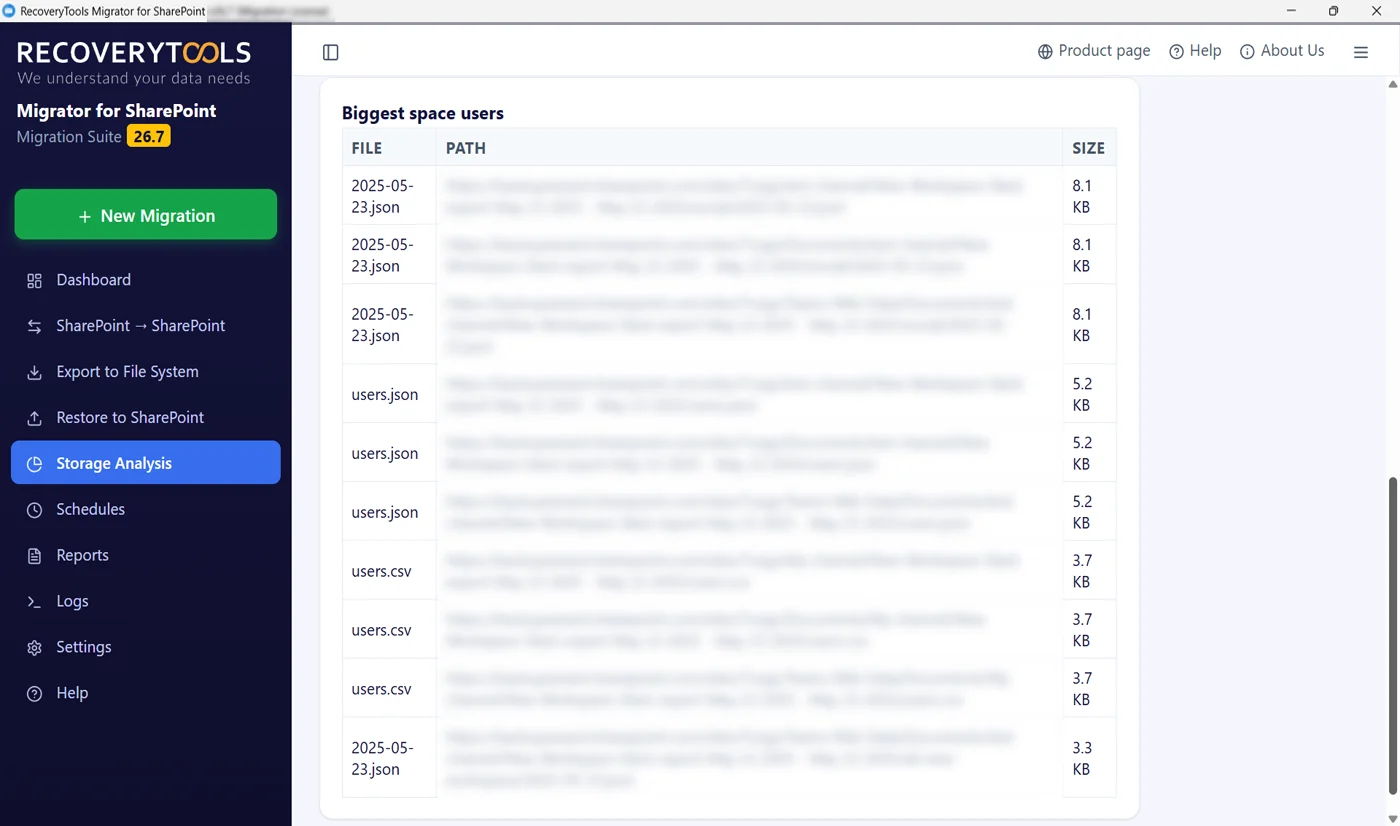
A biggest space users table naming each large file with its full path and file size
Run it before you buy more storage, so the capacity planning decision is informed
Built for the week the storage warning arrives and nobody knows why
No PowerShell scripts, no spreadsheets to build and nothing to install on the server
Support And Licensing At A Glance
OAuth 2.0Modern authentication
Windows 11and Server 2022
30-day refundMoney-back guarantee
24×7 supportSharePoint engineers
See Where Your SharePoint Storage Went
Safest Job In The Installer
Most tools ask you to trust them before they show you anything. This SharePoint storage analysis tool shows you first, with no scripting required and your data stays untouched.
Scan Only Reads
Scanning reads. It does not write, move, tidy or clean up after itself, and there is no option buried in a menu that changes that. You can run it against production in the middle of a working day and the only thing that happens is you learn something.
You Define Cold
Nobody outside your organisation knows how long a file should sit untouched before it stops earning its space. So the tool does not decide. Pick 90 days, 180 days, a year or two years. Every figure on the result recalculates around your answer.
One Site Or Every Site
Paste a single site URL when you are checking one team, or leave it blank, tick the box and let it walk every site you have. The full sweep takes longer, which the screen tells you before you start rather than after.
Storage quota warnings arrive with deadlines, and a storage add-on is the fastest way out. Ten minutes of reading first turns that into a decision.
Trusted by Microsoft Certified Partners
Microsoft® Certified Partners Rely On Our Tools
SharePoint administrators, enterprise IT teams and consultants who hold Microsoft Partner status open with this scan in the assessment phase, when a client asks why the storage bill keeps climbing across organizations and infrastructure of any size, before it becomes a quota crisis. Read-only, so it runs in front of them on call one.
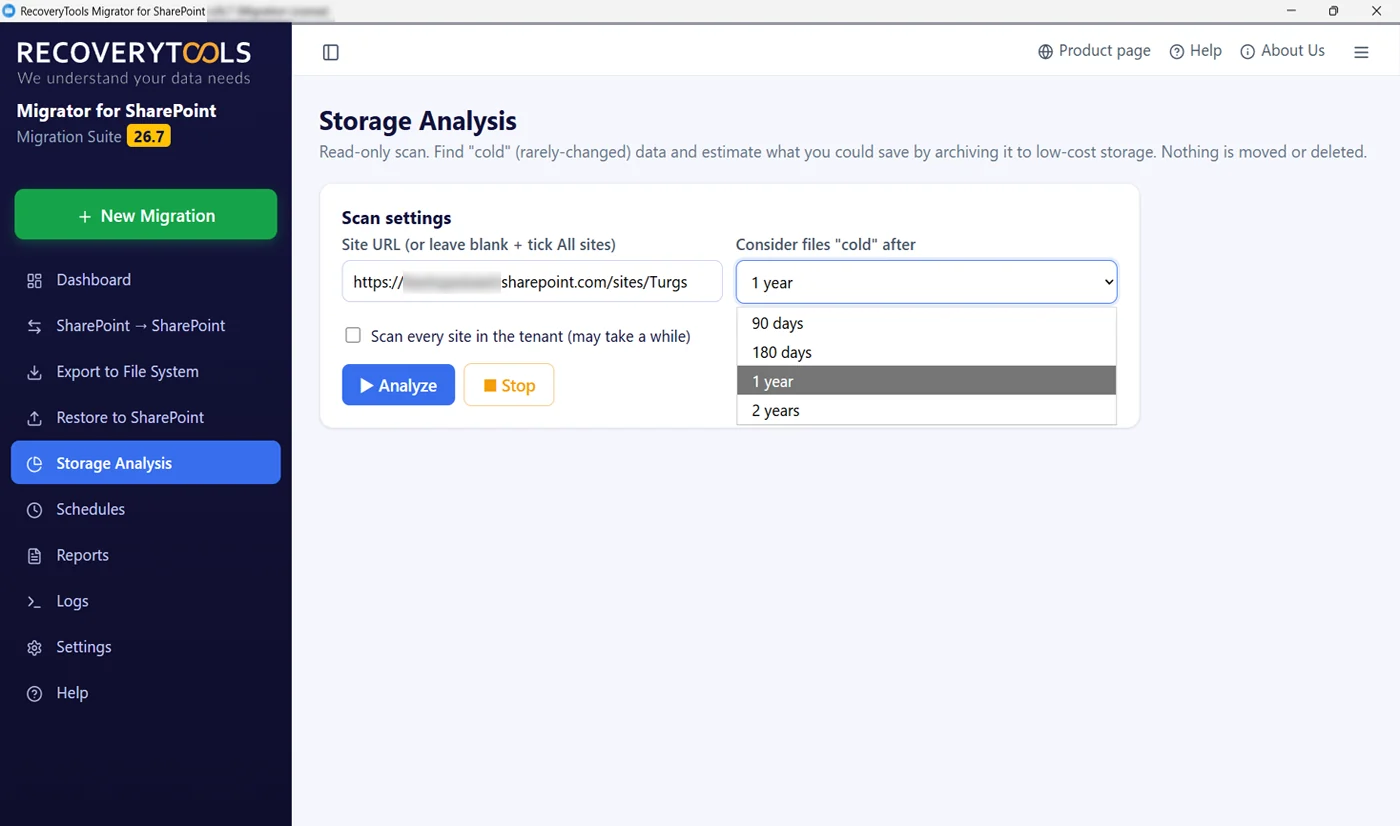
There is no wizard here and no sequence of screens to work through. One card holds everything: where to look and what counts as cold. Paste a site URL, or leave it blank and tick the box to walk every site. Then choose the threshold from the dropdown and press Analyze.
A single site URL, or every site you can reach
Cold threshold of 90 days, 180 days, 1 year or 2 years
One year is the default, which suits most estates
Stop sits next to Analyze and works at any point
Watch The Scan Read Each Site
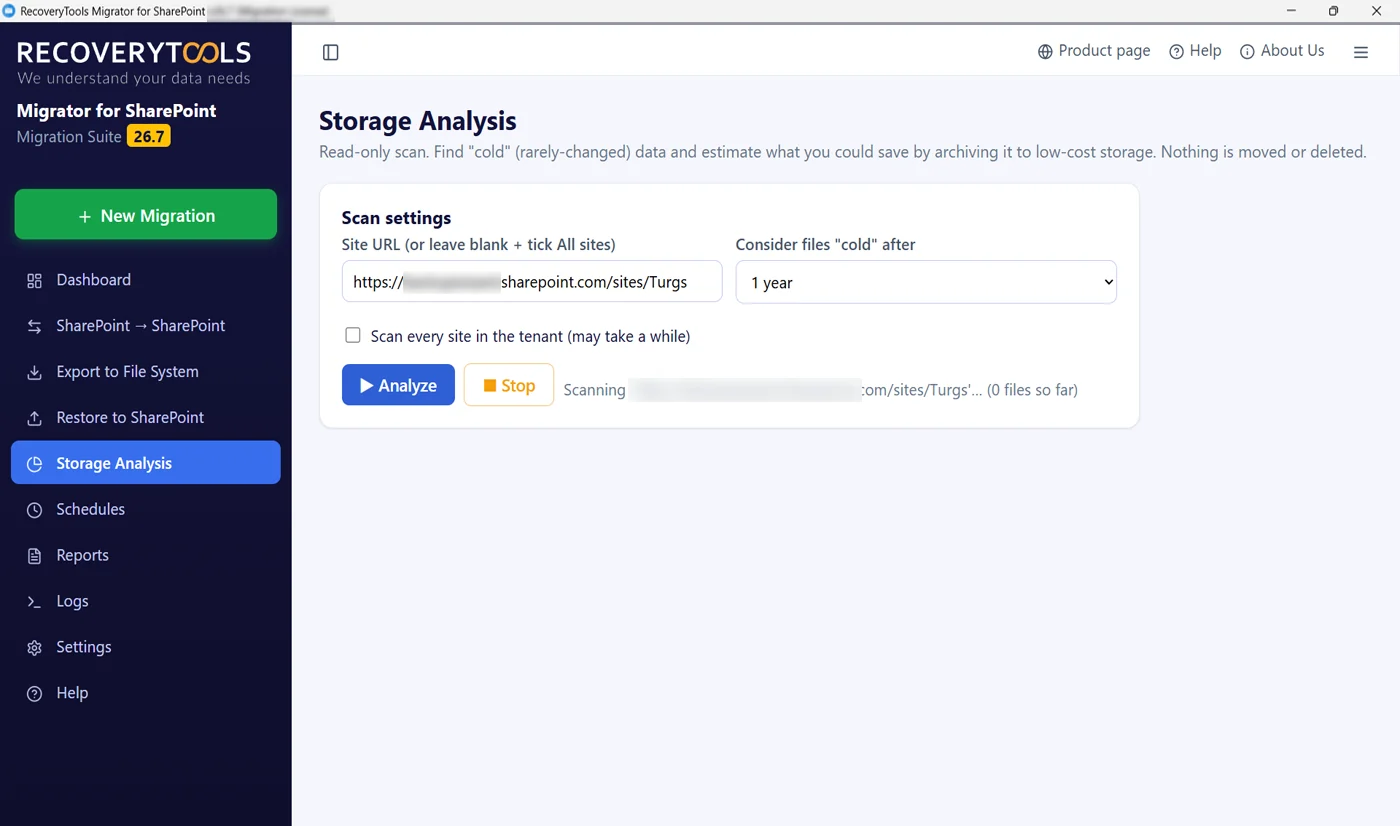
Running File Count While It Scans
Status line sits beside the buttons and names the site it is reading, with a file count that climbs as it goes. On a full sweep this is how you know it is still working rather than stuck. Nothing is being written anywhere while this runs.
The site currently being read, named in full
A live file count so progress is visible from the first second
Stop halts it cleanly with nothing left behind
Safe to run during working hours against production
Four SharePoint Online Storage Numbers
Total Data, Cold Data, Reclaimable Share
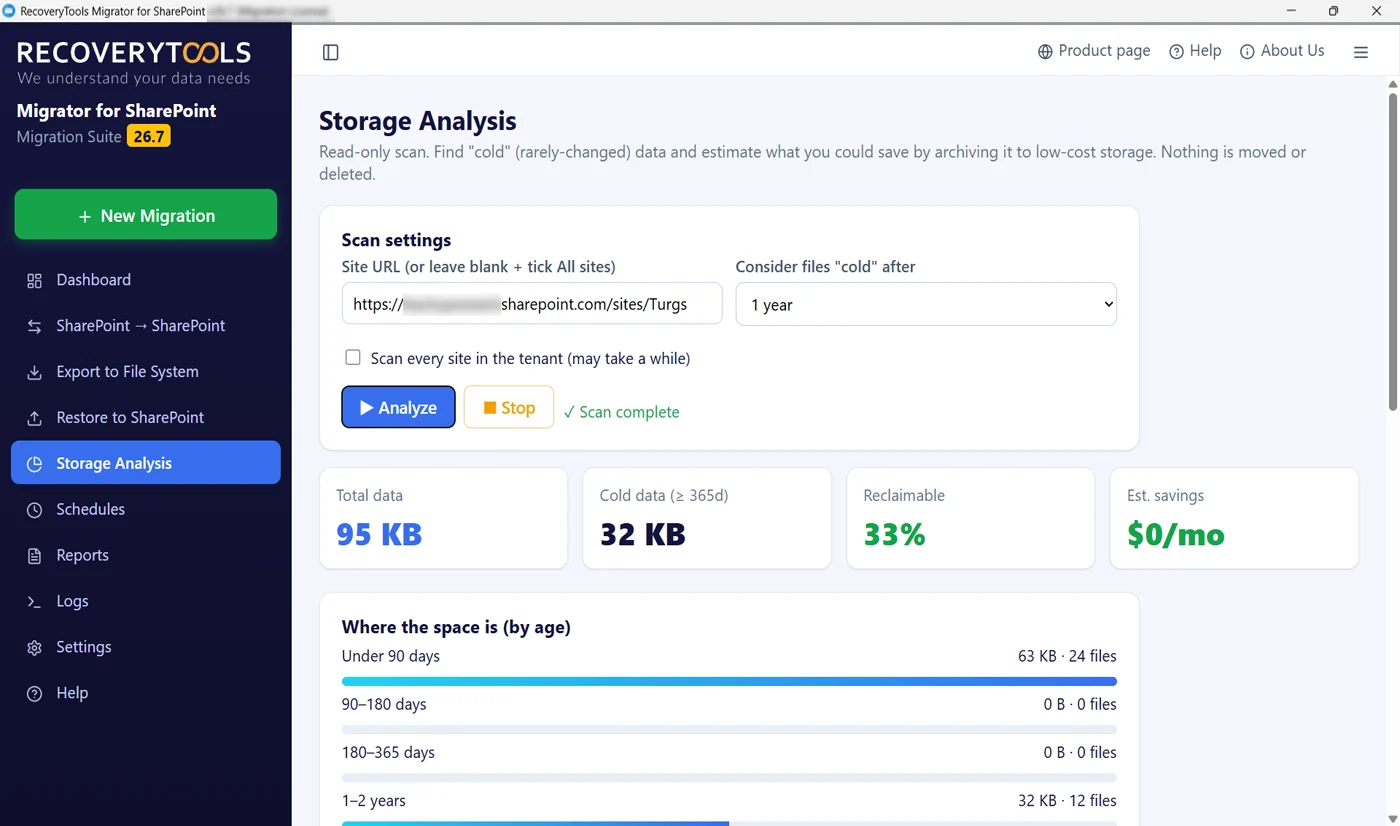
Scanning ends with four tiles across the top. How much data there is in total. How much of it meets your cold threshold. What share of the whole that represents. And an estimate of what it would be worth to move that cold portion onto cheaper storage.
Total data, so the argument starts from a real figure
Cold data measured against the threshold you chose
Reclaimable shown as a share, which is what management asks for
An estimated monthly saving derived from the two
See Where The Site Storage Went
Five Storage Age Bands, Sized And Counted
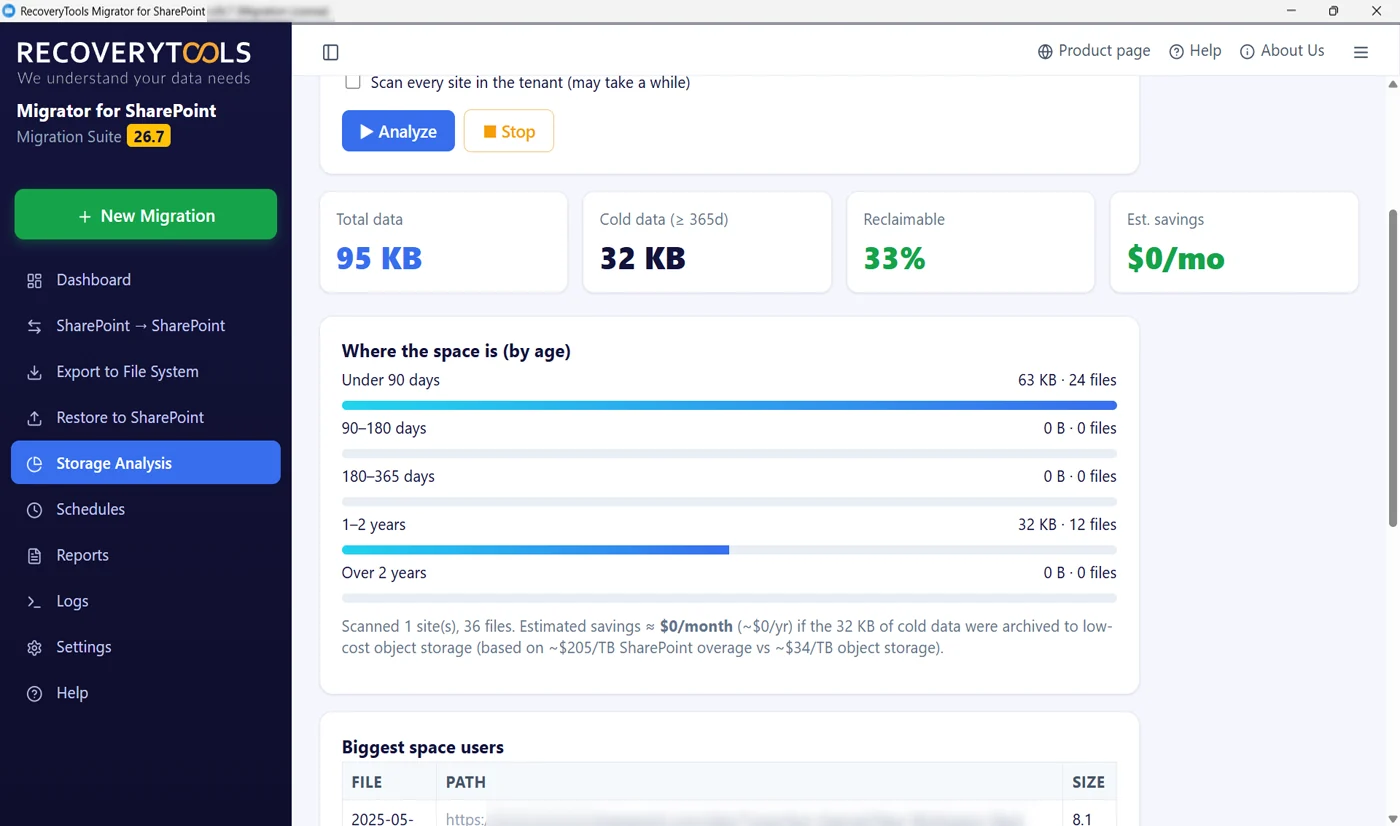
Under the tiles the estate is split by age into five bands, from under 90 days through to over two years. Each band shows its size, its file count and a bar you can read at a glance. This is the part that usually surprises people, because the shape is rarely what anyone expected.
Under 90 days, 90 to 180, 180 to 365, 1 to 2 years, over 2 years
Size and file count on every band, not just a bar
A closing line confirming the scope that was covered
The saving estimate restated in monthly and yearly terms
Name The Biggest Files
Table Of Biggest Site Files
Percentages start conversations. File names end them. The last panel lists the biggest space users individually, each with its full path and its size, so you can go and look at the actual thing rather than argue about an average.
Every row names the file, its full path and its size
Sorted so the heaviest items sit at the top
The path tells you which library and folder to open
Enough detail to hand to the team that owns the site
SharePoint Site Storage Usage Report And Metrics
What The Scan Gives You
Twelve SharePoint storage metrics come out of a single pass, and comprehensive reporting is what the site storage usage report is built from. Four are the headline, eight are what prove it.
Total dataWhole figure first, so percentages that follow have something real behind it
Cold dataHow much sits above the threshold you picked, measured rather than estimated
Reclaimable shareCold portion as a percentage of the whole, which is the number that gets quoted upward
Estimated savingWhat the cold portion would be worth on cheaper storage, per month and per year
Five age bandsFrom the last quarter through to everything older than two years
File countsEvery band carries a count as well as a size, because a thousand small files is a different problem
Visual weightBars on each band, so estate shape reads in about two seconds
Sites scannedClosing line confirms the scope that was actually covered
Biggest filesHeaviest individual items in a table rather than another average
Full pathsEach row carries the complete path, so you know which library to open
Repeatable in secondsTwo settings on one screen, so re-running it next quarter costs nothing
Zero footprintNothing written, nothing moved, nothing to undo afterwards
It measures age and size on a SharePoint site. It will not judge what still matters, will not find duplicates, will not flag orphaned or abandoned sites and does not cover OneDrive. Version history and recycle bins consume the storage quota but are not broken out.
SharePoint Storage Management And Governance
Why This One Gets Run First
SharePoint storage management, storage governance and capacity governance usually start here. Of the four jobs in the installer this is the one people try on day one, because it is the only one that cannot go wrong.
SharePoint Storage Analysis Is Read-Only
Fear of what it might change is why SharePoint storage analysis never gets run. There is no write path in this job, it cannot modify a thing, so the worst case is that you learn something you did not want to know.
Your Cold Threshold, Not Ours
Change the dropdown and run it again. What counts as stale in one department is barely settled in another, so it refuses to pick for you. Four windows, one click, same figures recalculated.
Across Every Site Collection In One Pass
One tick box turns single-site checks into a full sweep across every site collection. Useful when the storage warning covers the whole organisation, storage fills up and nobody knows which department is running out of storage.
Stop The Scan At Any Point
Full sweeps of large estates take a while. Stop stays live throughout and leaves nothing behind, because there was nothing to leave behind. Restart later and the per-site status line picks up where you left it.
Inactive Content Age Brackets
Average file age hides everything interesting. Inactive content age brackets, from under 30 days to 365+ days, show whether the weight sits in last quarter or in stale project files nobody has touched since 2023.
No Agent In SharePoint, Read-Only And Secure
One Windows machine, one installer. Nothing deployed into SharePoint, nothing left running, no credentials stored and nothing extra for your security review to worry about. Your data stays untouched and storage utilization only ever gets read.
Oversized Files Named, Not Categorised
It surfaces the largest files and tells you which folders are the biggest offenders, named with full paths and file sizes. That turns storage meetings into a list of cleanup targets.
One Storage Number To Take Upward
Reclaimable as a percentage survives being repeated in meetings you are not in. It is how you build a business case for archiving or expanding storage, in one number finance teams accept.
Same Software As The Other Jobs
SharePoint Storage Analysis sits on the same sidebar as every other job in the installer, shares the same reporting and needs no separate licence. Documentation, setup guide and EULA come with the download.
Site Storage Usage Report You Can Send
Every run writes a SharePoint site storage report as HTML, an export to CSV and a plain-text log. The CSV is the one people use, because the file paths paste straight into a spreadsheet for whoever owns that department.
Trusted For SharePoint Storage Analysis
One Engine Behind All Four
Four jobs on one sidebar, one scheduler, one report format. It costs nothing to try, which is why it usually gets opened first.
SharePoint Storage Analysis Tool Capabilities And Reporting
What You Get To Control
One Site
One URL is enough when only one department is under the spotlight.
Every Site At Once
Leave the URL blank and tick the box, then every site gets walked in one pass.
Set The Cold Threshold
Ninety days, one hundred and eighty, a year or two years, chosen before you start.
Stop The Scan Any Time
Long passes can be halted mid-flight, and there is nothing to clean up after.
Four Headline Storage Figures
Total, cold, reclaimable share and an estimated saving, all on one row.
Five Storage Age Bands
Size and file count on each, so the shape of the estate is obvious at a glance.
Biggest Files By Size
Named files with full paths, so you know which site collection to open first.
Scan Count Stated
Number of sites and files actually read, printed under the age bands.
Whole Storage Result On One Screen
Tiles, age bands and the file table all land under the settings you just used.
Live Scan Status
Site being read plus a climbing file count, so a long pass never looks frozen.
Verbose Error Reporting
Anything the scan could not read is listed with the reason beside it, so a permissions gap on one site does not silently skew the totals.
Sites And Files Counted
Sites and files read are printed with the result, so the figures are never floating.
How Do I Get A SharePoint Storage Report
Six Steps From Install To An Answer
Analyzing SharePoint storage usage on a single site takes minutes, and one scan tells you more than a month of guessing. The order below gets you a defensible number rather than an interesting chart.
Install The Software
Installation of the SharePoint storage analysis tool runs on any Windows machine and needs nothing on the server side. Open Storage Analysis from the sidebar and you are already on the only screen this job has.
Pick One Site Or Every Site Collection
Start with one site rather than every site collection at once. Single sites finish quickly and tell you whether your answer looks as expected before committing to a longer pass.
Choose Your Cold Threshold
Decide what cold means before you see any numbers, not after. Picking a threshold to suit results you already want is how storage reviews lose credibility.
Run The Scan
Press Analyze and watch the SharePoint storage analyzer status line. Nothing to confirm, nothing to acknowledge and no warning screen, because nothing is at risk.
Find Inactive Or Old Files
Read the age split before headline tiles, because hundreds of gigabytes in files no one has opened is what you are hunting. If most weight sits in the oldest two bands you have a real case. If it sits under 90 days, extra space may genuinely be right.
Find The Largest Files In SharePoint
Open the biggest space users table and pull full paths for the oversized files. Those files are what you take to teams that own them, and that conversation goes very differently with a list in hand.
SharePoint Storage Limit Reached, Now What
Storage Metrics Report And PowerShell
Admin centre usage report answers neither of the two questions that matter: which sites, which libraries and which folders, and where the storage creep is coming from. Neither native route tells you how old any of it is, which decides whether archiving is worth doing.
Hitting a SharePoint storage limit, or the storage emergencies that follow, is why people go looking for a storage analyzer. Built-in SharePoint storage report and SharePoint site usage report are free, and both stop early.
Storage metrics and a script
Storage Analysis
Site Settings > Storage metrics gives a folder tree with storage totals at each level, per-library breakdown and per-folder detail, with no age behind it
Total, cold and reclaimable measured against a threshold you set, so you see which site collections are closest to their limits
Sites > Active sites and the Storage used column header give a ranking of sites by total storage, per-site storage summaries that stop at the site level, with a 24 to 48-hour lag
Five age bands with size and file count on every one
No file-level storage list of which specific files or libraries are heaviest without a PnP PowerShell script and care around the list view threshold
Biggest items in a table with their full paths, so you know exactly which files to address
Nothing that estimates what the situation is worth
Estimated monthly and yearly figures from the same pass, calculated automatically without any PowerShell scripts
Get-SPOSite requires scripting knowledge and someone has to maintain the script. Manually comparing monthly admin center exports is the alternative
One screen, two settings and a button
For occasional one-library checks that is fine, but whoever wrote the script is the only one who can run it
Anyone who can open a window can run it, not just the author
Rerunning it means finding the script, its prerequisites and the risk it will hit Microsoft 365 throttling limits
Two settings and a button, so running it again is trivial
Reading it wrong is easy and nobody checks
Read-only either way, so a mistake costs nothing but time
Free Resource
SharePoint Storage Review Checklist
What to work through when a quota warning lands and somebody wants an answer by Friday. Which figures to gather, and how to set a threshold you can defend afterwards.
How to choose a cold threshold you can justify afterwards
Questions to ask each site owner before anything is agreed
Which figure to lead with when you only get one slide
One SharePoint Online site, or every site you can reach
Mode
Read-only access, safe to run against production, cannot modify anything
Report
SharePoint storage reports as HTML and CSV plus a log, in your Documents folder
Authentication
Interactive OAuth 2.0, per account
Jobs
Four in one installer, this page covers the read-only storage scan
System Requirements
Operating system
Windows 11, 10 and Windows Server · 32-bit or 64-bit
Processor
Intel Core i3 or equivalent, 2 GHz+
Memory
4 GB RAM minimum, 8 GB recommended
Hard disk
500 MB disk space to install, plus room for logs
Runtime
.NET 8 Desktop Runtime and Edge WebView2
Languages
Ten, including the built-in help
SharePoint Storage Analysis Tool FAQs
What Admins Ask Before They Run It
QDoes the SharePoint storage analysis tool change anything in SharePoint?
A
No. Read-only access is all the SharePoint storage analysis tool asks for, and reading is the only thing it knows how to do. There is no tidy-up step, no quarantine folder and no menu option that quietly enables writing later. That matters because a storage review normally has to happen against live content in the middle of a working week, and most admins will not risk it. Here there is nothing to risk.
QHow does it decide what counts as cold?
A
You decide, before the SharePoint storage analyzer starts. A dropdown offers four windows, from three months out to two years, with one year selected by default, so the age brackets of 30, 90, 180 and 365+ days each have a threshold to measure against. Every figure in the result is calculated against whatever you picked, so finance estates and design estates reach completely different conclusions from one tool without either being wrong.
QCan I scan every site collection or only one?
A
Both. Paste a single site URL when the question is about one team or one document library, or run it across every site collection when identifying all the site collections is the job. Leave that field blank and tick the box marked to scan every site, and all of them get walked instead. The screen warns you that the full sweep takes a while, which is worth respecting on a large estate.
QWhat storage usage metrics does the report show?
A
SharePoint storage analysis returns three panels, stacked. A row of four headline figures: total storage used, cold data, reclaimable share and estimated saving. Then the storage breakdown by age, which is where most of the useful information sits. Then a site overview table of the largest files, largest first, each with site name, library name, last modified date and the full path that tells you which folder to open. You can read the first panel in five seconds and the third one is what you act on.
QHow is the estimated saving worked out?
A
It compares cost of holding cold data where it is against ordinary low-cost object storage, then shows that difference monthly and yearly. Treat it as an order of magnitude rather than an invoice. Your own contracted storage costs are what count, and the point is to reduce storage cost only where the numbers justify it, and the figure is there to tell you whether the gap is worth a conversation at all.
QHow long does a scan take across every site collection?
A
Item count decides it rather than total size, because SharePoint Online throttling is applied per request. Reduce storage waste on the sites that matter first. A single site is usually minutes. Across thousands of site collections a large estate can run for a long time, though nothing here needs anyone writing or maintaining a script, and status names whichever site it is on with a climbing file count, so you always know it is still moving. Stop stays live, and since nothing has been written there is nothing to tidy up afterwards.
QWill it tell me which large files to get rid of?
A
No, and be careful with anything that says it will. What it does is find inactive or old files and tell you which are a candidate for archiving. It measures age and file size per file, which it can see. What it hands you is archive candidates rather than a delete list. It cannot see whether a contract nobody has opened since 2022 is worthless or the single most important document you own. Two limits worth stating plainly: age here means when files last changed rather than when somebody last opened it, and the scan does not hunt for duplicates. It gives you the paths so you can ask the people who know.
QI already use Microsoft 365 Archive, so why am I still running out of storage space?
A
Because that feature changes what you are charged, not how much room you are using. Archived content moves to a cheaper tier but still counts against the same quota limits, so an account that was full before is full afterwards. A site that exceeds its warning quota stays there, and moving to read-only mode is still ahead of it. That is the limitation people run into: it solves a bill problem and leaves the headroom problem alone. Deleting or relocation frees quota and archiving does not, which is the whole of the archive versus delete question in one line. Expand storage only once you know which one applies. Knowing which problem you actually have is why the age split comes before any decision, and why inactive sites are usually where the real headroom hides.
QWhat does it cost?
A
Ninety-nine US dollars per machine, per year, with 30 days to change your mind. SharePoint Storage Analysis is not sold separately, so the licence that covers this covers the other three jobs on the sidebar as well. This is also the part you can judge properly before paying, because reading your own estate returns the same numbers whether the licence is active or not.
QWhy is my SharePoint storage used higher than what I can actually see?
A
Because several things consume the site quota without appearing in document libraries, and pooled storage capacity, 1 TB plus 10 GB per licensed user, is charged for all of them. That is what silently fills a quota over months. Version history is the usual culprit, since every copy of a document is charged separately and libraries keep up to 500 by default. It is what is actually taking up space inside each library. Deleted items sit in the first and second stage recycle bins for 93 days and are still counted as used storage the whole time, which is storage waste nobody sees. Anything held by retention policy lands in Preservation Hold and counts as well, even after users delete it. That gap between what people see and what quota says is why scanning is worth ten minutes before anyone reaches for a credit card.
QIs the SharePoint storage analyzer safe to run, and what does it store?
A
Sign-in to the SharePoint storage analysis tool is secure, interactive OAuth 2.0 against SharePoint Online through an Entra ID app registration you own in Azure, so your existing policy governs it and no credentials are kept on the machine afterwards. No service account is left behind for a security review to find. The figures stay on your screen and are never sent to us. Privacy is the default, not a setting. Since the job only reads, the worst case is a slow afternoon rather than a change you have to undo.
QWhat do I need before running it?
A
Prerequisites are a Windows 10 or 11 machine with the .NET 8 Desktop Runtime and the Edge WebView2 Runtime, 500 MB disk space, an account that can read the sites you want to look at and outbound access to SharePoint Online through your firewall. Read permission is the only one of the permissions it needs, and you register the app once in your own directory. It does not store your sign-in. Sign-in runs against an Entra app registration that belongs to you, with a one-time admin consent on its permissions. Global administrator is not required to read content, though a full sweep is easier with rights across every site.
QCan I save or share the storage report?
A
Yes, and this is usually the point of running it. Each SharePoint storage analysis pass writes a storage report in two forms, an HTML one to read and a CSV to sort and a plain-text log to search, all into your Documents folder, and the sidebar keeps a Reports page and a Logs page so you can open an old one again, which is how storage limits and quota crisis moments get compared across months, later. The CSV is what most people send on, because the named files and their full paths go straight into a spreadsheet and then to the site owners who have to act on them.
Still Have A Question?
Our engineers can look at a scan result with you and tell you honestly whether the shape of your estate makes a case worth pursuing, or whether more space really is the right answer.
Run The Storage Analysis Tool Before You Pay For More
Read-only, so the software costs nothing but ten minutes. If the cold data turns out worth moving, the SharePoint Backup Tool copies it out to storage you own, the SharePoint Migration Tool moves whole sites and the SharePoint Restore Tool puts a folder back. All three are in the same installer.