Skip to download
RecoveryTools

RecoveryTools · Secure SharePoint backup software for IT administrators

SharePoint Backup Tool

Back up SharePoint Online sites and subsites to local storage or a network drive you control. Documents, versions, permissions and metadata land on your own disk, on a schedule you set.

Download free trialWindows installer · 35 MB, downloads a Windows installer file, 35 megabytes

No credit card, no sign-up. Run a real backup tonight, open the folder tomorrow.

Screenshot of an export to file system

SharePoint Backup Tool For SharePoint Online: What It Does

Support And Licensing At A Glance

Shared Responsibility

Does Microsoft Back Up SharePoint Online?

Every question about SharePoint online backup solutions starts here, and it is why backing up is essential. The honest answer has three parts, and only one of them is the one people expect.

What Microsoft Backup Does Cover

Platform uptime and geo-redundant storage. A recycle bin holding deleted items for 93 days across both stages. Versioning on documents. Retention policies, legal hold and the Preservation Hold library for compliance. Microsoft also takes its own copies roughly every 12 hours and keeps them about 14 days, and sells a paid backup add-on separately on top of that.
Where Native SharePoint Retention Runs Out

Microsoft support can bring back whole site collections, not the single file an employee deleted, and they have to run it for you. Granular recovery does exist now, but only in a paid add-on billed per recoverable gigabyte every month. The recycle bins sit inside the very site they protect, so ransomware or a compromised administrator empties both. After 93 days the item is gone, and replication copies a deletion as faithfully as it copies a file.

What A SharePoint Backup Tool Adds

Your own copy on hardware you own, outside SharePoint, written as browsable folders and files you can open without a licence. Retention is whatever your disk allows rather than 93 days. Accidental deletion, human error, a malicious insider, a sync error that removed files nobody noticed, a departed employee whose licence lapsed and an organisation that no longer exists all stop being a data loss problem.

Both layers are worth having. Retention covers this morning. A copy you hold covers the month nobody noticed and the audit that asks for 2019.

Trusted by Microsoft Certified Partners

Microsoft® Certified Partners Rely On Our Tools

IT administrators, consultants and enterprise-grade IT teams who hold Microsoft Partner status run this SharePoint backup tool for organizations and businesses every night, department by department, so full data protection across departments and departmental documents never depends on one person remembering. Diversified data protection is what keeps business continuity and productivity intact. They keep coming back for reasons you will recognise: the backup lands where they expect it, and every run leaves the report they hand to the client.

Read partner stories

Inside The SharePoint Online Backup Tool

The Export Job, Screen By Screen

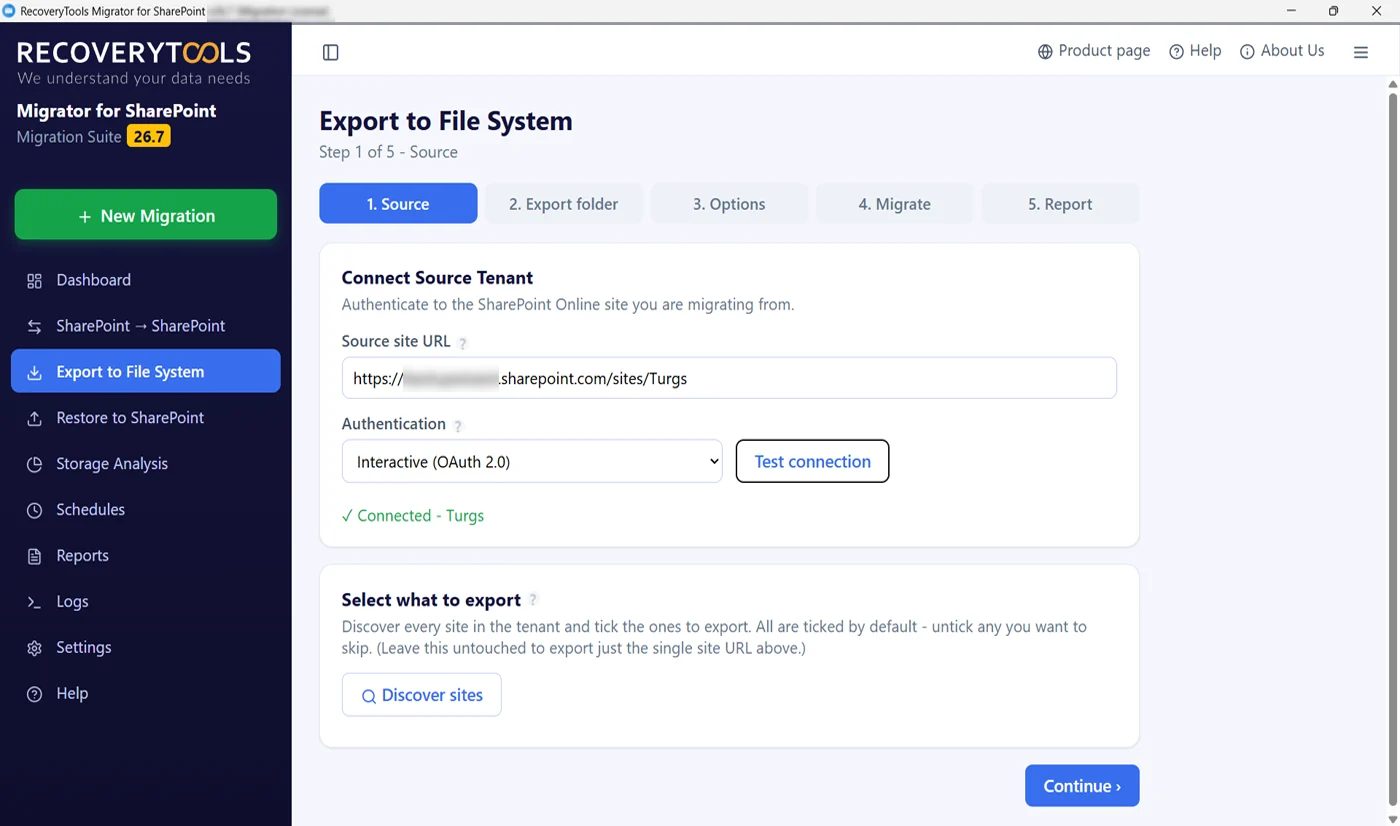
SharePoint Online backup source step with site discovery

Connect The SharePoint Source

One SharePoint Site Or Every Site, Signed In Once

Paste a SharePoint Online site URL and sign in with interactive OAuth 2.0. Test connection confirms SharePoint answers before you go any further. Discover sites pulls every site it can reach into a list where everything is ticked by default, so you untick what you want to leave out.

  • Interactive OAuth 2.0, so MFA and conditional access still apply
  • A Test connection button confirms the connection before you continue
  • Discover every site, then untick the ones you want to skip
  • Leave discovery alone to back up just the single site URL
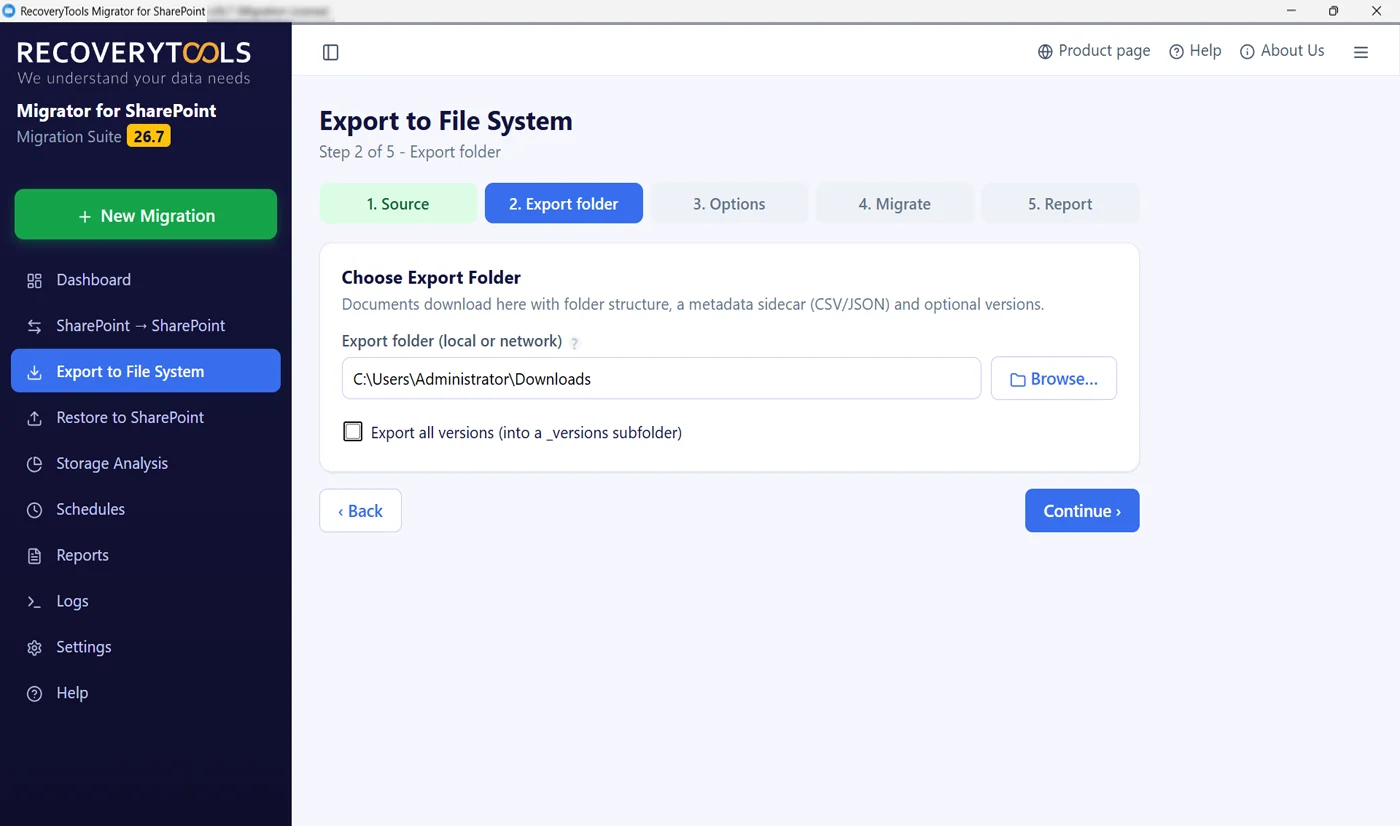
Choosing a local or network folder for the SharePoint backup

Choose Where The Backup Lands

Writes To Any Drive Or Network Share

Point it at any folder. Documents come down with the folder structure intact, alongside a metadata sidecar in CSV or JSON. Tick the versions box and every version is written into a _versions subfolder rather than flattened into the latest copy.

  • Local disk, external drive or UNC network path
  • Folder structure is rebuilt on disk, not dumped flat
  • Metadata travels beside the files as a CSV or JSON sidecar
  • Optional: write every version into a _versions subfolder
SharePoint backup filters for file type, versions and permissions

Backup Filters And Fidelity Controls

Decide What Content Is Backed Up, And At What Fidelity

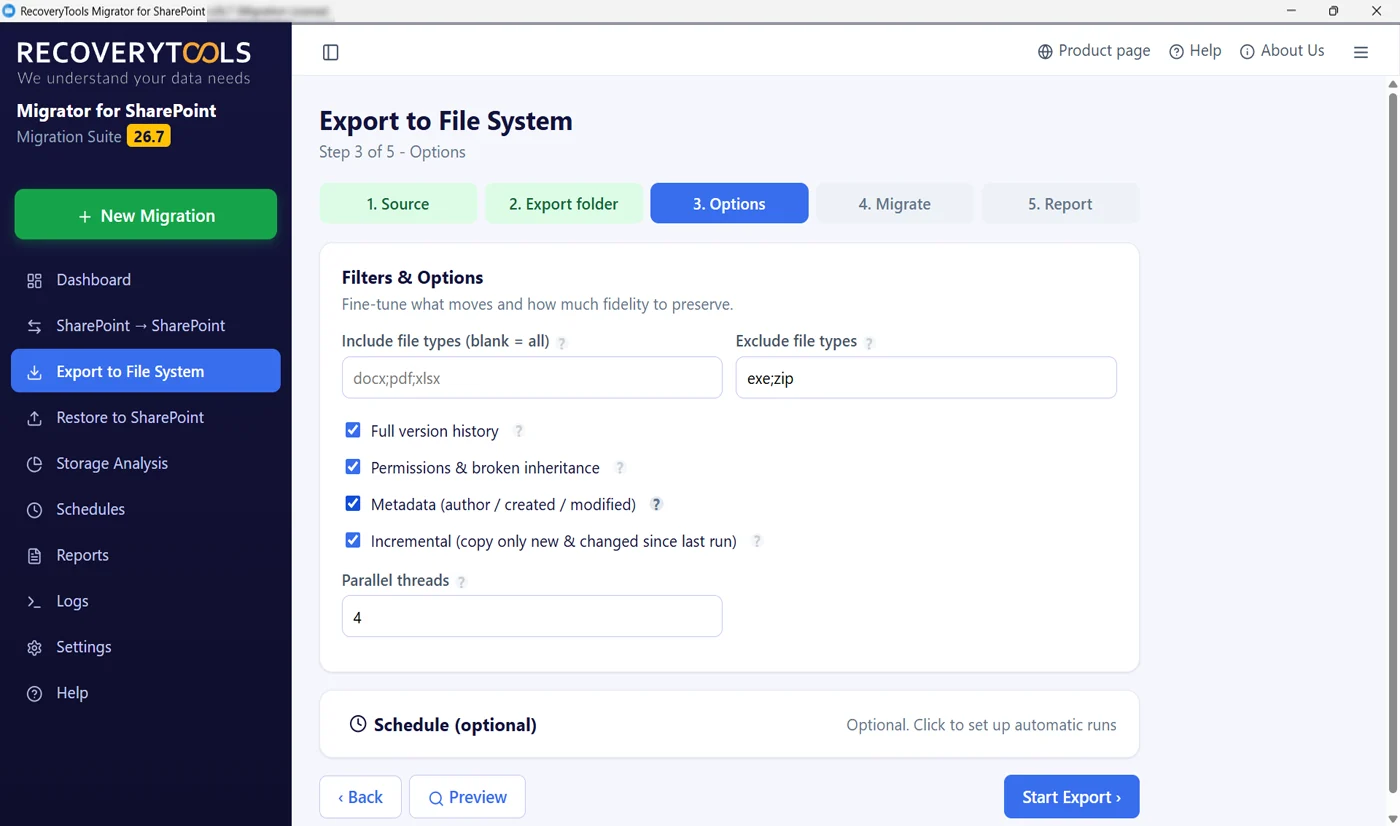
One screen holds every decision about fidelity and volume. Name the extensions you want or the ones you do not. Decide whether versions come down. Keep permissions as they are, broken inheritance included, and hold on to who created each file and when. Incremental is a checkbox here, not a separate mode.

  • Include or exclude file types, or leave both blank for everything
  • Full version history and permissions with broken inheritance
  • Author, created and modified dates preserved as recorded
  • Preview the selection before a single byte is written
Scheduled SharePoint backup panel with task name and frequency

Schedule It And Walk Away

Nightly Or Weekly SharePoint Backups, App Closed

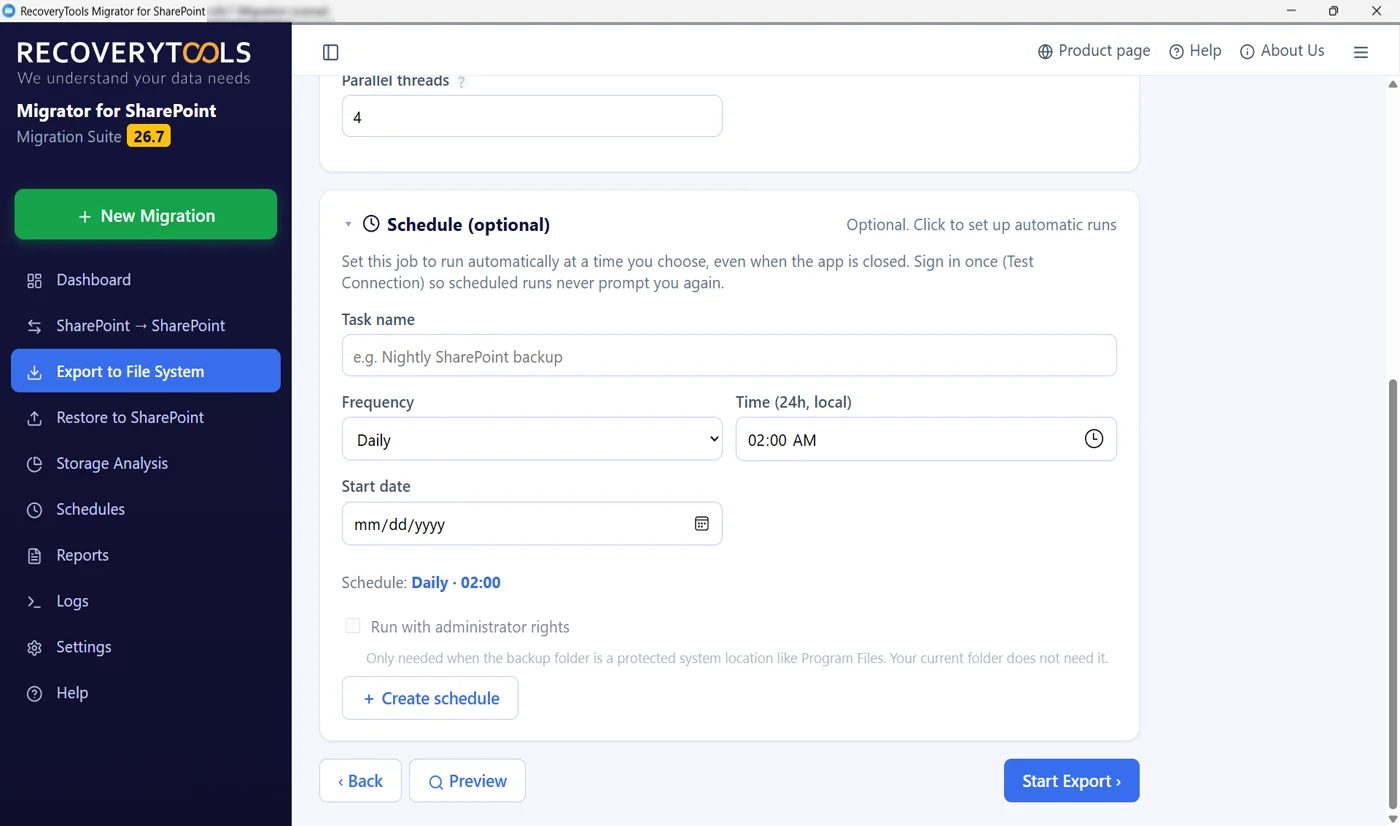
Backup only counts if it happens without you. Name the task, pick daily or another frequency, set the hour and the start date. The job runs at that time whether or not the app is open. Sign in once through Test connection and scheduled runs stop asking again.

  • Daily or recurring runs at the hour you choose
  • Runs with the application closed, not just minimised
  • One sign-in covers the scheduled runs that follow
  • Administrator rights only if the folder is a protected location
SharePoint backup running with live counters and a log

Watch The Backup Run

Live Backup Counters, Every File Named As It Copies

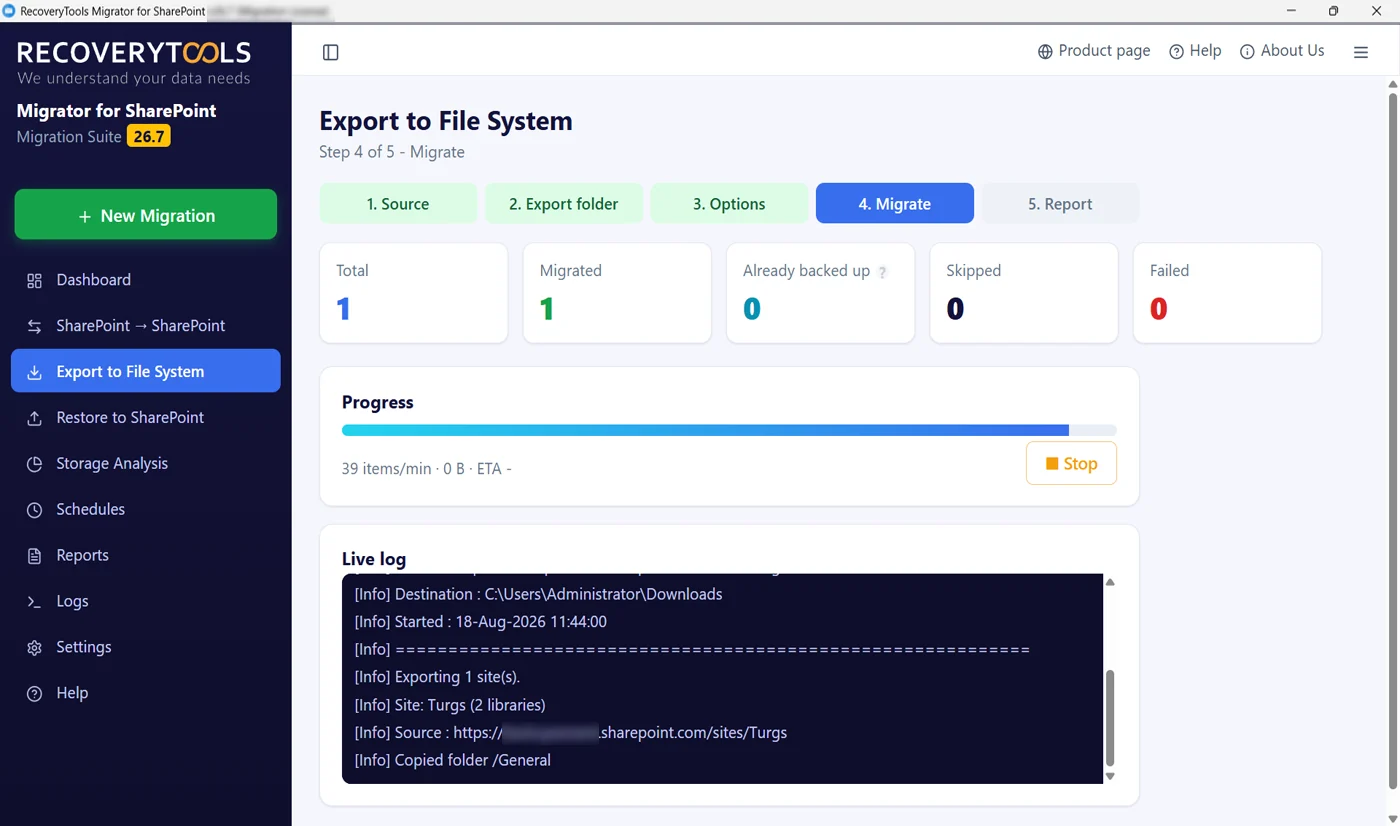
Watch the Already backed up counter, because that is the incremental pass showing its work. Below the totals sit the throughput, a running ETA and a log naming each folder and file as it lands. Stop is always available.

  • Counters for the total, what was copied, what was already held, skipped and failed
  • Throughput in items per minute with a running ETA
  • A live log naming the source, the site and each folder
  • Stop the run at any point without corrupting the folder
SharePoint backup report with per-item status and totals

Proof Of What The Backup Landed

One Backup Report Line Per Folder And File

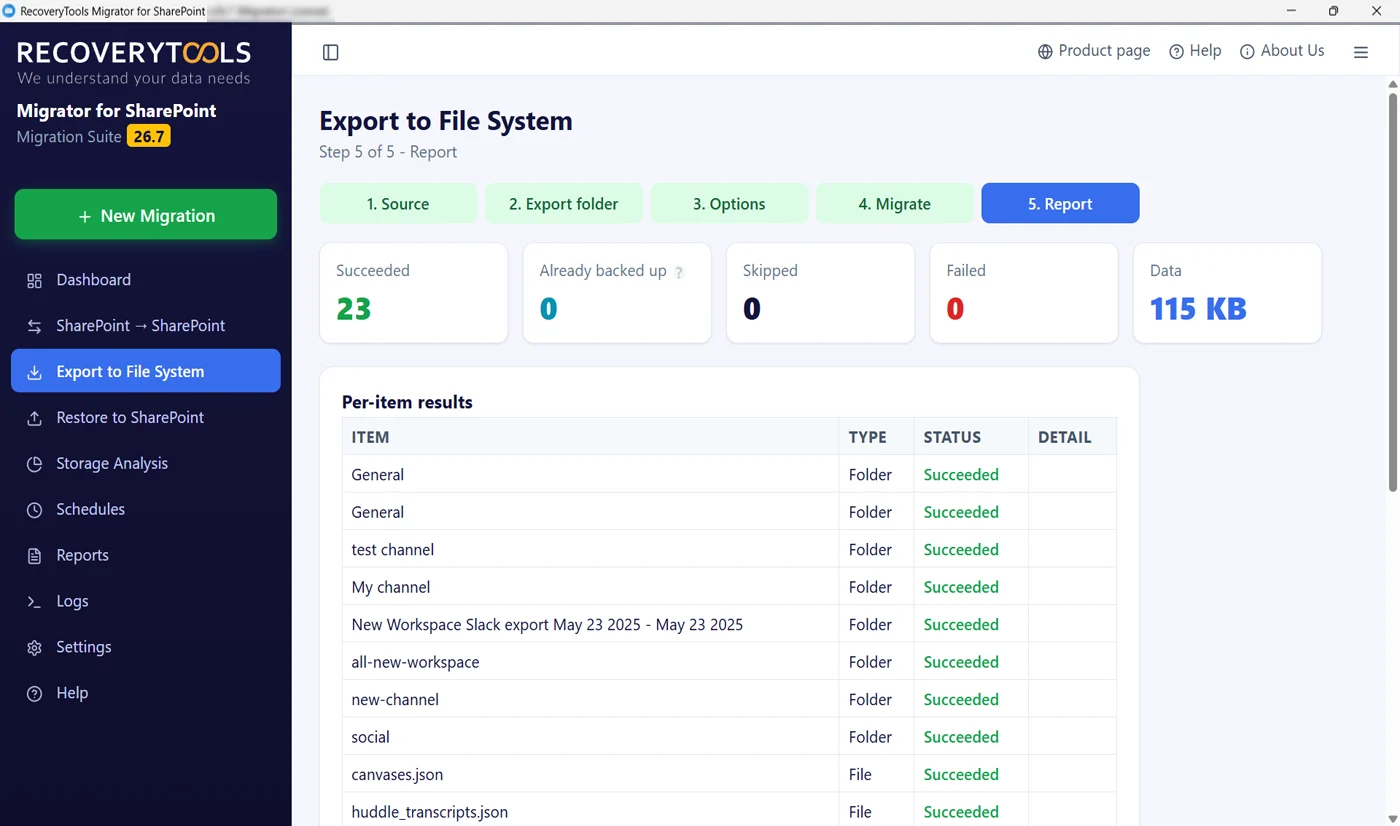
Every run ends with a report rather than a shrug. Totals across every outcome, from what copied cleanly to what was skipped or failed, plus the volume of data written. Under that, the per-item table naming each folder and file with its type, status and any detail. That table is the evidence you keep for the compliance file.

  • Succeeded, already backed up, skipped and failed totals
  • Total data written, so the disk maths is done for you
  • Per-item rows with item, type, status and detail
  • Exportable, which is what an auditor actually asks for
Fidelity

What Ends Up In A SharePoint Data Backup

Any SharePoint document backup that is only the files is half a backup. Shared documents, site assets and templates come down in their original file formats, and everything that gives a document meaning comes down too, readable a year later.

Lists, site pages, views and site settings belong to a SharePoint to SharePoint move rather than file system export. Exports are about documents. If you need whole sites standing up somewhere else, that is a job for the SharePoint Migration Tool, which is in the same installer.

Features

Where A SharePoint Site Backup Usually Goes Wrong

SharePoint backup software key features earn their keep after year one. The first run is easy. It is the second year, the growing disk and the night nobody watched that decide whether the tool was worth paying for.

Backup Large SharePoint Sites, Sized First

Point the SharePoint backup tool at your sites with a read-only scan before you size anything. It reports how much of your storage quota is cold data nobody has touched in years, so you know what is worth copying and what is not.

Backup Documents That You Want With Filters

Filter and backup documents by date range on file creation date or modification date, a file filter to include these types or exclude these types by extension, a maximum file size, a sub-site filter and a user filter. Skip video files, leave the installers where they are.

Include Selective Versions Or All Past Versions

Keep every past version when legal regulations and compliance or litigation ask for it, or leave the box unticked and take only the current copy. Long-term archiving costs only disk, and the difference in volume between those two choices is usually large.

Delta Pass Backups, Skip Files Already Existing

Delta backup copies only new or updated files and will skip previously downloaded documents, so you avoid duplicate downloads. Already backed up gets its own counter and failed items get a retry, so you see the saving rather than take it on faith.

Several Backup Jobs Simultaneously

Four throttle-aware workers by default, tunable per backup job. Simultaneously backup multiple sites: up to three jobs run at once with bulk site collections in one pass, and the app warns you if two would overlap or the bad item count climbs.

Backup Scheduling Option, Fully Automated

This SharePoint backup tool runs automated backups daily, weekly and monthly at an hour you choose, with the application closed. A backup that depends on somebody remembering is not a backup. The software is what removes the remembering.

Designed For Security And Privacy

Secure Microsoft authentication through OAuth 2.0 and an Azure app registration leaves your MFA and conditional access policy in charge, and no password is kept on the machine. Data stays with you, with no access granted to third parties and no external cloud storage services.

Select Backup Destination: Local Or Network-Attached Storage

Local file system, external hard drive, SSD, network-attached storage or mapped network drive by UNC path, any of them works. Select backup destination once and store your backups locally as offline backup copies on hardware you control.

Generate Detailed Backup Activity Reports

Real-time counters and a live log while it runs, then a summary report and a detailed report with file-level backup results, backup status, source name and any errors. That report is what you hand over for auditing when a regulator asks.

Trusted For SharePoint Backup

One Engine Behind Every Job

Four jobs sit on one sidebar and share one scheduler, one log and one report format. Learn the SharePoint backup and recovery screen and you already know the other three.

SharePoint Backup Tool Capabilities

What You Get To Control

  • Pick Sites, Libraries Or Folders

    One site URL, or discover everything available and tick the sites worth copying.

  • Filter By File Type

    Name the extensions to include or exclude, so the run never downloads what you do not want.

  • Keep The Metadata

    Column values, author and the original dates travel in a sidecar file beside the content.

  • Decide On Versions

    Every version into a _versions subfolder, or just the current copy when disk matters more.

How It Works

How To Backup SharePoint Online Data In Six Steps

Microsoft 365 SharePoint Online backup takes about ten minutes the first time. After that the schedule does it and you read the report.

  1. Backup SharePoint Sites: Add The Site

    Install on any Windows machine, nothing goes on the server side. Paste a single SharePoint Online site URL, or run discovery and pick sites and subsites, team sites and communication sites alike, from everything it finds.

  2. Authenticate With SharePoint Online

    Authenticate over OAuth 2.0, then press Test connection. That one sign-in carries every scheduled run that follows.

  3. Size The Storage First

    Run SharePoint Storage Analysis. It is read-only and safe against production, and it tells you how much content there is and how much of it has gone cold.

  4. Choose Document Libraries And The Backup Folder

    Browse to a local drive or type a UNC path to a network drive as the destination path. Decide here whether versions come down into a _versions subfolder or not.

  5. Set Filters And Maintain Folder Hierarchy

    File type filters, permissions, metadata, incremental and thread count. Preview shows the selection before anything is written, and a stop button can stop backup mid-run without losing what already landed.

  6. Run Now Or On A Schedule

    Start it now, or take the backup of SharePoint site periodically with a nightly task and leave. Either way it ends with the per-item report you keep for disaster recovery planning and business continuity reviews.

Comparison

Retention Policy Limitations vs A SharePoint Backup Tool

Microsoft's built-in tools, a manual download from the web interface or the OneDrive sync client handle the file somebody deleted this morning. The gap opens on everything past that, from a cloud outage to hardware or server crashes.

Recycle bin and native retention
RecoveryTools SharePoint Backup
Deleted items are held for 93 days, then removed for good
The copy stays exactly as long as you keep the disk
Retention policy limitations: the safety net lives inside the service it is meant to protect
The copy sits outside SharePoint, on hardware you own
Anyone who can empty the recycle bin can empty the safety net
Emptying a bin in SharePoint changes nothing on your disk
Closed accounts and lapsed licences take the content with them
Files stay readable with no subscription and no licence at all
Granular recovery exists, but only inside a paid service billed monthly
Item-level recovery by opening the folder, no console and no per-gigabyte bill
Version history is a setting inside the service, not a copy you hold
Every version written to disk in a _versions subfolder
Nothing to hand an auditor except a screenshot of a settings page, and no protection from a cloud outage
Per-item report for every folder and file, kept per run
Sync errors and departing employees remove files nobody notices
Every run says what it wrote on the night it ran
Free Resource

SharePoint Backup Policy Checklist

Twenty-eight questions to settle before you write the backup policy your auditor will accept. Retention windows, where the copy lives, who can delete it and how often you check that it is still running.

  • How to size the first run and the disk it will need
  • What to write down so the policy survives an audit
  • Quarterly spot check you can run in under an hour
Download free checklist

PDF · no email required

SharePoint Backup Tool Technical Specifications

Before You Install

About The Software

Version
26.8
Released
August 2026
Installer size
35 MB
Licence
Per-machine, annual, covers every tool in the installer

Supported Sources And Targets

Source
SharePoint Online
Destination
Local drive, external hard drive, SSD, NAS or a UNC network path
Authentication
Interactive OAuth 2.0, or app-only by secret or certificate
Languages
Ten, including the built-in help
Jobs
Four in one installer, this page covers export to file system

System Specifications

Operating system
Windows 11, 10 and Windows Server · 32-bit or 64-bit
Processor
Intel Core i3 or equivalent, 2 GHz+
Memory
4 GB RAM minimum, 8 GB recommended
Hard disk
500 MB to install, plus room for the backup itself
Runtime
.NET 8 Desktop Runtime and Edge WebView2
Prerequisites
Read access on the sites, an admin account for consent, outbound access to SharePoint Online
Product guides
Software guide, installation guide, screenshots, video and EULA are linked from the download

SharePoint Backup Tool FAQs

What Admins Ask Before They Buy

Does Microsoft back up SharePoint Online?

Not in the way most people mean by backup, and there is no built-in option for admins to take one. Microsoft keeps the platform running, replicates it across data centres and holds deleted SharePoint items in the recycle bin for a 93 day retention period on every plan. After the retention period of 93 days the item is purged from the second-stage recycle bin and permanently deleted, regardless of when you notice. Microsoft sells a paid add-on on top of that, no SharePoint backup tool of its own, which is a fair signal that the built-in retention was never meant to be your only copy. An independent SharePoint site backup is your side of the shared responsibility model.

How do I back up SharePoint Online to local storage?

Manually downloading from the web interface or relying on the OneDrive sync client is not a backup, and PowerShell scripts need technical expertise to maintain. Instead, install this third-party SharePoint backup tool on a Windows machine, open Export to File System and paste the site URL to backup SharePoint Online to local storage. Sign in with OAuth 2.0, browse to the folder you want the copy in, set the filters, then start the export. A SharePoint backup here means complete document libraries come down as structured and organized backups, files and folders and subfolders in their original formats, with the original file and folder hierarchy intact and a metadata sidecar alongside. That sidecar will back up metadata such as last modified time and share permissions, preserve file names and folder paths and maintain original created and modified timestamps. No complex methods, no scripts and no technical knowledge needed, so a non-technical operator keeps productivity up.

How do I backup my SharePoint to an external hard drive or NAS?

Yes. Point the SharePoint Online backup at internal storage, a drive plugged in over USB or a network share by its UNC address. There is no cloud storage facility for backup here by design: everything is stored locally. NAS or your own on-premises storage works as long as the machine running the job can reach it. Where that hardware lives is your decision, which is how the copy ends up offsite if you want it to be. If you point it at a protected system location such as Program Files, tick Run with administrator rights on the schedule. An ordinary folder does not need that.

How much disk space will the backup need?

Start with the read-only scan for a size estimate. It ships inside this SharePoint backup tool. It is safe to run against production and it reports the size of what you are about to copy, split by age. Versions change the answer most: turning on full version history can multiply the total several times over, because every version is a separate file on disk. The metadata sidecar is small enough to ignore. That scan is how teams decide what to archive out of SharePoint, which reduces the SharePoint storage bill at the same time as building the copy.

Can I back up the document library alone, or back up specific documents?

Yes. This SharePoint data backup can be as narrow as one library. Choose document libraries from the discovery list, select multiple libraries at once or back up the document library on its own and download them locally. Leave site discovery alone and the run exports only the single site URL you entered, and the file type filters narrow it further. If you want separate copies per site, point each run at its own folder.

Does the backup change anything in SharePoint?

No. The export reads from the source and writes to your folder. Nothing is deleted, moved or rewritten in SharePoint, so there is zero user impact and users keep working without affecting the workflow while it runs. It also means a failed or stopped run is safe to start again.

Can it run automatically on a schedule?

Yes. SharePoint automatic backup is built in: the backup scheduling option sits on the Options step. Give the task its name, choose how often it should repeat, then set the time and first date. From then on it fires with the application shut. Because the sign-in is remembered, nothing stops to ask for credentials. Nightly is the usual answer to how often a SharePoint backup should run, because incremental runs make the second and every later run far cheaper than the first, so a daily job costs little more than a weekly one.

Does the next run overwrite the last backup?

With Incremental ticked the SharePoint Online backup keeps one folder current: new and changed items are written, and anything already on disk is counted under Already backed up rather than copied again. For separate copies side by side, give each run its own export folder. The folder is yours, so how many you keep and for how long is your call.

What does a licence cost and what are the trial limits?

Licensing is 99 US dollars per machine on an annual term, with a 30 days money-back guarantee and 24x7 technical support by live chat, 24/7 in every time zone. In the free trial version of the SharePoint backup tool every feature is unlocked and only the copy volume is capped, at 25 items per document library, so you try before you buy. Scheduling, reporting and the read-only scan are not capped, so you can size your real estate before you buy.

Is SharePoint Online backup secure, and what does it store?

This SharePoint backup tool signs in with interactive OAuth 2.0 against SharePoint Online through an app registration you own in Azure, which means your existing sign-in policy governs the job and no credentials sit on the machine to be stolen later. No standing service account is created, so there is nothing extra waiting for your next security review. Everything travels encrypted, no third parties and no external cloud ever hold a copy and privacy is yours to safeguard. The copy is written straight to storage you own and is never held by us, which is the answer your GDPR questionnaire is looking for. Encryption at rest is whatever that disk or share already provides, BitLocker included, because the output is ordinary files rather than a container of our own.

What do I need before the first backup run?

Any Windows machine running .NET 8 with the WebView2 runtime, launched with run as administrator if the destination is a protected folder, an account with read access to the sites you want to copy, somewhere to write the files and outbound access to SharePoint Online through your firewall. Sign-in runs against an app registration in your own Microsoft Entra directory, and its permissions want admin consent once. Global administrator is not required to read content. Setup is the installer and nothing else: no agent goes into SharePoint and nothing is deployed server side.

How long does a large backup take?

With any SharePoint backup tool the item count matters far more than the total size, because SharePoint Online throttling is applied per request rather than per gigabyte. A one terabyte estate of small files takes far longer than a one terabyte estate of large ones. Raise the parallel threads for a quiet weekend and lower them during working hours. Users keep working with minimal disruptions and no downtime throughout, and an internet connection is required only on the machine running the job. The first run is the expensive one; after that only new and changed items move, so a delta run finishes in a fraction of the time.

Does it cover OneDrive as well?

No. This job takes a SharePoint Online site URL, so OneDrive is separate work rather than something that comes along with it. Being straight about the boundary matters here, because a plan that assumed OneDrive was included is the kind of gap nobody finds until the day it is needed.

Can I recover deleted files one at a time, or only a whole site?

One file at a time, and there is no console to learn. Complete data recovery from this backup is a folder tree on your disk, so an item-level copy of a deleted file means opening the folder, finding it and copying it back from any of its backed-up versions, regardless of when it was deleted. Version history sits in a _versions subfolder next to it, so an older draft is just as easy to reach. Where whole libraries or site collections have to go back, the SharePoint Restore Tool reads the same folder and puts the structure back for you, which is where this SharePoint online backup software earns its keep.

How far back can I go, and what does it cost to keep?

As far back as you keep the disks, with no changing retention policies to catch you out. Every run is its own recovery point, and because nothing is billed per gigabyte there is no monthly cost pushing you to prune. This is the difference that matters against a pay-as-you-go add-on: its recovery points reach back twelve months and you pay for every recoverable gigabyte, every month, for as long as you want the history. Folders on drives you already own have neither limit.

Does this protect SharePoint data from ransomware and insiders?

That is the case backup for SharePoint Online rests on: insurance against accidental deletion and ransomware attacks alike, so you protect yourself and your business from data loss. Malware, cyber threats, cyber breaches, data corruption, a hardware crash or server crash and accidental data loss all hit the same place, and recycle bins, a retention policy and legal holds all live inside the environment they protect, so an attacker with the right rights can clear them. A copy written to a disk you control sits outside that blast radius, which is how you protect and safeguard from ransomware and secure your organization from data loss. Take it further if the data warrants it: copy the folder to media you disconnect afterwards, and nothing online can reach that isolated copy.

Still Have A Question?

Our engineers can look at your sites with you, work out what it takes to back up SharePoint Online at your size and what a first run would actually cost in disk and time, and tell you if this is the wrong software for your case.

Talk to an engineer

Try The SharePoint Backup Tool Tonight, Open The Folder Tomorrow

Read-only scan and scheduling are not capped in the trial, so you can size your estate and set a nightly job today. The only thing the trial limits is how many items each run copies.

SharePoint BackupFree trial · Windows
Trial Pricing