Skip to download
RecoveryTools

RecoveryTools · Secure SharePoint restore software for IT administrators

SharePoint Restore Tool

Restore SharePoint Online sites, subsites, lists and libraries from a folder an earlier export wrote to disk. Site structure, version history and share permissions go up with it.

Download free trialWindows installer · 35 MB, downloads a Windows installer file, 35 megabytes

No credit card, no sign-up. Land 25 real items in a test site before you pay.

Screenshot of a restore to SharePoint

Restore SharePoint Online Documents And Sites: What The Tool Does

Support And Licensing At A Glance

How To Restore SharePoint Online From A Folder

What This Job Actually Does

One sentence, so nobody downloads the wrong thing: this restore SharePoint Online job reads a folder on your disk and writes it into a SharePoint site, including meta-data, for easy restoration of data.

It Reads A Folder You Hold

Source for the SharePoint restore tool is a folder that an earlier export run wrote to a local drive or a network share. Ordinary files in ordinary folders. Nothing to import, no catalogue to rebuild and no database sitting between you and your content.
It Writes Into A Site You Choose

Paste a SharePoint Online site URL and sign in, then your folder tree is rebuilt inside that destination library. Your site does not have to be the one the content came from, which is how teams seed a brand new site or populate one in a completely different organisation from content they already hold.

It Works From The Folder Outwards

Everything this job puts into SharePoint comes out of that folder. If a piece of content was never exported, there is nothing on disk for it to read, and no tool can invent it. That is worth knowing before you download rather than after.

So it is useful in three situations: you exported content and now need it in SharePoint again, you are standing up new sites or whole new estates from content you already hold, or a standby site has to stay in step with an export that refreshes. If you have no export folder yet, the SharePoint Backup Tool makes one.

Trusted by Microsoft Certified Partners

Microsoft® Certified Partners Rely On Our Tools

IT administrators, consultants and enterprise-level IT teams who hold Microsoft Partner status use this SharePoint restore tool to stand client content up somewhere new for organizations and businesses without losing the history attached to it. They keep coming back for one reason you will recognise: trees land the way they left and reports prove it.

Read partner stories

Inside The SharePoint Online Restore Tool

The Restore Job, Screen By Screen

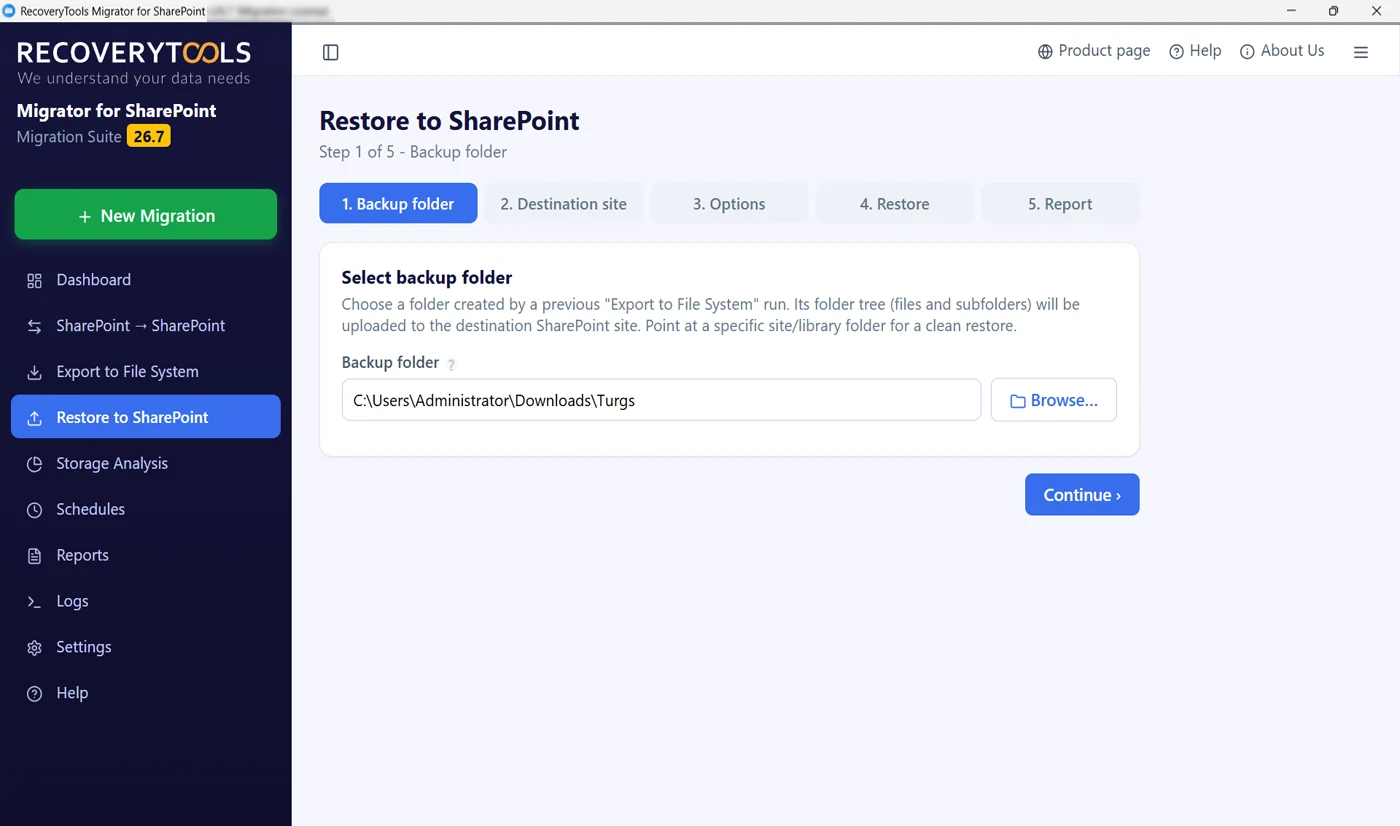
SharePoint restore software browsing to a backup folder

Point At The Folder

Restore One Site, One Library Or The Whole Tree

Browse to a folder an earlier export produced. Aim at your site folder to send everything, or drill into one library folder to send one part of it. Whatever sits inside that folder, files and subfolders alike, is what goes up.

  • Any folder a previous export wrote, on disk or a network share
  • Choose the whole site folder or one library folder underneath it
  • Your folder is only read, so it stays exactly as it was
  • No catalogue or database to import, your folder is all there is
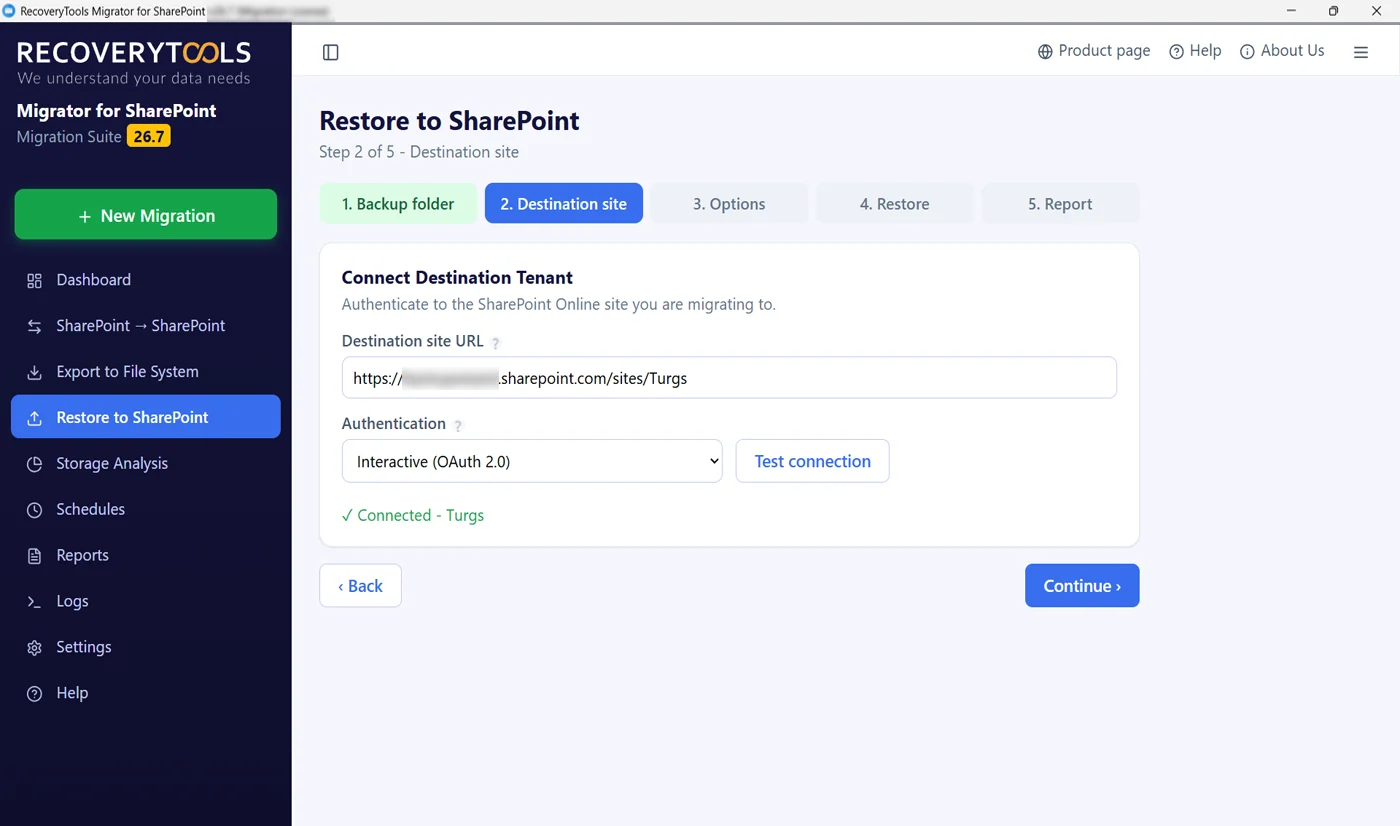
Connecting the destination SharePoint Online site over OAuth 2.0

Choose The Destination Site

Same Site, New Site Or Different Organisation

Paste your destination site URL and sign in with interactive OAuth 2.0. Test connection confirms SharePoint answers before anything uploads. Destination does not have to be where content came from, which is what makes this useful when a department splits off or an address is being replaced.

  • Interactive OAuth 2.0, the sign-in your own policy already expects
  • Test connection proves your target before any upload
  • Send it to its original site or to a fresh one
  • Another organisation entirely is a valid destination
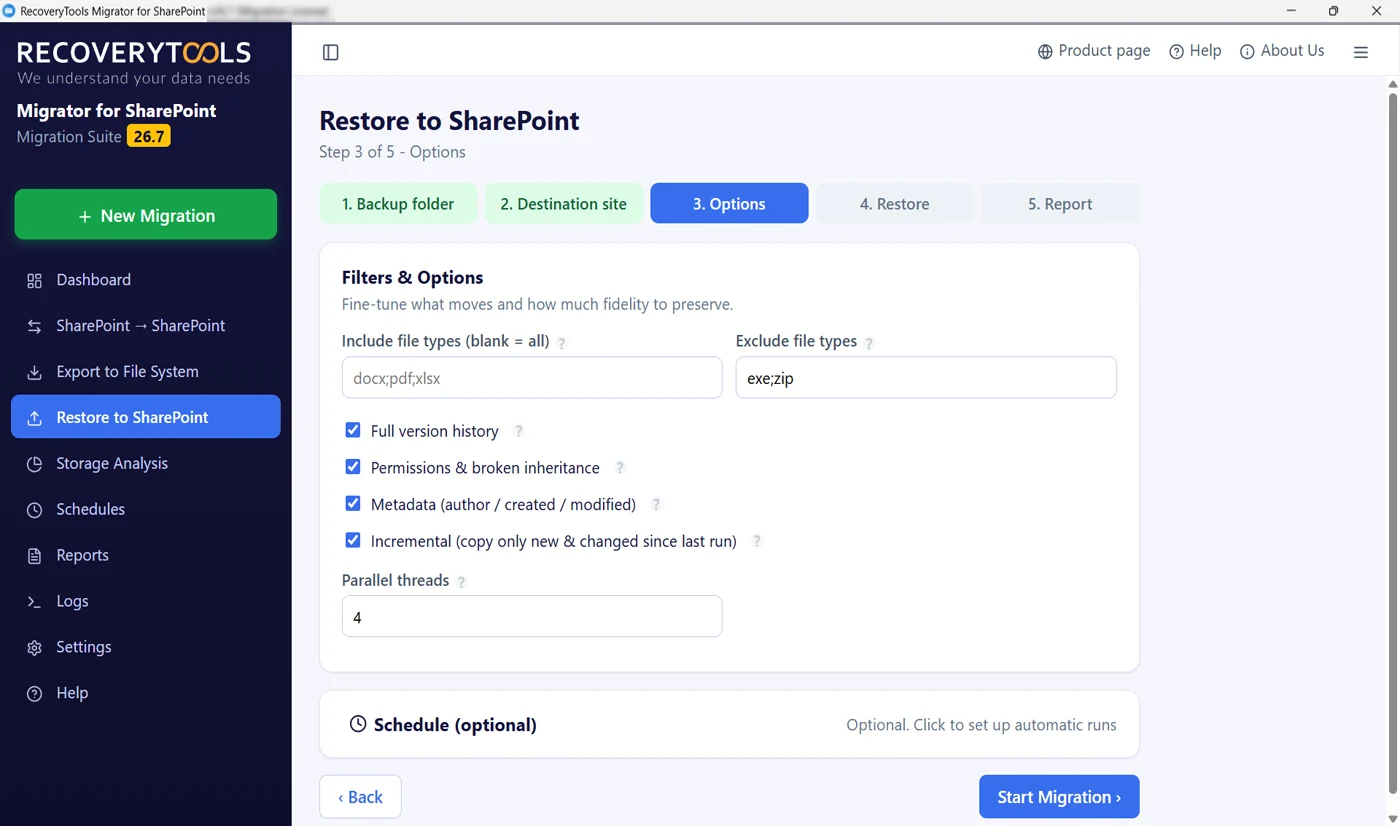
SharePoint restore filters for versions, permissions and metadata

Decide How Much Content Is Restored

Restore Filters And Fidelity On One Screen

Name the file types you want or the ones you do not. Choose whether the full version history returns with each document, whether permissions and broken inheritance are reapplied, and whether author with created and modified dates survive. Everything on this screen is set before any file moves.

  • Include or exclude by extension, or leave both blank for everything
  • Full version history rather than a single flattened copy
  • Permissions and broken inheritance reapplied as captured
  • Author, created and modified dates kept as they were
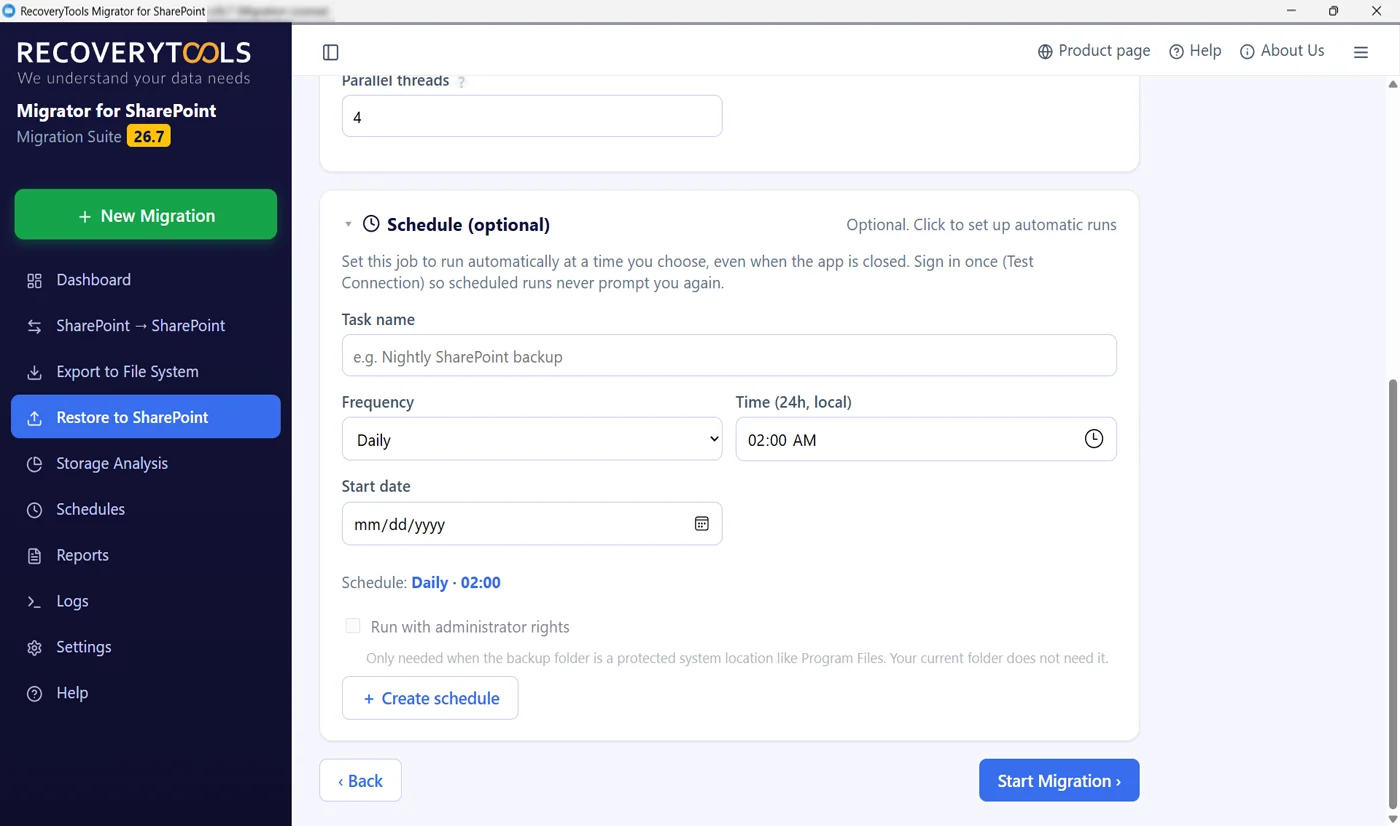
Scheduled SharePoint restore panel with task name and frequency

Run The Restore On A Schedule

Scheduled Restores Run Unattended

This SharePoint restore tool carries the schedule panel too. Most runs are a one-off, but teams keeping a second site in step with an export use this to refresh it overnight. Name the task, pick the frequency and the hour, and it runs with the application closed.

  • Daily or recurring runs at an hour you choose
  • Runs with the application closed, not just minimised
  • One sign-in covers the scheduled runs that follow
  • Handy when standby sites have to track an export that refreshes
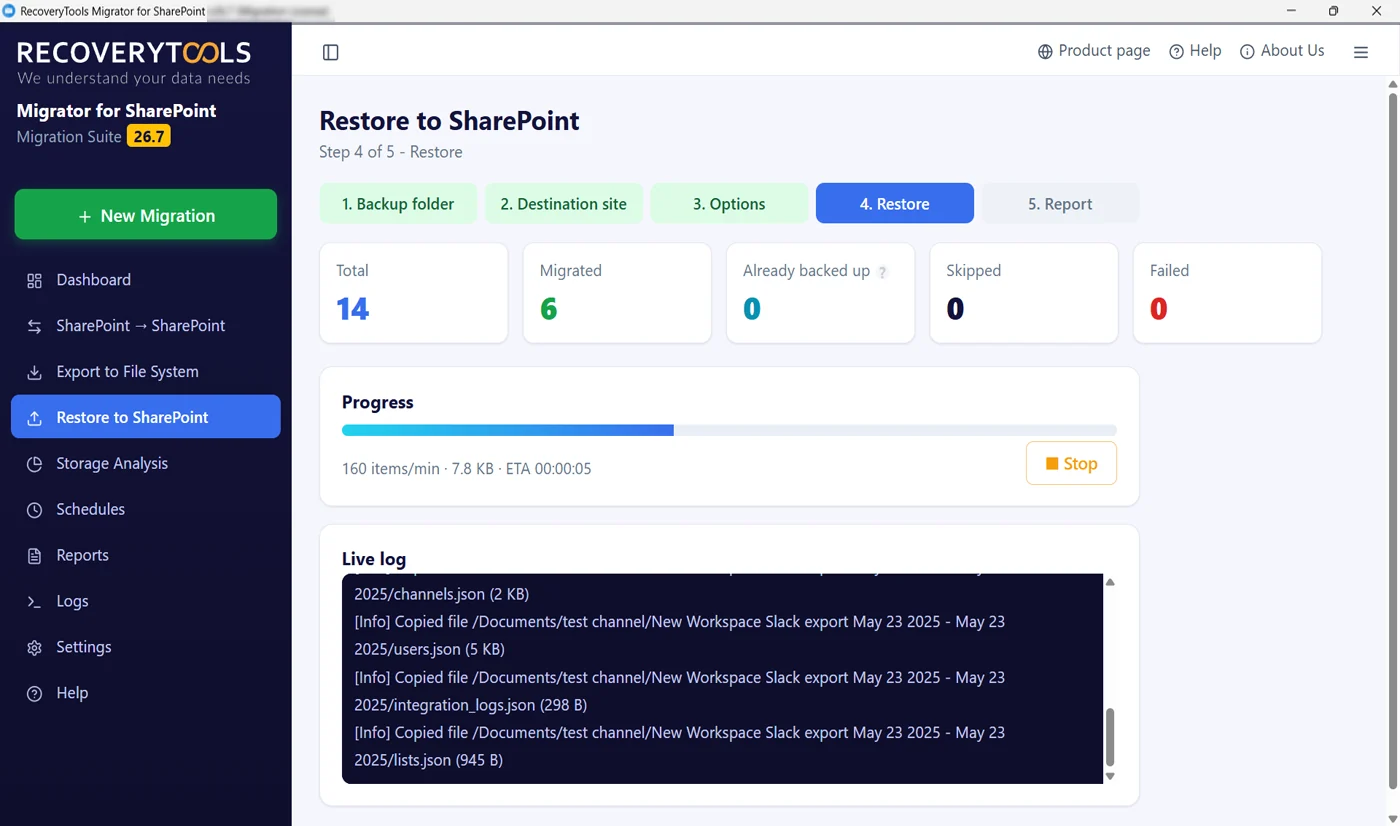
SharePoint restore running with live counters and a log

Watch It Upload

Live Counters, Every File Named As It Uploads

Counters across the top, a progress bar with throughput and a running ETA, and a live log naming each file and its size as it lands. If something is heading for the wrong library you will see it in the first few lines rather than late. Stop is always available.

  • Live totals for what has gone up and what has not
  • Throughput and a running ETA from the first few seconds
  • A log naming every file with its size as it uploads
  • Stop at any point and re-run later from where it stopped
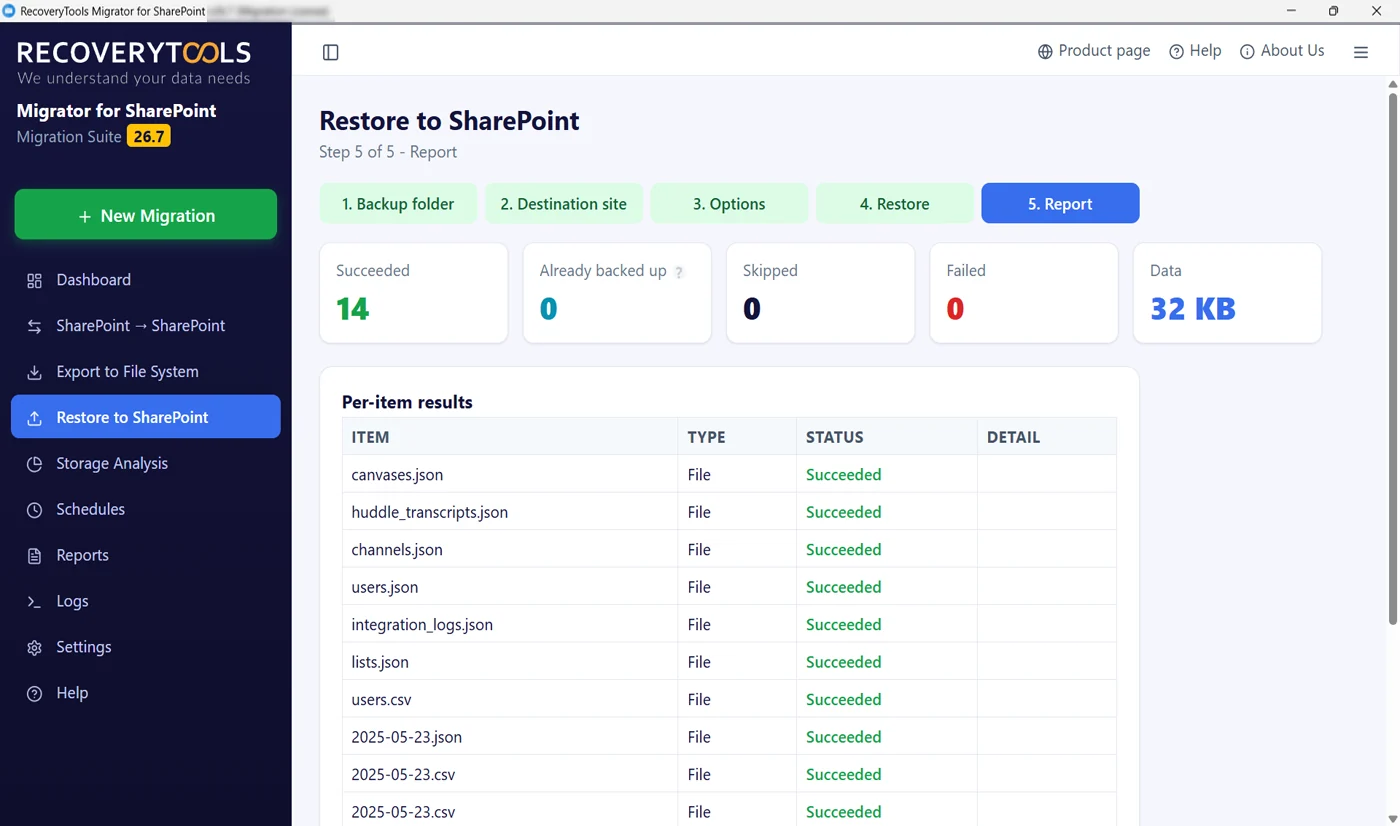
SharePoint restore report with per-item status for every file

Proof Every File The Software Sent

One Restore Report Line Per File

Totals for succeeded, skipped and failed, plus the volume written. Under them, the per-item table naming each file with its type, status and any detail. When somebody asks whether everything made it across, this table answers rather than your memory.

  • Succeeded, skipped and failed totals with the data volume
  • Per-item rows with item, type, status and detail
  • Evidence to sign work off with
  • Kept under Reports, so it is there again next month

Restore SharePoint Data With Permissions And Version History

What Survives The Trip

Moving the bytes is the easy half of any SharePoint restore. The run only counts when what lands in SharePoint behaves like what left it.

Being straight about the limit: lists, site pages, the home page, views and site settings never leave SharePoint through a file system export, so this job cannot put them into one either. It handles document libraries and what is inside them. Moving whole site collections with their pages and settings is a job for the SharePoint Migration Tool, which is in the same installer.

Features

Where A SharePoint Online Restoration Usually Goes Wrong

You are writing into sites people are using after accidental deletion, unwanted modifications, ransomware impact or corrupted files. The risk is never the upload itself, it is the duplicate, the flattened tree and the half-finished run nobody noticed.

Granular Restore: Only The Files You Meant To

Aim the job at one library folder, individual files or one subfolder rather than the whole site. Item-level restore touches nothing else, and narrow runs finish in minutes instead of hours.

Secure Authentication With Entra

Secure authentication through OAuth 2.0 and an Azure app registration, so MFA and conditional access still apply and no credentials are stored on the machine doing the work. Privacy stays with you.

Real-Time Log From The First Ten Files

Real-time log file in the SharePoint restore tool names each file and its destination as it uploads. A wrong target folder shows up in the first few seconds rather than at the end of a long run.

Re-Run Without Overwriting, No Duplicates

Items already in place are counted rather than uploaded again, so re-runs only transfer new data and restarts to a backed-up state without overwriting existing data or any fear of data duplication. Failed items get a retry.

Throttle-Aware Threads, Zero User Impact

Set how many items upload at once. SharePoint Online throttles heavy callers, so the thread count is how you finish quickly with zero user impact and downtime for people already in it.

Nothing Installed On The SharePoint Server

One Windows machine, one installer, no agent to deploy, no service account left behind waiting to be audited. Uninstall it afterwards and SharePoint Online never knew it was there.

Restore Location Does Not Conflict

Nothing in the SharePoint restore tool empties a library, so a library that already carries that name is never wiped. Whatever is sitting there when you start is still sitting there when the run ends, untouched.

Stop A Restore Without Damage

Stop is live throughout. Halting leaves what has landed in place, nothing is rolled back or deleted, and running the job again picks up the rest from where it stopped.

Job Completion Status, Folder And File Count

Counters, folder and file count and the target destination name while it runs, then a per-item report with a job completion status summary. It is the difference between believing your run worked and being able to show it.

Trusted For SharePoint Restore

One Engine Behind All Four

Four jobs sit on one sidebar and share one scheduler, one log and one report format. The screen you use to send folders up is the one you already know from every other job.

SharePoint Restore Tool Capabilities

What You Get To Control

  • Pick Sites, Libraries Or Folders

    Everything under the site, one library on its own or one branch beneath it.

  • Filter By File Type

    Name the extensions to include or exclude, so only what you meant to send actually goes up.

  • Keep The Metadata

    Author with original created and modified dates, rather than you and today.

  • Decide On Versions

    Bring the full history back with each document, or land only the current copy.

Six Steps To Restore SharePoint From A Folder

Six Steps From Install To Content In SharePoint

Most runs are done inside half an hour, which is what any disaster recovery plan needs for business continuity. The order below is the one that stops you writing into the wrong site.

  1. Browse Through The Hierarchy Of Folders

    Install the SharePoint restore tool on any Windows machine, nothing goes on the server side. Open Restore to SharePoint and browse to whichever folder an earlier export wrote.

  2. Connect The Destination Site

    Name the target site and authenticate against it. Test connection answers the only question that matters at this point, which is whether you are aimed where you think you are. If you are unsure your destination has room, SharePoint Storage Analysis reads it without changing anything.

  3. Restore A Document Library Or A Subfolder

    Decide whether this is a full site, one library folder or one subfolder, and whether it lands in the same location or a different location. Narrower targets mean shorter runs and a smaller blast radius.

  4. Set The Metadata Fidelity

    Four tick boxes decide how much history follows the files up. Leave them alone for a faithful copy, or clear them when only current versions are needed.

  5. Try One Folder

    Point it at one subfolder and run that first. Open the library in SharePoint and validate what landed against the log. Two minutes here is how you avoid errors, and cheaper than unpicking wrong targets across whole sites.

  6. Run The Restore

    Start it and watch the log. What you are left with at the end is a list of every file and what happened to it, which is what you file afterwards.

SharePoint Restore Tool vs Dragging The Folder In

Dragging The Folder In Yourself

You can open the library in a browser and drop the folder on it manually. The files arrive. Almost everything attached to them does not, and SharePoint Online has no native restoration beyond recycle bin and versioning.

Drag and drop into the browser
Restore to SharePoint
Versions collapse, the file lands as version one
Every version travels with the document
Permissions come from whichever library you drop into, not from source
Permission levels and broken inheritance reapplied as recorded
You become the author and today becomes the created date
Original author, created and modified dates survive
Deep trees stall, time out or need splitting by hand
Tree rebuilt in one run, however deep it goes
No filter, so the installers and archives go up too
Include or exclude by file type before anything moves
Re-running manually means finding the duplicates yourself afterwards
Items already in place are counted and skipped
You watch a browser progress bar and hope
Live counters, throughput, an ETA and a named log
Nothing to show afterwards except the library itself
Per-item table naming every file with its status
Thousands of files means babysitting the browser tab
Bulk uploads of thousands run unattended and report when done
Interrupted uploads leave you guessing what made it
Stop, then run it again and it resumes without duplicates
Free Resource

SharePoint Restore Runbook

Order to work through before anything goes near live content. Which destination checks matter, which fidelity boxes to leave ticked for your case, and what belongs in the record once it finishes.

  • How to pick the right folder level before you start
  • What to confirm before you write into sites people are using
  • What to record so the ticket closes with evidence
Download the free runbook

PDF · no email required

SharePoint Restore Tool Specifications

Before You Install

Software

Version
26.8
Released
August 2026
Installer size
35 MB
Licence
Per-machine, annual

Supported Platforms

Source
Folder written by an earlier export
Destination
Any SharePoint Online site you can sign in to
Authentication
Interactive OAuth 2.0, per account
Jobs
Four in one installer, this page covers restore to SharePoint

System Requirements

Operating system
Windows 11, 10 and Windows Server · 32-bit or 64-bit
Processor
Intel Core i3 or equivalent, 2 GHz+
Memory
4 GB RAM minimum, 8 GB recommended
Hard disk
500 MB disk space to install, plus your source folder
Runtime
.NET 8 Desktop Runtime and Edge WebView2
Languages
Ten, including the built-in help
Prerequisites
Write access on your destination site, an admin account for consent, outbound access to SharePoint Online
Product guides
Software guide, installation guide, screenshots, video and EULA are linked from the download

SharePoint Restore Tool FAQs And Restore Options

What Admins Ask Before They Run It

What does the SharePoint Online restore tool actually do?

It takes backed-up data an earlier export put on your disk and sends it up into a SharePoint Online site, to the exact location it came from, to a different location or to a different SharePoint Online site. You can restore deleted files this way no matter when the file was deleted. Site structure is rebuilt in the destination library rather than flattened, whether that is one site or several site collections, and past versions, share permissions and original dates travel with the files. Structure retention is the point. Source on disk, destination in SharePoint. That is its whole shape.

How do I restore SharePoint Online content from a folder on disk?

Five screens in the SharePoint restore tool, in order: pick the folder, name your destination site and sign in, set the filters and fidelity options, start the run, read the report. It works for file-level restoration of a few documents and site-level restoration of entire SharePoint Online sites alike, and its report tells you the restoration is complete. Nothing is scripted and nothing is installed on the server. A bulk upload of thousands of files across deeply nested folders is the normal case rather than the hard one, because the tree is walked for you.

Can I restore to another site or a different organisation?

Yes. Nothing ties the content to its original location, so you can restore items to the same location or somewhere new. Whichever site you authenticate against at step two is where it lands, same or different, new location or old, in your own organisation or in one belonging to somebody else entirely, into a new list or library if that is what you name. Departments spun out on their own, sites rebuilt under new names and estates being consolidated are all handled alike.

Will it overwrite an existing library of the same name?

No. Existing content is left alone, because there is no wipe-and-replace mode to switch on. Anything already sitting in the target is counted separately and skipped rather than uploaded twice, so name conflicts may require manual resolution elsewhere but never turn into overwriting existing data here, so duplicates are not something you go and clean up afterwards. It also means an interrupted run is safe: press Stop, start it again later and it resumes from what is missing.

Can I restore individual files or one folder instead of a whole site?

Yes, and it is usually the right call. Granular restore of individual documents, list items or deleted files means drilling into the document library folder or the subfolder you need and pointing the job there. Something accidentally deleted long ago comes back regardless of when it was deleted, and you can restore the SharePoint data to a new folder if you would rather not touch the original. Add a file type filter to narrow it further. Small runs finish in minutes and touches nothing else there.

Does it restore all share permissions and past versions?

Yes to both, and neither needs switching on because the SharePoint restore tool ticks them when the screen opens. Maintain the site structure and all share permissions, and restore files to any of their past versions that were on disk. Documents arrive with their whole history behind them, so a previous version from among ten edits is still there to look at. Permission levels come back as they were recorded, including any place where inheritance had been broken, though broken inheritance may require manual review afterwards. Verify that permissions and site owner settings are intact before you hand it back. Clear the boxes if you would rather land a plain current copy and set the access yourself.

Why not drag the folder in, or restore a document library from the recycle bin?

For a handful of files, do exactly that. Native versioning can revert or undo one document, reverting the library to a previous version is possible if it still exists, and recovering it from the recycle bin works inside the window. Manual re-upload stops being a good idea once trees run deep or metadata matters. Browser uploads make you the author, stamp today as created date, collapses every version into one and takes its permissions from wherever it lands. This job keeps all four, and gives you the per-item report when it finishes.

Can I restore a deleted SharePoint site without PowerShell?

Yes. Native restore is bound by a 93-day retention period, after which items are permanently deleted from both recycle bins. Beyond that native tools have limited capabilities, there is no built-in restore for a deleted site, and Microsoft support works at site collection only and not individual items. IT administrators are responsible for the rest. This is a Windows desktop wizard with five screens and nothing to script, so non-technical operators can run it. There is no module to install, no CSOM to reference, no throttling logic to write and no error handling to maintain. That matters most when the person doing the work is not the person who wrote the scripts, or when the scripts were written by somebody who has since left.

What does it cost and what can the trial actually do?

One SharePoint restore tool licence covers the whole installer at 99 US dollars per machine per year, refundable for 30 days, with 24x7 technical support and live chat, 24/7 in every time zone, so you can try before you buy. The trial version unlocks every feature and caps only the volume, at 25 items for the whole run rather than per library. That is enough to watch real content land in your test site with its versions and permissions before you commit.

Is SharePoint Online restore secure, and what does the tool store?

Secure authentication is interactive OAuth 2.0 against the destination through an Entra app registration you own in Azure, so your existing sign-in policy governs the run and no credentials are kept on the machine to be stolen later. No service account is left behind for your next security review. Content goes from your folder straight into SharePoint over an encrypted connection and is never held by us, which is full data protection for legal compliance or verification, regulatory reviews and litigation holds. Users get back to work that day and data loss from data disasters is undone. Encryption is whatever the disk and SharePoint Online already provide, since the software adds no container of its own.

What do I need before a restore run?

Any Windows machine running the SharePoint restore tool with .NET 8 and the Edge WebView2 Runtime, an account with write access to your destination site, your source folder and outbound access to SharePoint Online through your firewall. Sign-in runs against your own Entra app registration that belongs to you, with one-time admin consent on its permissions. Global administrator is not required to write content. Nothing is installed on the server side.

How long does a large upload take, and can I speed it up?

For any SharePoint restore the item count decides it far more than total size, because SharePoint Online throttles per request rather than per gigabyte. Users keep working with minimal disruption throughout, so you recover quickly from unexpected data disasters without a maintenance window. A terabyte of small files takes considerably longer than a terabyte of large ones. Parallel threads is the lever: raise it on a quiet evening and lower it while people are working. The progress screen shows throughput and a running estimate from the first few seconds, so a realistic answer arrives early rather than at the end.

Can it run on a schedule, and how do I verify what arrived?

Options step of the SharePoint restore tool has a schedule panel, so automated, unattended runs at set hours are a matter of naming the task and picking the frequency. Teams who hold a second site ready for use refresh it that way overnight. Verification is the report at the end, which lists the outcome for each item so you can tick each item off against something solid rather than some progress bar that has already vanished.

Still Have A Question?

Our engineers can look at your folder and your target site, and tell you honestly whether this job is the right one or whether another one in the installer fits your case better.

Talk to an engineer

Try The SharePoint Restore Tool On A Spare Site First

Twenty-five items is enough to send a real folder into a real library and check what arrived. Look at the version history, look at who the author is, then decide.

SharePoint RestoreFree trial · Windows
Trial Pricing