
To transfer OneDrive files to another user in the same tenant, get admin access to the old OneDrive, share the folders with the new user and let them copy the files in. This loses version history. For many accounts or another tenant, use a migration tool and share links again.
I get this request when an employee changes teams, a manager takes over a project or someone leaves. The new person needs the files, and the old OneDrive belongs to someone else.
OneDrive has no one click ownership change that I know of. You copy the files into the new person's OneDrive, and the method you choose decides what survives. This guide shows the steps, the limits and the cleanup.
Can you transfer OneDrive files to another user?
Yes, but it is a copy, not a handover. The files in a OneDrive belong to that account. To transfer OneDrive files to another user, you put copies in the new user's OneDrive and then retire the old ones.
Two things decide your route. The first is whether both people sit in the same Microsoft 365 tenant. The second is how much you must keep, for example version history or shared access. A small team folder and a hundred accounts need different tools.

The files are the easy part. The links, the version history and the shared access are what people miss on Monday morning, so plan for those first.
Jamie Kaler Marketing Head and Content Strategist, RecoveryTools
How do you transfer OneDrive files to another user step by step?
Use this order for the same tenant. Steps 1 and 2 are checks. Steps 3 to 7 move the files. Step 8 closes the job.
- Choose the route. If both users are in one tenant, follow steps 2 to 8. If the new user is in another tenant, go to the tenant section below.
- Check space and licenses. The new user needs a licensed OneDrive with enough room. Microsoft allows files up to 250 GB, so check for anything larger.
- Get access to the old OneDrive. In the Microsoft 365 admin center, open Users, then Active users, select the person, open the OneDrive tab and select Create link to files. This adds you as a site collection administrator of that OneDrive.
- Select the folders to move. Open the link and choose the folders the new user needs. Leave personal files behind.
- Share the folders with the new user. Give them edit rights, so they can copy the files out.
- Copy the files into the new OneDrive. The new user opens the shared folder, selects the files and copies them to their own OneDrive. For small sets, a download and upload does the same job.
- Check the result. Compare folder counts, open a few files and ask the new user to confirm.
- Remove your access. Stop sharing the old folders and remove yourself as site collection administrator. Keep the old OneDrive until the new user signs off.
If the OneDrive tab shows no link option, your role is too low. Ask a Global Administrator or a SharePoint Administrator to give you access.
Which method is best to move OneDrive files?
It depends on size and on what you must keep. The table shows how the five common methods compare.
| Method | Best for | What it keeps | What it loses |
|---|---|---|---|
| Share, then copy | A few folders in one tenant | Files and folders | Version history, sharing links and old permissions |
| Download and upload | Small sets of files | The current version of every file | Version history and sharing. Slow for large folders |
| Manager access after deletion | A leaver | Files stay in place for 30 days by default | You must still copy them out before the period ends |
| Site collection admin access with PowerShell | Admins with many accounts | Access only, no copy | Nothing moves until you copy the files |
| RecoveryTools OneDrive Migrator | Many accounts or another tenant | Folders, version history and permissions for matched internal users | Sharing links, groups, outside guests and OneNote notebooks |
For admins who prefer scripts, PowerShell can add you as a site collection administrator with Set-SPOUser. It only gives access. You still copy the files yourself.
Set-SPOUser -Site https://contoso-my.sharepoint.com/personal/jane_contoso_com -LoginName [email protected] -IsSiteCollectionAdmin $TrueWhat stays behind when you move OneDrive files?
More than most people expect. A manual copy creates new files in a new place. Version history does not come along, old sharing links point at files that no longer exist after the old OneDrive is deleted, and the new user has to share folders again.
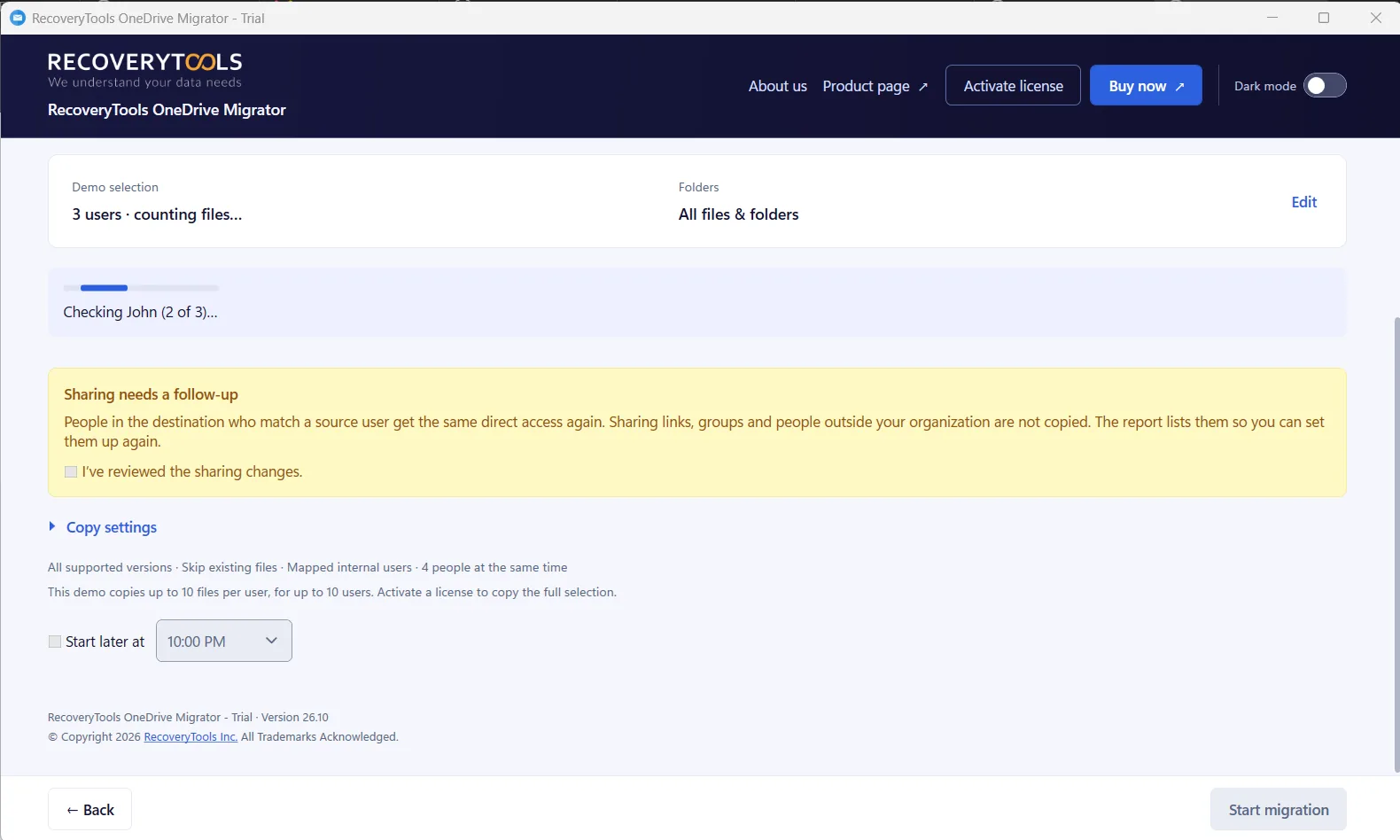
A migration tool keeps more, but not everything. The figure shows what moves and what stays.
Microsoft also limits file names and sizes. Names cannot hold these characters: " * : < > ? / \ and |. A copy of a file with a bad name can fail, so rename it first.
How do you move OneDrive files to a user in another tenant?
A site collection administrator link only works inside your own tenant. When the new user belongs to another tenant, you need a tool that signs in to both. My guide on how to migrate OneDrive from one tenant to another covers the full plan, and the steps below show the short version.
Connect the source and the destination tenants, choose the accounts, map every person to a destination user and review the checks. You can import the mapping from a CSV file, which saves time on large batches.
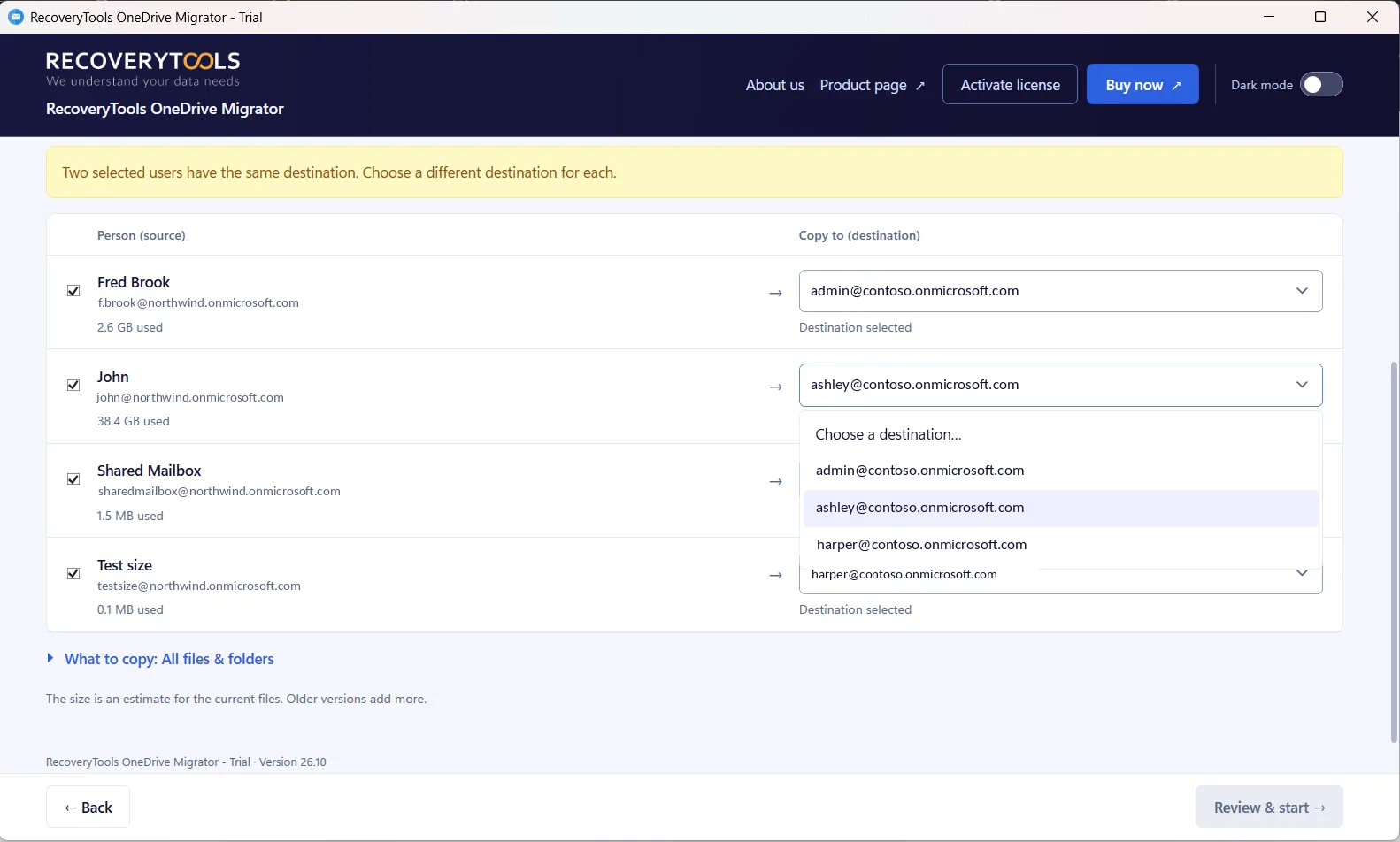
Moving OneDrive accounts to another tenant
RecoveryTools OneDrive Migrator copies OneDrive accounts between Microsoft 365 tenants. It keeps folders and version history, maps users from a CSV file and never overwrites files that already exist. Sharing links, groups, people outside your organization and OneNote notebooks are not copied, so plan to share those again.
No credit card, no sign-up. Works on Windows 11, 10 and Windows Server 2022.
What mistakes break a OneDrive transfer?
Four mistakes cause most of the calls I get.
First, deleting the old OneDrive before the new user checks the files. For a leaver, my guide on what happens to OneDrive files when an employee leaves shows the full timeline. In short, Microsoft starts the retention clock when the user is deleted in Microsoft Entra ID. The default is 30 days, and the manager gets access during that time. Second, forgetting that links break, so shared files stop opening for other people. Third, copying files with long or odd names and missing the errors. Fourth, moving files while people still edit them, which leaves two versions.
If the new OneDrive does not sync after the move, read my guide on what to do when OneDrive is not syncing after a migration.
My verdict on moving OneDrive files
Use Microsoft's own route for a few folders in one tenant. Use a migration tool when the batch is large, when version history matters or when the new user is in another tenant.
Whatever you choose, tell the new user which sharing links will break and keep the old OneDrive until they confirm the files. That one habit prevents most of the support tickets.
Frequently asked questions
How do I move OneDrive files to another user?
An admin gets access to the old OneDrive from the Microsoft 365 admin center, shares the folders with the new user and lets them copy the files into their own OneDrive. Downloading and uploading also works for small sets.
Can I change the owner of a OneDrive file?
Not with a button. Files belong to the account that holds the OneDrive, so you copy them into the new owner's OneDrive instead.
Does version history move with the files?
Not with a manual copy or a download and upload. RecoveryTools OneDrive Migrator can copy version history, and its copy settings show which versions it will use.
What happens to OneDrive files when an employee leaves?
When the user is deleted in Microsoft Entra ID, the manager gets access to the OneDrive. By default the manager has 30 days to copy the files. After that, the OneDrive moves to the site collection recycle bin for 93 days.
Is there a size limit when I move OneDrive files?
Microsoft allows files up to 250 GB. The new user also needs enough free space in their own OneDrive for the full copy.
Can RecoveryTools OneDrive Migrator copy sharing links?
No. Sharing links, groups, people outside your organization and OneNote notebooks are not copied. The tool lists them in the report so you can share them again.
Jamie blends strategic marketing insight with technical writing, turning migration and recovery topics into guidance that works for technical and general readers alike.
Published 13 October 2026. Steps and limits come from Microsoft Learn and Support pages on OneDrive retention and deletion, restoring a deleted OneDrive and OneDrive restrictions and limitations.