
OneDrive files when an employee leaves stay in place until you delete the user. Then Microsoft keeps them 30 days by default and gives the manager access. After that the OneDrive sits in the recycle bin for 93 days. Copy what you need within the first 30 days.
I get this question the week after someone resigns. A manager needs a client folder, and the account is already gone. The answer depends on what the admin did and when.
Microsoft sets the rules, and they are strict about timing. This guide shows the timeline, who gets access, the steps to follow and the mistakes that cost files.
What happens to OneDrive files when an employee leaves?
Nothing happens until the account is deleted in Microsoft Entra ID. Blocking sign-in does not touch the files, and removing the license does not start cleanup either. The files sit there, and the retention clock has not started.
Once you delete the user, the OneDrive enters a retention period. The default is 30 days, and you can change it in the SharePoint admin center. The manager gets access automatically. If the files are not copied out in time, the OneDrive moves to the site collection recycle bin for 93 days, and then it is deleted.

Most lost files I hear about were not deleted by anyone. The 30 days simply ended, and nobody had set a manager or a secondary owner to get the warning emails.
Jamie Kaler Marketing Head and Content Strategist, RecoveryTools
How do you save OneDrive files when an employee leaves?
Follow this order. It follows Microsoft's offboarding steps and adds the checks that I see skipped most often.
- Block sign-in first. Do not delete the account yet. Blocking sign-in stops the person from using Microsoft 365 and keeps the files untouched.
- Check the manager and the secondary owner. Make sure the user has a manager in Microsoft Entra ID, or set a secondary owner under My Site Cleanup in the SharePoint admin center.
- Check for holds and policies. Retention policies, retention labels and eDiscovery holds take precedence over the normal deletion process, so note any that apply.
- Give another user access. In the Microsoft 365 admin center, start the delete user process and choose to give another person access to the OneDrive. You need user, SharePoint and Exchange administrator rights for this.
- Remove the license and delete the user. Deleting the user starts the retention clock. Deleting a user does not stop billing until a billing admin removes the license from the subscription.
- Copy the files out within 30 days. The person with access opens the OneDrive and copies the files into their own OneDrive or into a team site.
- Watch for the reminder. Seven days before the retention period ends, the manager or secondary owner gets a second email.
- Restore if you missed the date. Within 30 days you can restore the user in the admin center. After that a SharePoint Administrator can restore the OneDrive with PowerShell within the 93 days.
For the copy itself, my guide on how to transfer OneDrive files to another user shows the steps and the limits of every method.
Who gets access to a leaver's OneDrive?
By default the manager does. When a user is deleted, Microsoft gives the manager access to the OneDrive. If the user has no manager in Microsoft Entra ID, the secondary owner set under My Site Cleanup gets it.
If neither exists, no one has automatic access, and no one is warned that the OneDrive will be deleted. This is the gap that causes most losses.
How long does OneDrive keep a deleted user's files?
Thirty days by default, then 93 days in the recycle bin. The table shows every stage.
| Stage | Default length | What you can do |
|---|---|---|
| Sign-in blocked, user not deleted | Until you delete the user | Files stay where they are. The retention clock has not started |
| User deleted, OneDrive retained | 30 days | Manager or secondary owner can open the files and copy them out. You can restore the user in the admin center |
| Site collection recycle bin | 93 days | No one can reach shared content. A SharePoint Administrator can restore it with PowerShell |
| After the recycle bin | Not applicable | The OneDrive is deleted, unless a retention policy or an eDiscovery hold keeps it |
You can change the retention period in the SharePoint admin center, or with PowerShell. The value is in days.
Set-SPOTenant -OrphanedPersonalSitesRetentionPeriod 90Microsoft 365 retention policies and labels always win over this setting. Content can be deleted sooner than 30 days or kept longer, so check what your tenant applies.
What mistakes lose files when an employee leaves?
Four mistakes show up again and again.
First, deleting the account before anyone has access. Second, leaving the manager field empty, so no one is told about the deadline. Third, assuming a blocked account is a safe account. Files synced to a personal computer cannot be wiped remotely, so the former employee may still hold a copy. Fourth, copying files by hand and forgetting what the copy loses. Version history does not come along, and links to the old files stop working once the OneDrive is gone.
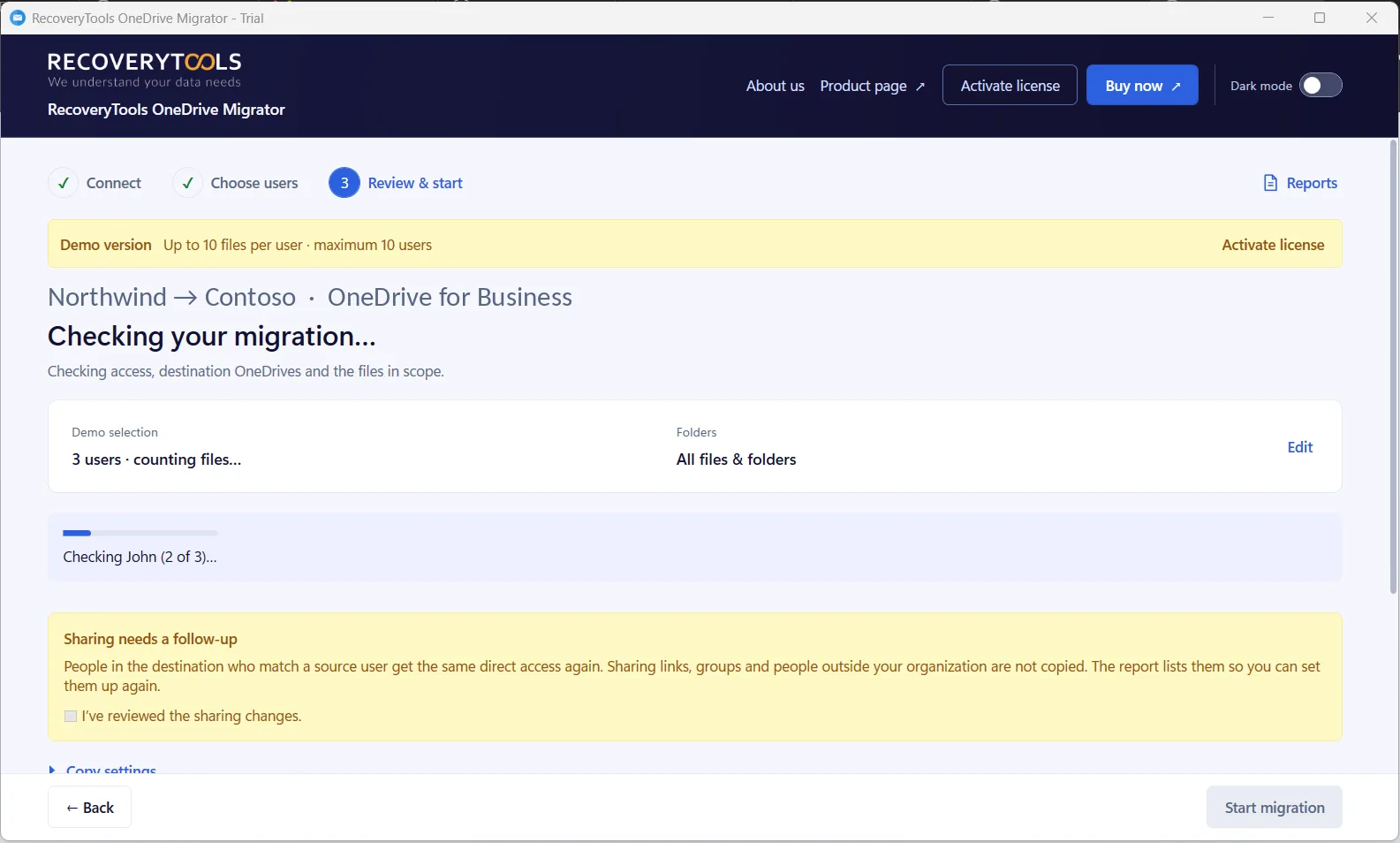
What if a leaver's files must reach another tenant?
Most leavers stay inside one tenant, and Microsoft's steps above are enough. A spin-off or a sale is different. The people leave your tenant, and their OneDrive files must follow them to a new one.
That needs a tool that signs in to both tenants and maps every person to a new account. My guide on how to migrate OneDrive from one tenant to another covers the plan.
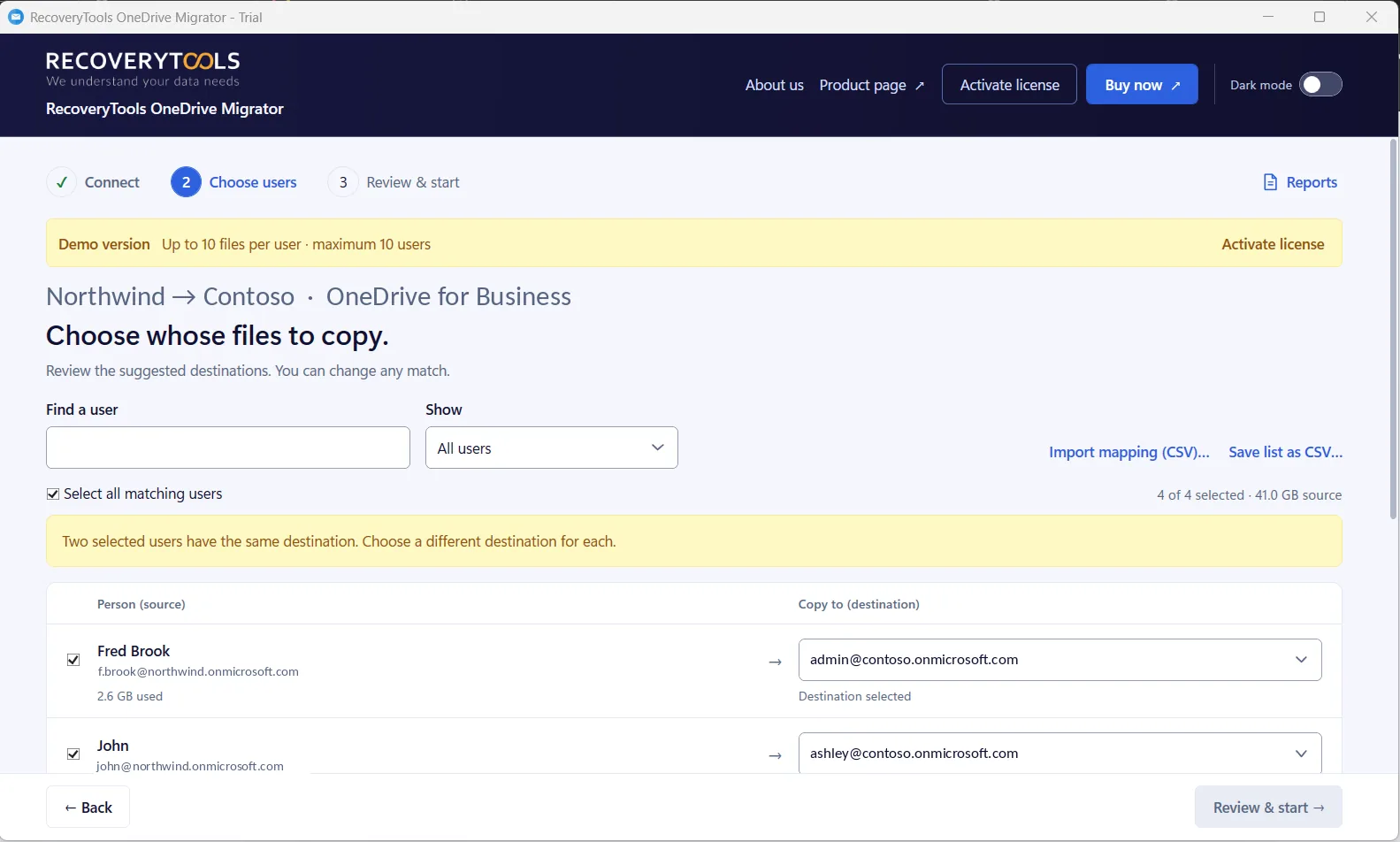
Leavers whose files must reach another tenant
RecoveryTools OneDrive Migrator copies OneDrive accounts between Microsoft 365 tenants, for example after a spin-off. It keeps folders and version history, maps users from a CSV file and never overwrites existing files. Sharing links, groups, people outside your organization and OneNote notebooks are not copied.
No credit card, no sign-up. Works on Windows 11, 10 and Windows Server 2022.
My verdict on offboarding OneDrive
Set the manager first, delete the user last and copy the files inside 30 days.
Offboarding fails when it is a memory task. Put the manager check, the hold check and the reminder date on one checklist, and give every leaver the same order. A short list saves more files than any tool.
Frequently asked questions
What happens to OneDrive files when an employee leaves?
The files stay until you delete the user. Then they are retained for 30 days by default and the manager gets access. After that they sit in the recycle bin for 93 days, and then they are deleted.
Does blocking sign-in or removing a license delete the OneDrive?
No. Microsoft starts the retention period only when the user account is deleted in Microsoft Entra ID.
Who can open a deleted user's OneDrive?
The manager by default. If there is no manager, the secondary owner set under My Site Cleanup gets access. If neither is set, no one gets automatic access.
Can you recover a OneDrive after 30 days?
Yes, for 93 more days. A SharePoint Administrator can restore it from the recycle bin with PowerShell. Before day 30 you can restore the user in the Microsoft 365 admin center.
Can you extend the OneDrive retention period?
Yes. Change it in the SharePoint admin center or with Set-SPOTenant and the OrphanedPersonalSitesRetentionPeriod parameter. Retention policies and holds can also keep files longer.
Does deleting a user stop the license bill?
No. Billing stops only when a billing admin removes the license from the subscription. You cannot remove a license that you bought through a partner or volume licensing from the admin center.
Jamie blends strategic marketing insight with technical writing, turning migration and recovery topics into guidance that works for technical and general readers alike.
Published 13 October 2026. Numbers and steps come from Microsoft Learn pages on OneDrive retention and deletion, removing a former employee, deleting a user and restoring a deleted OneDrive.