 Blog
Blog  +1 7025533020
How to Solve IncrediMail Flash Player Error?


This article provides a comprehensive guide on identifying the cause of the IncrediMail Flash Player problem and its solution.
By following this guide, you will be able to retrieve lost emails from the IncrediMail app and bypass the “IncrediMail error flash player” hurdle effectively.
The majority of users are already aware of the current status of the IncrediMail email client. For those who are not, it is important to note that IncrediMail was officially discontinued on March 20, 2020.
While the exact reasons for the shutdown remain private, a significant contributing factor for many users today is the IncrediMailflash player problem. Since Adobe officially deprecated Flash Player on December 31, 2020, and blocked Flash content from running after January 12, 2021, the IncrediMail interface—which relies heavily on Flash—has become inaccessible for many.
Although they are separate software entities, the technical dependency between them is the root of the issue:
Why Flash Player is Required to Run IncrediMail?
Understanding the User Impact:
“Hi, I am based in Norway and have used IncrediMail for years. Recently, I found that you will not be able to use IncrediMail unless you install flash. The app keeps prompting me to complete an installation that is no longer possible. How can I access my emails without Flash? This has become a nightmare for me. Thanks in advance!”
“After the latest Windows 10 update, my father can no longer use IncrediMail due to the incredimail error flash player message. The client fails to start entirely. Is there a way to backup or migrate his messages and contacts to Outlook or MS Mail without needing to open the app? Regards.”
If you are facing these issues, you are not alone. Most users are currently blocked from opening the client and need a way to retrieve lost data. To resolve this, we recommend using the RecoveryTools IncrediMail Migrator.
How to Fix IncrediMail Flash Player Problem?
To address the **incredimail flash player problem**, you generally have two paths:
- Primary Solution: Migrate all IncrediMail data to a modern webmail service, email client, or standard file format.
- Alternative: Contact Adobe or IncrediMail support (though support for these products has largely ended).
Important:
“If you are unsure where to move your data, check out our IncrediMail Alternative guide for the best recommendations.”
Our solution focuses on the most reliable method: retrieving emails directly from the database files. The RecoveryTools utility is a technology-driven software specifically designed to bypass “you will not be able to use IncrediMailunless you install flash” errors by extracting data without needing the IncrediMail interface to run.
The program automatically detects your IncrediMail database from its hidden system location, allowing you to convert it into a readable format instantly.
Where is the IncrediMail Email Database Stored?
IncrediMail stores all its data (emails and attachments) in IMM, IML, and DB files located at C:\Users\admin\AppData\Local\IM
Read More: Where does IncrediMail Store Emails?
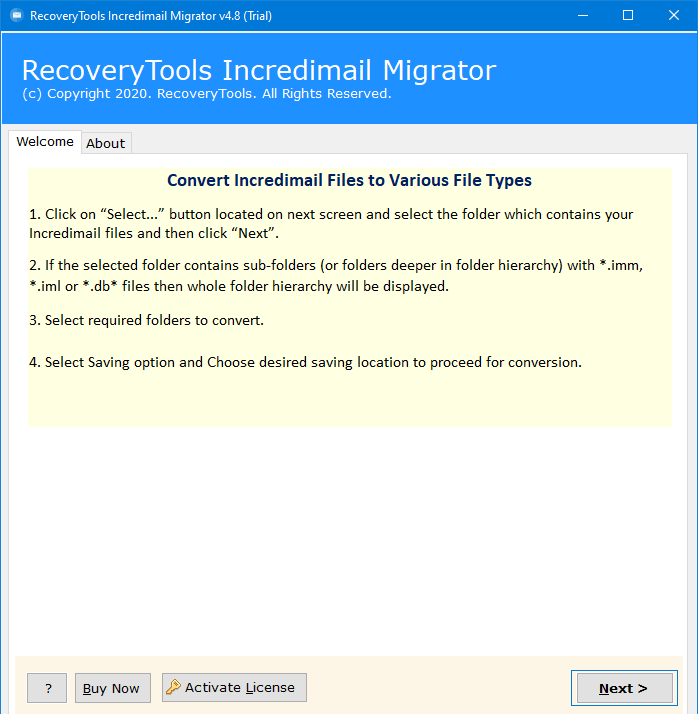
Steps to Solve IncrediMail Flash Player Error
To fix the incredimail error flash player issue, download the RecoveryTools solution. It features an “Auto-Detect” mode that finds your data even if the IncrediMail app won’t open.
- Install and launch the application on your Windows PC.

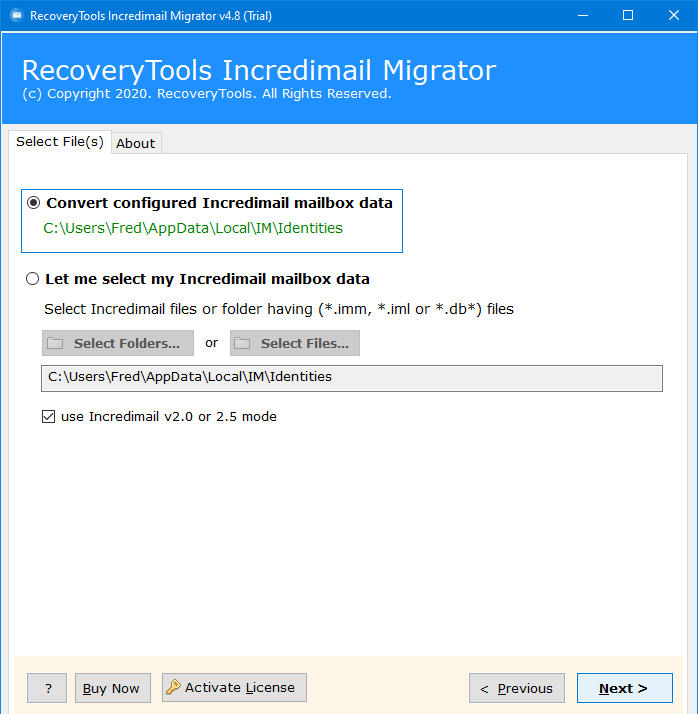
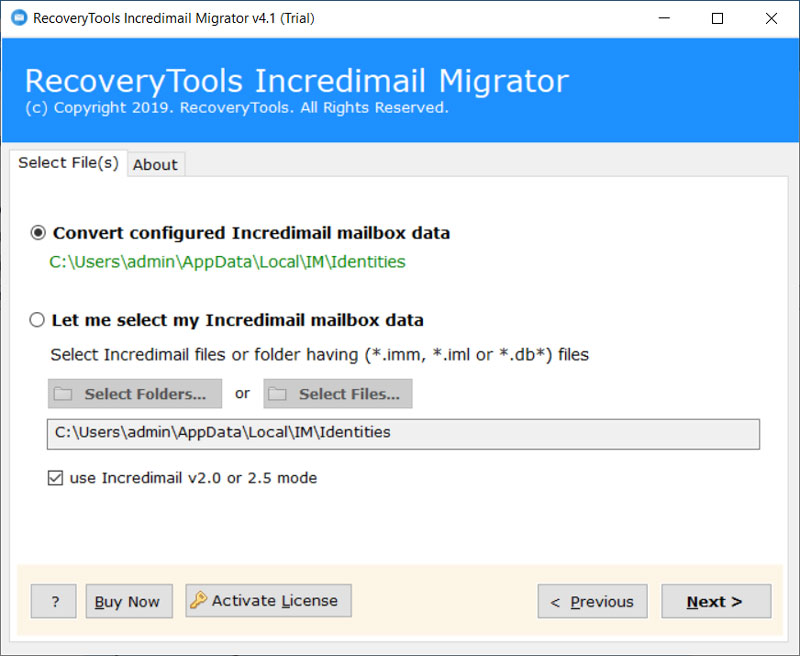
- Choose how to load your data. If IncrediMail is still installed, select “Convert Configured IncrediMail Mailbox Data” to find the files automatically.
- If you have moved the files, use the manual selection option to load your IMM/IML files.

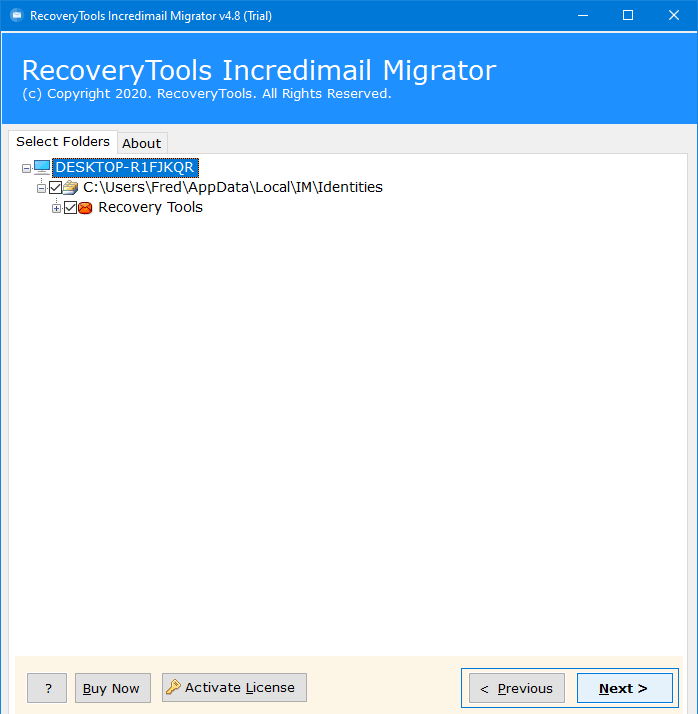
- Check the folders you wish to recover from the folder hierarchy.
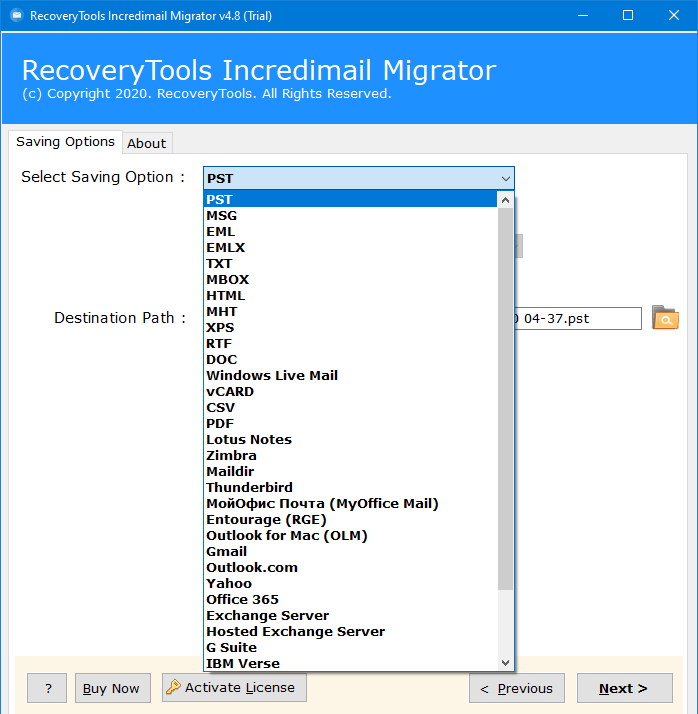
- Select your preferred saving format (PST, MBOX, PDF, Gmail, Outlook.com, etc.).
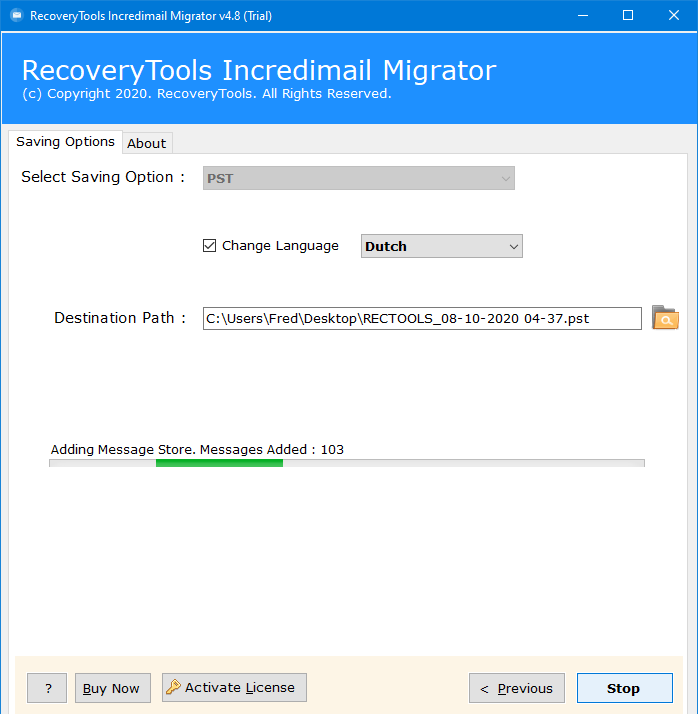
- Set the destination path and click ‘Convert’ to finish the process without needing Flash Player.
Conclusion
The incrediMail flash player problem has left many users unable to access years of important correspondence. Because Adobe Flash is no longer supported, the classic “you will not be able to use IncrediMail unless you install flash” message is a dead end for the software itself.
However, your data is not lost. By using the RecoveryTools solution, you can bypass the IncrediMail error flash player and safely migrate your emails and contacts to a modern platform. For further assistance, contact our 24/7 live chat support team.
