 Blog
Blog  +1 7025533020
How to Transfer Rogers Email to Gmail Account? Top 4 Ways


Rogers Mail is internet email service that is provided by Rogers Communications. It is one of largest telecommunications companies in Canada. Many users now switch from Rogers Mail to Gmail because they want to take advantage of Google features. Gmail provides 15 GB of free space with advanced spam filters & security features. Once transferred, users can also consolidate their multiple Rogers email accounts into one Gmail account. In this blog, users get to know simple methods to transfer Rogers email to Gmail. It also provides an automated solution that directly migrates Rogers Mail emails with intact attachments into Gmail.
Currently, Rogers email infrastructure is powered by Yahoo. Users can still access their emails via Yahoo webmail interface. In today’s time, Rogers Mail has stopped creating new email addresses. Many users choose Gmail over Rogers Mail because they can integrate with other Google Apps. Users can use Google Docs, Excel, PowerPoint, Contacts, etc., without switching platforms. Let’s continue reading this blog to easily process Rogers Mail to Gmail migration.
Why Migrate Rogers Email to Gmail?
- Gmail provides strong spam & phishing detection.
- Easily find & filter emails by using keywords, date, and other search filters.
- Access Gmail on phone, laptop, or computer without depending on email client.
- Use labels, filters, categories, & automatic sorting to organize large mailbox.
- Upgrade your Gmail account according to future needs.
- Manage emails with attachments & other Google data.
- Maintain your email account if you change internet or telecommunications providers.
Pre-Migration Checklist to Switch Rogers Email to Gmail
Before going into methods, let’s check some essential things. It helps users complete migration successfully.
- Active Gmail & Rogers Mail account with email address/password.
- Backup important Rogers Mail emails before starting migration process.
- Check email, mailboxes & attachments size before choosing any method.
- Enable POP access in Gmail.
- Delete unwanted Gmail emails to save space for new Rogers emails.
- Choose any method that fits your requirements.
- Plan Rogers Email to Gmail migration without facing disruption.
- After migration, check Rogers emails in your Gmail mailbox.
How to Transfer Rogers Email to Gmail Account? (3 Free Methods)
If you want to forward Rogers emails to your Gmail account for free, then use these methods. With this practical step-by-step guide, users can easily switch email service from Rogers to Gmail without any data loss. Let’s check methods below.
Method 1: Forward Rogers Emails to Gmail Mailbox
- Open Yahoo Mail & Login Rogers Yahoo Mail account.
- Now go to Settings options.

- After that, click Mailboxes.

- Under your Rogers email address, tap Auto-forwarding.
- Enter your Gmail address.

- Save forwarding settings & confirm forwarding request in Gmail.
- Once your verified request, Rogers Yahoo Mail will start forwarding emails to Gmail.


Limitation: If you are Yahoo Mail Plus subscriber, then you can enable auto-forward option. If you are regular user, then upgrade your account to Yahoo Mail Plus.
Method 2: Connect Rogers Mail to Gmail
If first method require upgrade Yahoo account, then you can choose this method. This method helps you add your Rogers Mail account to your Gmail mailbox. Wondering how? Check this step-by-step screenshot guide.
- Open your Gmail account in web browser.
- Now go to Settings.

- Click See all settings.

- Choose Open Accounts and Import option.

- Once selected, tap Import mail and contacts.

- Enter your Rogers Mail email address & password.

- Start import process from Rogers Email to Gmail.


Note: Gmail is changing this functionality from Jan 2027. According to Google, checking mail from other accounts will be phased out.
Method 3: Migrate Rogers Mail to Gmail via MS Outlook
- Open Microsoft Outlook on desktop.
- Add Rogers email & select IMAP.
- Wait few moments to sync folders.
- Now add Gmail account & wait for Gmail mailboxes to sync in Outlook too.
- Create new folder in Gmail account.
- Select Rogers emails or folders.
- Copy them to new Gmail folder.
- Repeat process until you move every selected folder.
- Open same Gmail account on another device & verify emails.
Limitations of Free Methods
- Require technical knowledge.
- Follow multiple steps to complete migration process.
- Not as simple as they seem.
- Time-consuming process to migrate Rogers emails to Gmail.
- Bulk migration is not possible.
Professionally Transfer Rogers Email to Gmail in Batches
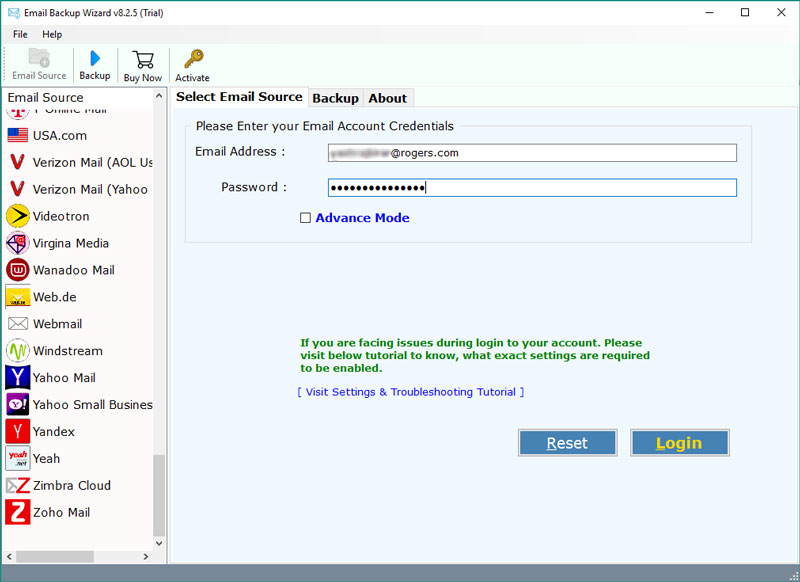
Download RecoveryTools Email Backup Wizard, which helps you transfer Rogers email to Gmail account in bulk with attachments. This tool directly migrate large-size of emails from Rogers into Gmail without any data loss. Users just need to provide exact Rogers or Gmail email address & IMAP details. This application works as bridge & migrate your Rogers mailboxes into Gmail account. Both technical & non-technical users can work with this application to migrate Rogers emails to Gmail account. Download free demo edition of this application to learn more about the software.
5 Step Guide to Migrate Rogers Mail to Gmail Account
- Download software on your Windows or macOS system.

- Start application & login with your Rogers email service.

- Once logged in, preview folder & check/uncheck folders.

- In saving options, select Gmail & login.

- Use filters feature & start Rogers-to-Gmail migration.




Advantages & Benefits of Automated Solution
- Direct Migration: Provides direct option to transfer all messages from Rogers to a Gmail account. Simply enter the account details & credentials of both email accounts in the software interface to transfer emails between Rogers and Gmail accounts.
- Selective Folder Migration: It allows you to choose the required email folders or organizers that you need to relocate from Rogers to a Gmail account. This option appears after connecting with your Rogers email account in the user interface panel.
- Maintain Folder Structure: It keeps email directories & labels structured during the relocation of Rogers email to Gmail. It will also maintain email elements such as attachments, headers, subjects, inline images, etc.
- Simple UI Solution: This application has simple & easy-to-understand GUI, which makes migration process simpler. Users don’t need technical experience to complete migration from Rogers to Gmail.
- Compatible with Windows & Mac: Users can install this application on all Windows and Server machines, including Windows 11 edition. It also supports all Mac OS X edition machines.
Time to Conclude
In the above article, we have discussed the four best solutions to transfer Rogers email to Gmail account. We explained both manual & professional solutions. If you have small-sized Rogers mailboxes, then you can choose forwarding option, which is safe for connecting both email accounts. If users have large mailboxes then choose pro solution, which directly migrates Rogers email to Gmail account without any data size limitations. Now you can select any method according to your requirements & data.
