 Blog
Blog  +1 7025533020
How to Transfer Roadrunner Email to Gmail Account?


Are you looking for ways to switch Roadrunner (@rr.com) email to Gmail account? This process can be challenging, particularly when user have large number of important messages to migrate. In this guide, we will cover how to transfer Roadrunner email to Gmail using both manual and professional methods. If you want to migrate few emails or complete mailbox, this guide will assist users in understanding the complete process and picking the method that suits the best as per their requirements.
Roadrunner Email serves as email service offered by Time Warner Cable (TWC) to its internet subscribers, commonly using @rr.com domain. After TWC became part of Spectrum, many users kept their existing accounts & now want to move their emails to Gmail smoothly.
Quick Way to Transfer Roadrunner Email to Gmail?
RecoveryTools Email Backup Wizard is an all-in-one solution for individuals who want to move Roadrunner email to Gmail. This program has the ability to move bulk emails from Roadrunner Webmail to Gmail account. It provides a platform where you can easily migrate only choice data from Roadrunner to Gmail account. It supports Windows as well as Mac OS. You can also install this application on 64-bit of operating systems. It also supports all the latest versions of Microsoft Windows 11 and Server 2025. Get the solution by the below buttons.
Download Now:
Why Users Migrate from Roadrunner to Gmail?
There are some common reasons due to which users switch Roadrunner emails to Gmail:
- Convenient Access: Users can access Roadrunner emails anytime and from any device with Gmail.
- Enhanced Security: Protect your emails with security features like two-factor authentication to keep your emails and account secure.
- Spam Protection: Gmail automatically detects and filters spam, phishing attempts and other unusual messages.
- Efficient Email Migration: Easily search, sort, filter and label messages to make your inbox easy to manage.
- Seamless Google Integration: Gmail offers convenient features to categorize, search, and handle emails
Manual Ways to Migrate Roadrunner Email to Gmail
Method 1: Manually Import Roadrunner Emails to Gmail
Follow these steps to manually transfer Roadrunner email to Gmail.
Note: Before starting the import, make sure that IMAP settings are enabled in your Roadrunner account.
- Open Gmail in a web browser and sign in to your Google account.
- Click the Gear icon and select See All Settings.
- Go to the Account and Import tab and click Import mail and contacts.
- In the new window, enter your Roadrunner email address and click Continue.
- Enter your Roadrunner account password and select the required import settings.
- Click Start Import to begin importing your Roadrunner emails.
Wait for the import process to finish. Once completed, check your Gmail inbox. Your Roadrunner emails will now appear in your Gmail account.
Method 2: Forward Roadrunner Emails to Gmail
This method is simple and allows you to forward individual Roadrunner emails to Gmail.
- Sign in to your @rr.com Roadrunner account.
- Open the email that you want to transfer.
- Click the small forwarding arrow.
- In the new message window, enter your @gmail.com address as the recipient.
- Click Send.
This normal forwarding method works well for existing emails. However, you would need to repeat these steps whenever you want to forward another new email. You also cannot predict when a new email will arrive, so you would have to keep checking your Roadrunner mailbox.
Fortunately, Roadrunner also provides a feature that can automatically forward new emails as they arrive.
Method 3: Set Up Auto-Forwarding for New Roadrunner Emails
Follow these steps to automatically transfer all upcoming Roadrunner emails to Gmail:
- Open your Roadrunner email account.
- Go to Settings and select Mail forwarding.
- Enter your destination @gmail.com email address.
- If you want to keep a copy of the emails in your Roadrunner account, check the appropriate box.
- Click Save and verify the setup using the confirmation link sent to your Gmail address.
Note: Although automatic forwarding is convenient, it is not the ideal option for complete email migration.
Limitations of These Methods
- Manual import can be time-consuming, especially for large mailboxes.
- The process may encounter IMAP, login, or server-related errors.
- Manual forwarding requires transferring emails one by one.
- Auto-forwarding mainly transfers new incoming emails, not existing emails.
- These methods may not preserve the original folder structure and organization while you transfer Roadrunner email to Gmail.
- Some emails, attachments, or mailbox data may not transfer completely.
- These methods require user involvement and technical configuration.
- They may not be suitable for complete migration of a large Roadrunner mailbox.
How to Transfer Emails from Roadrunner to Gmail Account?
- Get the solution on your Windows as well as Mac machines.
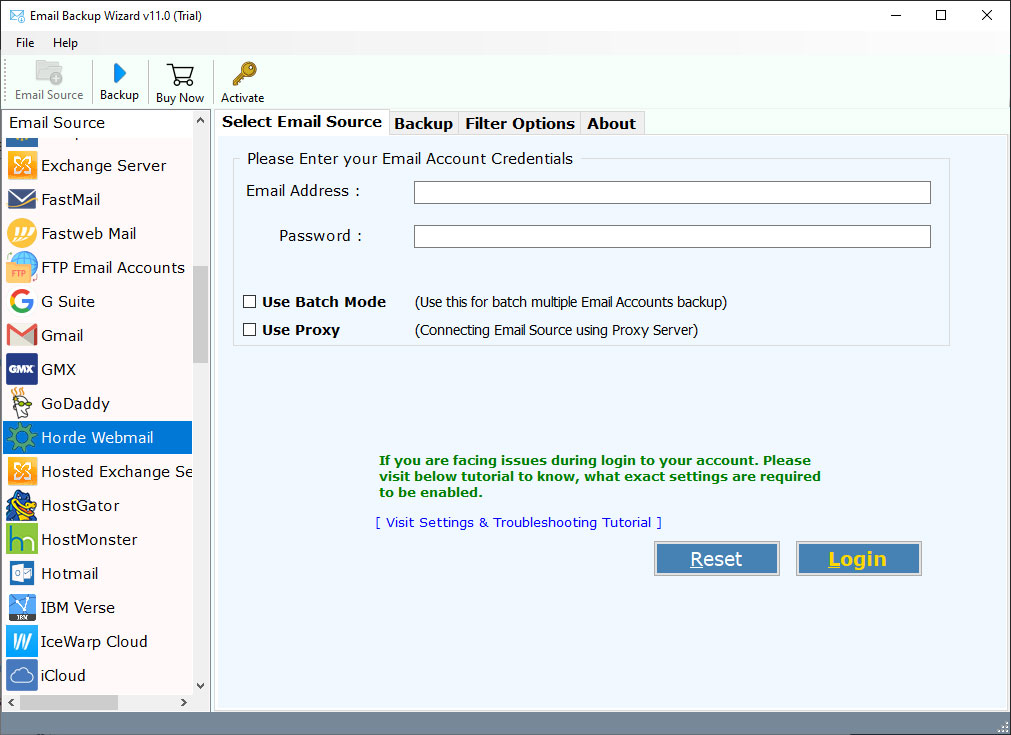
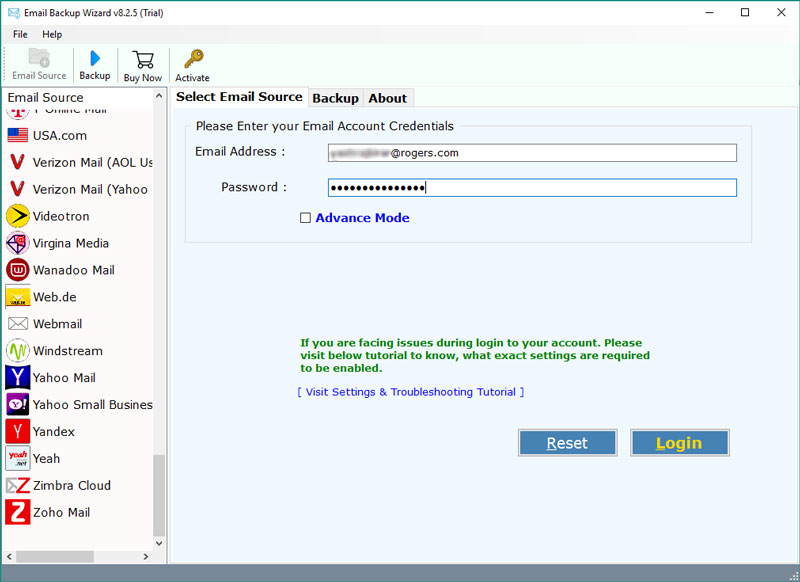
- Choose the IMAP option in the list and fill all the given details:
Roadrunner IMAP Settings:
- User Name: Fill your Email Address.
- Password: Enter your Email Password.
- IMAP Server Address: mail.twc.com
- IMAP Port No.: 993
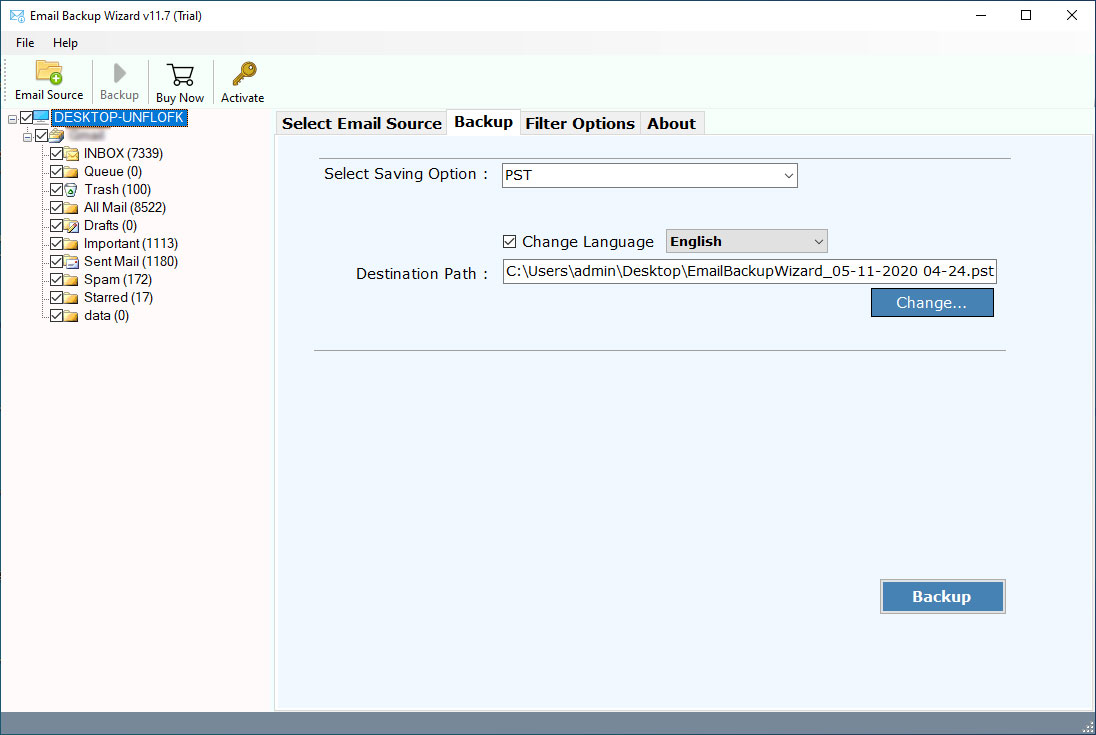
- Choose the email folders in the list of mailbox folders.
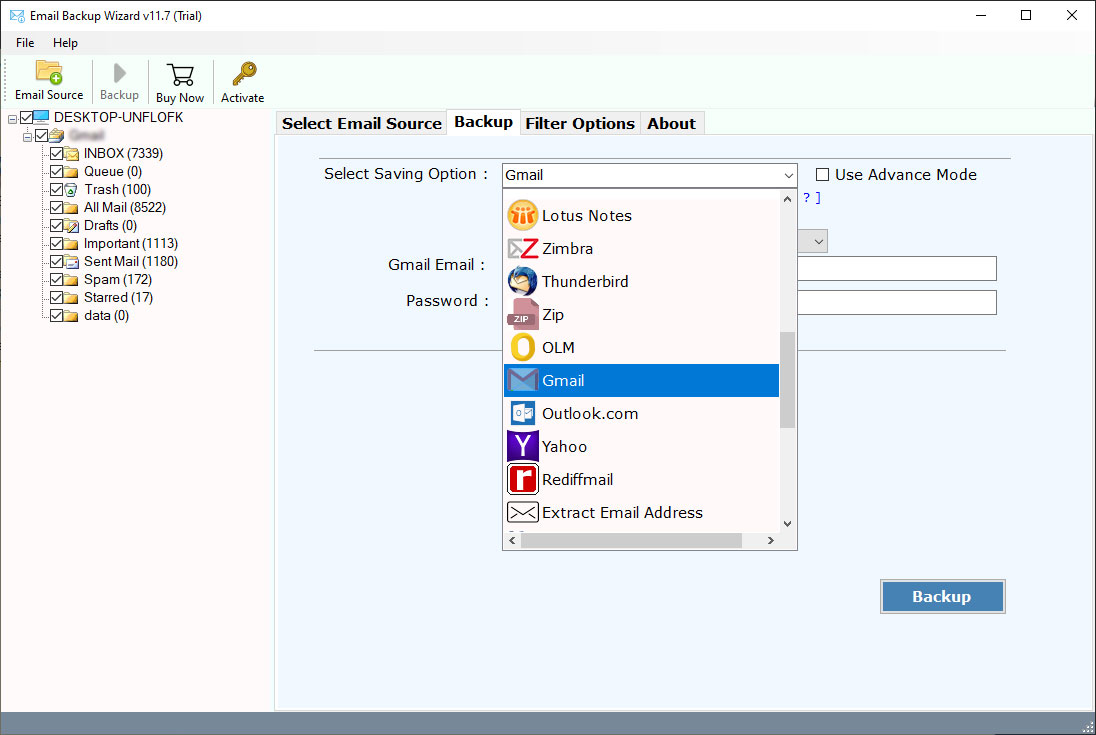
- Select the Gmail option in the list of given saving options.
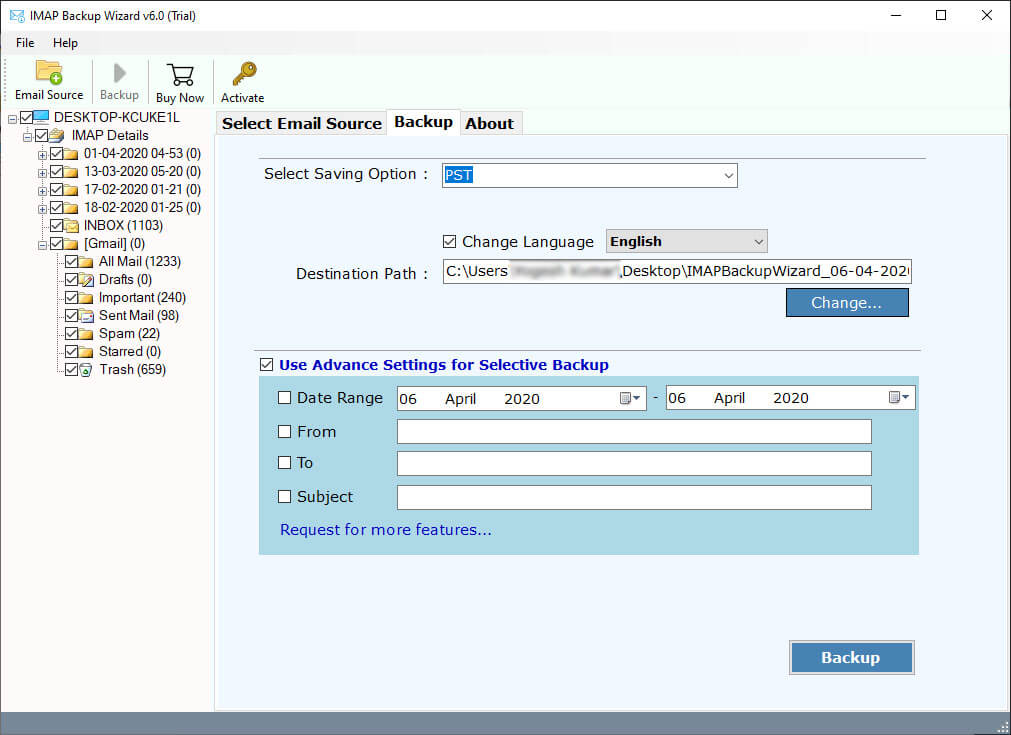
- Choose additional filter mode if you need to move only required emails.
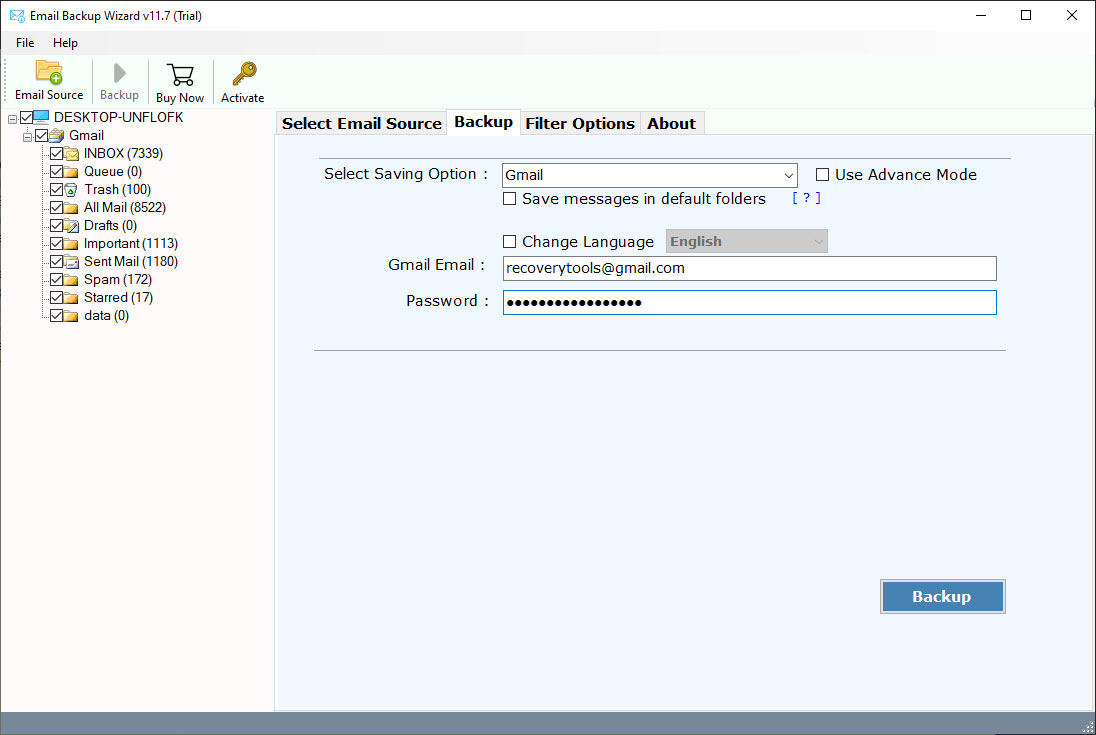
- Provide your Gmail account authorizations details in the user interface panel.
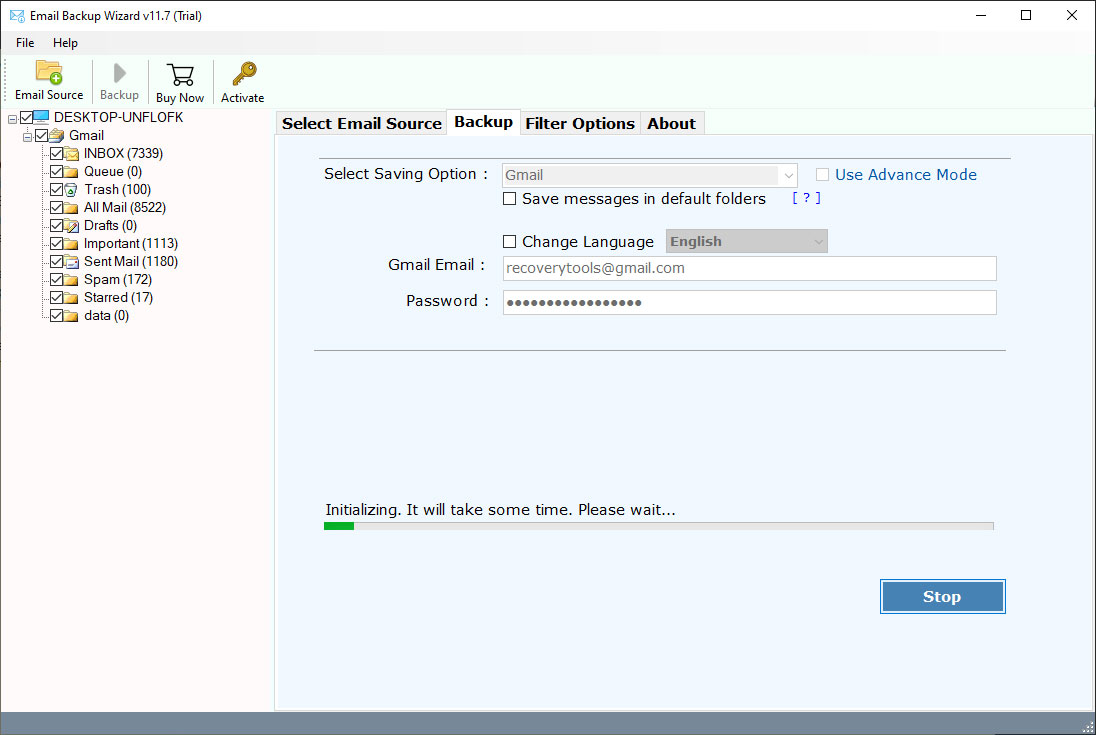
- Start the migration process to transfer Roadrunner email to Gmail.
Key Features of Roadrunner to Gmail Migration Tool
- Advanced Filter Options:
This product offers many options which allow you to easily transfer Roadrunner email to Gmail in a selective manner. The solution gives many options that are used for migrating emails by address, by subject, by date & time, exclude folders, and many more.
- Keeps Original Email Elements:
The solution never changes in original properties of emails during the process. It keeps all elements and properties such as email address, attachments, images, text, hyperlinks, internet header, etc. As well as it keeps original mailbox labels and folders hierarchy structure.
- Batch Email Migration:
It gives an advanced option – called the Batch option. This option allows you to migrate multiple email accounts of Roadrunner to Gmail at a single procedure. Just take all account credentials in a CSV file and upload it into UI.
- Selective Folder Migration:
This application has an inbuilt option to migrate only selected email folders from Roadrunner to Gmail account. This saves time and efforts. After that, it gives the freedom to choose the required email folders only.
- Windows & Mac Workstation Support:
The solution supports all machines including workstations, desktops, laptops, and servers of Microsoft Windows and Mac operating systems. It supports all editions of x64bit of OS and latest editions such as Windows 11. You can easily install this application on all Mac OS X edition machines.
Frequently Asked Questions
Q1. How do I transfer my roadrunner email to gmail
- Open Gmail and sign in you Google account.
- Click Gear icon and select See All Settings.
- Go to the Account and Import tab and click Import mail and contacts.
- In the new window, enter your Roadrunner email address & click Continue.
- Enter your Roadrunner account password and select required import settings.
- Click Start Import to start transferring your Roadrunner emails.
- Wait for the import process to complete.
- Check your Gmail inbox your Roadrunner emails will now appear in your Gmail account.
Q2. Can I utilize your solution to move selected folders from Roadrunner to Gmail ?
Yes, this solution allows you to transfer of selected emails from Roadrunner to Gmail easily. After connecting to your Roadrunner account, all mailbox folders show up in the solution panel. Here, you can select only the required folders for migration.
Q3. Does it allow me to migrate Roadrunner email to Google Workspace ?
Yes, the program gives Google Workspace options. So, you can easily switch from Roadrunner to Gmail account directly.
Q4. Is it true that your solution provides 25+ formats and multiple webmail options ?
Yes, this solution gives multiple webmail options, file format options, document options, and many more.
Conclusion
In the above article, we discussed the method which allows us to transfer Roadrunner Email to Gmail account. If you have the same issue, then you can try our solution. We have already explained the complete method in the above description. Also, you can test this solution and get a few email migrations from Roadrunner to Gmail free of cost. For other queries, contact the support team.
