 Blog
Blog  +1 7025533020
Steps to Migrate Webmail to Gmail Using Pro & Native Tool


Quick Overview: Many users willing to migrate Webmail to Gmail for better user interface, security & easy integration with Google Workspace often find issues with larger mailboxes, duplicates and data integrity. RecoveryTools Webmail to Gmail Migration Wizard is industry-grade software for Mac & Windows to easily move data from any Webmail (Roundcube, Horde & SquirrelMail) to Gmail accounts. Free way to access is via the in-built Import Mail & Contacts option or configuring the account which is suitable for smaller mailboxes & users with ample time. Here is a complete step-by-step guide for all users.
What Can You Export from Webmail to Gmail? Data Functionalities
You can migrate Webmail to Gmail along with messages under all Inbox, Sent, Drafts, Custom or Archive Folders, attachments, email metadata (To, From, Subject, Date), Signature and Formatting.
Note: Other details like Contacts, Calendars, Tasks, Rules/Filters are stored in a separate database which cannot be directly accessed by IMAP to carry out Webmail to Gmail migration.
Should I Migrate Webmail to Gmail?
Gmail is a proprietary email service developed by Google on the other hand Webmails like Roundcube, Horde & SquirrelMail are open source platforms that lets one access emails via a web-interface. However they differ in various aspects.
| Factor | Webmail | Gmail |
|---|---|---|
| Access Device | Via Any Web-Browser | Gmail Web & Mobile App |
| Storage | Dependent on Hosting Provider | 15 GB Free Storage (can be expanded with plans) |
| User Interface | Very Basic | Intuitive with Advanced Features & User Experience |
| Security | No additional security by Webmail only based on ESP | 2FA, phishing protection, security alerts |
| Integration | No specific integration | With Google Sheets, Docs, Drive, Calendar & Meet |
| Offline Access | Usually unavailable | Supported through Gmail Offline |
Hence there are various added advantages to transfer Webmail data to Gmail. Along with that you can severely reduce the downtime of migration using expert recommended solutions.
Prerequisites: Before you begin the migration, backup your Webmail emails and collect all the important credentials (verified). Gmail must have the required storage quota to hold the emails inside the webmail account.
RecoveryTools Webmail to Gmail Migration Tool – Expert Recommended
Automated-secure solution to directly move single or multiple Webmail accounts to Gmail (free, paid or workspace account) within minutes without losing a single bit of data or knowing complex server configuration. Trusted by over 10,000+ top-tier business, professional and IT admins for migration without Gmail-Bandwidth limits, time-out errors or dependency on any email client while managing storage at the same time. Download the best tool to migrate Webmail to Gmail. Give a try to the free version of the tool – restricted to migrate 25 emails per folder to Gmail account.
How to Import Webmail into Gmail? Working Steps Using Tool
- Download the Webmail migration tool for Gmail accounts on your Mac or Windows computer.
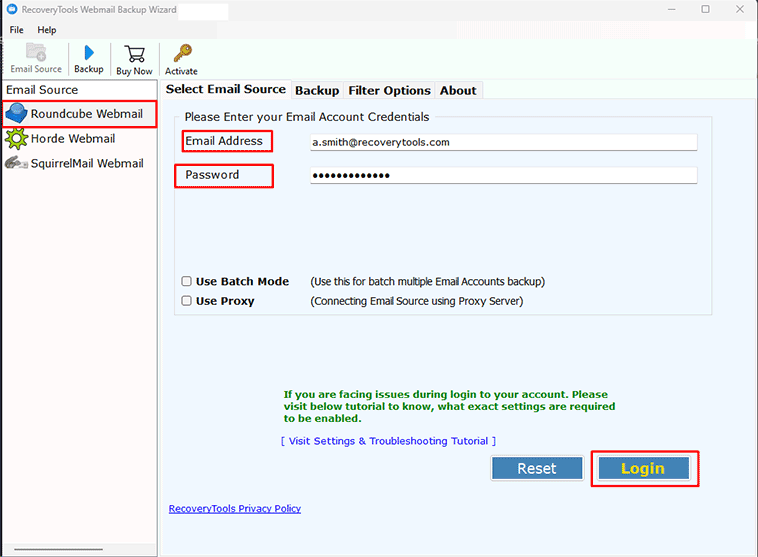
- Select the webmail you are using for the source panel on the left.

- Enter your Webmail ID and Password (or User Batch Mode & Import CSV with Webmail IDs and Password).
- Select the folders under the mailboxes that you want to migrate Webmail to Gmail.

- Choose Gmail as the saving type. Enter email address & connect via Google OAuth.

- Press Backup to begin migration.


Advantages of RecoveryTools to Migrate Webmail to Gmail
Bulk Data Handling
No restriction on the number of Webmail emails, mailbox size, and number of accounts you can move Webmail to Gmail.
100% Secure Migration
The tool connects to Gmail Admin or User account via the “OAuth 2.0” authentication. The migration takes place with strict HIPAA & GDPR compliance.
Preserves Complete Integrity
The tool exports Webmail to Gmail with all email attributes – CC/BCC, messages, attachments, complete email folder structure and metadata.
Selective Webmail to Gmail Export
You can choose the folders under the mailbox and there are multiple advanced filters to import emails by date-range, to, from, subject title and except folders.
Fast & Reliable Migration
The RecoveryTools Webmail to Gmail migration tool can migrate up to 10,000+ emails within 5 mins without failure, connection error or risks of duplicates.
The tool is extremely easy to use, does not require any technical skills and is compatible with all Mac & Windows versions. The tool offers Zero-Downtime you can carry out migration while not shutting emails services.
Note: The tool carries out one-time migration and not lifetime sync. You either need to set up forwarding or change the DNS and MX records.
Need Assistance with Webmail to Gmail Migration?
Get 24/7 support to migrate your Webmail emails to Gmail for RecoveryTools experts with 15+ years of experience. Connect today via live chat option for any queries, assistance or adding more features in Webmail to Gmail Migration tool.
Manual Way to Switch from Webmail to Gmail
Update: The Gmails “Check mail from other accounts” is not working in all interfaces after the latest Gmail update. Hence the better way to migrate Webmail to Gmail is to use the built in “Import mail and contacts” option. As it works for all – whether you want to delete or keep your account afterwards.
Although the built-in way exists it is only possible for limited data under 1 GB. With larger data it is extremely slow, requires technical skills and will lead to email structure loss. Most importantly this method is only suited for Webmail to Gmail migration one account at a time.
Here are the steps to follow:
- Open Gmail in the Web-Browser of your desktop.
- Go to Settings >> See All Settings.
- Click on the “Accounts & Imports” tab and look for the “Import mail and contacts” option.
- Click on the blue hyperlink for “Import mail and contacts”.
- Enter your webmail ID, it may take 60 sec to connect and press Continue. (It may take a while to connect to the account)
- Follow the prompts and enter the password for your webmail account.
- Choose what data you need to import.
- Finally click on the “Start Import button.”
Note: The steps above can only import Webmail messages in Gmail but at max can only fetch new emails for up to 30 days only. You can also set up Gmail to send emails from this address by clicking Add another email address in the “Send mail as” section.
Connect Webmail in Gmail – Configuration Steps
One can open Webmail in Gmail via configuring the account – although it offers accessibility – it is not a migration (not useful in case you want to delete the old account). This approach even enables you to send messages from Webmail in Gmail.
The steps are as simple as basic account configuration.
- Open Gmail in your Web-browser.
- Right-click on your profile and choose the “Add-Account” option.
- Enter your Webmail ID >> Continue >> Password.
Note: You cannot delete your webmail account in case you use this approach.
Read More:
How to Migrate cPanel Email to Google Workspace?
How to Export Roundcube Emails to Gmail Account?
FAQs: Migrate Webmail to Gmail
Q1: Can I migrate 8GB of Webmail emails to Gmail?
Yes, however it is not possible via the manual ways due to Gmail’s bandwidth limitation. However with the tool one can avoid these limitations.
Q2: Is there any restriction on webmail account usage during migration?
No, you can use your account as usual.
Q3: Do I need to update the DNS records (MX) after migration?
Only in the case where you want new emails to be delivered to Gmail ID.
Q4: Is forwarding a reliable way to import webmail messages to Gmail?
No as it will transfer the new incoming messages and not the previously existing ones.
