 Blog
Blog  +1 7025533020
How to Turn Off Threads in Thunderbird: Quick Fixes


Are you also frustrated with the thread conversation layout and want Thunderbird turn off threads? If yes, then this blog can help you in this matter. So, Thunderbird expands all threads by default, which is an in-built feature of this email client that allows the user to have a quick look at all the conversations or replies exchanged with a particular email address. In this blog we are going to learn how to turn off threads in Thunderbird while ensuring the safety for entire conversation.
The main purpose behind this Thunderbird threaded view is to eliminate the hassle for the user in opening and searching for replies in different folders. However, sometimes it creates inconvenience and makes the user search for a way to Thunderbird turn off threads. So, have a quick read of the complete article and find the relevant solution that works for you.
Why Do Users Need to Thunderbird turn off threads?
- Users find this layout very cluttered and confusing to read or work with.
- The large and expanded thread view also compromises Thunderbird’s performance.
- Plus, finding the new emails or unread emails is very difficult in Thunderbird’s threaded view, which makes the user find a way to turn off Thunderbird expand all threads by default feature.
- Those who have recently switched from an email client with traditional layout also get pissed with this expanded form of mails.
Manual Ways to Fix Thunderbird Expand All Threads By Default Issue
There are three most prominent manual solutions that make the user effortlessly initiate the Thunderbird turn off threads. However, they have some limitations, which make it a little risky, and suggest that the user first take a backup of the Thunderbird data. So, without any further ado, have a quick glimpse of them:
1. Use Asterisk For Thunderbird Turn Off Threads
- Run Thunderbird on your device.
- Once done, click on the email that shows threaded view.
- Now, press the Asterisk key (*) on the keyboard.
- This will immediately disable the Thunderbird expand all threads by default issue.
2. Fix the Config Editor Feature of Thunderbird
- First of all, run Thunderbird on your device.
- Once done, click on the Settings option and choose General.
- After this, go to the bottom of the page and click on the Config Editor button.
- Further, type “mailnews.thread_expand_all” in the present field.
- Next, in the given value section, double-click to set the parameter to false.
- If there is no such parameter, then you have to create one.
- For this, simply right-click there and select New option.
- Once done, click on Boolean and name this as “mailnews.thread_expand_all”.
- Finally, you have to set the value as False by double-clicking there.
- With this, the issue related to Thunderbird turn off threads will be resolved.
3. Make Changes in the Folder View
- Run Thunderbird on your system.
- Then, click on the folder that shows Threaded view.
- After this, click on the View option from the menu bar.
- Further, choose Sort By from the drop-down.
- Once done, click on the “Unthreaded” option.
- Finally, you can do the Thunderbird disable threads seamlessly.
Read Also:
Expert Guide to Resolve Thunderbird Import Not Working Problem
What Makes Manual Solution Unreliable?
- These are not permanent solutions, as once the user restarts Thunderbird, the threaded view is enabled again.
- The steps are very confusing and technical for non-tech users.
- Plus, in the manual solution, the threaded view also turns off when the user receives new messages.
- Also, the user has to perform the same step again and again every time to help Thunderbird turn off threads, which is not accepted and suggested by professionals who work with bulk data.
- Loss of data or alteration is also possible with the conventional solutions to fix Thunderbird expand all threads by default.
What Does a Professional Suggest For This Error?
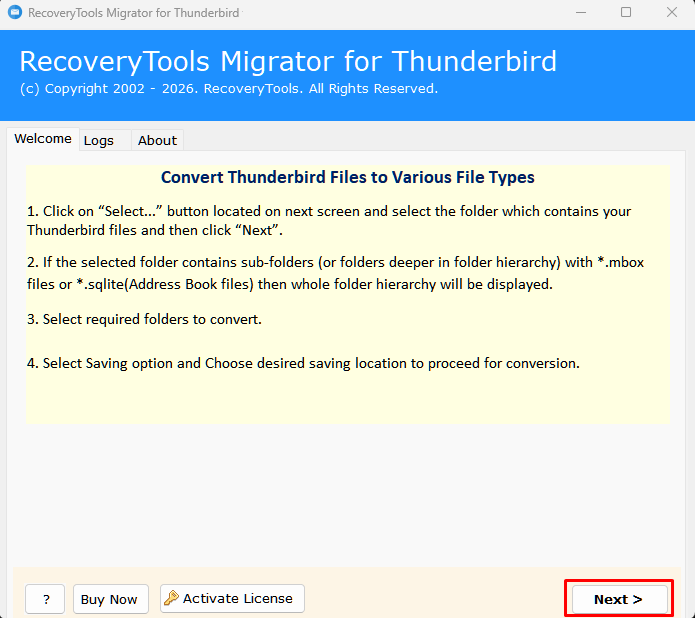
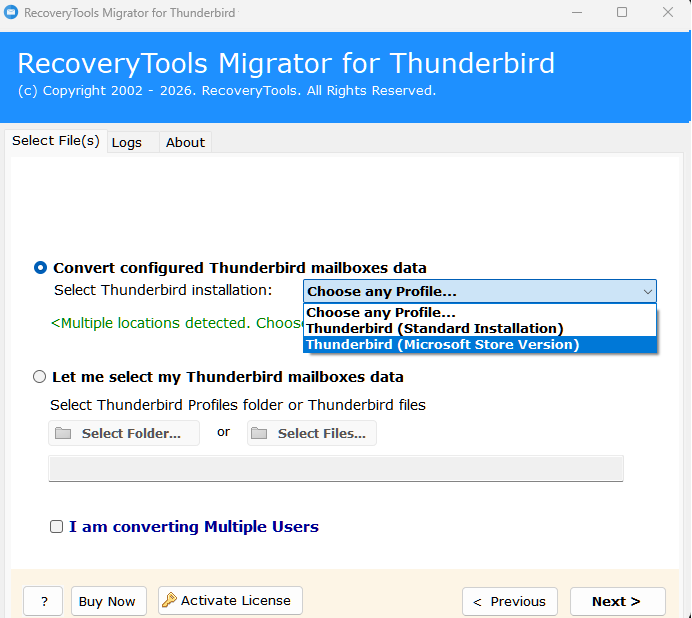
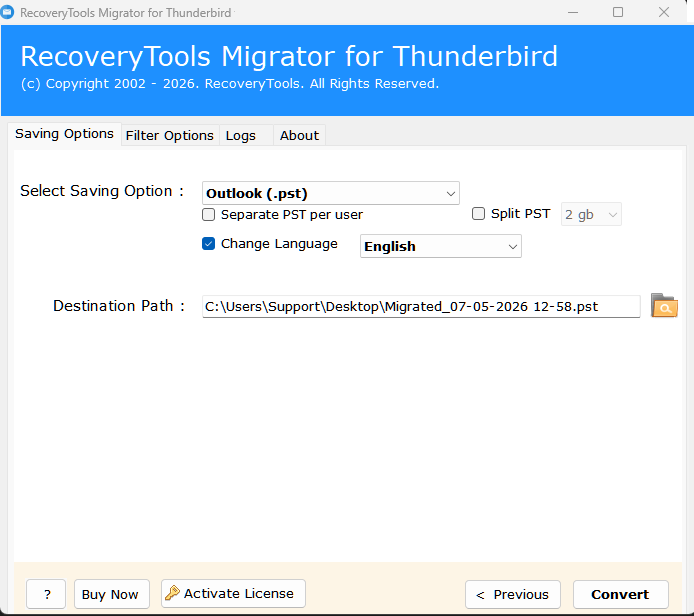
I f the manual way cannot help Thunderbird turn off threads due to its multiple limitations, which are obviously not accepted by the user at all. Thus, to overcome this, the user has two options that are either switch to an email client with a traditional layout or take a backup of the Thunderbird files to practice the unreliable conventional ways. And, for this, the experts rely on and recommend the RecoveryTools Thunderbird Converter. It is easy to use, converts every element of the Thunderbird email, gives quality output, and is completely safe. The steps to use this solution for Thunderbird disable threads are as follows:
- Install and run the tool on your device.

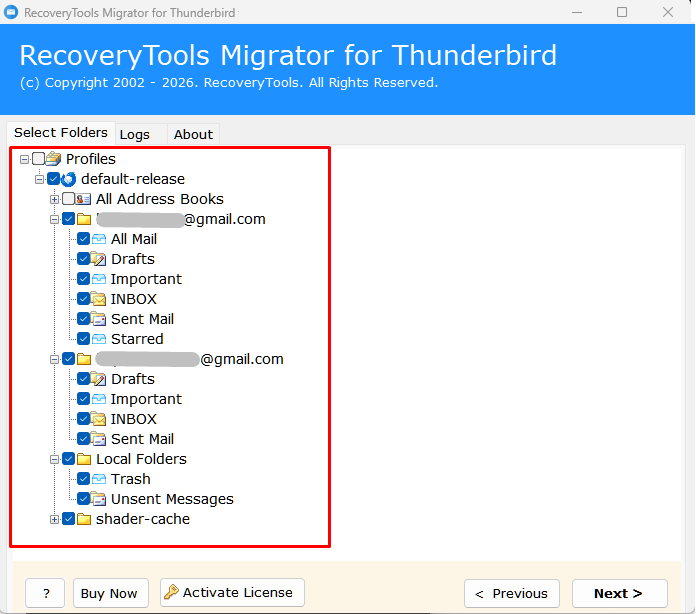
- Select the bulk or complete Thunderbird data using the selection modes.

- Preview all to uploaded Thunderbird data carefully.

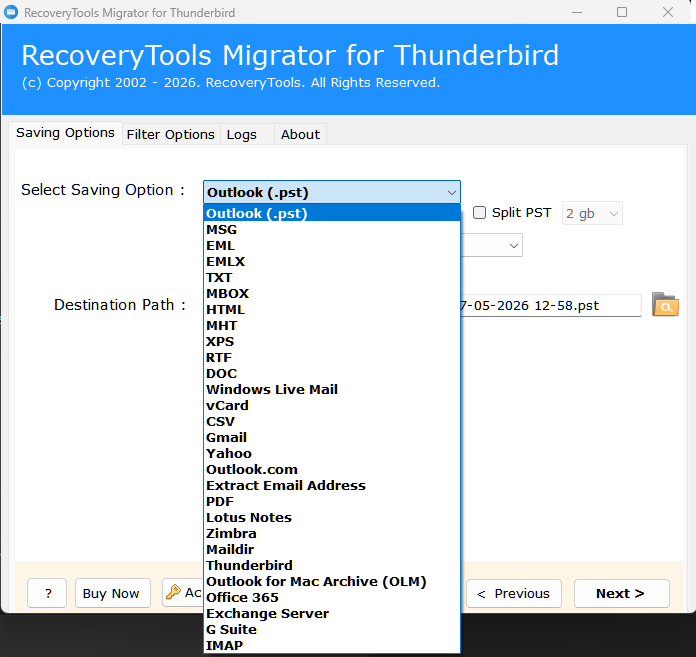
- Choose the export option from the list of 30+ saving options.

- Finally, click on Convert to fix the Thunderbird expand all threads by default issue.

Benefits of Using the Professional Tool
- It has 30+ saving options which allow the user to directly transfer Thunderbird emails to Gmail, Outlook, etc., or convert Thunderbird files to PST, PDF, EML, MBOX, MSG, DOC, TXT, and more.
- There are multiple data selection modes in this tool, which allow the user to choose specific files and ensure a decluttered output.
- Also, there is a demo edition of this software, which is completely free of cost and lets first-time users test the efficiency of the tool without even getting the licensed version.
- The best thing is that this utility maintains the data integrity, from the hierarchy to the attachments and other attributes of the file.
- It ensures that no data loss, alteration, or corruption happens when an individual is using this software to export, transfer, backup, or fix Thunderbird data.
Conclusion
In this blog post, we briefly talked about the various manual ways to help Thunderbird turn off threads which are not only easy but also free. However, they have a lot of limitations and put data at risk, which is why professionals always suggest getting a backup of Thunderbird data or switching to another email client if the thread view is troubling a lot. Thus, the solution mentioned above is also very compatible and versatile, as it supports bulk action and runs on all operating systems, including Windows and macOS.
