 Blog
Blog  +1 7025533020
How to Manage SharePoint Storage When it is Full?


Is your SharePoint storage full, and the numbers do not add up? This guide covers the real SharePoint storage limit, why your quota is bigger than the files you can see, how to find what is eating the space, and how to clear it safely. Read it to the end before you buy a single gigabyte.
SharePoint Storage Overview
SharePoint is one of the core services in Microsoft 365. Teams use it to store, organise and share files, track versions and work on documents together. Every Microsoft Teams channel sits on a SharePoint site as well, so team chat files land in SharePoint whether anybody thinks about it or not.
That last point is why storage fills faster than most administrators expect. Documents are only part of it. Version history, deleted items and content held by retention policies all consume the same pooled quota, and none of them are obvious when you open a document library. Knowing the SharePoint storage limit is step one. Knowing what is consuming it is what actually fixes the problem.
What Is The SharePoint Storage Limit?
Microsoft pools SharePoint storage across your whole tenant rather than handing each site its own allowance. Here is how the numbers work.
- Tenant pool: 1 TB of base storage plus 10 GB for every licensed user. A 300 seat tenant lands near 4 TB. Frontline plans are the exception and do not contribute the same 10 GB.
- Shared across everything: one pool covers every SharePoint site, including the sites behind Teams channels. One department can eat the headroom everyone else was counting on.
- Per site cap: 25 TB for any single site collection, which is a ceiling rather than an allocation. No site can pull more than the tenant pool actually holds.
- Quota mode: automatic pooled management is the default. Switch to manual and you can set a quota per site, though switching resets every site to the 25 TB maximum first.
- Maximum file size: 250 GB per file.
- List and library size: up to 30 million items. Separately, the list view threshold of 5,000 items is a performance limit rather than a storage limit, and it is what breaks views and scripts long before your quota does.
On paper this is generous. In practice a media heavy marketing site, five years of version history and an unmanaged Teams estate will get through it quickly, and then the problems below start.
Issues When SharePoint Storage Is Full
Running out of pooled storage does not produce one clean error message. It produces several, spread across services that share the same quota.
- Uploads stop. New documents, images and videos are refused, and users see messages such as storage limit reached or cannot save file.
- Small edits fail too, because saving a change writes a new version and a new version needs space.
- Microsoft Teams breaks, since channel files live in SharePoint. Nobody can share a file in a channel once the pool is exhausted.
- Site level actions stop working, including adding list items, creating subsites and running automated flows.
- Sites that pass their own quota move into read only mode, so people can open content but cannot change it.
- Buying the shortfall is the quick fix and the expensive one, because extra storage is billed every month for as long as you keep it.
Before you reach for a credit card, it is worth understanding why the number in your admin centre is bigger than the files your team can actually see.
Why Storage Is Higher Than The Files You Can See
This is where most storage reviews go wrong. People add up the documents in their libraries, compare that against the quota and conclude Microsoft is measuring it wrong. Microsoft is not. Four things consume quota quietly.
- Version history. Every saved version of a document is charged as its own copy, and libraries keep up to 500 by default. An actively edited file can carry dozens of versions, so a 20 MB deck quietly becomes several hundred megabytes. Version trimming is usually the single largest recovery you can make.
- Recycle bins. Deleted items sit in the first stage bin and then the second stage bin for 93 days in total, and they are counted the entire time. Deleting a folder today does nothing for your quota until that window closes or somebody empties both bins.
- Preservation Hold library. Anything covered by a retention policy is copied here when a user deletes it, and it keeps counting. This is the usual answer when the files are gone but the number has not moved.
- Microsoft 365 Archive. Archived content moves to a cheaper tier and still counts against the same quota. It lowers what you pay per gigabyte. It does not give you room.
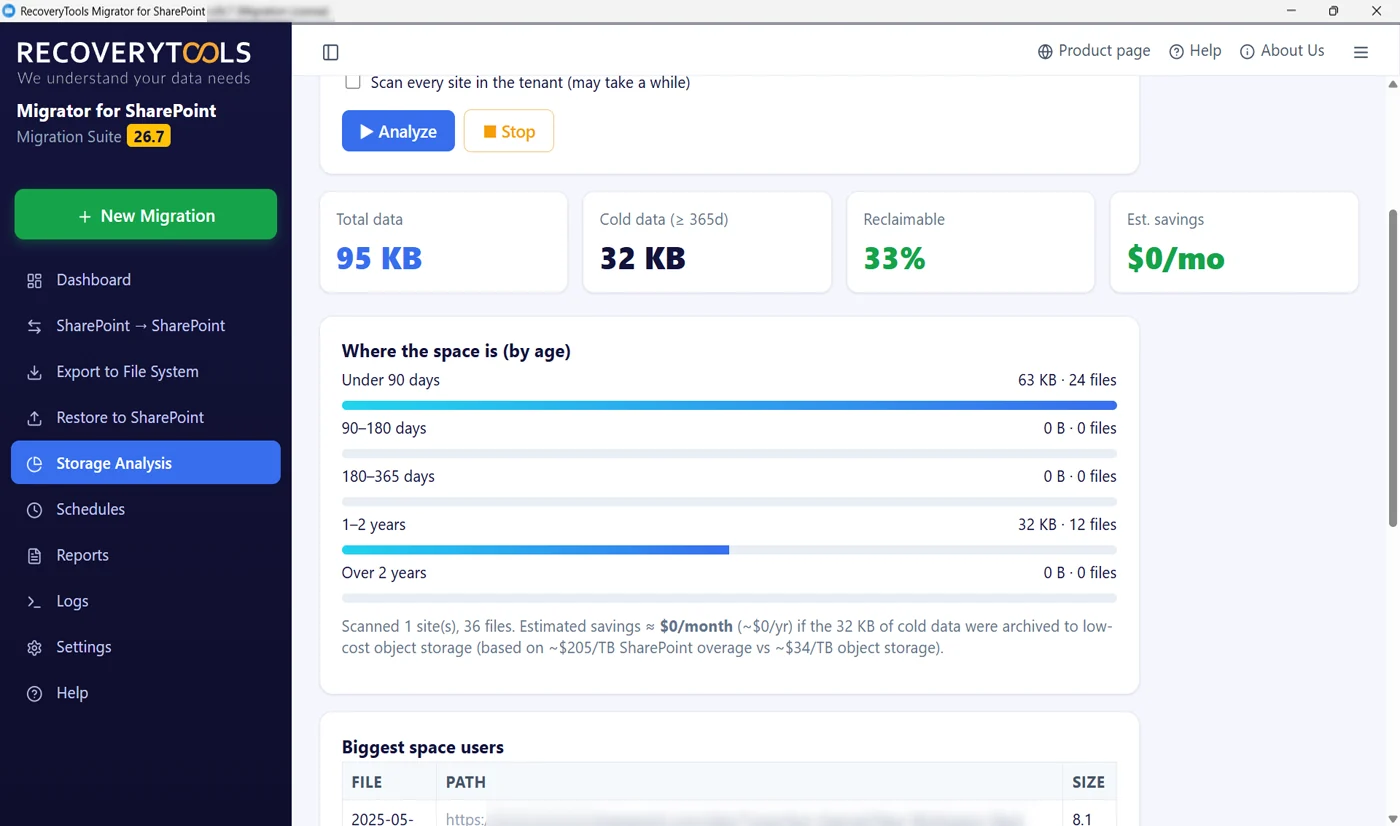
Storage split into age bands, so you can see how much of the quota is cold rather than current.
There is one more reason the numbers feel wrong. Storage figures in the admin centre can lag 24 to 48 hours behind reality, which is long enough for a cleanup to look like it failed.
Find What Is Actually Using The Space
Cleanup without measurement is guesswork. Before you delete anything, you need to know which sites, which libraries, which folders and which individual files are carrying the weight, and how old that content is. Age is the part that decides whether cleanup is even worth doing.
Microsoft gives you two native routes, and both stop short.
- SharePoint admin centre. Sites, then Active sites, then sort by the Storage used column. You get a ranking of sites and their quotas. You do not get folder or file detail, and the figures carry that 24 to 48 hour lag.
- Site settings, then Storage metrics. Found under Site Collection Administration, this gives a folder tree with totals at each level for one site. It is genuinely useful and it is strictly per site, so it is not practical for a tenant wide review.
- PnP PowerShell. Get-SPOSite and friends will pull file level detail, but somebody has to write the script, maintain it, work around the list view threshold and stay inside Microsoft 365 throttling limits.
Neither native route tells you how old any of it is, which is the only question that decides whether archiving is worth the effort.
Scan Your Sites With SharePoint Storage Analysis
RecoveryTools SharePoint Storage Analysis Tool answers exactly those questions in one pass. Point it at one site or tick a box and scan every site collection you can reach. It reports total storage used, cold data, reclaimable share and an estimated saving, then breaks the estate down by age brackets of 30, 90, 180 and 365+ days so you can see whether the weight sits in last quarter or in files nobody has opened since 2023. A biggest space users table names the largest files with their full paths, site name, library name and last modified date, and every run writes an HTML report, a CSV export and a log into your Documents folder.
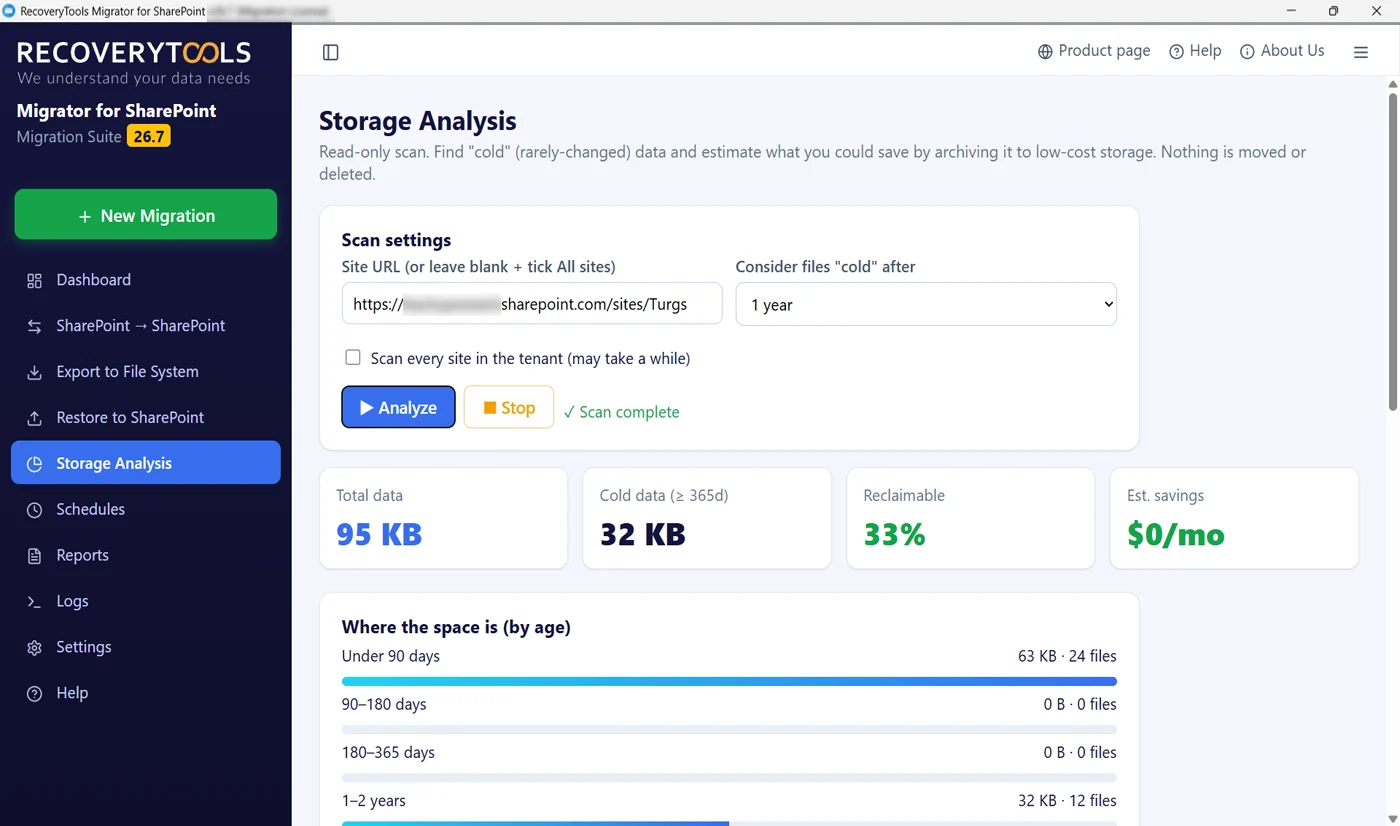
Four headline figures from one scan, with the reclaimable share and the money attached to it.
Two things make it safe to run on a Monday morning. It is read only from start to finish, so there is no write path anywhere in the job and nothing in your tenant is modified. Sign in is interactive OAuth 2.0, so your existing conditional access and MFA policies still apply and no credentials are stored on the machine.
How To Manage SharePoint Storage?
With a report in hand, work through these in order. Measuring first is what keeps the rest from being guesswork.
- Measure before you touch anything. Scan the estate, then decide what counts as cold for your organisation. What is stale in finance is barely settled in design, so pick the threshold before you see the result rather than after.
- Trim version history. Set a version limit on the heaviest libraries rather than leaving it at 500, and let SharePoint trim what is already there. This usually frees more than everything else combined.
- Empty both recycle bins. Clear the site level bin and the second stage bin. Until you do, deleted content keeps counting for 93 days.
- Take the biggest files to their owners. Old video, installers, disk images and duplicate exports sit at the top of the report with their paths attached. That conversation goes very differently with a named list rather than a percentage.
- Review retention before you blame the bins. If Preservation Hold is holding gigabytes, the policy is the thing to change. No amount of deleting will move the number while the policy stands.
- Set quotas and warning thresholds. Switch to manual quota management where one site keeps running away, and turn on notifications so owners hear about it before uploads start failing.
- Fix the intake. Discourage one time file sharing into team libraries, use links with expiry dates, and re-scan a quarter later to see whether the habit actually changed.
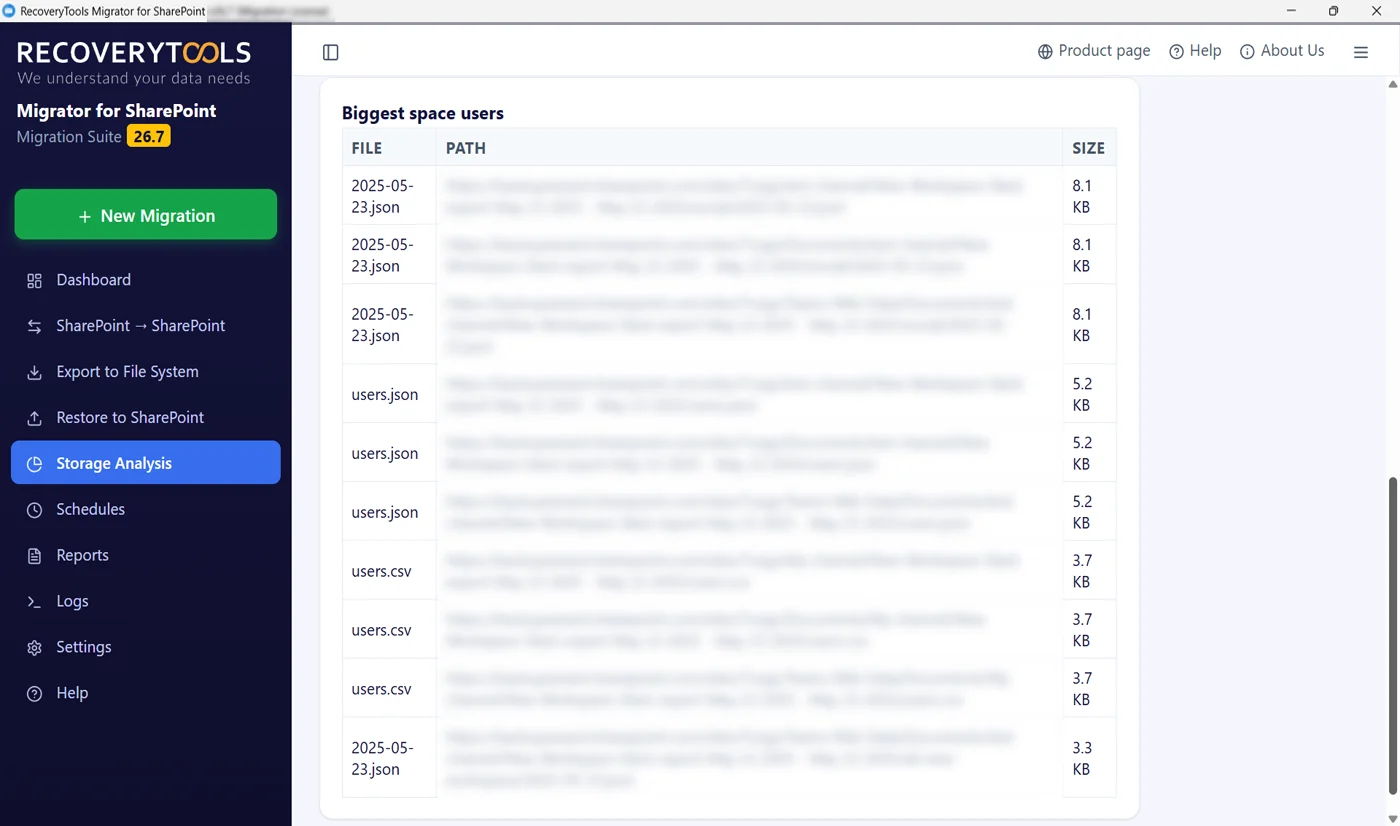
Biggest space users, named with their full paths, so cleanup becomes a list of actions rather than a debate.
Step four is where most of the recovery lives, and step four is also the one that needs a safety net. Nobody should delete content off a production site without a copy of it.
Back Up Before You Delete Anything
Backup does not free storage on its own. Copying a library to your disk leaves the original exactly where it was, so the quota does not move until you delete the source. What backup gives you is permission to delete with confidence, which is the actual blocker in most cleanups.
RecoveryTools SharePoint Backup Tool writes SharePoint Online sites and subsites to local storage or a network drive you control. Documents, version history, permissions and metadata land on your own disk as plain files in plain folders, readable without the software that made them. Run it on the libraries the analysis flagged as cold, verify the folder, then delete on the SharePoint side and watch the quota fall.
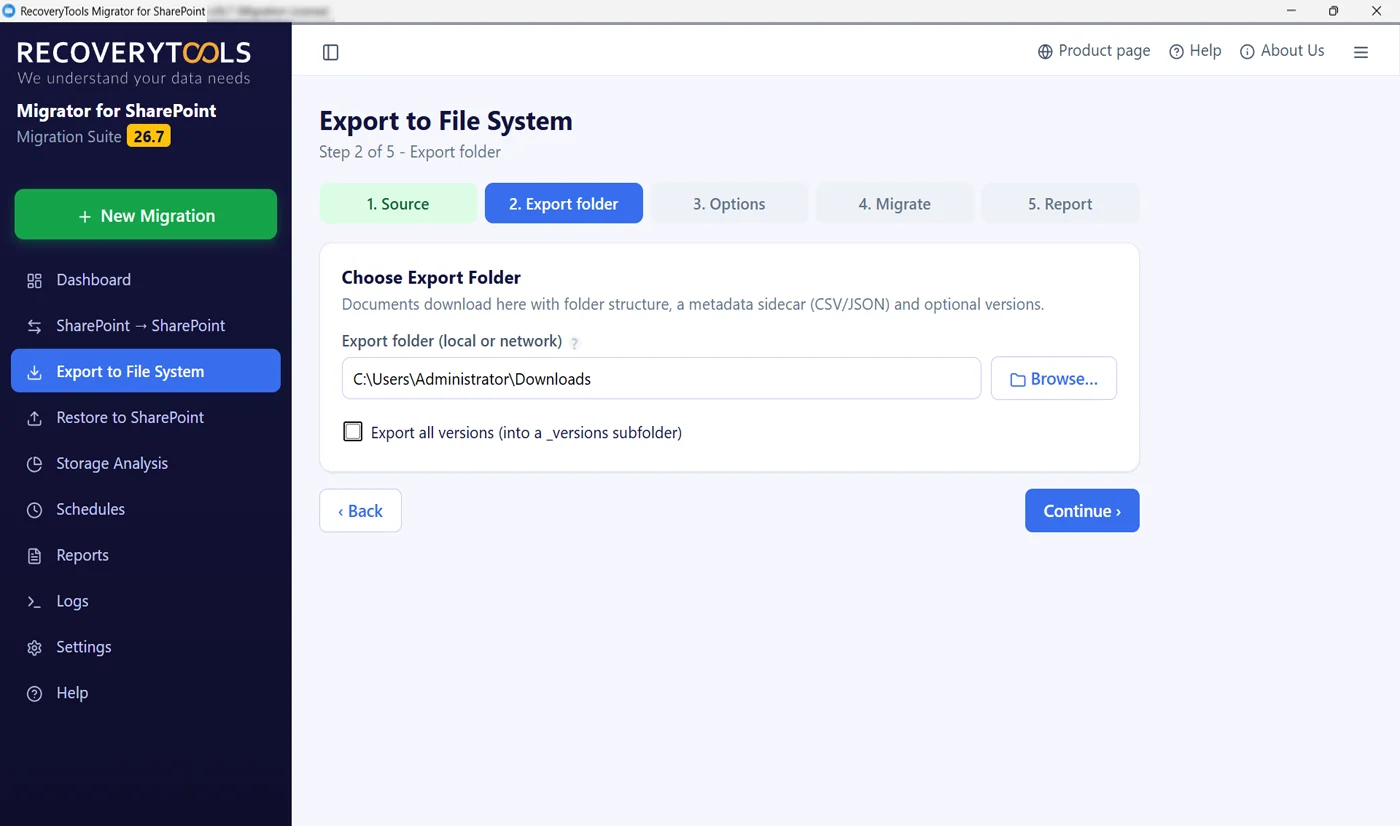
Backup output is plain files in plain folders, so you can open the copy before you delete the original.
Buying More Storage vs Cleaning Up
Sometimes buying is the right answer. Growth is real, and an organisation adding staff will need room. Make it a decision rather than a reflex.
Extra capacity comes from the Office 365 Extra File Storage add-on, sold in 1 GB increments through the Microsoft 365 admin centre. List price is commonly quoted at 0.20 US dollars per GB per month, which works out near 205 US dollars per terabyte per month, so roughly 2,460 US dollars a year for a single terabyte of overage. Regional pricing, currency and purchase channel all shift that figure, and customers buying through a Cloud Solution Provider or Volume Licensing go through their partner instead, so confirm the number inside your own tenant before you budget. Microsoft has also introduced pay as you go SharePoint storage billed through Azure, which changes how the bill arrives rather than whether the content deserves to be there.
Set that recurring cost against what a scan says is cold. If most of the weight sits in the oldest age brackets, cleaning up pays for itself in the first month. If the weight is all recent, extra capacity is the honest answer and now you have the evidence to ask for it.
In Conclusion
SharePoint storage limits are simple enough on paper: 1 TB plus 10 GB per licensed user, pooled across the tenant, capped at 25 TB per site. What confuses people is everything consuming that pool out of sight, from version history and recycle bins to retention holds and archived content.
Measure first, clean up second, buy last. Scan the estate so you know which sites and files carry the weight, back up what you intend to remove, trim versions and empty both bins, then decide about extra capacity with a number in front of you instead of a guess.
Frequently Asked Questions
Q. Is there a limit to SharePoint storage?
Ans. Two numbers matter. Your tenant gets a pooled allowance, one base terabyte with ten more gigabytes added for each licence, and any single site collection is capped at 25,600 GB, which is 25 TB. No site can draw more than the pool actually holds.
Q. Why is my SharePoint storage full when I already deleted the files?
Ans. Removed items sit in both recycle bins for 93 days and are measured the entire time. Anything a retention policy covers is copied into Preservation Hold as well, where it also keeps consuming quota. Clear both bins first, then review your retention policies.
Q. Does archiving free up SharePoint storage?
Ans. No. Archived content shifts to a cheaper tier and is still measured against your allowance. Deleting is what frees room, archiving only lowers the rate you pay to keep it.
Q. How do I find the largest files in SharePoint?
Ans. Site settings, then Storage metrics under Site Collection Administration, gives a folder tree for one site. For file level detail across many sites, run a storage scan that lists the biggest files with their full paths, or write a PnP PowerShell script and work around the list view threshold.
Q. Does version history count towards the SharePoint storage limit?
Ans. Yes. Each saved version bills as a separate copy, and with no limit set a library retains hundreds of them, so trimming versions is usually the largest single saving available.
Q. Is it possible to save more than 300000 files in SharePoint?
Ans. Yes, a list or library holds up to 30 million items. Performance bites long before that number, because views, filters and scripts start failing once a single view has to read past 5,000 items.
Q. How much does SharePoint charge for extra storage?
Ans. Office 365 Extra File Storage is sold in 1 GB increments, with a list price near twenty US cents for each gigabyte every month. Region, currency and purchase channel all move that figure, so check what your own Microsoft 365 admin centre quotes before committing.
Q. Will a storage scan change anything in my tenant?
Ans. Not if the tool is read only. SharePoint Storage Analysis has no write path at all, signs in with interactive OAuth 2.0 and stores no credentials on the machine, so it is safe to run against production during working hours.
