 Blog
Blog  +1 7025533020
How to Backup/Save Emails to Google Drive From Any Provider?


Summary: Although Google Drive can securely store emails from any email provider like Gmail, Yahoo, Office 365, AOL etc. whether for decluttering, backup, or sharing needs. Most email services do have a built-in option to save emails to Google Drive.
Depending upon your requirements you can download emails to Google Drive by:
- Saving individually and then uploading to Google Drive.
- Using browser extension or Google Takeout for Gmail.
- A dedicated utility to bulk save whole mailboxes while retaining attachments, folder hierarchy, and metadata.
Moving your email data to Google Drive reduces dependency on the email service provider. Follow the guide for exact step-by-step for each method.
Why Backup Emails to Google Drive? Real-Life Cases
Email can store important information apart from everyday conversation such as: financial records, legal contract, educational certifications and social security information as well. While all this data is stored on the mailbox hosted by your email service provider. Backup emails to Google Drive helps you safeguard them against accidental deletion and even access them in times of server outages without occupying space on your local drive.
Google Drive’s features like cloud storage, easy sharing via link, ability to handle multiple file types like .doc, .pdf, .ppt etc make it ideal to save emails to Google Drive for long-term data retention.
Note: Google Drive with free Google account at max can store at max 15 GB of data that is shared between Gmail, Photos & Drive. You can get more storage from Google One in case you have more email data to be uploaded.
Best Way to Save Emails in Google Drive for You
The most suitable way to export emails is to move emails to Google Drive based on the requirements, e.g., number of emails, data integrity needs (attachments & folder structure) and how frequently you need to take a backup of your email data to Google Drive. Here is a quick comparison between methods:
Method 1: Manually Save and Upload Individual Emails to Google Drive
In most cases it is a cost free solution to save limited emails to Google Drive and does not require any advanced configuration steps or software.
- Open the emails via Webmail or in an email client.
- Download email locally via the Save As/ Print/ Download Message option.
- Open Google Drive >> + New (on the left hand side).

- Click on File Upload, browse emails file store locally and press open.
- Wait for the upload to be completed, and verify by accessing the email on drive.


Limitations:
- Not suitable for larger mailboxes due to manual effort.
- Limited saving option i.e. PDF or EML.
- Folder hierarchy isn’t preserved.
Method 2: Backup Hundreds of Emails to Google Drive for Free
In case you want to bulk export emails to Google Drive from any IMAP & POP based email service. You can also rely on the Thunderbird email client (free & open source).
- Download Thunderbird and configure your email account.
- Setup ImportExport Tools NG add on.
- Right-click on the folder (Inbox, Sent, Draft) and use ImportExport Tools NG add-on to export Thunderbird emails as PDF/HTML/EML/MBOX locally.
- Open Google Drive >> Upload Folder.
- Select the exported folder containing emails and open to move emails to Google Drive.
Limitations:
- Requires additional application install and configuration.
- Dependency on add-on which is not compatible with all versions and fails at max 4GB.
In Which Format Should I Save Emails to Google Drive?
Google Drive supports various emails and documentation formats. The file format you select determines how your email is stored and what information is retained when you upload it to Google Drive.
| Format | Best For |
|---|---|
| Uploading documents related emails to Google Drive with preserved formatting | |
| EML | Backing up emails to Google Drive you may need to restore |
| HTML | To view emails uploaded to Google Drive with inline images, formatting, signatures etc. |
Method 3: Google Takeout to Export Emails to Google Drive
Google Takeout lets you save email to Google Drive directly – without saving locally first and can even export an entire mailbox to Google Drive at once. It is not suitable for Outlook, Microsoft 365, Yahoo Mail, AOL Mail, IMAP, POP, or Exchange email service as it is Gmail’s native tool.
- Go to Google Takeout and sign in with your account.
- Select Mail only >> Next Steps.
- Choose “To Drive” from the Transfer To option under destination.
- Press create export and wait for progress to be completed for emails to show up in Google Drive.
Limitation:
- Google Takeout only export Gmail emails in MBOX format which cannot be viewed directly via a web-browser.
- Only a dedicated option to save Gmail to Google Drive.
Method 4: Browser Extension to Backup Emails to Google Drive
Browser extension can be a simple way to download emails to Google Drive for non-technical users. Although these extensions are free, they primarily support Gmail accounts and not other email services and are only suitable for a limited number of emails.
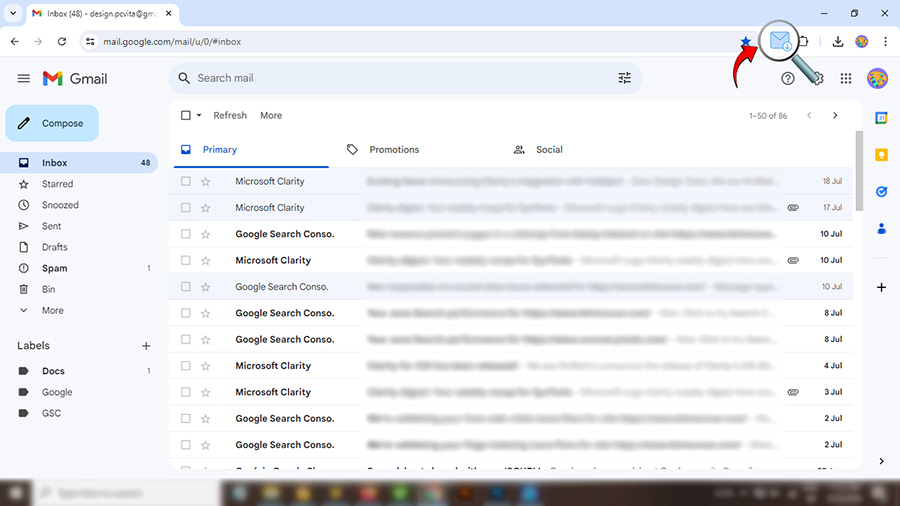
- Install Gmail Message Backup Extension from the Chrome Web Store.
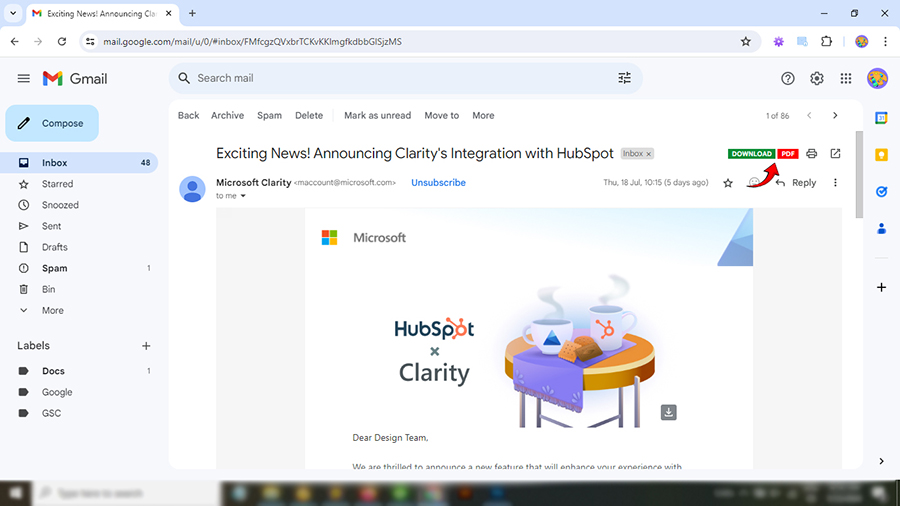
- Open the Gmail email that you want to save.

- Click on Download (to save as EML) or PDF (to save as PDF).
- Select the folder where you want to save the email in PDF format.
- Go to your Google Drive account.
- Select New > File upload and choose the exported files and wait for the sync to be completed.
RecoveryTools Automated Solution to Bulk Save Emails to Google Drive
RecoveryTools Email Backup Software for Mac & Windows lets you bulk move emails to Google Drive from multiple email services like Yahoo, Office 365, Gmail, AT & T Mail, Proton Mail, Zoho Mail etc. Secure & specialized tool to backup emails to Google Drive from multiple mailboxes at once while preserving all email, attachments, formatting and folder hierarchy. Save emails in multiple formats like EML, HTML, DOC, PDF, TXT and many more then upload or sync the exported files to Google Drive for secure storage. Most suitable solution for users who need to frequently download emails to Google Drive from multiple clients due to features like – Incremental backup, Advanced Filters & Batch Mode.
- Install the tool on your PC.

- Select the source emails and sign in with your account from which you need to save emails to Google Drive.
- Select folders using checkbox and apply filter settings – Date Range, To, From, Subject etc.
- Choose the Saving Format and press backup.
- Once the export is created, go to Google Drive >> New >> Folder Upload.
- Upload the folder holding emails created by the tool to Google Drive.


Pros & Cons of Using the Tool to Download Emails to Google Drive
Pros:
- Secure GDPR, HIPAA, SOX (Sarbanes-Oxley), SEC Rule 17a-4, FINRA-compliant email export to Google Drive.
- No restriction on email export to Google drive. Add multiple mailboxes using batch mode, without limitation on mailbox size or number of emails to Google Drive.
- End to end email data export to Google Drive without loss of metadata, attachments, CC/BCC, Header details, Formatting etc.
- Increment backup option to export only new or modified emails and upload to Google Drive.
Cons
- No direct export available.
- Requires sufficient local storage to export emails before uploading them to Google Drive.
FAQ: Save Emails to Google Drive
Q: Is downloading emails to Google Drive a good way for long term storage?
Yes, saving email data to Google Drive for long term storage is suitable due to lower risk of corruption as stored on Google cloud, easy access & sharing and multi-file format support.
Q: How do I see my emails after backing up in Google Drive?
You can easily view the emails exported to Google Drive:
- Open Google Drive.
- Go to the folder where you uploaded the email.
- PDF – Open with double-click in Google Drive.
- HTML – Download and open with any web browser.
- EML, MSG, MBOX, or PST – Requires a dedicated email client like Microsoft Outlook or Mozilla Thunderbird to access.
Q: Will my email attachments also be saved to Google Drive?
Yes, if you export the emails in a format that preserves the attachments EML, MSG, MBOX or PDF (attachments handled separately).
