 Blog
Blog  +1 7025533020
Juno Email Backup: Complete Procedure


Looking for a way to backup Juno email? This article will walk you through a quick and easy way to download Juno email, including both the manual method and the more advanced direct method. Whether you’re moving somewhere new, trying to get more space, or just want a copy of your email, a Juno email backup is essential for everyone. In this guide, we will walk you through the easiest and most effective methods to backup Juno emails.
Quick Answer: How to Backup Juno Emails?
Juno Mail only supports POP3 to check your email. As such, there is no Juno email backup built-in feature. You will be able to download just your inbox using POP3. If you want to download Juno inbox faster or want the option of downloading Juno inbox in more than one file type, you can either manually export your Juno email to TXT files or you can use an automated solution like the Juno Backup Wizard by RecoveryTools.
What is Juno Webmail?
Juno is an ISP (Internet Service Provider) based email service in the United States. It allows users to send, receive, and manage their emails through a Web browser just by having an internet connection. Users get several useful features of Juno Webmail such as: address book management, customized folders, etc.
Why Should You Backup Juno Emails?
The reason to download Juno email particularly depends on the user’s situation and their requirements. Here are a few cases where a user may look for Juno email backup:
- Data Safety: Email services can go down anytime and could be discontinued at any day. A local Juno backup protects you from that. Juno’s backup can provide protection from Juno.
- Switching Providers: To switch from Juno to Outlook, Yahoo, Office 365 export all emails from Juno.
- Storage Management: To manage storage space more effectively, download older emails to your computer.
- Offline Access: You will be able to read your unread emails (on your backup) offline.
Companies like Juno have old style email service. This sometimes causes data to be exported. There are multiple ways to export Juno mail.
Manual Methods to Backup Juno Emails to Computer
Simply export Juno emails or download your Juno inbox using POP3:
Method 1: Manually Download Juno Emails (Free)
The manual method for Juno email backup works well. Here is how to backup Juno email one by one:
Steps:
- Open your Juno and log in.
- Open the Read tab from Juno interface and select the message you want to download.
- Go to the File menu at the top and select “Export Messages” to text file.
- A save dialog will appear; choose your desired folder and click Save.
- Your Juno email will be downloaded as a TEXT (.txt ) file.
Limitations:
This method only backup Juno emails in text format, and it is time-consuming if you have a large number of emails and is not suitable for bulk export.
Method 2: Backup Juno Emails via POP3 Client
To backup Juno Mail account, you must connect to a desktop email app (e.g., Outlook, Apple Mail, Thunderbird, etc.) and use POP3.
How to set up POP3 for Juno email backup:
- Launch the email client of your choice.
- Go to Add Account and select Manual Setup.
- For Account type, select POP3.
- Type your Juno email address and password.
- For your Incoming Server, use these settings:
- Incoming Server: pop.juno.com
- Port: 995
- Encryption: SSL/TLS
- Finish setting up your desktop client and let it download your Juno emails.
Limitations of Manual POP3 Configuration:
- If you’re using Juno via POP3 or IMAP, then only the main inboxes will be pulled down. Your custom folders, sent items, and drafts won’t sync because Juno only supports POP3 and does not support IMAP.
- Setting up a new POP3 mail client can be confusing for users not familiar with setting their ports and encryption manually. There is a good possibility that the application will not connect as intended, resulting in continual errors when the setup is attempted.
- Emails are deleted instantaneously by Juno Webmail if the option to “Leave POP3 Mail on Server” in your email client’s advanced settings is NOT checked. In other words, what you see in your Juno Webmail version after POP3 downloads those e-mails will no longer exist after that download unless you have checked this option in your email client.
Most Effective Approach to Download Juno Emails all at Once
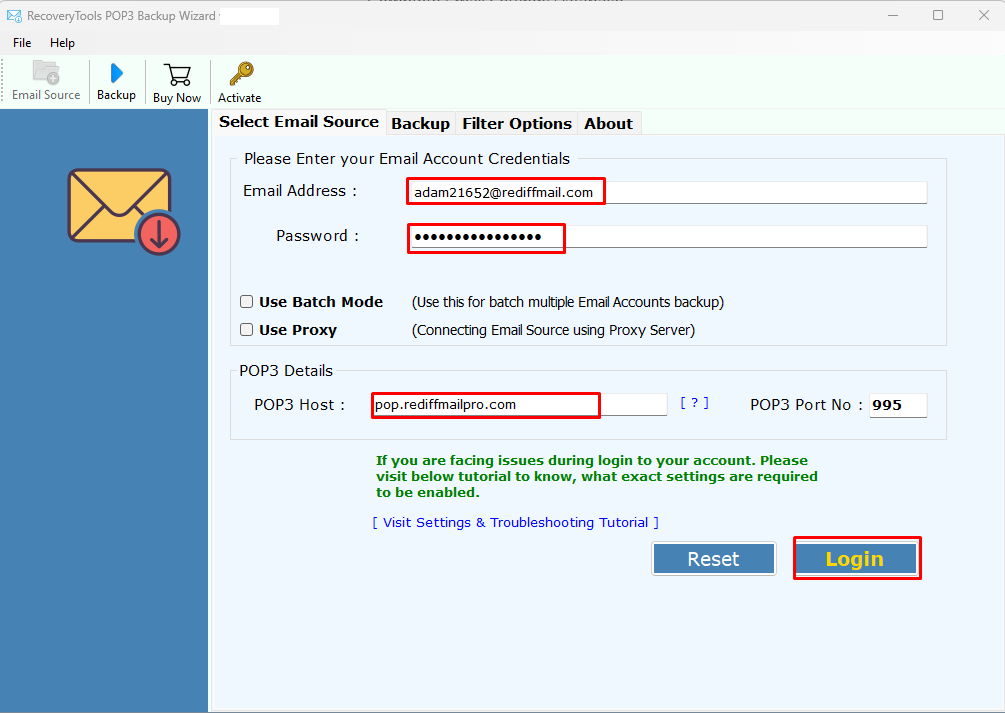
For users who prefer a hassle-free Juno email backup solution over manual POP3 setups, RecoveryTools POP3 Backup Wizard can be an excellent choice.
This is a professional-grade software solution to backup Juno emails to a local computer. If you want to export Juno emails in multiple compatible formats, then use this dedicated and reliable software solution to save Juno emails in your preferred format.
Advantages of Juno Backup Wizard
- A Straightforward Solution: The Juno backup wizard offers a direct and straightforward method to download Juno webmail emails. You can just type your Juno account login details into the tool and perform Juno email backup directly.
- Batch Backup: Unlike the manual method, you don’t need to repeat the same task in case you have a bulk of Juno emails to download.
- Batch Mode Option: The Juno backup wizard provides a unique way to download Juno Webmail emails from multiple Juno Webmail accounts.
- Preserve Folder Hierarchy: It is essential to maintain the email folder hierarchy for all email messages. The Juno email backup application was developed specifically to maintain the email folder structure as emails are downloaded.
- Maintain Original Structure: Email metadata such as sender information, subject matter, date, and attributes are important pieces of data to keep and maintain. The Juno backup wizard ensures that all original email metadata is retained for legal, professional, or personal record-keeping purposes.
- Reduced Time Consumption: A major benefit of the Juno Backup tool is its time efficiency. This automated Juno backup wizard can download multiple Juno emails at once very quickly and efficiently.
- Accurate Results: Accuracy is paramount during the Juno backup. Juno Backup Wizard is designed for each and every Juno email without facing any error. This means you can rely on the software for an accurate and complete Juno backup and get an exact original copy of your Juno emails.
- Backup Email from Multiple Sources: This comprehensive Juno email backup tool allows you to backup emails from multiple email sources. For example, apart from downloading email from a Juno account, you can also download email from Office 365, Zoho, Gmail, Google Workspace, Zimbra, and several webmail accounts.
- Choose Desired Path: Once you finish downloading your Juno webmail emails, you can save them wherever you want, whether you want to save them on your computer in any file format or transfer Juno email to Gmail or any other email client.
Conclusion
Knowing how to backup Juno emails is essential for anyone who completely relies on Juno Webmail for personal or professional communication. Manual Juno email backup methods are too technical and consume a lot of time. Use the Juno backup wizard to directly download Juno emails with a simple login. The main point is to determine which is the best option for you. However, the earlier you act, the more likely you will be able to preserve the data that you rely on.
FAQs: Juno Backup
Q 1: How do I export my Juno email?
- Simply start the RecoveryTools Juno Backup Wizard.
- Select POP3 Server in Email source (Juno does not support IMAP).
- Enter Juno account details.
- Choose file type and click Backup.
Q 2: Why should we use RecoveryTools Juno Backup Tool?
The RecoveryTools Juno Backup Wizard is the easiest way to export Juno Webmail emails in bulk without needing any other software. It has a simple user interface that anyone can use, even without technical knowledge. You can easily download Juno emails in bulk with just a few simple steps.
