 Blog
Blog  +1 7025533020
How to Import Google Takeout to Gmail? 2 Best Solutions


Can Google Takeout Emails be Imported into Gmail Account?
Yes, they can. Although Google Takeout exports Gmail emails in MBOX format, but it cannot be imported into Gmail account directly. You can use Thunderbird IMAP synchronization or a dedicated and reliable migration tool to import these emails directly as per your convenience. Just remember you need to choose the method that supports Google Takeout archives while preserving email folders, metadata, and attachments.
Reasons to Import Google Takeout Data to Gmail Account
|
♻️
Restore Email Backup
Users may want to restore the emails they have taken backup before.
|
📧
Switch to New Account
To move emails and attachments to a new fresh Gmail ID.
|
🗂️
Organized Data
It helps to organize and manage old emails directly without the active Gmail account.
|
|
📂
Easy Archive Access
To access archived messages from Google Takeout backup.
|
🔍
Easy Management
Import Google takeout to Gmail to make search, filtration and managing emails easier.
|
How to Import Google Takeout to Gmail? Manual Way
If you have an MBOX file from Google Takeout then you can import it into Gmail using a desktop email client like Thunderbird. Follow these steps:
Step1- Extract Google Takeout File
- Firstly, locate your download .zip or .tgz archive.
- Then, extract it to access the files in .mbox format.
Step2- Install and Set Up Thunderbird
- Download Thunderbird on your PC.
- Configure your Thunderbird account using IMAP server details.
Incoming Server: imap.gmail.com, Port: 993, SSL: Yes
Outgoing Server: smtp.gmail.com, Port: 465, SSL: Yes
Step3- Import MBOX to Thunderbird
- First, install the ImportExportTools NG add-on in Thunderbird.
- Then, right-click on your local folders and choose ImportExportTools NG > Import MBOX file > Import directly one or more MBOX files.
- After that, select the extracted MBOX file from your Google Takeout.
Step4- Move Emails to Gmail
- Once your email starts appearing under “Local Folders”, simply drag and drop them in your Gmail inbox.
- Thunderbird will automatically sync and upload all the imported emails to your configured Gmail account.
That is it. You have successfully imported Google Takeout to Gmail performing a manual method.
Limitations of the Manual Method
- It requires technical setup such as IMAP, add-on etc.
- This method consumes a lot of time if you are dealing with large MBOX files.
- Do not guarantee preservation of exact folder hierarchy.
- It needs a stable internet connection to import Google Takeout to Gmail.
- Can be a complex process for non-technical users.
If you want a fast, more accurate and user-friendly solution then we recommend you to use the automated tool that we have discussed in the below section.
Easiest Way to Import Google Takeout to Gmail
If you find manual method complicated and time-consuming then here we have mentioned the more simplest option i.e. use professional tool such as RecoveryTools Google Takeout Converter. It is an easy tool which is designed to quickly import Google Takeout data to Gmail without any technical skills or risk of losing data.
With this comprehensive tool users don’t need to install Thunderbird or waste time in any setup process. All you have to do is simply launch the tool and follow the below steps. Within a few minutes all your emails with attachments will be inside your Gmail account in the same format as they were before.
How to Import Google Takeout to Gmail in Windows?
Follow the steps given below to save Google Takeout files in Gmail:
- Firstly, download and install the tool on Windows PC.
- Add Google Takeout Archive files with the help of Add Files or Add Folders options.

- After that, choose required files from the selected files that you want to import Google Takeout to Gmail.
- Now, click on Next. Select Saving Option as Gmail from the given list.

- After that, enter the Gmail Email and Password. Click on Convert.
- You can check the live progress.
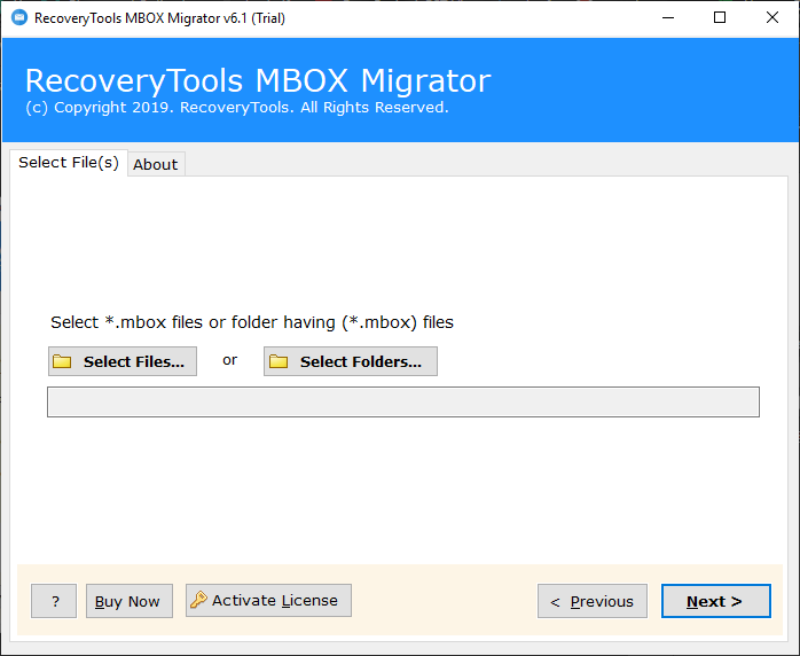
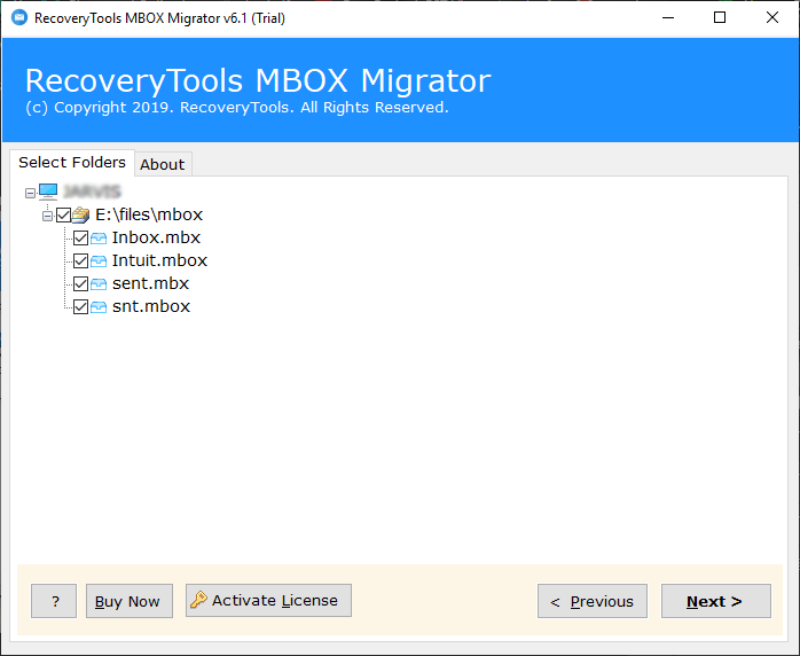
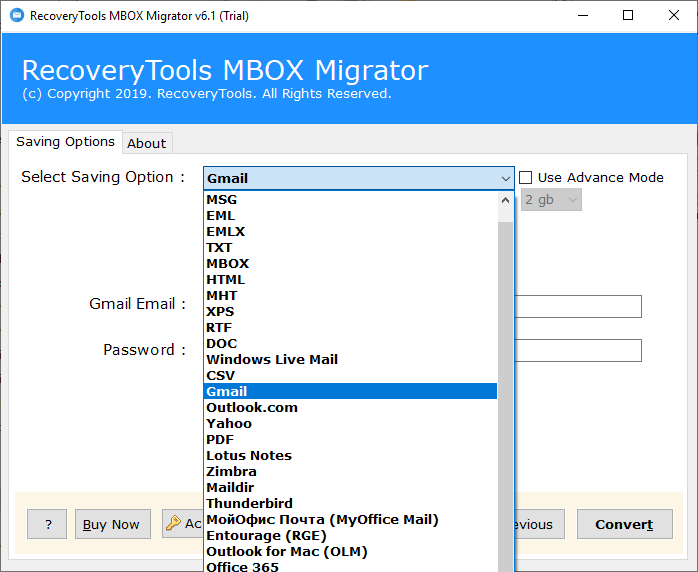
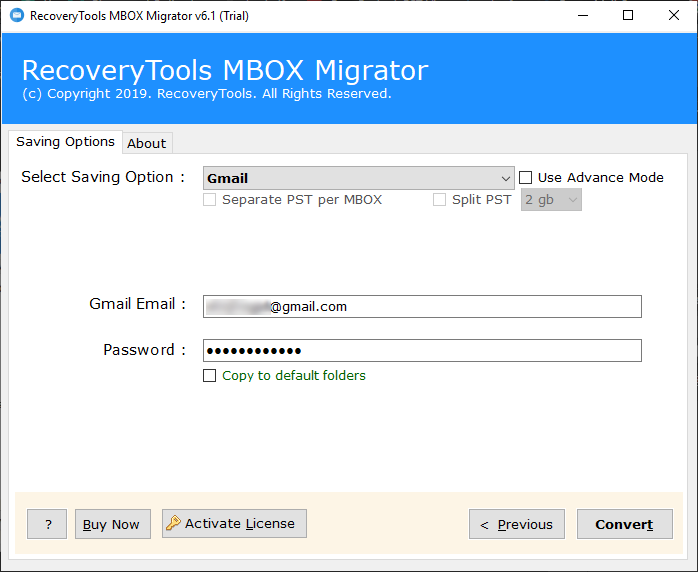
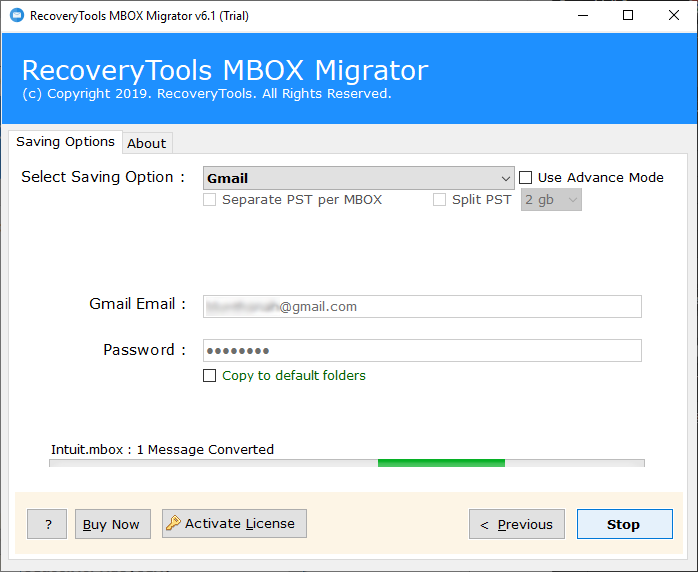
Within some time, all the added Google Takeout mailbox files will be imported into Gmail account in a single click.
Google Takeout to Gmail Converter: Important Features
- The utility for Google Takeout to Gmail migration allows exporting multiple files together without any limitation. So, bulk migration of Google Takeout mailboxes is possible.
- It offers dual options to add the Google Takeout files/folders. From Add Files / Add Folders buttons. So, you can add any number of mailbox files or folders according to need.
- This utility to import Google Takeout to Gmail runs on all the versions of the Windows Operating System. It imposes no limitation.
- All the original formatting and folder structure of mailbox files are maintained during Google Takeout import to Gmail account.
- The tool allows to directly import selected files into Gmail. You just have to enter the Gmail email and password to save Google Takeout files to Gmail.
- Also, the software allows converting all mailbox files along with attachments if any.
Manual Method vs Professional & Dedicated Solution: Choose the Best!
|
🖥️
Manual Method
(Thunderbird + IMAP)
|
🚀
Professional Method
Safe & Reliable Solution
|
|||
|
Importing a small number of emails. | Importing large number of Google Takeout data. | ||
|
Moderate, helpful for technical users. | Easy, even when used by a non-technical user. | ||
|
Imposes limitation. | Offers bulk import feature. | ||
|
Folder structure is partially preserved. | Guarantees to preserve entire folder structure. | ||
|
Does not guarantee to preserve data hierarchy. | Maintains data hierarchy and keeps data intact. | ||
|
Possible if not done correctly or less technical knowledge. | Ensure data safety and no risk of losing data. | ||
|
Very time-consuming process of large size archives. | Fast and automated that also saves time and effort. | ||
|
Thunderbird installation and IMAP configuration. | Need to install only one software. | ||
|
Individual users with basic migration needs and small amount of files. | Best for home users, businesses, and large Google Takeout archives. |
Summing Up
In the above blog, we have given a complete solution to import Google Takeout to Gmail along with attachments. In just a few simple steps, you can import mailbox files into your Gmail account directly. For this, you just have to enter the Gmail login details.
Also, there is a free trial version available for the tool. You can try it to understand working in a better way. If you want to know how to import Google Takeout to another Google Account, then you need to read this guide also.
Frequently Asked Questions
Ques. 1. Does the Google Takeout to Gmail converter import mailbox folders in the same order? Does it maintain the original folder structure of Google Takeout folders?
Ans. Yes, the utility for Google Takeout to Gmail migration maintains all the original formatting and folder structure of your mailbox files. There is no risk of any data loss.
Ques. 2. Can I use this software on a Mac machine to save Google Takeout files in Gmail?
Ans. No, the utility is Windows based. So, it can run on all the versions of the Windows Operating System only.
Ques. 3. How long does it take to import Google Takeout to Gmail?
Ans. Time duration fully depends on your mailbox size if you are performing a manual method. But if you are choosing the professional solution, then it will significantly reduce the time.
Ques. 4. What format does Google Takeout export Gmail emails in?
Ans. Google Takeout exports Gmail emails in .mbox format as it is supported by multiple email clients such as Thunderbird, Apple Mail, and Eudora, offering wide compatibility.
