 Blog
Blog  +1 7025533020
How to Find OLM File Location in Mac Outlook


As a Mac Outlook user, do you need to find OLM files but don’t know where to start? If so, you’ve come to the right place. In this article, we will walk you through the steps required to find OLM file location in Mac Outlook. Whether you need to transfer your email data to another computer or just need to back up your accounts, it’s important to know where your OLM files are located. So let’s get started!
Overview of Mac Outlook
Mac Outlook is an application that allows Mac users to access their email accounts. An OLM file is an Outlook for Mac data file that contains all of your email messages, contacts, and other account data.
In Mac Outlook, the data is stored in a different format compared to Windows Outlook. Instead of using OLM files, Mac Outlook uses OLK14 and OLK15 files to store email data. These files are part of the Outlook database.
But if you are an old user of Mac Outlook and you have created an OLM file before, then the locations are mentioned below:
What is OLM File Location in Mac Outlook?
The OLM file location can vary depending on your version of Mac Outlook. Here are the locations for the OLM files of each edition of Mac Outlook:
- Outlook 2011 for Mac: /Users/username>/Documents/Microsoft User Data/Office
2011 Identities/Main Identity - Outlook 2016 for Mac: /Users//Library/Group
Containers/UBF8T346G9.0ffice/Outlook/Outlook 15 Profiles/Main Profile - Outlook 2019 for Mac: /Users//Library/Group
Containers/UBF8T346G9.Office/Outlook/Outlook 15 Profiles/Main Profile - Outlook 365 for Mac: /Users/UserName /Library/Group
Containers/UBF8T346G9.Office/Outlook/Outlook 15 Profiles
Process of Troubleshooting
If you’re having trouble locating your OLM file, try opening Spotlight and searching for “OLM” or “Outlook for Mac Data File.” Also, make sure your Outlook account is set up correctly and you are logged in with the correct credentials. Finally, these locations are hidden, by default. So, you need to unhide them first.
Follow these steps to unhide the Library folder on your Mac:
- Open Finder on your Mac.
- Click on ‘Go‘ at the top of the screen.
- Hold down the ‘Option‘ key on your keyboard.
- The ‘Library‘ folder should appear as an option in the dropdown menu.
- Click on ‘Library‘ to open it.
- Alternatively, if you wish to permanently unhide the Library folder, type the following command in the Terminal application: chflags nohidden ~/Library/
- Press Enter and the Library folder should now be permanently visible in Finder.
Importance of Finding OLM File Location:
Knowing the location of your OLM files is crucial if you want to transfer your email data to another computer or back up your accounts. This is also important for troubleshooting any problems you may have with your Outlook account.
Create OLM file in Outlook Mac
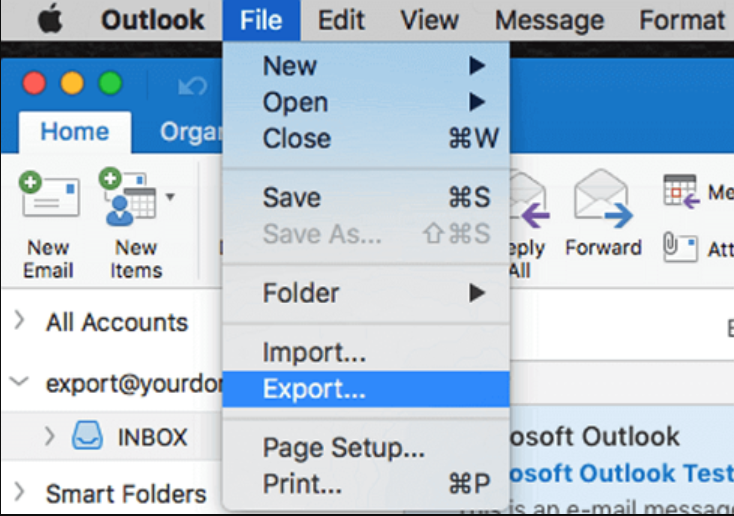
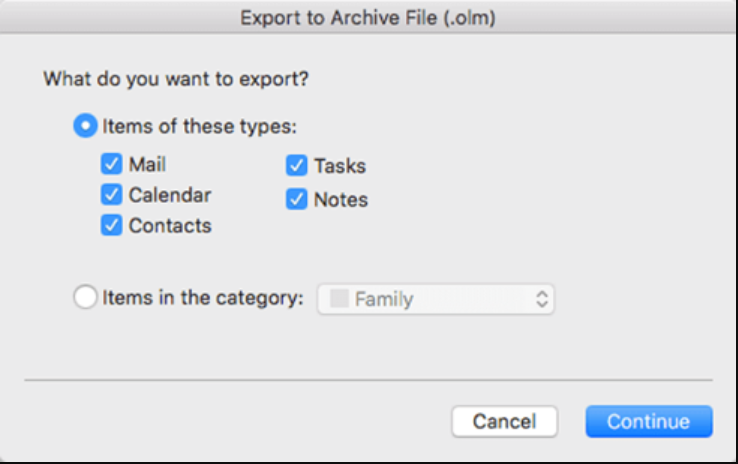
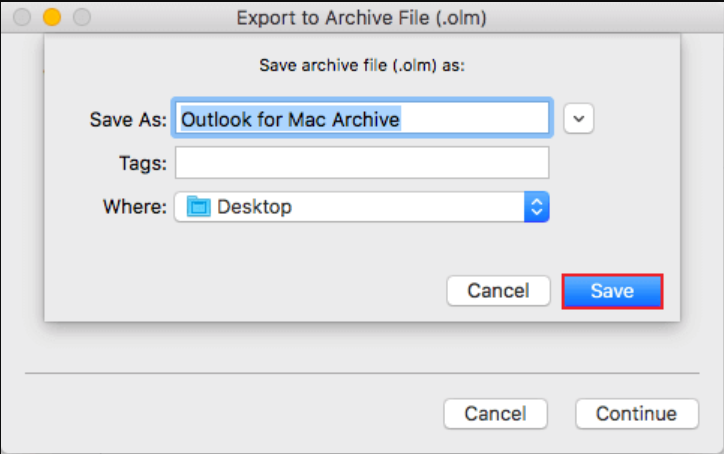
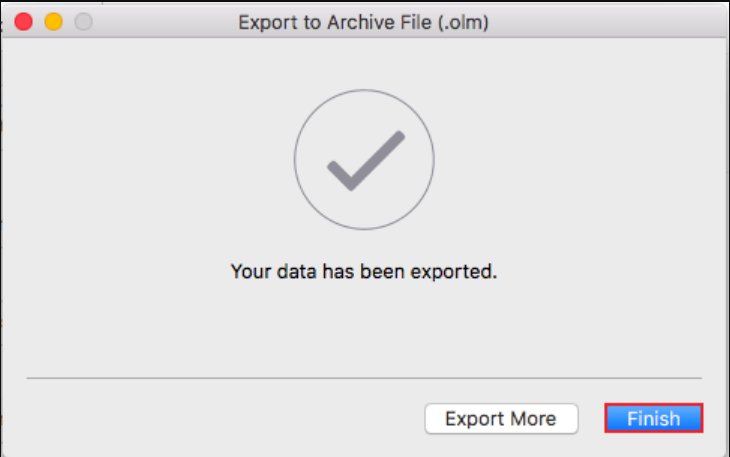
If you need to create a new OLM file in Mac Outlook, follow these steps:
- Open Mac Outlook on your computer.
- Select “File” from the top menu bar.
- Click “Export“.

- Choose the items you want to export (emails, contacts, calendar events, etc.).

- Select “Outlook for Mac Data File (.olm)“.
- Choose the location where you want to save the OLM file and click “Save“.

- The export is successful.

Downsides of Going for the Traditional Method
- Navigating through hidden folders and comprehending the structure of Mac Outlook’s Directory can often be confusing for users who are beginning to delve into the process or who do not have any technical expertise.
- There’s a high risk of loss of data if users mismanage or shift system files, as it severely corrupts their Outlook database.
- The manual method does not provide the feature of previewing and accessing OLM files.
- If user files are orphaned and damaged, then they cannot access their files manually.
- Browsing and managing numerous backups or profiles generally consumes a lot of time and effort, making it an efficiency concern.
- Requires mandatory installation of Outlook for Mac Data files, which often proves to be a liability in terms of users’ storage space.
How to Find Outlook for Mac PST File Location & View Data?
After successfully finding the OLM file location, you now want to view the data. The RecoveryTools OLM Viewer is considered to be a professional software utility that is designed to assist users in viewing, opening, and deeply analyzing Outlook for Mac data files without any hassle. It easily terminates the news search for OLM files manually or rely on the Outlook for Mac installation.
This robust software tool is completely ideal for forensic experts, auditors, IT professionals, and end users looking to access their Outlook for Mac Data Files safely and securely. This software can Open OLM File on Mac Without Outlook installation. Also, there are no hidden charges to pay, it is a completely free solution for Mac & Windows machines.
Features of the Pro Tool to Find OLM File Location in Mac
- Users can easily view their complete mailbox, including attachments, emails, calendars, and contacts, without needing to install Outlook on their operating system.
- Efficiently access information from damaged, orphaned, or corrupted OLM files.
- The automated utility provides an intuitive and user-friendly interface for both technical and non-technical users.
- Utilizing the professional tool for the location of Outlook for Mac data files ensures 100% guaranteed safety and security to keep users’ valuable information well-preserved and safeguard it from any threat.
- Users can use this tool on a device without worrying about their system’s current versions, as it works effectively and efficiently on all versions of both Outlook and Mac
- The tool guarantees the exact formatting of all elements, including metadata (From, To, Date, Sender/Receiver details, Subject, etc.), attachments, and the list goes on.
Manual Method Vs Automated Tool: Which is Better?
| Criteria | Traditional Method | Automated Technique |
| Access | Need navigation to hidden data | Directly locate files |
| Technicality | Suitable only for technical users | Suitable for both technical and non-technical users. |
| Speed | Time and effort-consuming | Automatic and quick loading |
| Safety | High risk of data loss | 100% safe and secure for viewing |
| Flexibility | Restricted to basic access | Provides filtering and preview options |
Frequently Asked Questions
Q1: Where is the on my computer folder in Outlook for Mac?
- In Outlook menu >> Preferences.
- Personal Settings, choose General.
- under the Sidebar, uncheck the Hide on My Computer folders box.
Q2: Can Apple Mail import OLM files?
Ans: No, there is no direct way to upload your OLM file to your Apple Mail account. First, you have to convert your OLM file into MBOX format because Apple Mail supports MBOX format. For this process, you can use the RecoveryTools OLM Converter Tool.
Q3: Can I Import PST File to Mac Outlook?
Ans: Yes, you can import your PST files to Mac Outlook by following the given steps:
- Choose File >> Import in Mac Outlook.
- Select Outlook for Windows Archive File (.pst) >> Next icon.
- Browse the location of your PST file.
- Lastly, click on the Finish button.
Q4: Does Mac Outlook create PST File?
Ans: No, Mac Outlook only creates OLM format to store data and Windows Outlook saves their data in PST format.
Conclusion
Locating the Outlook for Mac PST File Location is crucial for tasks like troubleshooting or backups. While traditional methods work well for tech-savvy users, they often carry the risk of data loss, are prone to errors, and restrict flexibility. This is why it is highly recommended for users to go for the best OLM file viewer as it offers a safer, smarter, and faster way to view oversized and bulk Outlook for Mac data files without installing Outlook.
Instead of stumbling with hidden OLM directories, users can rely on the automated software tool for the most efficient solution for dealing with Outlook for Mac Data Files without a hitch.
