 Blog
Blog  +1 7025533020
How to Export Contacts from Pipedrive Safely and Securely?


If you want to export contacts from Pipedrive, it is an essential step for many businesses and professionals. Sales and CRM businesses often manage their client data and it is an important step for them to run their business smoothly.
Pipedrive allows the users to export contacts in CSV format, but most of the platforms and devices including iCloud, iPhone, Android, Outlook prefer vCard files. All this creates the need to export contacts from Pipedrive. By exporting the contacts, users can easily access, share, or import contacts across various platforms.
We’re going to provide you with a complete guide to export Pipedrive data using the best two methods. Let us begin with the blog to tell you the right methods to export contacts from Pipedrive.
Read More: Export Google Contacts to VCF
Why Do Users Export Contacts from Pipedrive?
- Platform Switch: When a user switches from Pipedrive to another CRM that supports vCard contacts formats.
- Device Compatibility: Most of the devices and platforms prefer vCard files such as smartphones and iCloud services.
- Backup & Security: When a user keeps a copy of vCard, they ensure that the contacts remain accessible , even if Pipedrive is lost.
- Data Sharing: vCard files are easy to share with teams, clients, or other business applications for better and fast sharing.
Manual Method to Export Contacts from Pipedrive
Pipedrive allows exporting contacts only in CSV format, so the complete process has two steps. Below is the two step manual process to export contacts from Pipedrive using Pipedrive itself and taking the help of Google contacts:
Step 1: Export Contacts from Pipedrive in CSV
- First of all, login to your Pipedrive account.
- Then go to contacts, then people or organizations.
- Click on more and select export filtered data.
- Choose the CSV format and download the file.
Step 2: Convert CSV to vCard using the Google contacts
- Firstly, import your CSV file into Google Contacts.
- Then, clean the data and map the contact fields.
- Lastly, export the contacts as a vCard file.
Drawbacks of the Manual Method
- Time-consuming: The process of cleaning data and field mapping takes much time while exporting the contacts from Pipedrive.
- Data Loss: Sometimes incorrect mapping may cause missing fields like email, phone numbers, etc. That’s why this method is highly risky.
- No Batch Process: Large CSV files may fail to create large VCF files. It does not support conversion in bulk.
- Needs Third-party: This method requires Google Contacts or online converters to export contacts which are not reliable and secure.
As the manual method has so many different drawbacks, we’ll recommend you to choose a professional method because it provides so many advanced features.
Professional Method to Export Contacts from Pipedrive
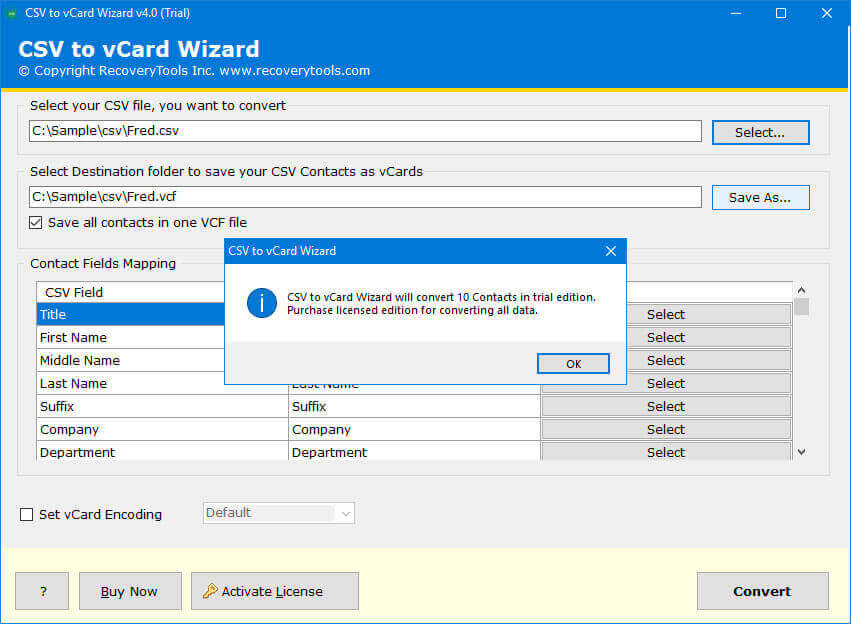
This professional method gives you safe, fast, and accurate results with its high-end features to export contacts from Pipedrive. This RecoveryTools CSV to vCard Converter is the best solution that lets you export Pipedrive data and convert it into VCF format without losing any data.
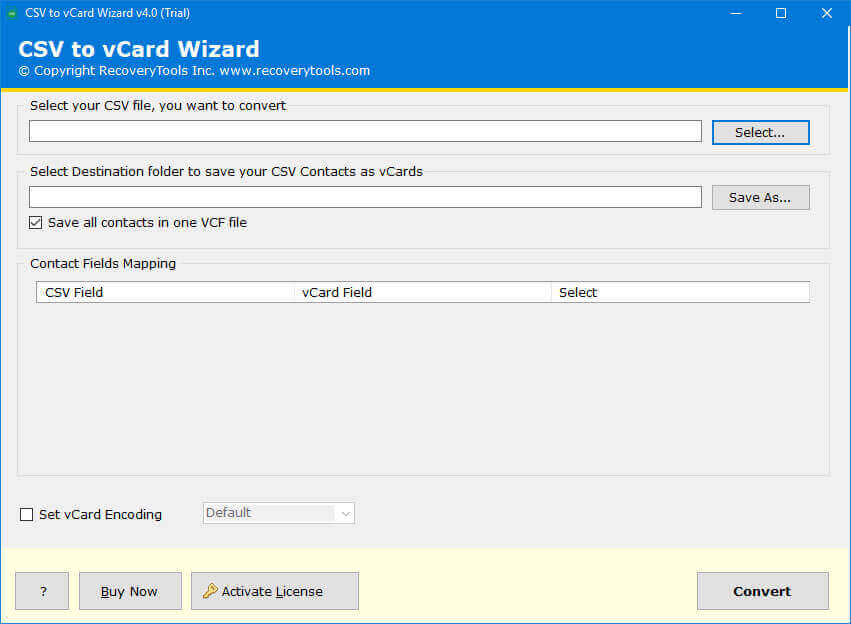
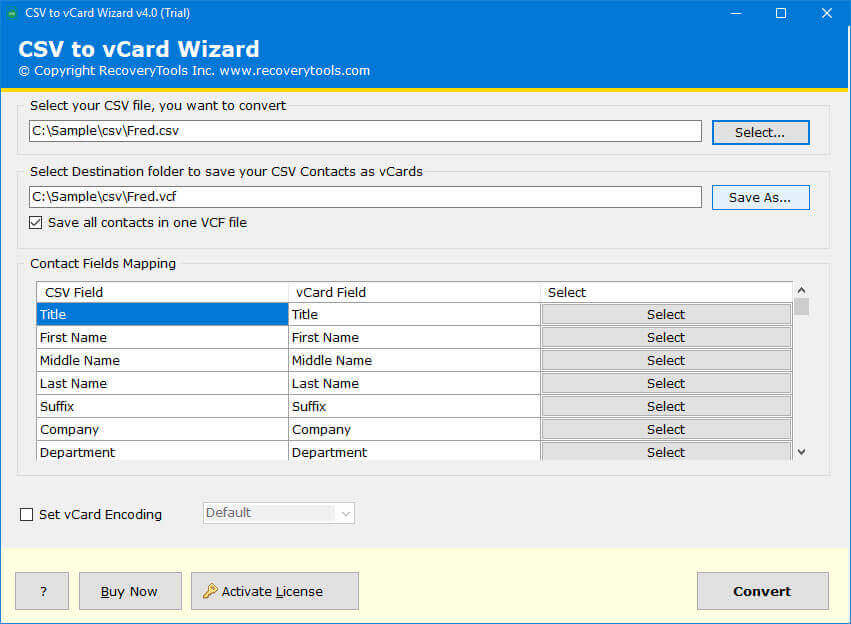
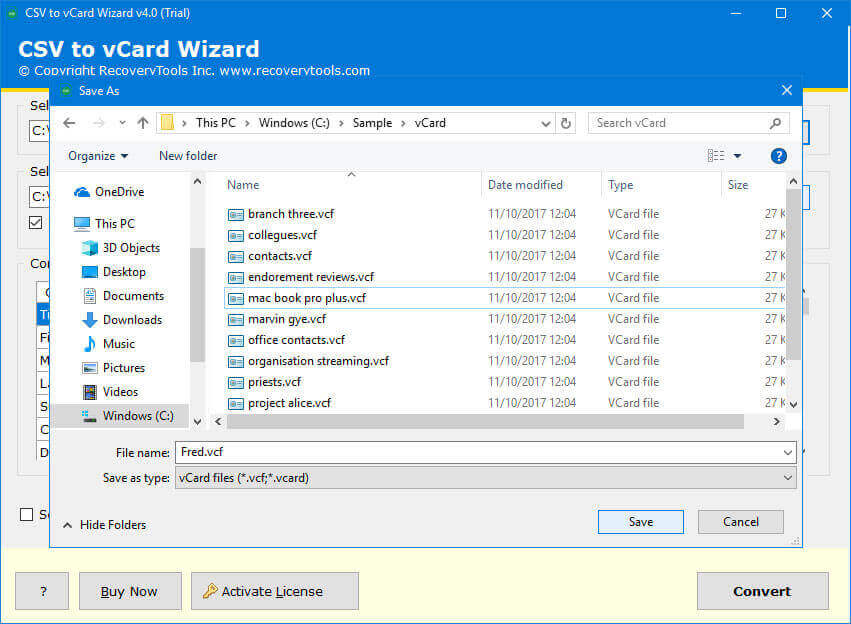
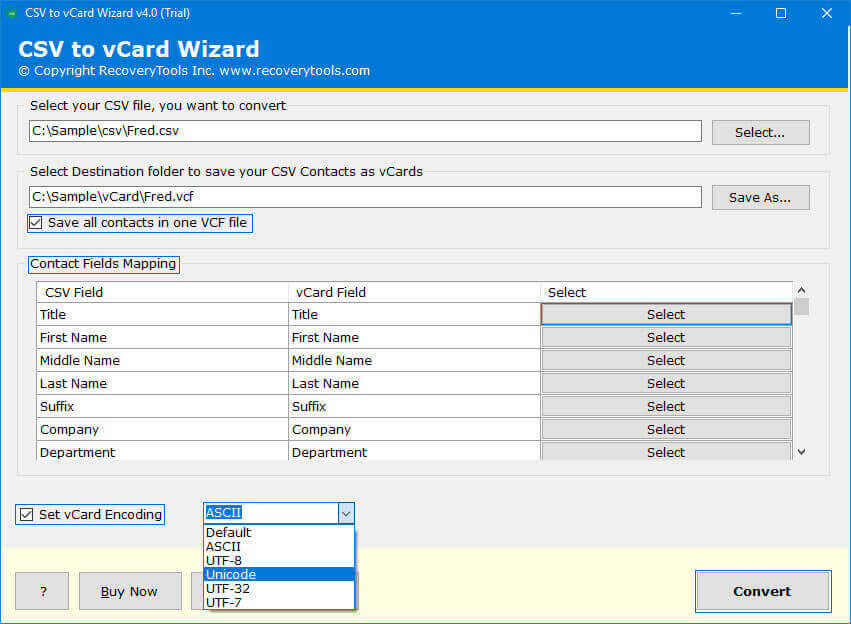
Below steps to convert CSV to vCard easily
- Firstly, download and install the CSV to VCF Converter.
- Then, click the select button and add the CSV file.

- Now, start mapping vCard fields in accordance with CSV fields.
- After that, choose the destination path to store output.
- Lastly, set the vCard encoding as per your requirements.
- Click on the Convert button. Once the process is completed, you will be notified.
Prime Features of the Professional Method
- Supports all CSV Files: This method works with Pipedrive, Outlook, Gmail, and CSV files.
- Supports all versions: This approach supports all the vCard version while exporting contacts from Pipedrive.
- Offline Use: It can be operated offline without the need of an internet connection while securing the data.
- Cross platform support: It allows you to import the vCard into iCloud, Outlook, iPhone, Android, Google Contacts, Thunderbird, and many more.
- Easy-to-use: It has a user-friendly interface because it can be used by non-technical users and does not need any special skill.
Final Words
Both the above mentioned methods allow you to export contacts from Pipedrive. However, the manual method is slow, requires multiple third-party tools, and may risk the data. Whereas, the professional solution is fast, secure, and reliable to handle large contact lists with accuracy. If you want more reliable and genuine results than we’ll recommend you to choose the professional method.
Frequently Asked Question
Q1 Is it possible to directly export contacts from Pipedrive to vCard?
Answer- Pipedrive exports contacts only to CSV format. You can use Google Contacts or a professional CSV to vCard converter to convert those contacts to vCard.Q2 Why should I convert contacts from Pipedrive’s CSV to vCard?
Answer- vCard is a file format that iCloud, iPhone, Android, Outlook, Google Contacts, and others support and will allow the exporting, importing, and sharing of contacts smoothly.Q3 Is the manual process affiliated with data loss?
Answer- Yes. When using the manual method, the process often requires field mapping and cleanup. Users may lose contact information (e.g. phone number, email id, address, etc.) if not done correctly.