 Blog
Blog  +1 7025533020
How to Backup FastMail Emails Safely & Securely? Top Methods


Overview: Are you looking for a solution to backup Fastmail emails locally ? Or want to know how to download Fastmail email to computer ? If so, then there is no need to be worried. Here, we have prepared a comprehensive solution for you. After reading this post, you will get a simple step-by-step solution to backup Fastmail emails locally. Read the complete post to get your answers.
In this communication world, there are lots of email services or email hosting provider companies. Fastmail is one of them. It is an email hosting company from Melbourne, Australia. The Fastmail company supports many services such as Topicbox, Pobox, a mailing list service, and many more. However, the company was acquired by Opera Software. That’s why a huge number of users want to backup their email locally.
Main Reasons to Backup Fastmail Emails
- Keeps your vital messages and attachments so they could not be lost forever because of accidental deletion of an account or a security breach.
- Provides an offline option for searching and reading important emails and documents at any time regardless of the internet connection.
- Keeps the entire history of your messages, metadata and folders while switching service providers or migrating to different systems.
- Creates a permanent local copy of important financial documents, legal contracts and receipts that could be lost due to storage limits of an account.
How to Backup Fastmail Emails Manually?
- Logging In Process: Open the website fastmail.com in your web browser and input your login details i.e. email address along with password.
- Going to the Settings: Tap the settings option in the upper right corner of the homepage and then select Folders & Import option from menu.
- Select the Source: Choose the Export or Export All option from under the Export section of the settings to ensure that all your mailbox contents are exported.
- Downloading the File: Hit Export and select the location of your hard drive to download the exported file into your PC. Generally, the download will be in .zip, eml or mbox format.
Limitations of the Manual Methods
- No Automation: Needs manual effort every time which means that emails user receives in between the backup activity, remain unprotected.
- Timeouts and Data Corruption: Downloading a large mailbox can result in a timeout or failure in a web browser (that could result out of a network glitch or any other reason) which in turn puts the integrity of the archives at risk.
- No Granular Filtering: Offers no way to filter the data according to specified date ranges, tags, or folders. This might cause an inconvenience to the user for backing up selective data as per his or her choice.
- Problems with the Access and Restoration of Files: The exported archives could be presented in different formats and need to be converted into a new email service.
Backup Fastmail Emails Automatically Using Professional Tool: RecoveryTools
RecoveryTools Email Backup Wizard utility is one of the best solutions to download email locally. It provides lots of saving options to migrate and backup Fastmail emails easily. It is the only application in the market to offer all options to backup Fastmail emails efficiently. The product provides lots of email filter options such as Fastmail specific folder migration, Fastmail filter by date range, filter by From address, filter by To address, or Filter by subject, and many more.
How to Backup Fastmail Emails for Windows & Mac? Step-by-Step
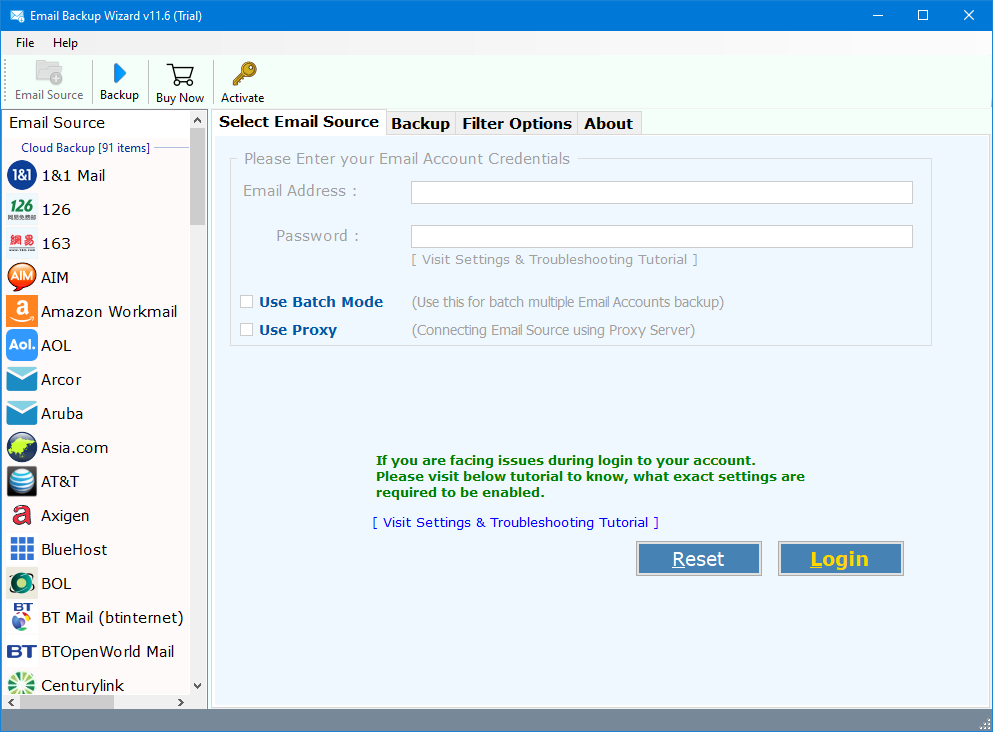
- First of all, users need to download the solution on their computers.

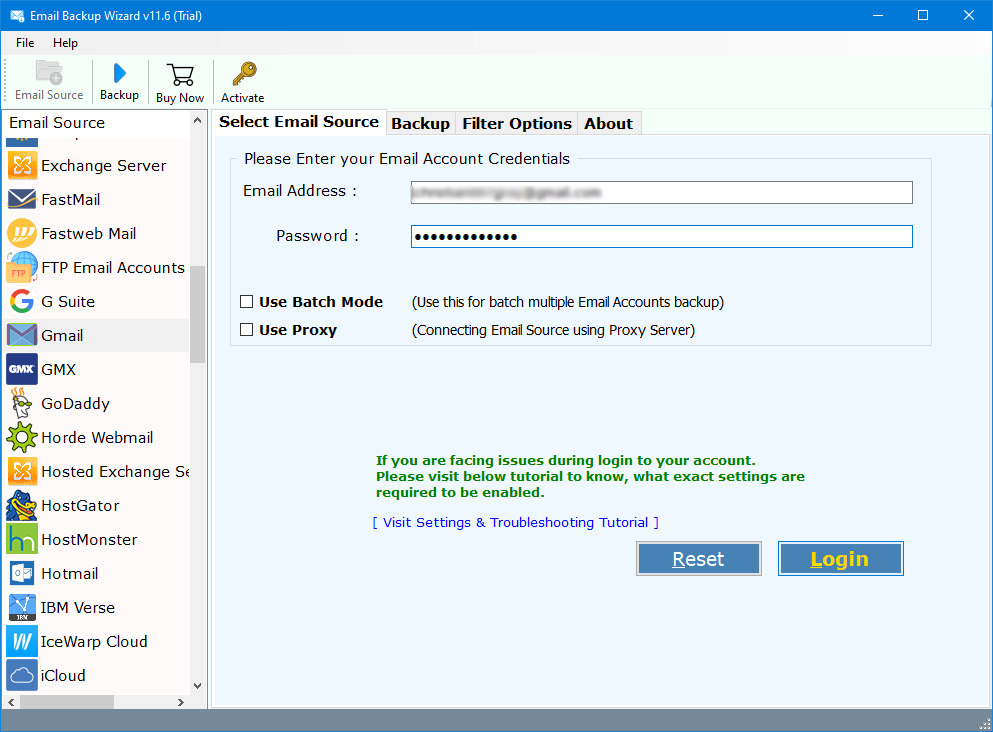
- After this, choose the Fastmail option and put your account credentials.
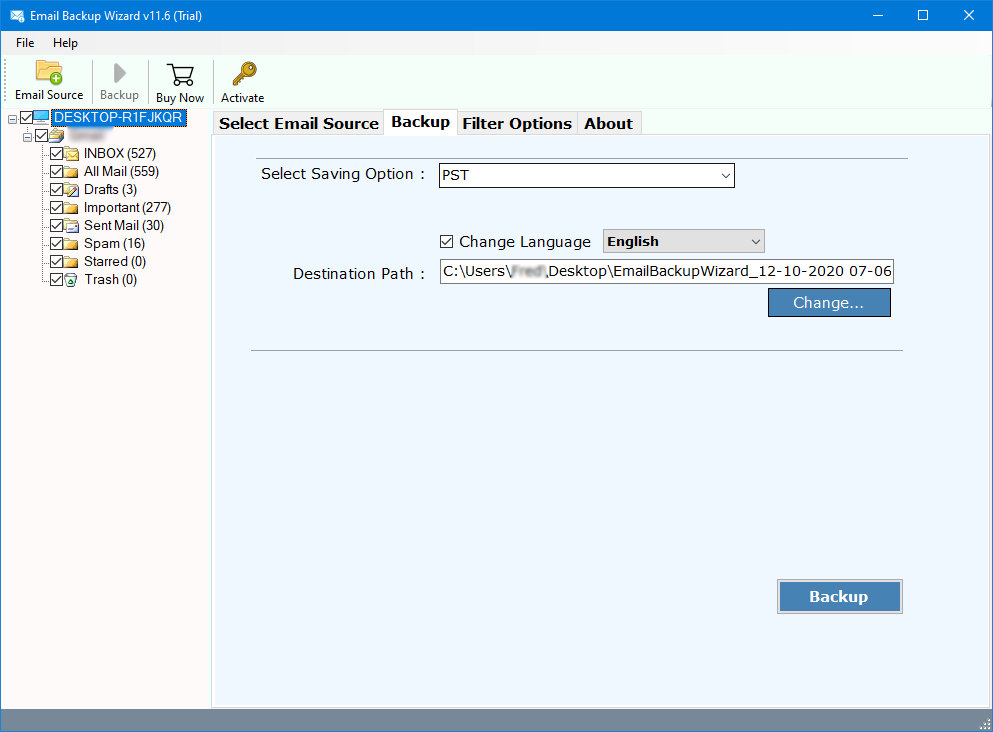
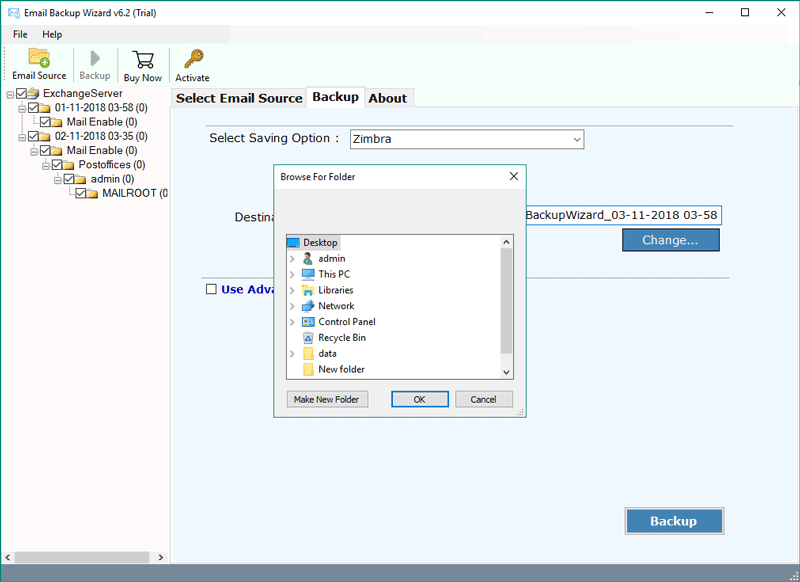
- Now, the solution allows you to select the required email folders from the list.
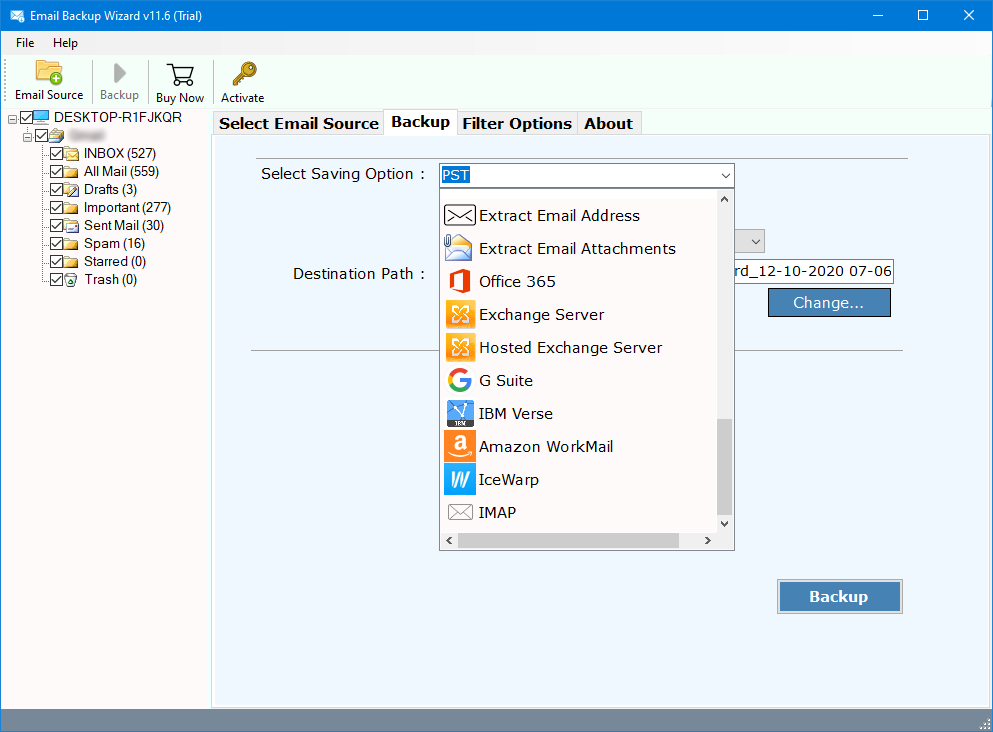
- Select the required option to download or migrate Fastmail emails.
- Now select the required sub-options according to your requirements.

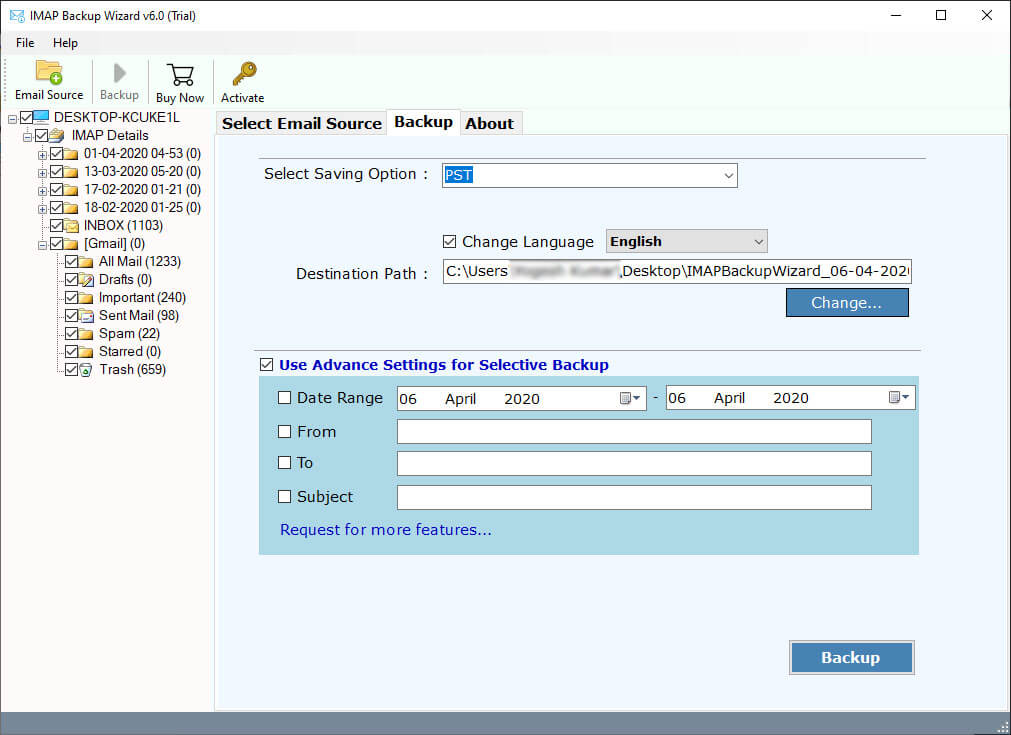
- You can also choose the additional email filter options.

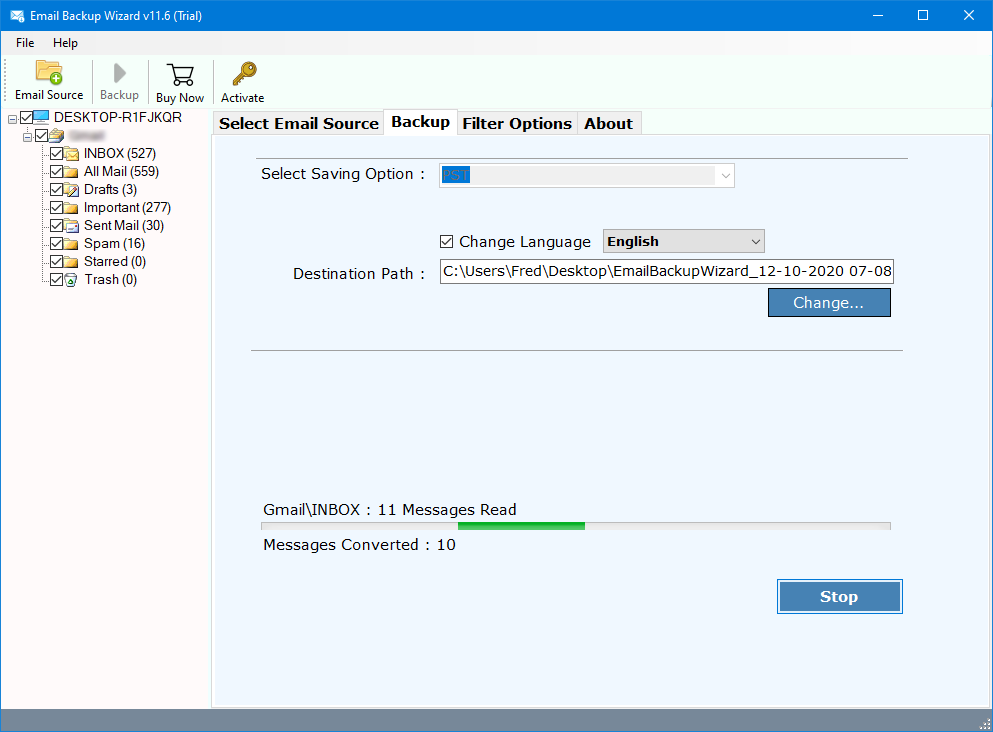
- Finally, press the next button to start the Fastmail backup process.
Top Advantages of the Tool
As we can see that due to the above-mentioned issues, it was never a good choice to download a copy of Fastmail emails on a Hard Drive using Desktop-based email clients. To resolve this issue, we need to use an automatic solution. This solution offers many advanced features some of them explained:
- Save Fastmail Emails to File Format Options:
RecoveryTools is one of the best utility in the market which offers many saving options including several documents and file formats such as Outlook [PST, MSG], EML, EMLX, MBOX, PDF, HTML, MHT, RTF, XPS, etc.
- Transfer Fastmail Emails to Another Account:
One can easily transfer Fastmail emails to another email account using this utility. The product provides lots of saving options including other account options such as Gmail, Office 365, Yahoo Mail, Rediffmail, IBM Verse, Google Workspace, Outlook.com, IMAP Server, etc.
- Import Fastmail Emails to Another Email Client:
This product offers many email client options to directly import Fastmail emails without account configuration. It offers all popular email program application options such as Outlook, eM Client, Windows Live Mail, Thunderbird, Zimbra, Lotus Notes, etc.
- Advance Email Filter Options:
The software offers many email filter options which help when a user needs to export only a few emails. This solution gives selective folder migration options as well as selective email migration procedures. One can easily use this solution to backup emails by date, time, subject, email address, and many more.
- Windows & Mac Supportable Solution:
The product is not for only Windows computers. But you can easily use this application on your Windows as well as Mac computers. You can also use this solution on your Windows as well as Windows Server computer. It supports all Mac OS X editions without any problem.
Conclusion
As we can see in this article, it was never so easy for regular users to perform the Fastmail Backup process using manual methods. There are some limitations that come while a user tries to configure Fastmail with Desktop-based Email Clients using IMAP like:
- User must meet condition or setup Mail Client to Download Data for Offline Access.
- A large number of email clients are only allowed to Sync INBOX folder. In that scenario, the user is unable to download all Fastmail Mailbox items.
- Sometimes due to a large email or attachment size inserted in it, the mail client leaves large email or large attachments on the Server and does not fetch the data.
Questions & Answers
Q: Is it possible for me to extract emails from my Fastmail emails with attachments?
Yes, RecoveryTools utility keeps the original parts of all emails including its properties, details, and attachments.
Q: Should I use any filters to extract emails send on the specific dates?
Yes, the program allows you to filter the emails according to chosen strings, senders, or folders.
Q: Will I have to install Outlook in order to make this backup?
No, this is a self-contained tool that will reach your Fastmail emails immediately.
