 Blog
Blog  +1 7025533020
How to Export Horde Email to Outlook? 2 Secure Methods


Summary: This page is going to be one of the best guides to export Horde email to Outlook while maintaining the safety of the entire mailbox. Horde is a free, open-source email and groupware application just like cPanel. As it does not offer you to export emails suitable for Outlook format we will require you to use a professional technique to complete this process.
Horde is a server-based webmail application commonly offered with the Linux hosting environment to smoothly manage emails through a browser interface. It allows its users to read, send, and organize emails without feeling the need to install any software locally. However, it becomes less effective when users need some long-term storage, offline access to their emails or advanced email management.
Microsoft Outlook, in contrast, stores emails locally and supports a well structured and managed mailbox organization, advanced search, and secure archiving. Many users prefer to choose Outlook when they want to migrate data, create backups, or manage business related communications.
As Horde offers to export data into MBOX format only, we will discuss the best solution to make Horde emails compatible enough to access them in the Outlook interface. Let us move forward and know how to export Horde emails to Outlook using technically accurate methods.
Reasons to Move Horde Emails to Outlook
Some basic yet important reason to consider to export Horde emails to Outlook are below:
- Local Data Storage: Outlook stores its data locally and reduces reliance on server-based webmail.
- Offline Access: Emails can be accessed offline, without even connected to an internet connection.
- Efficient Management: Offers a smooth large mailbox handling without facing errors.
- Easy Backup: Allows users to create a secure copy of the emails as backup to use it further.
- Platform Migration: Ensures email availability while you need to change hosting and servers. .
How to Convert Horde to Outlook PST? Best Solution
Here we are going to mention two amazing and phenomenal solutions to accomplish your task. First, you can migrate your Horde data and then convert it into PST file. Or you can directly export Horde email to Outlook. All the step-by-step guide with complete information is given below:
Method 1: Export Email and Convert Them
This method includes two phases. First you need to export Horde emails, as it offers you to export its data into MBOX file format. and them with a professional tool you need to convert it to a format that is compatible to be opened into Outlook.
Phase 1: Export Emails from Horde Mail
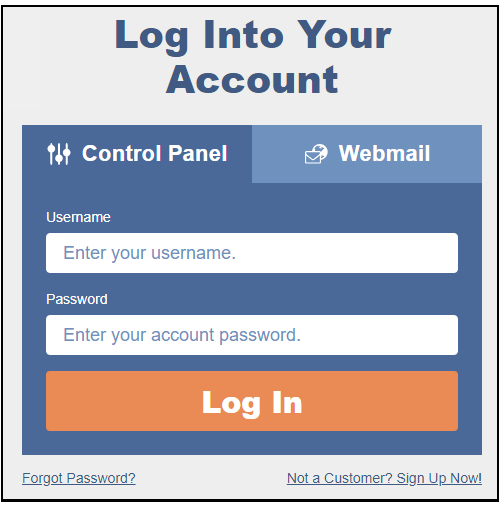
- Firstly, you need to open the c-panel webmail by entering the website or IP address or webmail in the browser.
- A new window will be opened for entering the login credentials. You can choose ‘Control Panel’ to enter the admin credentials for the Horde email account.

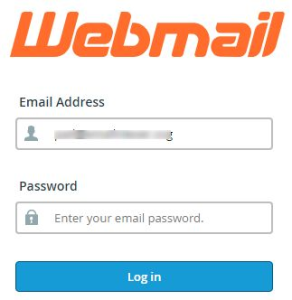
- After that, select ‘Webmail’ to enter the individual user credentials for the Horde email account.

- Once the credentials have been entered then, you can click on the ‘Login’ button.
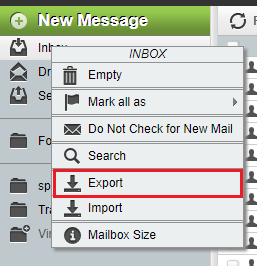
- Once you have been logged in then, you will be directed to the main page of the Horde webmail. Here, move towards the left navigation, right-click on the ‘Inbox’ folder, and select ‘Export’ as an option from the drop-down list.
- After clicking on the ‘Export’ option, a new window will open where you have two options ‘Download into an MBOX file’ and ‘Download into an MBOX file (Zip compressed). The option can be chosen as per your choice.

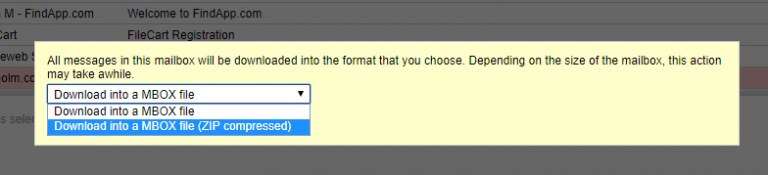
If the second option ‘Download into a MBOX file (Zip compressed)‘ is chosen then, the zip file will have to be extracted using the WinRAR tool. Then, the folder can be opened and the files can be accessed.
The question that comes to my mind is how long will it take to download all the emails from Horde into MBOX format?
The answer is that it depends completely upon the size of the mailboxes. If there are several files stored in the mailbox then, it will take time to download them into MBOX format. However, if a smaller number of files are stored in it then, less amount of time to save them in MBOX format.
Phase 2: Export Horde Email to Outlook Account
Next, download the MBOX to PST Converter Tool to accomplish your task. We are going to use this professional solution, because there is no direct way to export Horde email to Outlook. This solution supports all types of MBOX files exported from any email client. And one of the best and advanced features and filters, which makes it the first choice of users.
- Firstly, download the tool start it on your system and click on the Next icon to start the process.

- Import your MBOX files to the panel using the Select Files and Select Folders options.
- Once the files are loaded in the software, make sure to check them all and move to the next window.
- Here, select PST from the list of given options.
- Go to the Filter Options button and put the advanced filters to export Horde email to Outlook selectively.
- Select the desired location using the Browse (Folders) button.
- Finally, click the Convert button to start the process.


Direct Solution to Export Horde Email to Outlook
Horde Mail Migrator allows you to migrate Horde on-premises mail server mailboxes to Outlook. It has 30+ migration options along with PST format. Other advanced features include email filters, batch export, naming conventions, etc.
There is no need to perform any extra import or export process. So, you can try this tool for free to analyze the performance.
Import Resultant PST Horde Email to Outlook
- Firstly, Open the Outlook email application.
- Go to the ‘File’ tab, select ‘Open & Export’, and then click on ‘Import/Export’.
- In the ‘Import and Export Wizard’, choose an action as ‘Import from Another Program or File’ and then click on the ‘Next’ button.
- Select the file type to import from as ‘Outlook Data File (.PST)’ and then click on the ‘Next’ button.
- Browse for the needed PST file and then click on the ‘Next’ button.
- Lastly, select the folder to import from as ‘Outlook Data File’, choose the option ‘Import items into the same folder in’, and from the drop-down arrow, choose the Outlook email id and click on the ‘Finish’ button.


Final Thoughts
In the above blog, a brief on the Horde email application, user query, and the methods and steps to export Horde email to Outlook has been discussed. However, There is no single manual method but the trusted and reliable automated methods that give the best results in just a few simple steps fill this void magnificently. Feel free to connect with our Technical Support Team to clear your doubts related to this or any conversion, migration, export or backup
