 Blog
Blog  +1 7025533020
Limitlessly Delete IMAP Emails from Server: Pro & Free Way


Overview: Learn how to delete IMAP emails from server via webmail, desktop client via synchronization, or using the RecoveryTools IMAP Eraser Tool for mass yet selective deletion professionally for better organization, reclaiming storage space or to protect against cybersecurity data leak. Discover how mass deletion from the IMAP works, troubleshooting steps when mass IMAP email deletion fails and careful measures one must take before permanently removing emails from IMAP server.
How IMAP Handles Email Deletion? For Users & At Backend
IMAP – Internet Message Access Protocol widely used by famous webmail providers like Gmail, Yahoo, Outlook.com along with professional & enterprises with custom domain globally to access their emails.
Note: Once you delete emails from an IMAP account they will be marked as deleted from all the devices at once.
The IMAP Email Deletion Process
- When a user deletes IMAP emails by clicking on the Trash/Bin/Delete button – it does not get permanently purged from the server. It requires much more effort to delete IMAP emails from server permanently.
- The emails first landed in the Recycle Bin or Trash folder on the server. From which the user can still recover the emails directly.
- An email marked or flagged as deleted continues to stay in the trash folder up until the trash is manually emptied for a specific period eg: 7 Days to 30 Days based on the settings.
- After an email is permanently removed from the IMAP trash folder it still continues to exist on the IMAP server based on the retention policies of the service provided. Hence still recoverable but not occupying your storage quota.
- Once the retention policy period expires and backup for your & the server end are no longer accessible the emails the IMAP emails are permanently deleted and unrecoverable.
Use Cases: Why Users Need to Delete IMAP Emails from Server?
There are multiple possible reasons for IMAP email erasure listed below:
- Clear IMAP server storage to avoid exceeding storage limits.
- Enterprise trash email from IMAP account after employee off boarding to reclaim storage space or often when reallocating devices.
- For a more organized IMAP inbox folder without 100s or 1000s of unread, promotional or social emails.
- Many organizations need to delete IMAP emails from servers for compliance & privacy policies with regard to user data.
- Cybersecurity experts wipe out entire IMAP mailboxes to avoid data breaches in case of Business Email Compromise (BEC).
Mandatory Step Before you Delete IMAP Mail from Server
When you delete IMAP emails permanently they become inaccessible and unrecoverable after a while. In case you want to remove IMAP mail from the server and still access it on certain devices or what to safeguard it for archive needs you must backup IMAP emails before deletion.
Note: Once IMAP emails are permanently removed and the retention period expires, recovery may no longer be possible. It is recommended to create a backup before proceeding with deletion.
Method 1: Bulk Delete IMAP Emails via RecoveryTools IMAP Cleaner
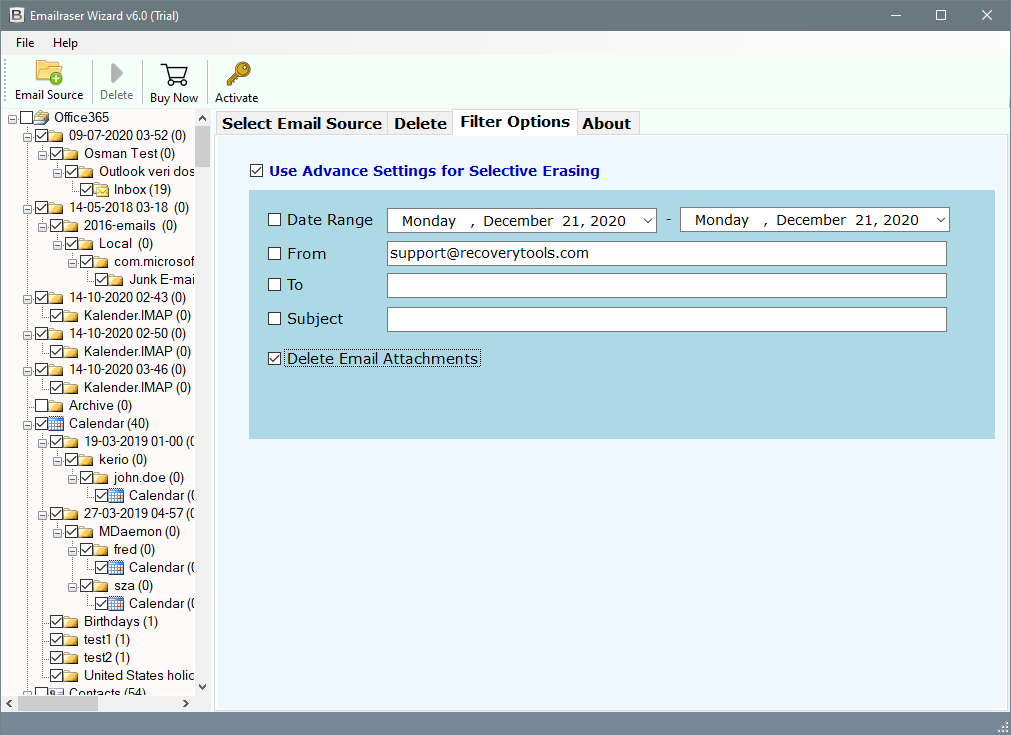
RecoveryTools Email Cleaner Tool for multiple IMAP accounts a secure & professional tool to clear your IMAP mailbox storage – Inbox, Sent, Spam, Draft, Trash, or other custom folder in go while establishing a secure privacy-focused connection. With the tool, users can delete IMAP emails from the server based on demand filters like From, To, Subject, Date Range and emails with attachments. Save time cleaning up IMAP Mail and stay organized with RecoveryTools IMAP Erase Tool.
- Download the tool to delete all IMAP emails at once on Mac or Windows.

- Select IMAP Server as the email source.
- Enter your IMAP email credentials and connect the account in the application.
- Choose the email mailboxes you want to delete from the IMAP account.

- Press Delete and confirm the deletion process.
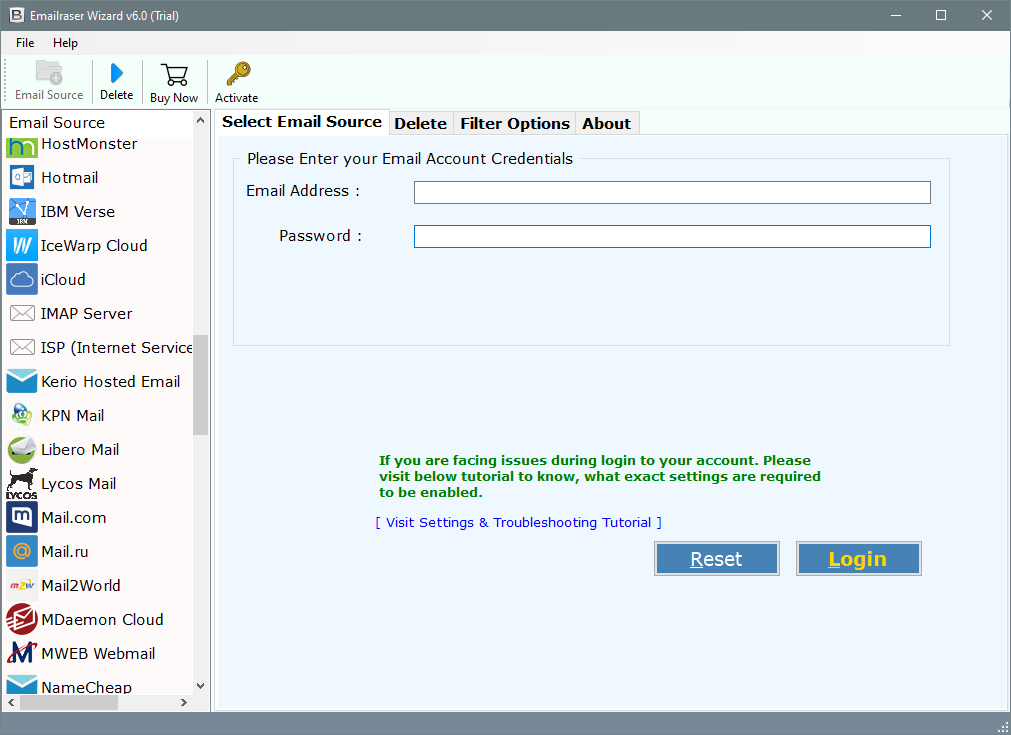

Powerful IMAP Cleaning Capabilities of the RecoveryTools
Batch Mode for IMAP Email Deletion from Multiple Accounts
Use the bulk for connecting multiple IMAP accounts via CSV and delete emails from IMAP server at once in one single click.
Filter Option for Selective IMAP Mailbox Cleanup
Delete IMAP email from server based on date range – get rid of old IMAP emails from server, sender & receiver address – helps get rid of promotional emails from a particular account and even deleted emails with attachments to manage mailboxes without getting rid of important email conversations.
Permanent Deletion for Server at Once by Bypassing Deleted Folder
IMAP emails deleted via the RecoveryTools IMAP eraser tool are directly removed from the server; they do not land in trash and are directly wiped out from the server storage.
Note: Over manual issues of “IMAP emails coming back after deletion” and “Limited Deletion.”
Need Help With Automated Bulk IMAP Deletion?
Get in touch with RecoveryTools experts via the live chat option. RecoveryTools support team is available 24/7 globally. You can even add custom features to the tool. Contact us now.
Method 2: Free Manual Bulk IMAP Email Deletion on Desktop
IMAP emails are often accessed in the desktop via the browser (using webmail interface) or via the desktop email client like Outlook, Thunderbird, Apple Mail (on Mac) etc.
Tip: When deleting IMAP emails via an email client you can transfer them to the local folders for future access.
How to Delete IMAP Emails from Server? Using Outlook
Note: The method is for the users who are already using Outlook to access their IMAP emails. Else you may need to first add an IMAP account to Outlook. (Go to File >> Add Account)
- Open the Outlook Classic or New on your computer.
- Press Ctrl+A select all IMAP emails messaged under the mailbox.
- Click on the Delete button on the left (near New Email) or press Ctrl+D.
- Then go to the Deleted Item folder, right-click and choose Empty Folder.
- Press Yes to confirm.
Tip: Delete large mailboxes in batches of 500–1,000 emails at a time.
How to Remove IMAP Emails for Server? Steps Using Thunderbird
Note: The method is for the users who are already using Thunderbird to access their IMAP emails. Else you may need to first add an IMAP account to Thunderbird. (Go to Menu (three-lines) >> New Account)
Note: Mozilla Thunderbird only lets you delete 10,000 IMAP emails at once due to the deletion cap.
- Open Mozilla Thunderbird on your computer.
- Go to the mailbox from which you want to delete IMAP emails from server.
- Press Ctrl+A to select all.
- Right-Click >> Choose delete from the POP up menu.
- Go to the Deleted Mailbox, right-click and choose “Empty Deleted.”
How to Erase All IMAP Emails from Server? Using Apple/Mac Mail
Apple Mail to remove messages from IMAP accounts is a better alternative for Mac users.
- Go to Mac Mail settings >> Mail option.
- Choose the IMAP account option and the name of the account.
- Press the Advanced button. Under Deleted messages, click on Remove.
Automated Bulk IMAP Deletion from Server on Mac & Windows
Many email clients and IMAP server admin consoles let you define the retention after which emails are automatically deleted from the server.
- Example 1: Google Admin Console (Under Compliance & Chat auto-deletion)
- Example 2: Mozilla Thunderbird (Auto-Expunge & Compact Settings)
- Example 3: Microsoft Outlook (Retention Policy via Rules)
Mass Delete Emails from IMAP Server Using Browser & Webmail
The IMAP services offered by multiple email services like Gmail, Outlook.com, Yahoo, Zoho is an easier way to clear IMAP server storage. This lets you skip the dependency on the email client and also IMAP emails can be deleted via mobile devices.
Note: All IMAP services do not come with a native webmail interface. In such cases you can use free webmail options like Roundcube, cPanel etc.
- Login your IMAP account either in native webmail or the free-ones.
- Select all IMAP emails you want to erase.
- Click on the Trash or Deleted Items folder.
- Empty Trash or Delete Forever the Deleted Folder.
RecoveryTools IMAP Cleaner Tool VS IMAP Methods to Clear IMAP Storage
| Feature | RecoveryTools IMAP Cleaner | Manual Methods |
|---|---|---|
| Use Case Scenario | Clean up 100,000+ emails from multiple accounts | Limited cleanup for personal usage |
| Filtrations | Advanced filters (Date, Sender, Subject, Folder, etc.) | No filters available or complex search filters |
| Chances of Failure | Zero chances of failure | Can fail due to IMAP sync issues or bulk data |
| Multiple Account Support | Designed to easily handle 100+ accounts | Only one account at a time |
| Cost | Free Trial (Paid License) | 100% Free |
| Dependencies | Completely standalone tool | Requires email client and technical knowledge |
FAQs: How to Delete IMAP Emails from Server?
Q1: Why IMAP emails are not getting deleted from the server?
Oftentimes users may find that the IMAP emails are not deleted from the server due to internet connectivity issues leading to synchronization failure.
Q2: Do IMAP emails stay on the server?
Yes IMAP emails stay on the server but not permanently after deletion. Users can recover them for a limited time after deletion.
Q3: Why do my IMAP emails come back after deletion?
It is likely due to an out of sync server you may have archived IMAP emails instead of permanently deleting. Consider emptying the trash folder.
