 Blog
Blog  +1 7025533020
How to Convert Gmail to JPG Instantly? (Expert Guide)


Summary: Want to know an easy way to convert Gmail to JPG or JPEG format? Then, know how to export Gmail emails to JPG, PNG, TIFF, GIF, or BMP? Exporting emails to the JPG format is not the standard functionality of any email client and email service provider.
However, you can still convert Gmail to JPG to make image copies of your Gmail emails. Gmail is a messaging service by Google that provides free email file sharing, apps, photos, and more. But Gmail doesn’t offer to export Gmail emails to JPG or any other image formats.
People usually require a third-party application to convert Gmail to JPG format. If also looking for a solution to convert Emails from Gmail to JPG, use RecoveryTools Utilities. At the laboratory of RecoveryTools, we always strive to provide easy and handy solutions so that users can easily solve their issues. This is one of the best solutions to export high-quality JPG files from Gmail. Anyone can use this application without any issues.
Why Convert Gmail to JPG Format?
- Share your Gmail emails with other persons in a non-changeable format.
- Take another backup of your important Gmail email to prevent loss of data corruption or hard drive failure.
- All of us have heard of or experienced a tragic loss of data. If someone hacks our Gmail account or we forget our password, we can lose our valuable emails. Therefore, the best way to secure our important emails is to save them in JPG format.
- Easily manage your Gmail emails with image formats and store them for a long time.
- Gmail files can be archived as JPG files, which can then be used to conduct comparative studies of past and present to make effective plans for improving productivity.
How to Convert Gmail to JPG? (Step-by-Step)
Converting Gmail emails into JPG/JPEG format manually is notoriously tedious because that involves capturing full-length screenshots of the emails, saving them and then converting into JPG format as necessary. This approach is not only tedious, but time-consuming and immensely prone to serious errors pertaining to information-coverage. Needless to mention that if such emails are sensitive and important in nature, implementing manual ways is highly discouraged.
We recommend RecoveryTools Gmail Backup Tool that provides you with a simple method for saving your complete email, which consists of all your email messages, contacts, and calendar entries on the local drive. It allows you to seamlessly convert Gmail data into different forms such as PDF while keeping your original folder structure intact. It incorporates many advanced features such as a date range filter, batch processing, and secure OAuth login as a significant part of the user experience.
Phase #1: PDF Conversion of Gmail Emails
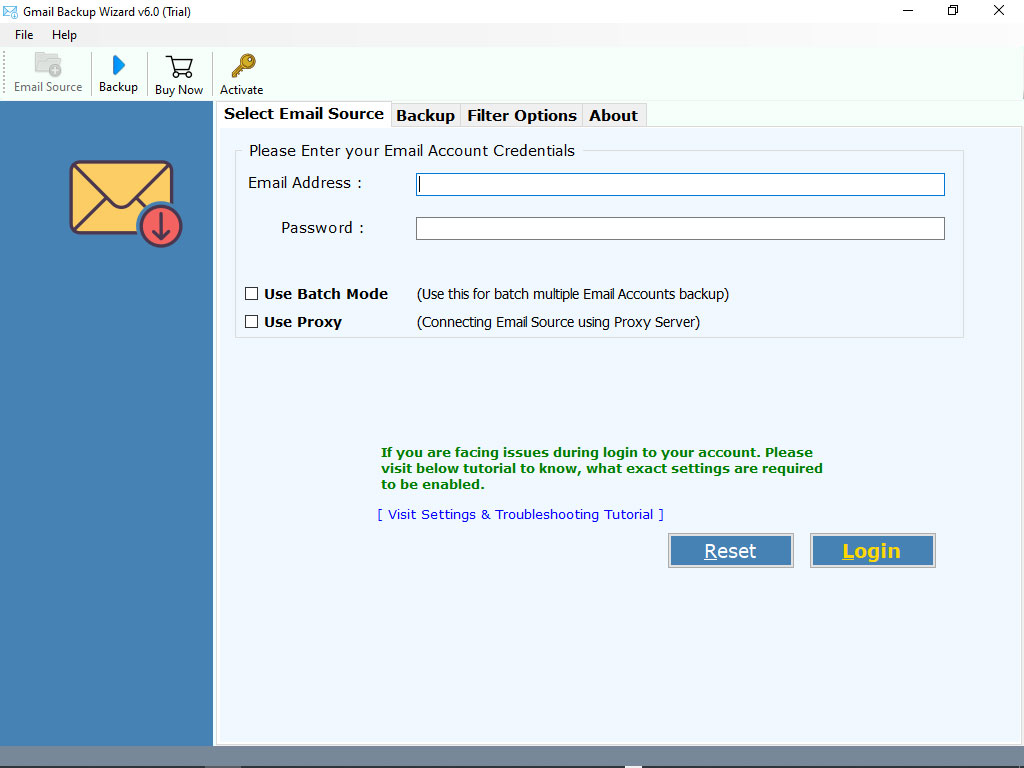
- Download, install and launch the software on your Windows PC.

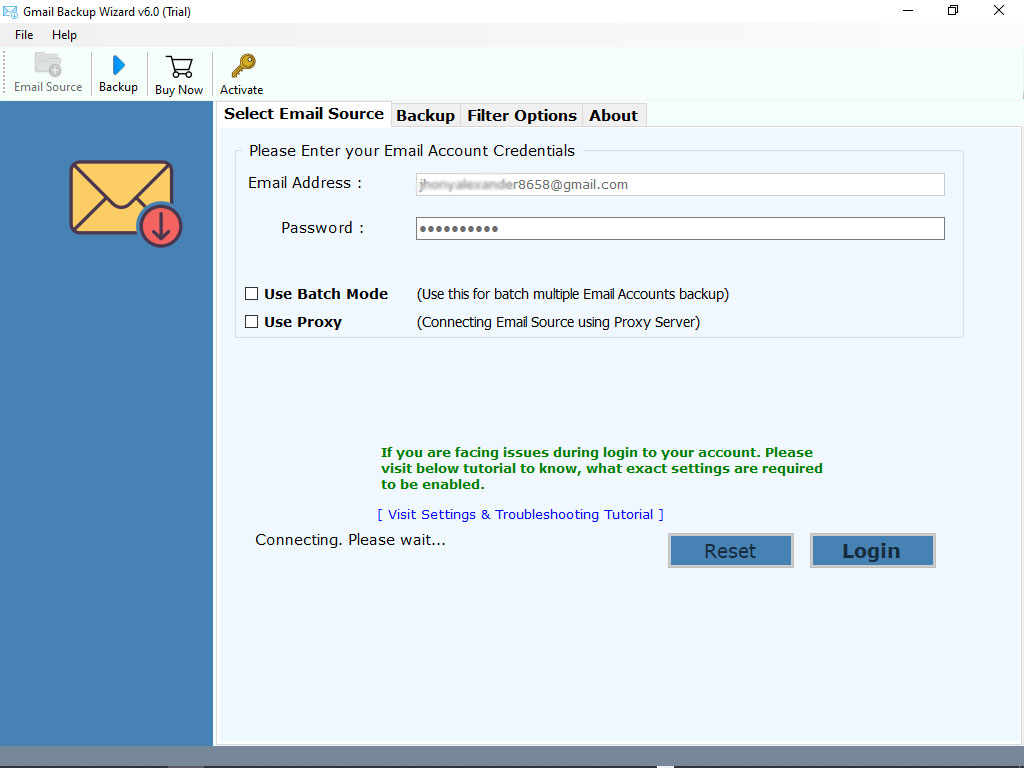
- Enter your Gmail email account credentials in the user interface panel.
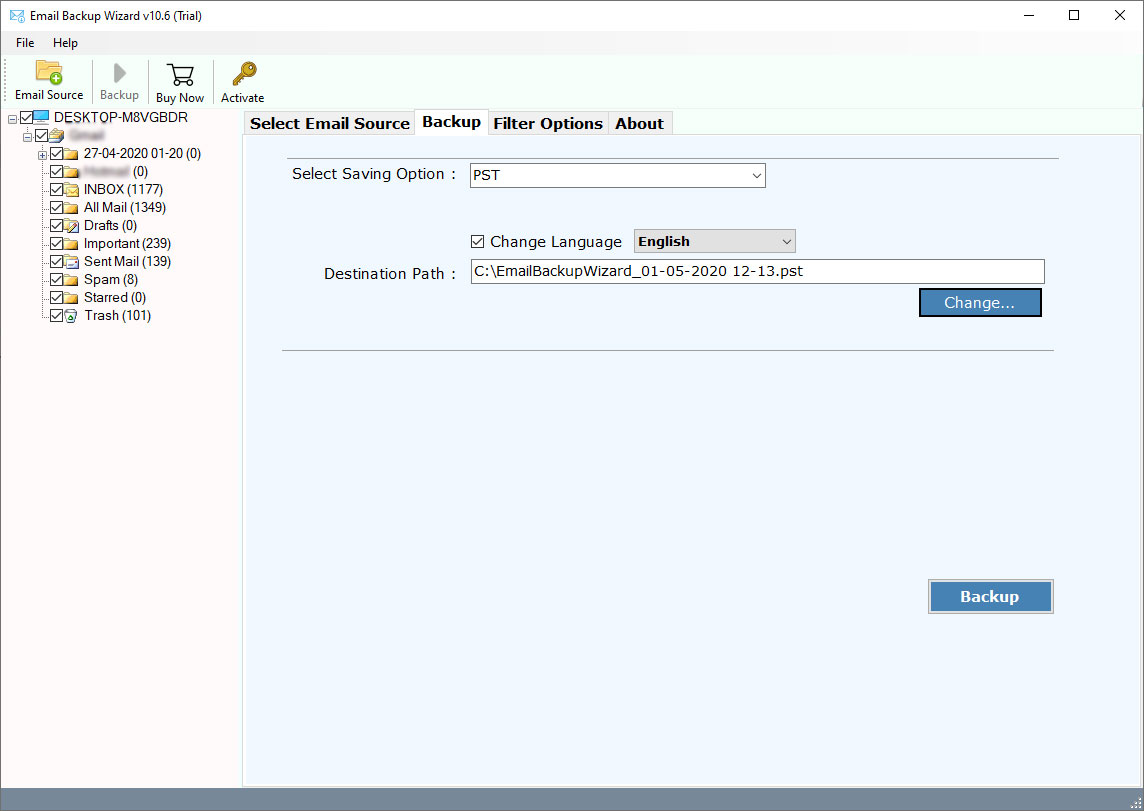
- Choose the email folders that you want to export in JPG format.
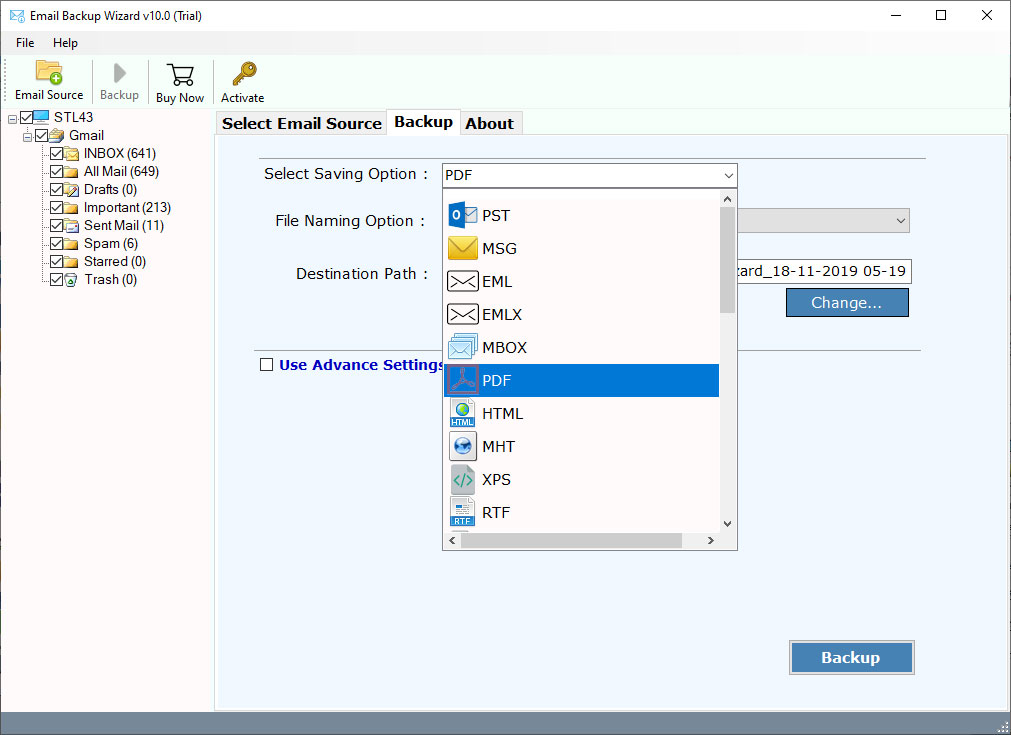
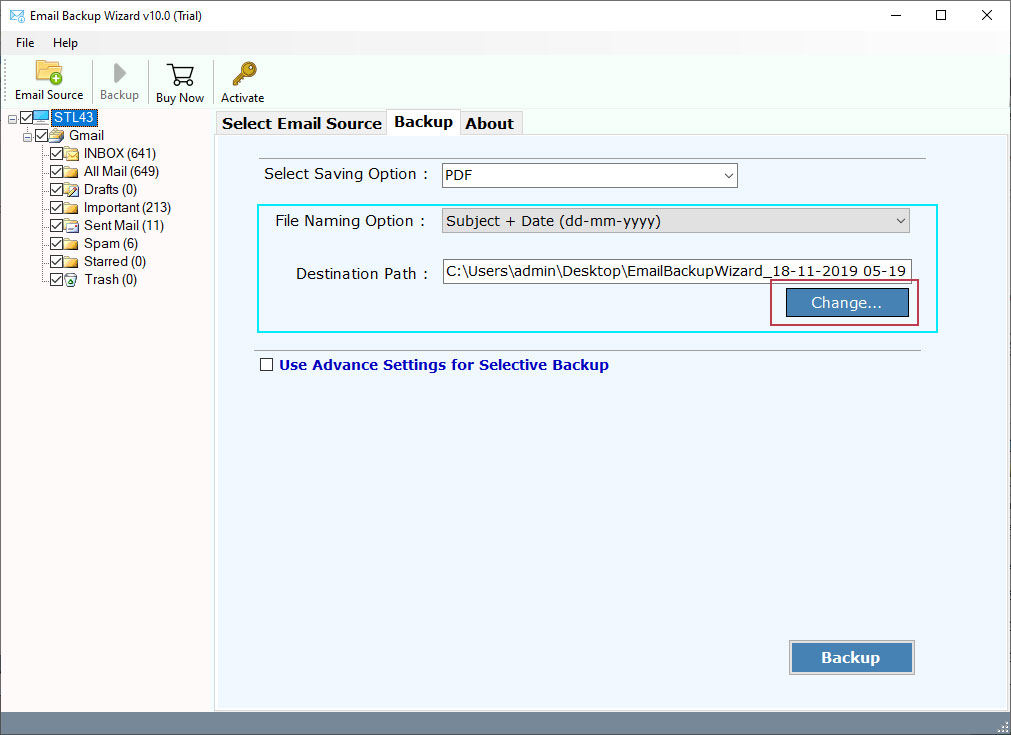
- Select PDF as the saving option from the list of file-saving options.

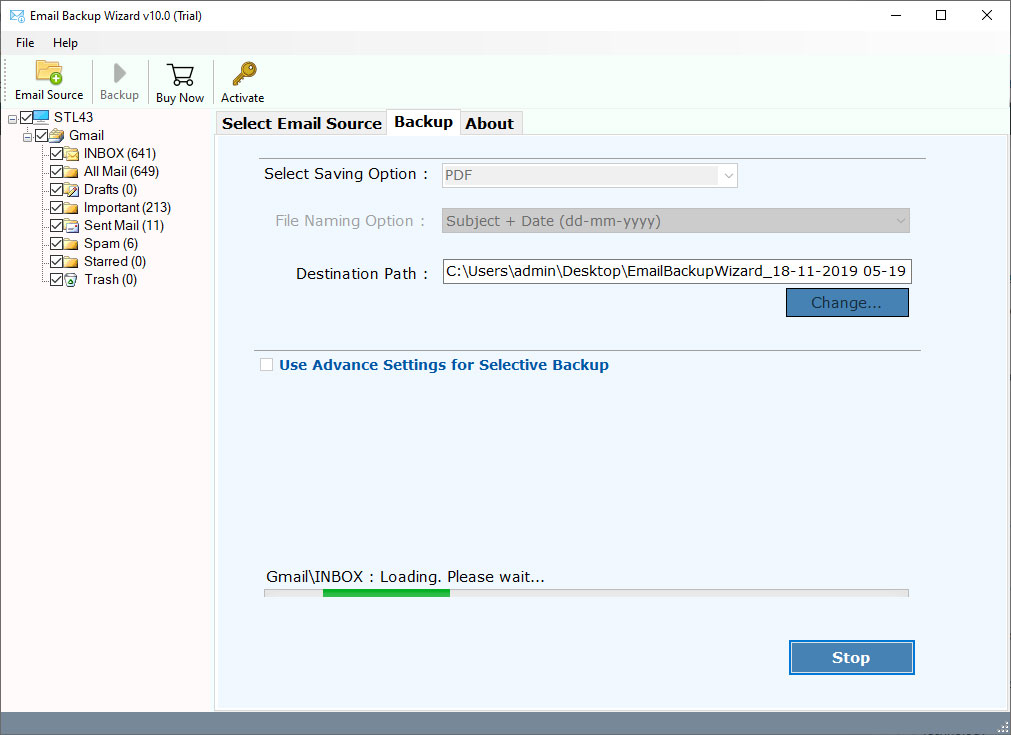
- Choose the destination to save the resultant data and click the Backup button.
- The tool starts converting Gmail emails to PDFs.
Phase #2: Convert Gmail to JPG
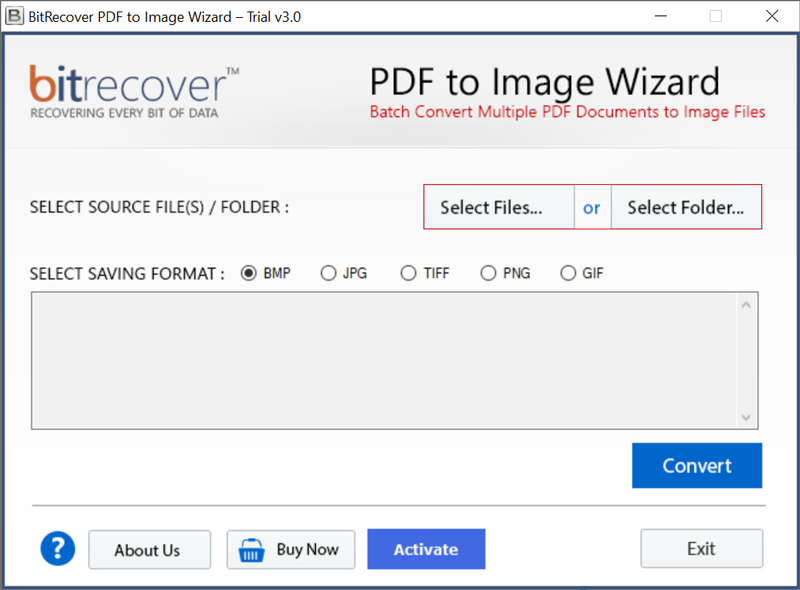
You can easily convert PDF format files into high-quality image formats using BitRecover PDF to Image Wizard tool.
Step-by-Step:
- Download, install and Launch the software on your Windows Computer.

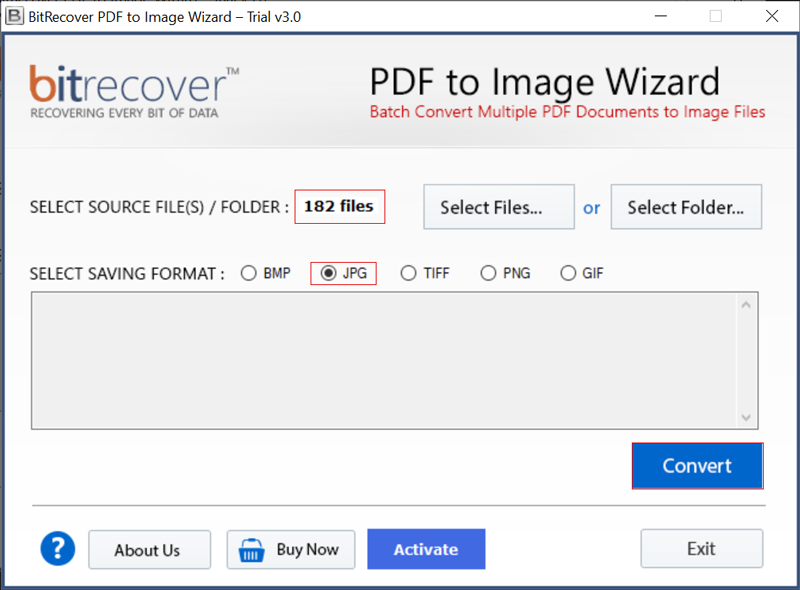
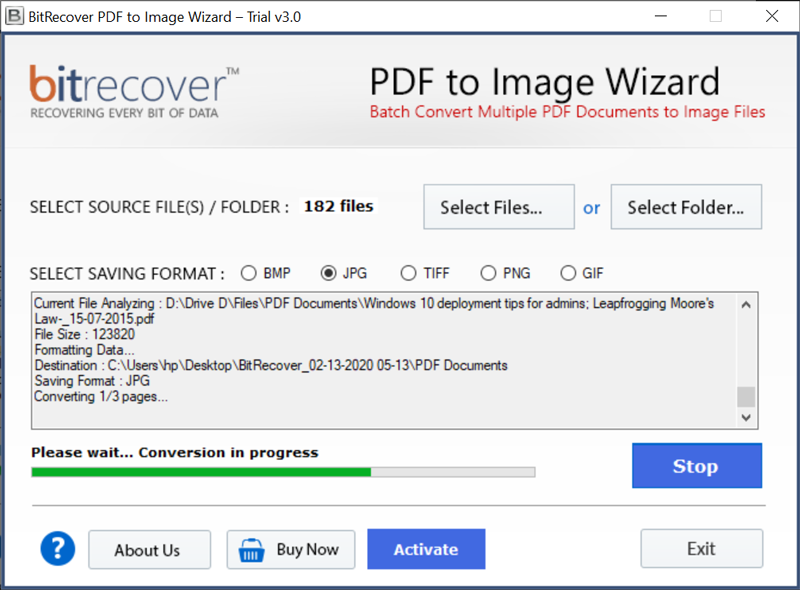
- After that, select Gmail PDF files with dual selection options—Select Files and Select Folders. Choose the desired Image format and click the Convert button.
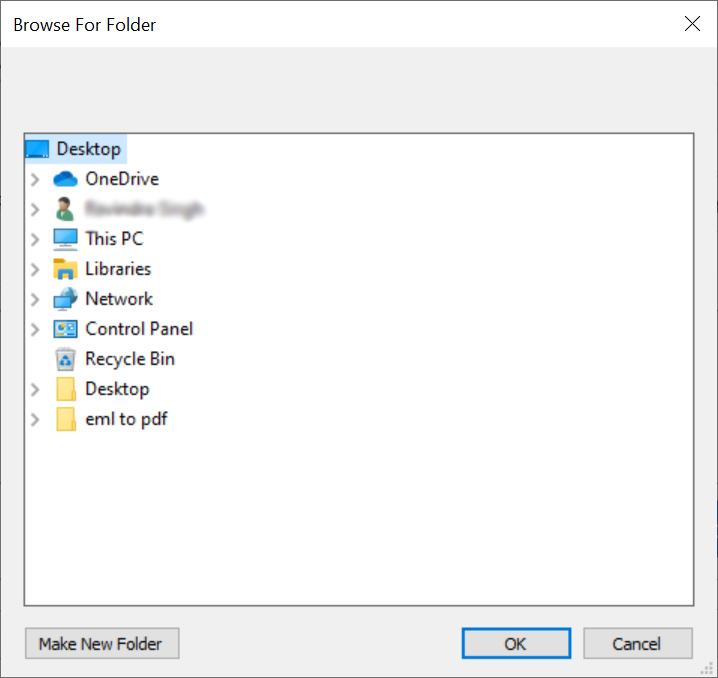
- Next, set the destination path to save your JPG image files and click the OK button.

- The process to convert Gmail PDF files to JPG starts. You can view the live progress of the conversion process on your screen.
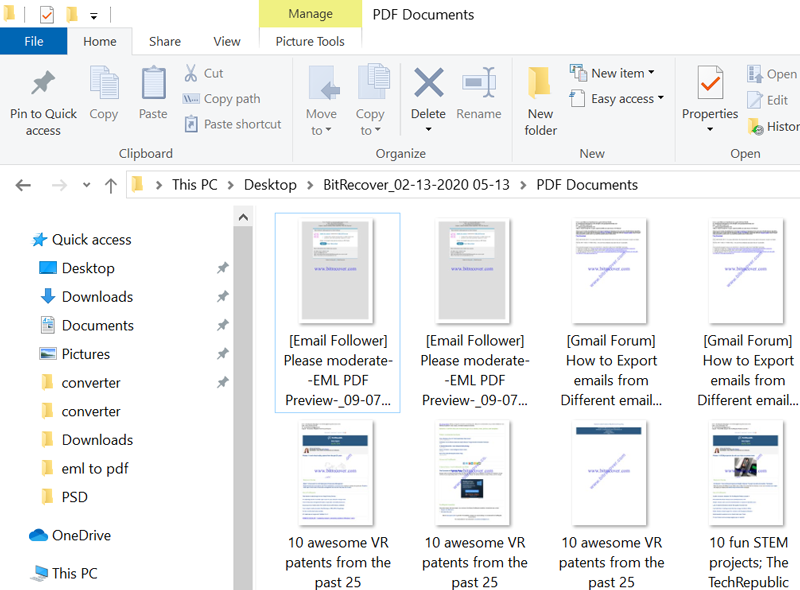
- At last, get the resultant JPEG (Joint Photographic Experts Group) files from Gmail in the selected destination path.
Salient Features of the Tool
- Simple and Secure Interface: The software provides an easy-to-use interface, which never stores your Gmail credentials in its database. Also, the tool never stores user details in the software interface caches.
- Selective Convert Gmail to Image: The software allows you to download selected emails from Gmail to JPG format. You can easily choose which Gmail folder emails you want to export in JPG format.
- Multiple Image Format Support: You can not only export Gmail emails to JPG but can also convert Gmail to PNG, TIFF, BMP, GIF, etc.
- Batch Convert Emails to JPG: It allows you to convert multiple emails to JPG format in a single process. First of all, you need to download Gmail emails to PDF and then select multiple PDF files at once.
- Create a Single JPG of Each Gmail Email: The software creates a single JPG image file for each Gmail email with accuracy. Now, you can easily manage your emails without any issues.
- Convert Large Size Emails to JPG: You can even convert large emails to JPG or other image formats without any issues. The software is developed with advanced algorithms to select large emails without any issues.
- Fast and Secure Conversion: The software saves users time and effort during the conversion process. It converts multiple emails to JPG format in a single process to save time and effort.
- Maintain Email Properties: During the process, the software will keep all email elements such as email with attachments, email addresses (to, cc, bcc, from), subject, images, text, etc.
- Freedom to Choose Resultant Location: The software gives the freedom to choose any resultant location to save converted data. You can easily choose the external and internal locations without any issues.
Frequently Asked Queries
Q: How many Gmail emails can I convert to JPG at once?
You can export multiple Gmail emails to JPG format in a single process. There is no limitation on the number of emails you can convert to JPG using this tool.
Q: I have Windows on my computer. Does this utility work with Windows Operating System?
Yes, you can install this application on Windows operating system (all versions) without any issues.
Q: Can I convert Google Workspace emails to JPG using this application?
Yes, you can convert Google Workspace emails emails to JPG using this application without any issues.
Observational Verdict
In this article, we have explained the way to convert Gmail emails to JPG and other image formats. If you want to export emails from Gmail to Image format, then download the recommended solution. The software works on all Windows Computers including Server machines. In a single process, you can convert bulk emails from Gmail to JPG format without any issues.
The Convert Gmail to JPG tool comes with a trial edition, which allows you to export only a few emails to the Image format. You can test this application using this trial edition without any issues.
