 Blog
Blog  +1 7025533020
Learn How to Migrate Kerio Connect to Synology MailPlus


Managing on-premises email server requires a careful balance of security, control, and performance. If you feel your current Kerio connect server deployment is complex and requires heavy infrastructure, then migrate Kerio connect to Synology MailPlus.
After switching to Synology MailPlus, businesses can leverage their existing NAS hardware investment to get enterprise-grade email ecosystem without requiring heavy infrastructure.
Kerio Connect to Synology MailPlus Migration Pre-Requisites
- Install and setup Synology MailPlus client and Synology MailPlus server.
- Create Synology MailPlus admin and user accounts.
- Synology MailPlus email quota should be larger compared to Kerio.
- Ensure IMAP services should be enabled for both on-premises servers.
- Update your firewall rules to allow the specific static IP of your Synology NAS to access Kerio IMAP ports.
Pro Solution to Migrate Kerio to Synology MailPlus
Kerio migration tool is a highly recommend software that permits to migrate Kerio connect to Synology MailPlus including emails and contacts. This is a fully automated software that asks only for IMAP credentials to complete this task with 100% accuracy.
Just download its free demo version to move 25 emails between both on-premises servers. After getting satisfied with demo edition, you can grab its license keys to get a licensed version.
How to Migrate Kerio Connect to Synology MailPlus?
For Kerio Emails:
- Start Kerio to Synology MailPlus migration tool and Kerio connect server data in software panel using Select Folders or Select Files button.

- Check I am converting multiple users’ option to enable batch migration process.
- Now choose required Kerio connect folders and press Next to continue.
- After that, select IMAP as destination source option.

- Enter Synology MailPlus IMAP credentials in software GUI and click Next.
- Kerio connect to Synology MailPlus migration process is running, please wait for completion.


For Kerio Contacts:
Steps 1: Export Kerio Connect Contacts
- Again, start the software and follow top 3 steps similarly as explained above.
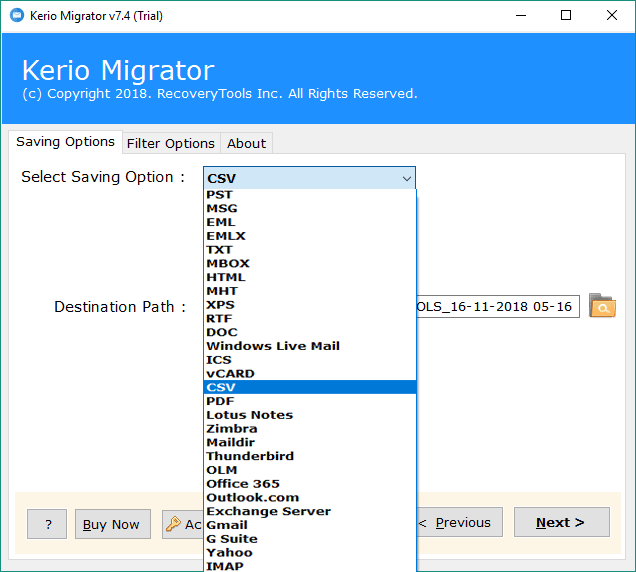
- Then, select vCard or CSV as saving option, preferred format for storing contacts.

- Choose destination path and click Next to export Kerio contacts to vCard or CSV.
Step 2: Import vCard File to Synology
- Login to your Synology DSM, open Main Menu and select Synology contacts.
- Now you can see PERSONAL ADDRESS BOOK (or GROUP ADDRESS BOOK if you have admin privileges).
- Click the + (Plus) button next to the address book and select Import Address Book.
- A wizard will launch; select vCard or Google CSV File option to continue.
- Browse vCard or CSV file that stored your contacts and press Open.
- Choose one option from Import to an existing address book or Import as a new address book accordingly.
- Click Import button to finalize contacts migration.
Step 3: Use Contacts in Synology MailPlus
After importing contacts to Synology Contacts, contacts will automatically sync with MailPlus. As a result, when you compose an email, then the auto-complete feature will now pull these newly imported contacts and suggest them for your recipients.
Kerio to Synology MailPlus Migration Tool Features
- Batch migrate Kerio server to Synology MailPlus to save your valuable time and effort.
- Transfer your data including emails and contacts as well as associated items.
- Advance filters allow you to migrate specific data by date range, sender, receiver, email subject, etc.
- Offers various saving options to export Kerio mailboxes to PST, MSG, MBOX, EML, PDF, and other formats.
- Fully automated and easy to use tool for Kerio connect to Synology MailPlus migration task.
Have Questions? Get Answer
Q1: Can I test Kerio to Synology MailPlus migration tool before purchasing a license?
Yes, you can download demo version of this software that allows to migrate 25 emails from Kerio connect to Synology MailPlus. Once, you are satisfied with its performance then you can purchase its license keys to unlock restrictions.
Q2: What are the specific storage quota requirements on the target server?
Before starting transfer, ensure that the allocated email quota on Synology MailPlus is larger than the amount of data currently stored on your Kerio Connect server.
Q3: Can I batch migrate Kerio connect to Synology MailPlus accounts?
Yes, the tool is well suitable to for batch Kerio connect to Synology MailPlus migration.
Q4: Do my contacts migrate automatically alongside my emails?
No, you need to move contacts separately as explained above with details.
