 Blog
Blog  +1 7025533020
Guide to Outlook Mail Delivery: Returning Message to Sender


This guide explores everything about how users can fix “Mail delivery Failed: Returning Message to Sender” Error in Outlook from every aspect. In this comprehensive blog, we will briefly discuss typing errors to complicated authentication errors and some of the proven techniques to configure SMTP settings and commonly asked questions by users.
Plenty of users face multiple sending errors and ask “Why am I getting mail delivery failed returning” The solution does not guarantee it to be direct, as issues like that come visible for numerous problems, for instance, it could show users due to typos, a full user inbox, damaged or corrupted files within the Outlook data, and the list goes on.
The operating system tends to show the users with issued notifications like “Error mail delivery failed returning message to sender” as an indication to let the sender know that the mail that was sent to the receiver has bounced, and the original message was never delivered to the destination. That is why users need to understand and find out the reasons behind “mail delivery failed returning message to sender error” in order to minimize future failures during the delivery of crucial messages.
Causes of Mail Delivery Failed Returning Message to Sender Error
Before jumping into the solutions, it is essential to understand the common reasons why users face mail delivery failed returning message to sender spam. Such errors normally dispense diagnostic codes like 503. 550, 421 that shows where the issue lies, along with the delivery.
- Typographical: Caused by simple spelling errors in the receiver’s email address, like an incorrect domain @gmil.com rather than @gmail.com, or an extra dot, which automatically leads the message to an immediate bounce.
- Mailbox at capacity: If the receiver’s mailbox storage has reached its maximum capacity, then the server will mechanically reject the incoming emails.
- Damaged Files: Outlook safeguards users’ messages in the personal storage table, also known as the PST format. If, for some reason, those PST files get severely damaged or corrupted, the users’ Outbox folder might malfunction, failing to deliver the correct data.
- Authentication Error: If Outlook fails to send a message via Simple Mail Transfer Protocol, then an error appears: “Mail delivery failed: returning message to sender (spam).”
- Oversized Attachments: Sending a file with an attachment that exceeds the maximum limit (20 MB) will cause the sent email to either fail in the midst of the delivery channel or return to the sender by default.
- Downtime: The issue “error mail delivery failed returning message to sender” also takes place if the sender’s or receiver’s server is under maintenance or in offline mode.
How to Stop Mail Delivery Failed Returning Message to Sender Manually?
Method 1: Inbox Repair Tool (ScanPST.exe)
- First, close Outlook on your system.
- Search for ScanPST.exe:
- For 2021 Version: C:\Program Files\Microsoft Office\root\Office16/SCANPST.EXE
- For 2019/2016: C:\Program Files (x86)\Microsoft Office\root\Office16
- For 2013 Version: C:\Program Files (x86)\Microsoft Office\Office15
- Tap on ScanPST.exe.
- Afterward, click on “Browse” and select the required PST file.

- Then, hit “Start” to begin the scan process

- Finally, click “Repair” to fix the damaged files and wait for the process to get completed

Method 2: Fix through Microsoft Office Installation
- Browse and open “Control Panel” in the Windows search.

- Tap on Programs > Programs & Features.

- Locate “Microsoft Office” (or Microsoft 365) and click on it.

- Either right-click on Locate in the top menu and click “Change”.

- Choose the option of “Quick repair” or instant fix, or “Online Repair” for deeper fixing.

- Wait for the process to be done restart the operating system to check the results.


Check out Why Manual Troubleshooting Falls Short?
While repair techniques like MS Office or ScanPST.exe are free of cost and quickly accessible to users, depending on such methods to fix “Mail Delivery Failed: Returning Message to Sender” Error in Outlook comes with baggage that could cost users their sensitive data information.
- Failure to Fix Severely Damaged Files: Although MS Office provides the options of both quick and deep scan, it does not always ensure the reliability of handling the same with large or oversized PST files, which often fail to go through midway, resulting in the mail delivery failed returning message to sender error.
- Threat of Data Loss: Such techniques involve a high risk of stripping details from anywhere in the email, which
- gets identified as damaged or corrupted Outlook data file, due to which users tend to lose their confidential data, such as attachments or the structure of the data.
- No In-Depth Diagnostics: Since native techniques do not provide the feature of deep evaluation of damaged files, it becomes tough for users to clearly conclude the cause and remedy of showing “mail delivery failed returning message to sender error”.
- Time-consuming: Another drawback of relying on manual techniques is the level of time consumption, as such methods have to locate each file to be backed up and properly scanned, making it a tedious task for organizations with thousands of damaged files, since the methods require repetitive steps, increasing the downtime&.
- No Surety of Data Integrity: ScanPST or MS Office provides no guarantee of preserving the integrity of users’ data during or after the process is done, which hinders folder alignment, missing attachments or information, or the absence of metadata.
Experts Recommended Software Solution to Fix the Error
Given the grave risk of ScanPST, MS Office, and other methods, a professional culture requires a more advanced solution to tackle the error mail delivery failed returning message to sender. For a full-proof and ensured solution, it is highly recommended to go for the latest RecoveryTools PST Repair Tool. A software utility designed to allow users to deeply analyze their Outlook data.
Different from any traditional methods, the professional solution scans, recovers, and deconstructs the entire mailbox while protecting the folder hierarchy throughout the process. Moreover, the tool has the ability to detect the hidden corrupted scenarios efficiently, assisting users to stop mail delivery failed returning message to sender issue caused by unidentified reasons.
Steps to Mail Delivery Failed Returning Message to Sender Solution
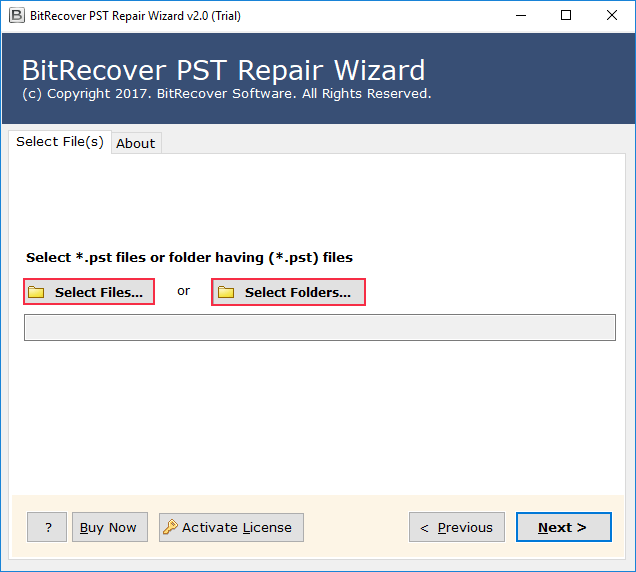
- Download and open “PST Repair Tool” on your operating system.
- Choose “Select Files” or “Select Folders”.

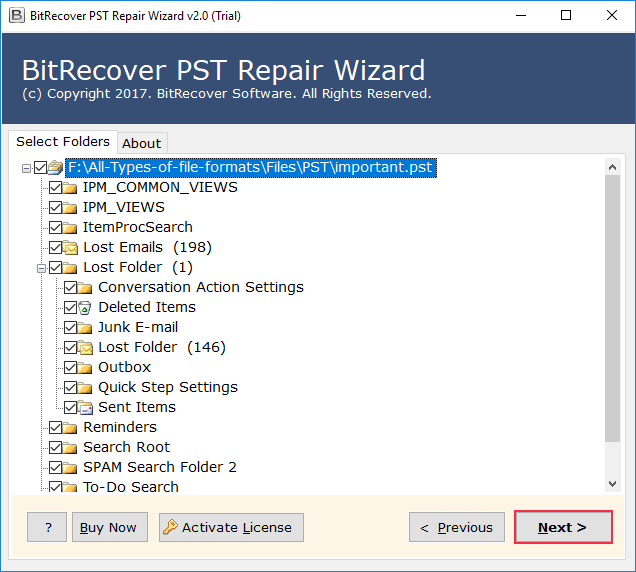
- Add the required files you wish to repair.
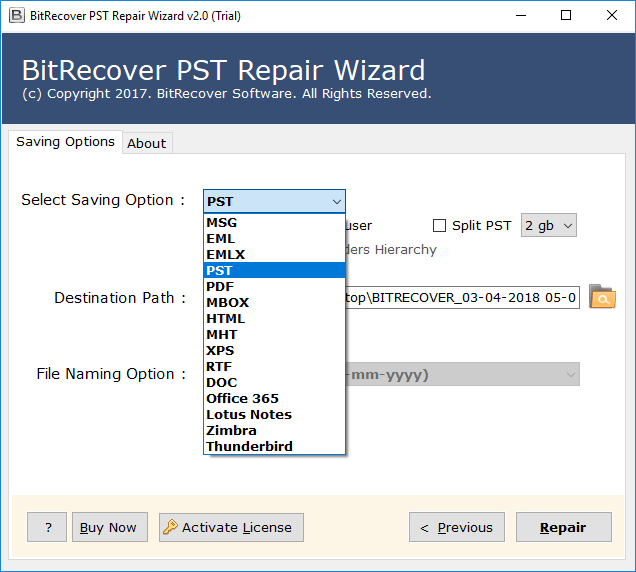
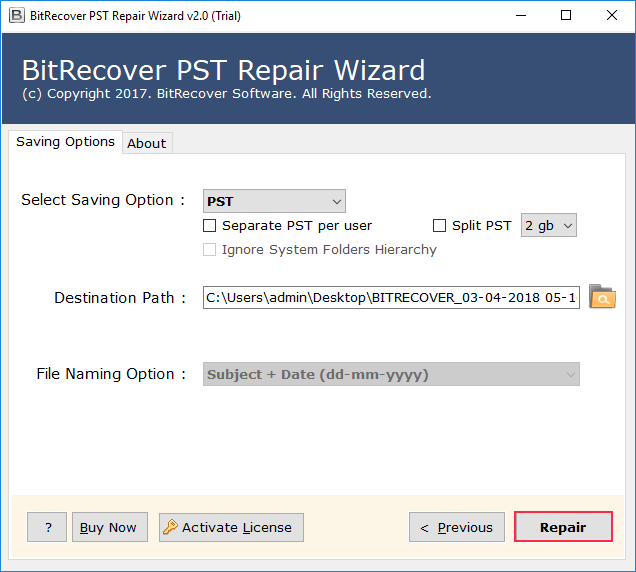
- Select any file format given in the list to generate your resultant file in.
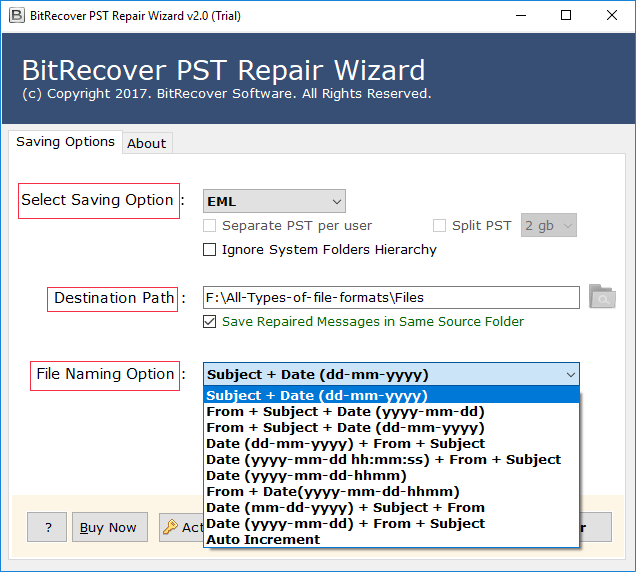
- Also, add a preferred location path with the file name option.
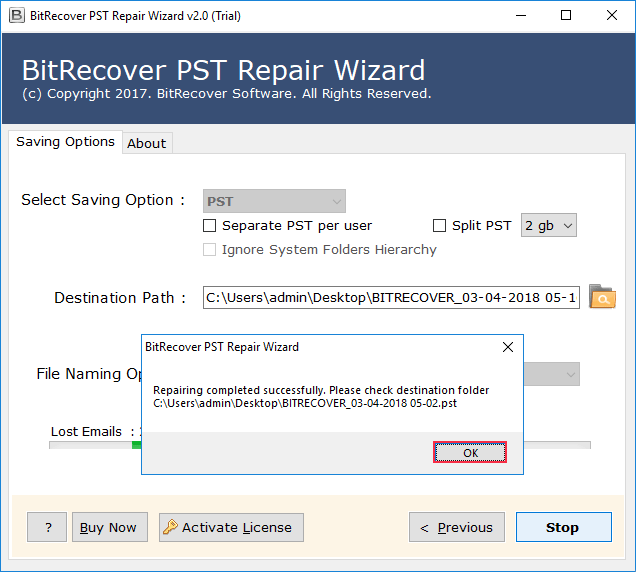
- Finally, click on “Repair”.
- Wait for the process to be completed and check the resultant file on the selected destination path.
Which is More Helpful: Manual or Automated Method?
| Aspects | Manual Technique | Professional Technique |
| Handling Corruption | Appropriate for minorly damaged files. | Suitable for severely corrupted, damaged, oversized, and multiple files. |
| Safety | Provide basic backups only, and can reduce or skip crucial items during the process. | Provides a guided interface with scanning and repair features. |
| Time Taken | Consumes a lot of time while repairing multiple or oversized PST files. | Quick and efficient for large data files to fix such errors. |
| Technical Knowledge | Requires technical expertise to operate such methods, including basic troubleshooting. | Intuitive and user-friendly, suitable for both technical experts and beginners. |
| Effectiveness | Proves to be helpful temporarily, may appear again. | Offers a permanent solution by reconstructing repaired PST files. |
| File Size | Not suitable for files of more than 2 GB. | Do not restrict to any size limit. |
| Accuracy Level | Results in low to moderate. | Results in high accuracy. |
Troubleshooting Process to Fix the Error
It is necessary to follow a properly structured process to fix the “Mail Delivery Failed: Returning Message to Sender” error in Outlook. Additionally, these troubleshooting tips and tricks will easily determine how to fix mail delivery failed returning message to the sender in a professional and easily accessible manner. Here are some of these directions from which users can take assistance:
- Examine Bounced Messages: Briefly analyze the email that has been returned and cross-check every detail consisting of that email, including both senders’ and receivers’ email addresses, storage space, size of the attachments, server, and spam.
- Attachment Limit: Minimize the size of the attachments or compress them in a zip or linked files if the recipient needs a large batch of emails in one file.
- Account Settings: Make sure to carefully verify SMTP server, encryption, port, and other authentication settings along with you being online and connected to the mail server.
- Malware Checks: Regularly update and clean the operating system to make sure the system is not compromised by malware threats in mail delivery failed returning message to sender error or when Outlook Freezes When Sending Email.
- Verify for Blacklisting: Due to rigorous malware detection on a certain IP address, users’ emails get flagged for regularly sending spam which also blacklists all the devices within the range of the flagged IP address. In such scenarios, it is highly suggested to consult an ISP for flag removal.
Conclusion
Getting help using manual methods is only useful for fixing minor issues, such as passing the automatic protocol with SMTP, modifying ports to 587, or clearing out cache files to safeguard users’ information from mail delivery failed returning message to sender error.
However, using this method for rectifying issues that are beyond repair can prove to be risky. For more severe issues, relying on a professional tool instead of a free one is the right choice, such as adopting the advanced PST Repair Tool. This utility has the ability to minimize the number of email bounces and guarantees a safe generation of repaired files in less time, and overcome “mail delivery failed returning message to sender spam”