How to Import CSV Contacts to Outlook? Step-By-Step Guide


Quick Answer: You can import CSV contacts to Outlook manually or convert the CSV file to PST using the dedicated Contacts CSV Converter by RecoveryTools. You can use the built-in Microsoft Support Import Wizard in Outlook Classic (2021, 2019, 2016) and Outlook for Mac, or use the Import Contacts button in New Outlook or Outlook 365. Built-in tools often cause significant field mapping issues or corrupt text. The most reliable way to easily bulk upload CSV contacts to any version of Outlook is using the specialized tool.
Knowing how to upload CSV contacts to Outlook is critical whether you’re switching from another email client, updating your contact list, or organizing your calendar. CSV (Comma Separated Values) is a global standard for saving tabular data, and uploading it into Outlook is something necessary for many individuals and professionals. This guide provides a step-by-step guide to import CSV contacts to Outlook Classic, Outlook for Mac, New Outlook, or Outlook 365.
Tips to Successfully Import CSV Contacts to Outlook
- Headings: The CSV file should contain the first row with headings like First Name, Last Name, and Email Address.
- Save as .CSV in Excel: In case the file was edited in Excel, make sure to save the file as CSV format instead of XLS or XLSX.
- Remove Empty: Empty rows and columns need to be deleted before the uploading of the file.
- Verify Fields: One should ensure correct mapping of fields so that the information is placed into the right boxes.
- Save in Safe Format: Save the file in UTF-8 format.
- Test it First: Start by uploading 5 CSV contacts to Outlook for manual ways.
Also Read: How to Import Contacts from Excel to Outlook?
Method 1: Upload CSV Contacts to Outlook Classic (2021, 2019, 2016)
If you want to import CSV address book to Outlook 2021, 2019, 2016, then you can easily do it by using the built-in Import/Export feature.
- Start your Outlook Desktop and open File > Open & Export > Import/Export.
- In the Import Wizard window that shows up, select Import from another program or file, and click Next.
- Select Comma Separated Values from the list and click Next.
- Click Browse to choose the CSV file you wish to import and set a preference for duplicate handling.
- Select the folder where you want to import your CSV contacts.
- If the purpose of your import is to add contacts, choose the Contacts folder as your target folder.
- If you want to import a CSV file to your Outlook calendar, you need to specify Calendar as your destination folder.
- In the next window, click Map Custom Fields and make sure that your fields such as “First Name” and “Start Date” correspond to Outlook’s fields.
- Click Finish to import CSV contacts to Outlook 2021, 2019, & 2016.
Method 2: Import CSV Address Book to Outlook 365 & New Outlook
Both the Windows version of the new Outlook and Outlook 365 for the web have the same interface. If you want to know how to import CSV contacts to Outlook 365 or New Outlook, then you can use the “Import Contacts” option.
- Access New Outlook or Outlook 365 in the web browser you are using.
- Tap on the People (Contacts) icon in the left navigation bar.
- In the top right corner of the Ribbon, select Manage > Import Contacts.
- Choose Browse and select the file you want to import. Here’s how you can easily import CSV file to New Outlook and Outlook 365 contacts.
- Now, to complete the process, you need to tap on Import.
Keep in mind! Right now, the New Outlook does not offer a native way of importing CSV files into the New Outlook Calendar. In case of calendar imports, it is better to process everything using an ICS file or syncing it using classic versions of the application.
Method 3: Import CSV Contacts to Outlook Mac
If you wish to import CSV contacts to Outlook Mac or the Mac-native app, you should know that the import wizard works in a different way than on Windows.
- Launch Outlook for Mac.
- Click on the File menu from the upper Apple menu bar.
- Choose the option “Contacts” or “Messages” from the text file and then hit the next arrow key.
- Select the option Import contacts from a tab- or comma-separated text file.
- Find the file you want to import and follow the instructions to map the fields and upload CSV contacts to Outlook Mac.
Limitations of Native Manual Methods
While using manual methods to import CSV contacts to Outlook contacts is free, there are notable problems involved in the process:
- Errors in Mapping: Often, Outlook fails to complete the automatic mapping of your CSV fields. Irrespective of the fact that you labeled your CSV correctly, the data will still end up in the wrong places in Outlook.
- Mistakes with Characters: When you try to import CSV address book to Outlook manually, you may encounter the same issue with non-English symbols and accents as their encoding methods aren’t compatible with Outlook.
- Missing contact groups: You won’t be able to import CSV file in Outlook contact group because it’s only importing individual contacts.
Method 4: Dedicated Tool to Import CSV Contacts to Outlook for Bulk & Accuracy
To prevent mixed details, incomplete texts, and performing tasks individually, the ideal solution is RecoveryTools CSV to Outlook Import Tool that provides the most reliable method to upload CSV contacts to Outlook. Instead of struggling with built-in options of Outlook, this software converts the CSV file into a flawless Outlook native file format like PST. After completing this process, you can easily access this PST file in Outlook Classic, Outlook for Mac, and New Outlook (only if you have a Microsoft 365 subscription account configured).
Benefits of Using Tool to Import CSV Contact List to Outlook
- Batch Conversion of Files: You can convert an entire batch of CSV files into a single PST file.
- Matches Details Perfectly: The software automatically matches the CSV fields correctly to the correct Outlook fields.
- Text Safety: It produces Unicode PST files, which make it easily compatible with the latest versions of Outlook
- Contact Group Creation: You can perform the creation of your distribution or contact groups from your source CSV file.
- No Need for Outlook: You don’t even need to have Microsoft Outlook on your PC to import CSV contacts to Outlook.
How to Import CSV Contacts to Outlook Easily with Tool?
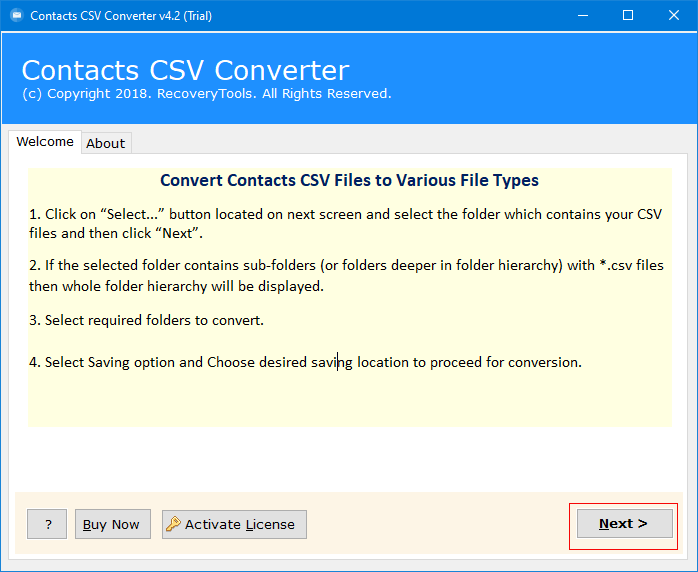
- Download and start the tool on your Mac or Windows PC to upload CSV contacts to Outlook.

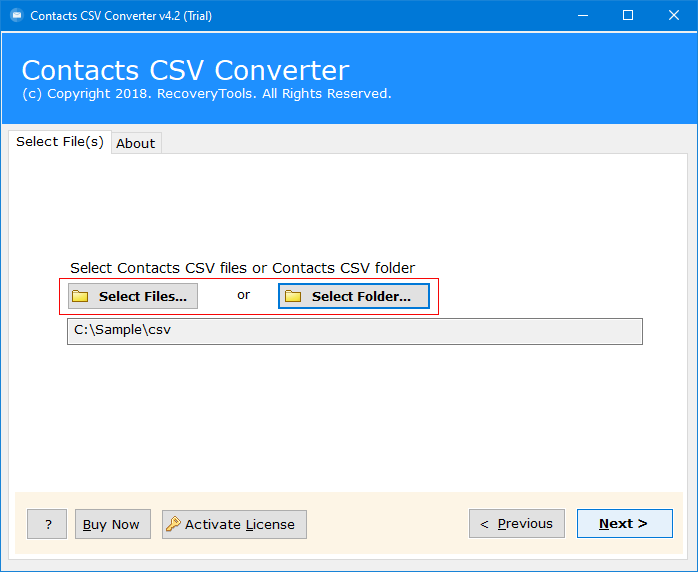
- Click on “Select Files” or “Select Folders” option and add the CSV file from your computer.
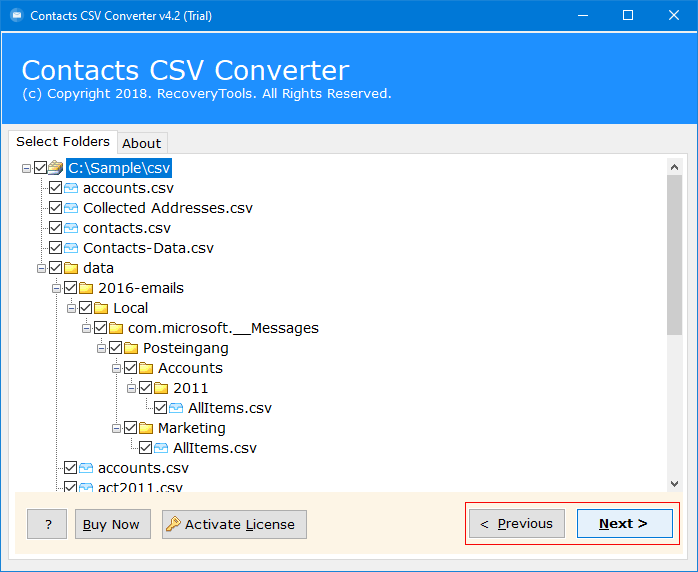
- Preview all the folders in CSV file and select the ones you want to import to Outlook.
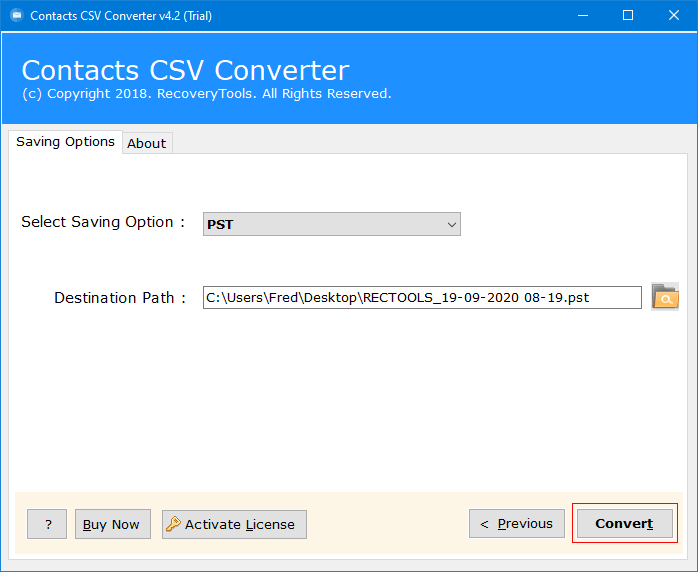
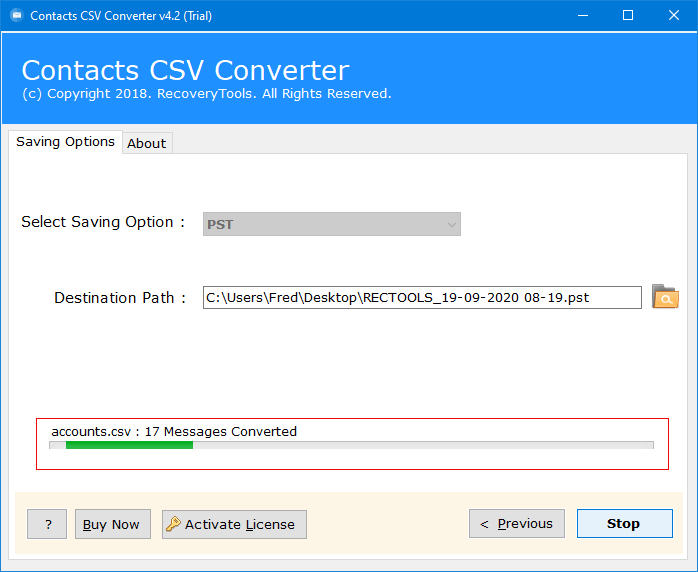
- Select “PST” from the Saving Option then browse destination path.
- Hit the Convert button, then easily access the converted file within Outlook Classic, Outlook for Mac or New Outlook.
Conclusion
If you only need to import CSV contact list to Outlook all at once and only have a few contacts, then built-in tools of Outlook Classic, 365, and the Mac version may be sufficient. All you need to do is use the import tool provided in Outlook and verify your information properly.
However, if there are some details missing, text is broken, you have multiple files, or you wish to import CSV contacts to Outlook in batch, then you must avoid using the built-in tools. The best method of converting your files into a secure PST file is by using RecoveryTools CSV to Outlook import tool.
Also Read: How to Import CSV Contacts to Android?