 Blog
Blog  +1 7025533020
How to Export HEIC to HTML File Format on Windows?


If you also want to export HEIC to HTML, then you’ve come to the right place! Here, you’ll get all the information you need about how to export HEIC to HTML, which methods you can use, and how to perform the process easily. So, stay with this blog till the end to learn how you can quickly convert your HEIC files to HTML format.
As you are already aware, HEIC files cannot be accessed on every platform, which is why many users prefer to convert them to HTML format. So, if you’re also looking for such a solution, you’re absolutely in the right place. We’ll provide you with the best and easiest way to export HEIC to HTML, so without any delay, let’s get started!
Benefits of Exporting HEIC to HTML
- Easy Display on the Web: Images can be embedded directly in HTML pages.
- No Loss of Quality: High quality when file size is reduced.
- Cross-Platform: Viewable on Windows, Mac, Android, and iPhone.
- Easy Display on the Web: Images can be embedded directly in HTML.
- Better Compatibility: Compatible with all browsers and devices.
Things to Remember Before Converting HEIC to HTML
- Ensure Browser Support: Most browsers don’t natively support HEIC, so you’ll need to first convert it to JPG, PNG, or WebP.
- Backup Files: Always keep a copy of your original HEIC files before converting.
- Select Format: select a format with an appropriate quality and file size that will work for the web.
- Organize Images: Readily name and organize images for embedding in HTML.
- Test before Publishing: When you have completed the export to HTML, test the page on different devices and browsers.
Read Next: Convert Multiple HEIC to PDF
Convert HEIC to HTML Format Using the Manual Way
In this method, we have 2 phases to perform HEIC to HTML conversion on Mac and Windows. All the steps are given below:
Phase 1:
- Open the HEIC file in Preview on Mac, or Save HEIC to JPEG/PNG with Paint or Photoshop on Windows.
- Now, go to the File option.
- Then, click on Export.
- After that, choose JPEG/PNG to save your image.
Phase 2: Embed it in HTML: Using an HTML editor, you can easily link or insert the converted image.
image. <img src=”image.jpg” width=”500″ height=”600″>.
Limitations of Using This Manual Method
- You need a basic knowledge of HTML to insert an image properly.
- Converting a large number of images can be time-consuming.
- There is a risk of losing image quality during conversion.
- No option for batch conversion, so each image must be handled individually.
- Not perfect for large projects with many files.
- You need something extra to convert HEIC files first before embedding them into HTML code.
Best Way to Export HEIC to HTML File Format
If you want to export HEIC file to HTML format, it’s important to use a reliable method that ensures your image displays correctly on all browsers. A trusted HEIC Converter tool is the best choice to convert your HEIC file to HTML format. It allows you to convert HEIC photos into web-friendly formats like JPEG, PNG, or WebP.
So they can be easily embedded in HTML without losing quality. With the batch conversion feature, you can convert multiple HEIC images at once, saving time and effort. The tool also offers customizable options, letting you adjust image size, format, or quality as needed. If required, support is available to help you through the process.
How to Use This Software?
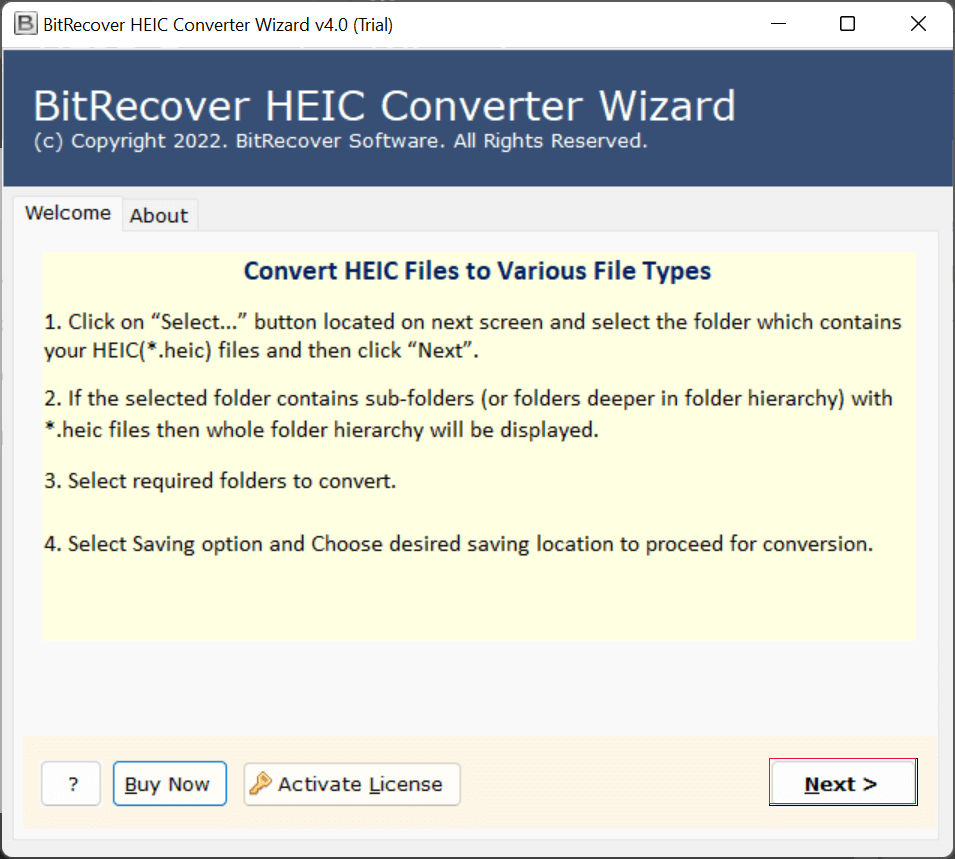
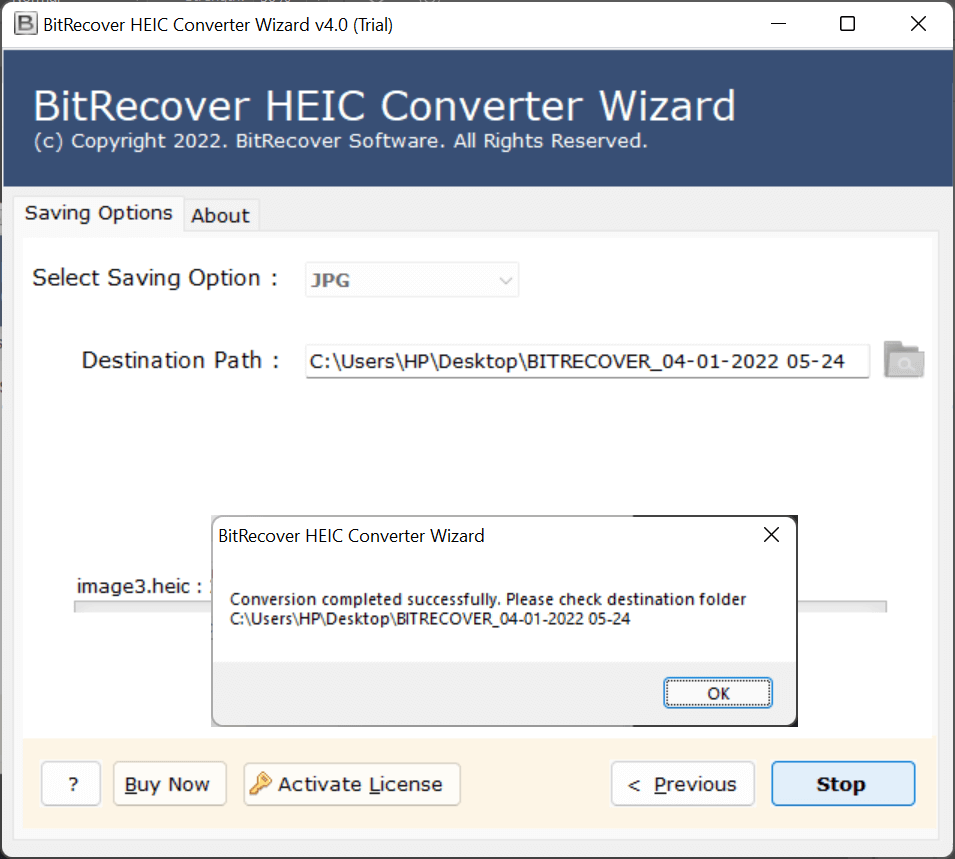
- Firstly, download the HEIC to HTML converter on your system.

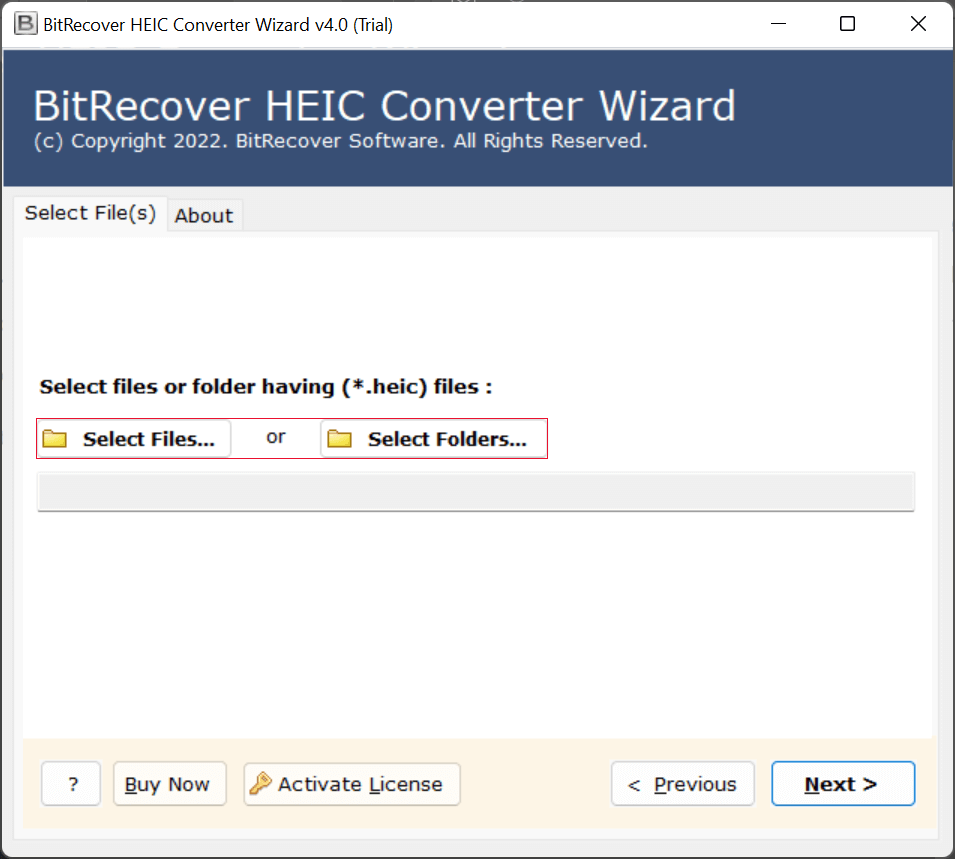
- Secondly, upload HEIC file data with “select files” or “select folders.”
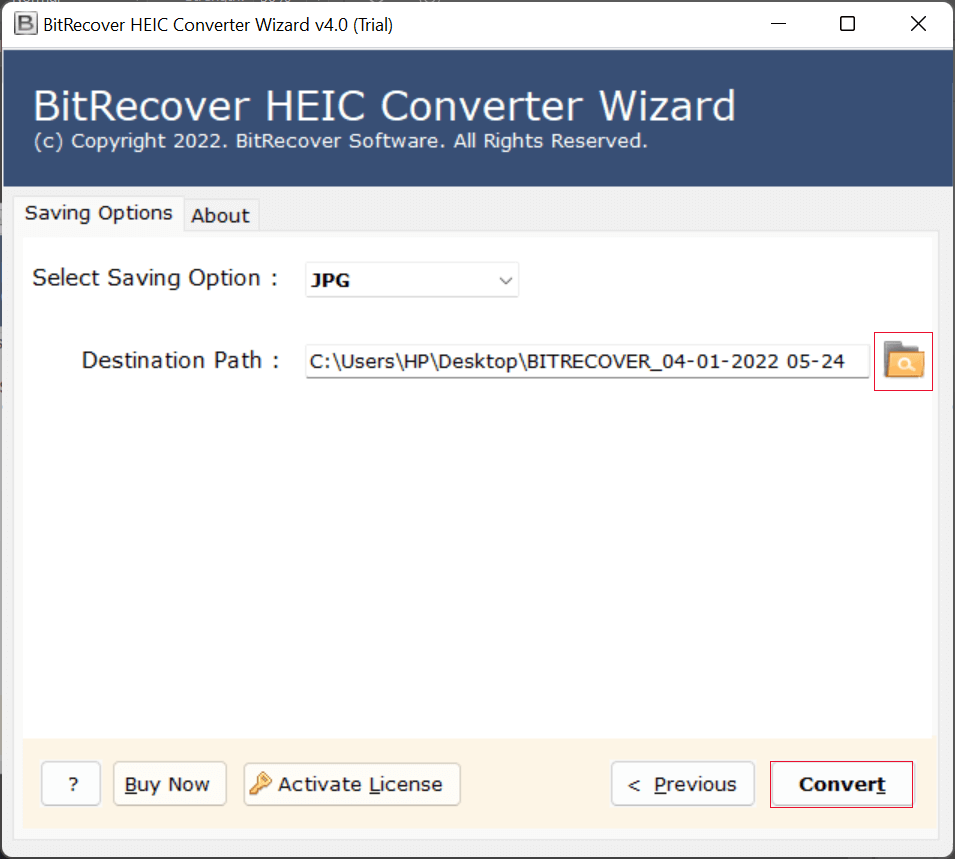
- Thirdly, choose a savings option from the given list.
- Then, select the destination path to save your data.
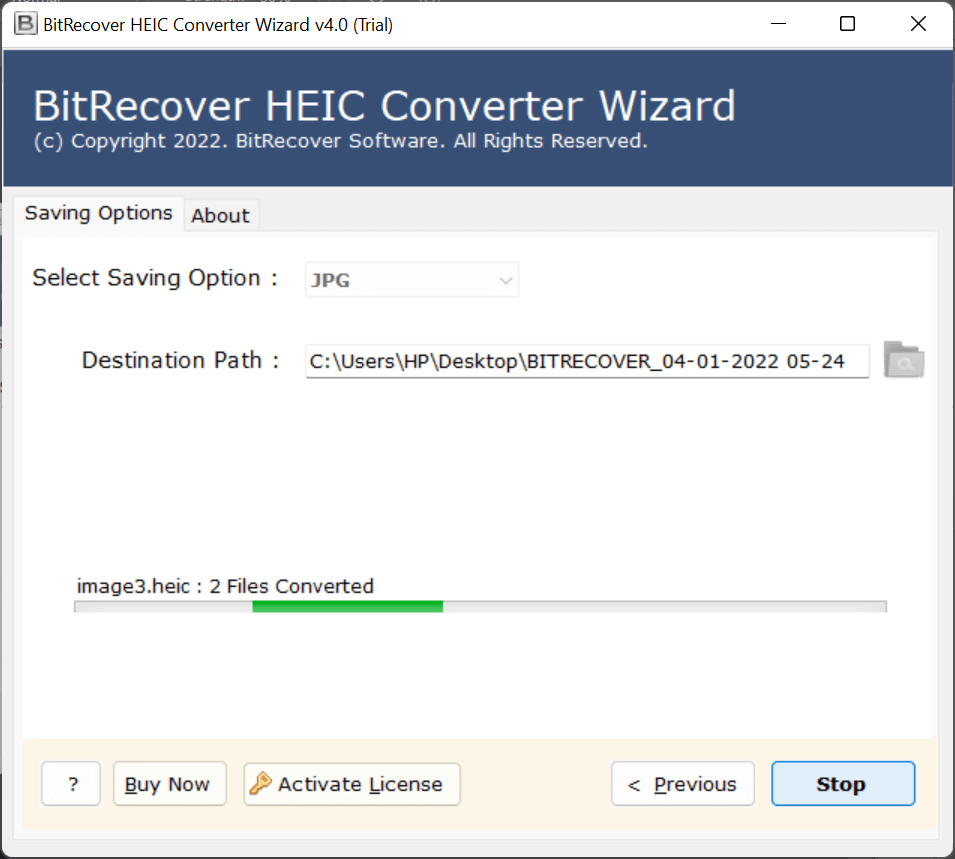
- Lastly, click on the convert button.
Key Feature of HEIC to HTML Converter
- Multiple File Conversion: Easily convert multiple HEIC files to BMP on Windows, no matter the size or number of files.
- Preview and Select: Preview your HEIC image files before conversion, and choose the ones you wish to export.
- High-Quality Output: Save converted images to any folder location and easily access or organize them.
- Easy Editing: Edit the converted images in any photo editor before adding them to your HTML page.
Conclusion
In conclusion, we have captured the query of how to export HEIC to the HTML file format. When converting photographs saved in HEIC format to HTML, our program makes it simple and accurate for you to do so. The application that was proposed is useful for getting around all of the drawbacks of the manual technique. Downloading the free trial version of the program to evaluate the application is thus strongly recommended. If you believe that it will be beneficial to you, then by all means, engage in it.
Read More: Convert HEIC Image to GIF
