 Blog
Blog  +1 7025533020
How to Export Evolution Mail to Outlook? (2026 Guide)


This Article covers both manual and trusted methods by RecoveryTools experts to simplify your Evolution mail to Outlook migration. If you are switching from a Linux environment (like Ubuntu or Fedora) to a Windows environment, your biggest challenge is migrating data.
Evolution is the default mail client for GNOME, but the corporate world relies on Evolution Outlook integration or native Outlook apps.
Simply copying files won’t work. Evolution stores data in MBOX format or databases, which the app cannot read natively. This guide solves that problem.
What Is Evolution Mail and Outlook?
Evolution Mail is a personal information management application. It provides Evolution email, calendar, and address book functionality for Linux systems. It supports Evolution-EWS (Exchange Web Services) to connect to Exchange Servers, but it saves data locally in MBOX style.
Microsoft Outlook stores all your emails in a file type called PST. The problem is that Evolution Mail uses a completely different format (MBOX). Since they don’t speak the same “language,” you can’t just drag your files over. The Evolution mail import from PST process isn’t possible directly-you have to convert the files first.
Why Move Emails from Evolution Mail to Outlook?
Most users move their Evolution emails for one of the following reasons:
- Switching Computers: You are moving from a Linux system (like Ubuntu) to a Windows 10 or 11 PC.
- Job Requirements: Your office might require everyone to use Office 365 or standard Outlook for better security.
- Better Backups: Saving your old Evolution emails as a PST file is a great way to keep a safe, offline backup.
- More Features: You want to use Outlook’s built-in features, like connecting directly to Microsoft Teams or SharePoint..
Manual Way to Export Evolution Emails
The first is the Manual Method. This involves using a third-party email client (Mozilla Thunderbird) to act as a middleman.
It is to be noted not to use the outdated “Outlook Express” method, as it is no longer supported and can be found on other blogs. That software is discontinued. Use this modern “Thunderbird Bridge” method instead.
- Extract MBOX from Evolution
- Open Evolution Mail.
- Right-click the folder you wish to migrate (e.g., Inbox).
- Choose Save as Mbox and save it to a USB drive.
- Import to Thunderbird (Windows)
- Install Thunderbird on your Windows PC.
- Download the “ImportExportTools NG” plugin and install it.
- Right-click Local Folders, select ImportExportTools, and choose Import mbox file.
- Save Evolution Emails to Outlook
- Select the Evolution email option in Thunderbird.
- You have to save them as EML files.
- Now, drag and drop the EML files into an open Outlook folder.
Drawbacks of the Manual Method
This manual method often leads to Evolution Mail to Outlook not working properly for large mailboxes.
- It will destroy your folder structure and mix your Inbox, Sent, and Drafts into a single collection.
- You risk losing important details like the original date or sender’s name during the drag-and-drop process.
- Moving thousands of emails manually is incredibly slow and frequently crashes the Outlook application.
- This method is limited to emails only, so your contacts and calendar events will not be moved.
Trusted Solution for Exporting Evolution Mail to Outlook
Use the reliable RecoveryTools Evolution Migrator to move your Evolution emails without the technicalities of the manual method. While doing it manually is slow and can often lose important details like attachments or dates, this software handles everything automatically.
User Experience
We tested this scenario in our lab.
Moving data from a Linux machine to a Windows 11 laptop is tricky. We found that Evolution stores data deep in the system, typically at:
~/.local/share/evolution/mail/local/
When we tried the manual method, we lost the timestamps on Evolution emails older than 2 years.
However, using the Trusted Solution, the tool automatically detected the MBOX files. We verified the Screen Preview—it correctly displayed the subject lines and body text before conversion. This verification step gave us the confidence to proceed.
How to Export Evolution Mail to Outlook in Easy Steps?
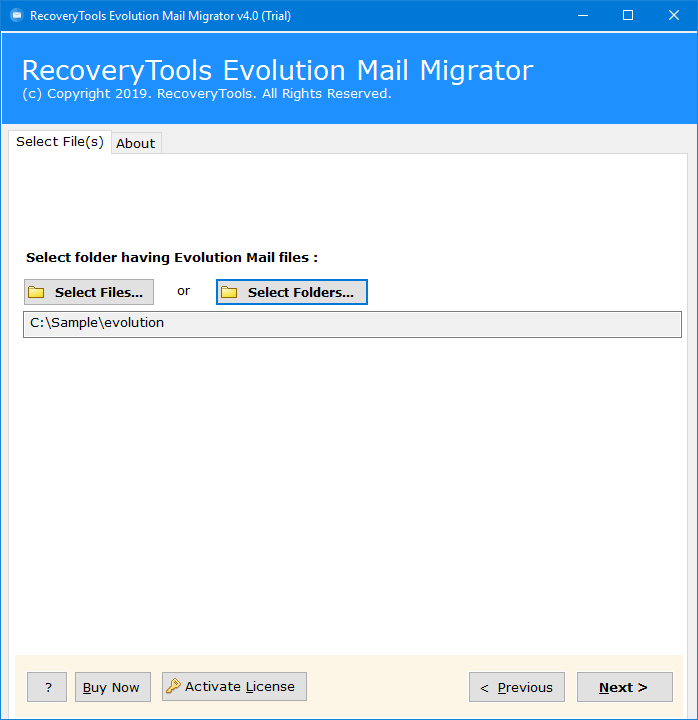
- Install and run the software on your Windows PC.

- Click on the folders to preview your Evolution emails and make sure they look right.

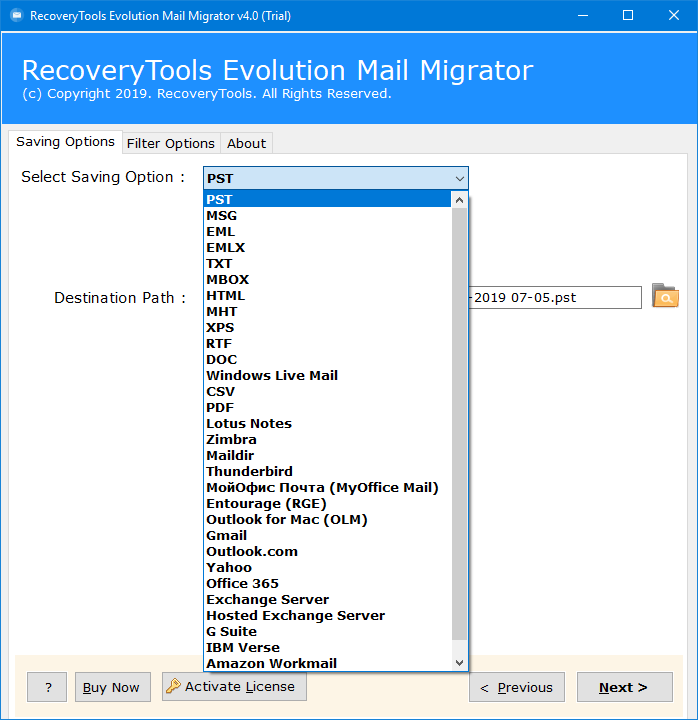
- Choose PST from the saving list (or Office 365 if you prefer).

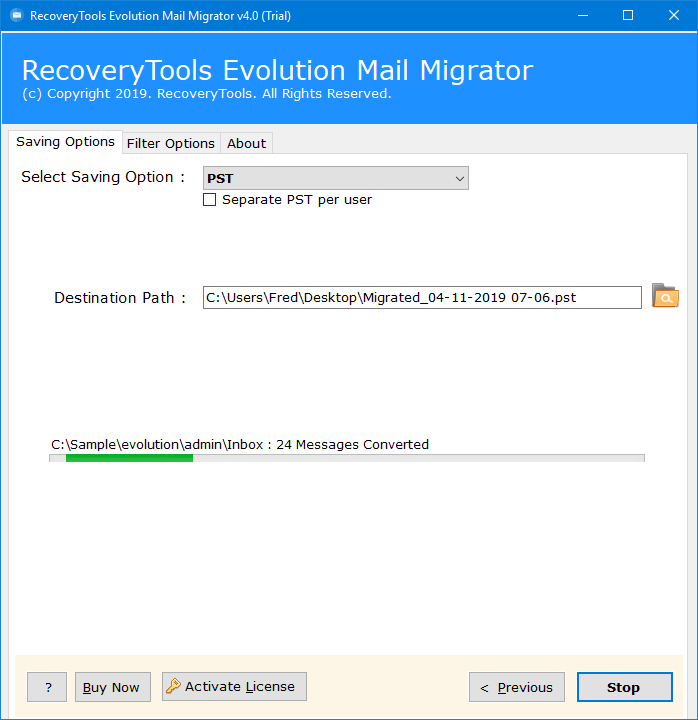
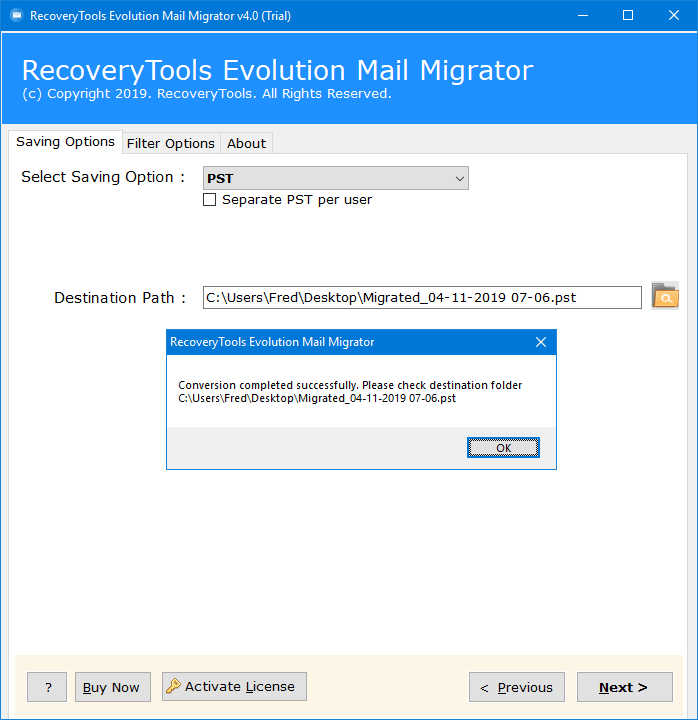
- Click on the Convert button and wait until the “Successfully” message is finished.

Features of the Automated Solution
- It allows users to add hundreds of Evolution files and convert them all at the same time to save you hours of work.
- You can filter your Evolution emails by date, sender, or subject to export only the specific messages you need.
- It keeps your original folder structure perfect so your Inbox and Sent items don’t get mixed up.
- It handles huge mailboxes, even those larger than 50GB, without freezing or crashing.
- This tool helps you to save your Evolution emails as PST, PDF, MSG, or upload them directly to Office 365.
To Conclude
The main problem is that Linux files don’t work natively in Windows. The manual method is a valid option if you want to save money, but you will have to accept that your Evolution folders might get mixed up and some details could be lost.
If accuracy is your priority, the automated tool is simply more reliable. It reads the data directly and keeps your original structure intact, making it the practical choice for anyone moving a full mailbox to Outlook.
Commonly Asked Questions
Q1. How to migrate Evolution mail to Outlook?
Ans: A professional migrator tool ensures accurate and complete conversion. As an alternative, Mozilla Thunderbird can be used to convert Evolution MBOX files to EML format before importing them into Outlook.
Q2. How do I transfer Evolution emails from mail to Outlook?
Ans: You must first export your Evolution folders as MBOX files (Right-click folder > Save as mbox). Then, use a converter tool to turn that MBOX file into a PST file that Outlook can open.
Q3. How do I get my Evolution emails into Outlook?
Ans: Outlook lets you “Open Outlook Data File” (PST). Once you convert your Evolution data to PST, simply go to File > Open & Export in Outlook to view your Evolution emails.
Q4. How to sync Evolution email to Outlook?
Ans: You cannot sync them directly. However, if you use Evolution-EWS, both clients connect to the same Exchange server. For local archives, you must perform a one-time migration.
