 Blog
Blog  +1 7025533020
How to Convert Pegasus Mail to MBOX? Easy Guide


Importantly, Pegasus has no built-in option to export MBOX files. Renaming a .PMM file to .mbox will not work because Pegasus utilizes a proprietary structure. Specifically, the software uses “Ctrl-Z” to differentiate messages instead of the usual MBOX line separators.
The most reasonable option is to convert Pegasus Mail to MBOX since it is a universal standard that is supported by nearly every modern email client. By converting your data to this format, you can be certain that it will stay safe and usable no matter which email system you switch to in the future.
Since simply renaming the files will not work, the following guide will explain two methods with a step-by-step procedure, including IMAP manual transfers and automated Pegasus Mail to MBOX conversion using a software tool.
Method 1: Convert Pegasus Mail to MBOX Using IMAP
If you have a small mailbox and can still use your Pegasus Mail software, then using an IMAP account is a free and easy solution.
For beginners: “IMAP” simply means that the email software synchronizes with the online mail server. You will use a standard email account (for example, a webmail account) to temporarily upload your old Pegasus emails to the server and download them to the modern email application to save them in MBOX format.
- Set up IMAP: You need both an Internet connection and sufficient server space to create your IMAP email account in Pegasus Mail.
- Synchronization: Move your local Pegasus Mail folders to the new IMAP account folders through the application. Keep the program running until the upload is complete.
- Connect the new application: Download an MBOX-compatible email client like Thunderbird and log in using the same IMAP account.
- Export emails: Wait for Thunderbird to complete the downloading process. After that, proceed to export the emails in MBOX format.
Limitations to consider: This process is entirely dependent upon your network speed. It also depends on your intermediate email account being capable of storing the number of old emails you wish to transfer at the same time. In the case of a relatively large mailbox, this whole synchronization process can take hours or days. You should also verify manually that no attachments have been left behind during the Pegasus Mail to MBOX conversion process.
Method 2: Use a Dedicated Tool to Bulk Convert Pegasus Mail to MBOX
The manual method is ineffective for users who lack technical expertise, users who run a large mailbox, or users who own only the backup Pegasus Mail files on their PC (and do not have the original Pegasus software). A dedicated software solution is the best method to use.
RecoveryTools Pegasus Mail Converter is a completely offline tool that lets you add Pegasus files into the software and directly convert its data to MBOX format. Users can add bulk Pegasus files and folders, preview the entire data, and use check boxes to select the required folders they want to convert to MBOX.
How to Convert Pegasus Mail to MBOX with a Tool?
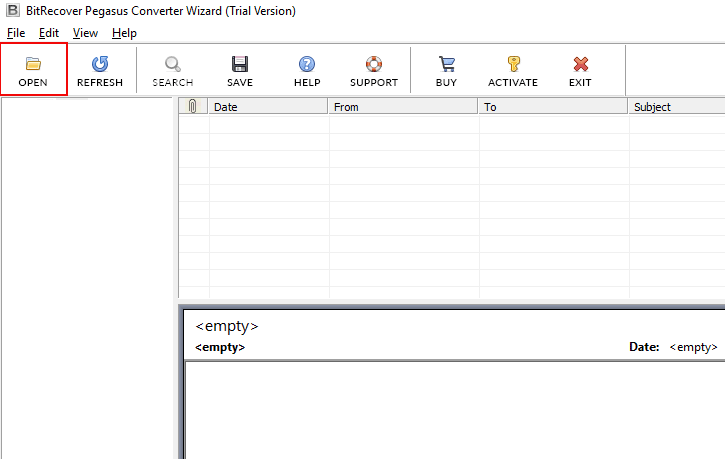
- Download and open the Pegasus Mail to MBOX converter. Click on Open and select a single or multiple local Pegasus Mail files (PMM, PMI, CNM) from your computer.

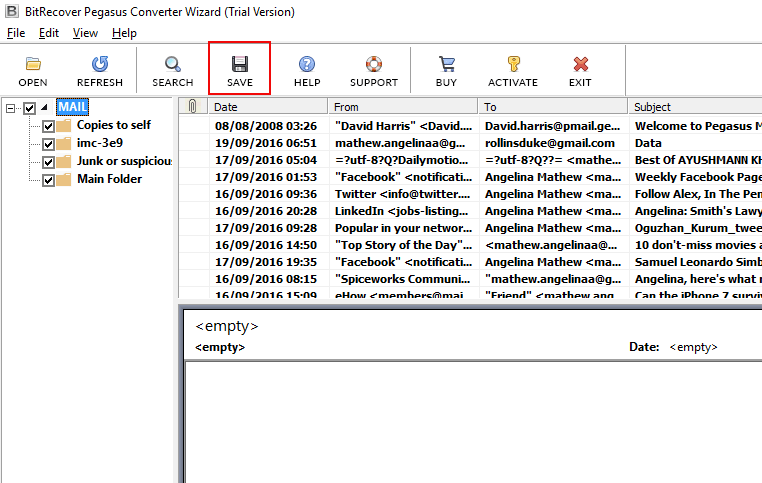
- Preview the data on the software interface and select the important Pegasus folders that you want to convert into MBOX format.

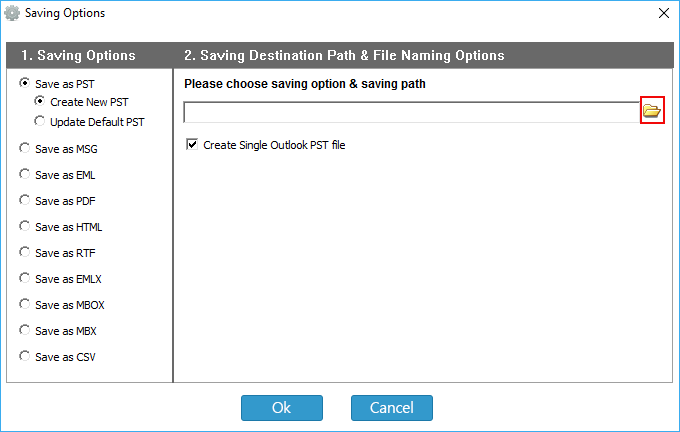
- Select the “Save as MBOX” option to directly convert Pegasus Mail data to MBOX.

- Lastly, hit the OK button to start the process.
The Technical Challenge: PMM vs. MBOX Explained
If you check the Pegasus Mail storage folder, you will find a special mailbox storage system that uses proprietary formats. Once you understand these formats, you can recognize why you need certain software tools to convert Pegasus Mail to MBOX.
- PMM (Mailbox) files: This type of file stores outgoing emails. While they may appear to be like standard MBOX files, the internal format is different. If PMM is renamed as an MBOX file, chances are the reader will simply see it as a huge, incomplete text document.
- PMI files (The Index): These are the table of contents for PMM files, indicating where one email ends and where the next one starts. Remember to store them in the folder containing PMM files in case you plan the conversion.
- CNM files (New Mail): These files store either new or unread emails that are not in folders yet.
- PMF files (Attachments): In older versions of the program, attachments were not stored in the email but kept in separate PMF files.
Frequently Asked Questions
Q 1: Is it possible for me to change Pegasus Mail to MBOX just by renaming a PMM file?
No. Simply changing the name of a .PMM file to .mbox does not convert the file to another format. By renaming the file name, you can only change the name tag, but the internal coding remains the same.
Q 2: Can I convert Pegasus Mail to MBOX if my old computer is broken and I only have a backup drive?
Yes. The RecoveryTools converter for Pegasus to MBOX can import your whole raw data files (PMM, PMI, CNM) directly from your backup USB or external hard disk. You do not have to install the original Pegasus Mail on your present machine.
Q 3: What happens to my unread messages stored in CNM files?
CNM files contain unread messages. If you are using the IMAP workaround, you need to run Pegasus Mail and verify that your emails are properly synchronized. However, the RecoveryTools Pegasus Mail to MBOX converter tool can automatically convert CNM files to MBOX format.
Q 4: Where can I find my Pegasus Mail data files on my computer?
The path of Pegasus Mail data files depends on your computer setup and the version of the operating system you are using. Generally the path is C:\PMAIL\MAIL but is not true in all cases. You can check the settings of Pegasus Mail to see data files location.
Conclusion
If you want to convert Pegasus Mail to MBOX format, then you can use a free manual IMAP workaround or a specialized tool by RecoveryTools. In the above guide, we have explained both methods step-by-step. If you want to convert Pegasus Mail to MBOX without losing data, facing technical challenges, or processing a bulk of data, then consider using the tool.
