 Blog
Blog  +1 7025533020
Save Kindle Book as PDF for Easy Offline Access


Many online readers wish to read their Kindle books on several devices such as laptops, PDF readers, etc. This is the reason why they need to save Kindle book as PDF. Here, in this blog, we will be explaining why such a process is required, how to do this manually, and how a trusted 3rd-party tool makes all the difference by turning this task into an easy thing to do.
KEY TAKEAWAYS
- Kindle to PDF conversion is sought for flexi-reading.
- It is possible to save Kindle book as PDF manually, but it has limits & risks.
- An automated Kindle to PDF software saves time & effort considerably.
- Always follow legal & ethical guidelines while converting EPUB files.
Just think that you have bought some eBook from Amazon, you now wish to share a few pages of it with your college study group, or maybe save them for offline reading later. You try opening your Kindle application only to realize that there’s no such direct “Save as PDF” option available. This is when you feel puzzled.
As per Amazon’s official website, Kindle books tend to be designed for being read within Kindle-supported devices & apps. This is the reason why many people look for methods to export Kindle book as PDF for their own personal reading requirements.
Understanding the Need for a Kindle to PDF Converter
Kindle files mostly use proprietary formats, including EPUB. Due to this, the following problems appear:
- It is not possible to directly share the book.
- It is not possible to open these book files in a normal file reader.
- You face flexibility issues as some devices don’t support these Kindle formats.
This is the reason why many users search for a worthy Kindle to PDF software that makes reading more flexible for them. People mostly look for a Kindle to PDF converter in the following situations:
- Wish to read the book on some non-Kindle device.
- Switch from Kindle to some other eReader.
- Wish to print kindle eBook files in PDF format.
- Want to know how to convert Kindle to PDF on PC.
The following are some advantages that you can enjoy after converting Kindle to PDF:
- PDF files can easily be opened on multiple electronic devices like laptops, smartphones, & tablets, etc.
- Once converted to PDF, these eBooks can be easily accessed in the offline mode too without any errors.
- PDFs can be easily shared with any user on multiple platforms with no restrictions.
- eBook files in PDF format include the required data security.
Considerations Before Using Kindle to PDF Software
The following are some crucial considerations before you actually do the process:
- Do not forget to keep a copy of your Kindle eBook before converting it or before making any of the alterations to it to avoid regretting it later.
- Avoid making use of any unknown & unreliable 3rd-party tool that might risk your privacy or endanger your file safety.
- Always be sure that all your layouts, images, & tables are preserved while you do the process to convert Kindle eBooks to PDF format.
Manual Tactics to Save Kindle Book as PDF
Manual tryouts are free, but they need patience. Let us comprehend them stepwise.
First Manual Way: Making Use of the “Print to PDF” Option (for PC)
This is a free method with simple steps and no need for any extra software. So, if you are wondering how to convert Kindle book to PDF on PC, then you can easily use the Kindle app installed on your computer and do the following steps:
- First of all, download & install the “Kindle for PC/Mac” app.
- After that, try opening your Kindle eBook in this app.
- Then, go to File.
- Next, press Ctrl + P on Windows / Command + P on Mac to proceed.
- Further, click on “Save as PDF” or select “Microsoft Print to PDF”.
- Subsequently, save the file to your PC in PDF.
Second Manual Way: Make Use of Kindle Cloud Reader + Browser Print
Access your Kindle eBook in your browser through Kindle Cloud Reader, and follow the steps given below:
- Firstly, open the Kindle Cloud Reader in a browser.
- Next, login & open your Amazon account.
- Now, open your eBook, which you wish to convert.
- After that, press Ctrl + P (for Windows) or Command + P (for Mac).
- Eventually, choose Save to save your data in PDF format.
Third Manual Way: Making Use of Online Converters
There are several online converters available on the internet, which directly convert Kindle formats (AZW, EPUB, & MOBI, etc.) to PDF format:
- First & foremost, go to Google.
- Here, search for an online converter from some website.
- Then, upload your Kindle eBook file to this website.
- Now, download the converted PDF when the process completes.
Important to Note: You can convert Kindle to PDF format only with this process, that too in limit. Also, there is always the privacy risk associated here.
Obstructions in Using Manual Methods
These ways can’t always convert Kindle EPUB to PDF properly. Also, the content quality might as well be reduced. There is no availability of bulk conversion, and pretty high chances of errors. You are bound to face great difficulty if you wish to export Kindle book as PDF in large quantities. Considering all these pitfalls, it is suggested not to use such ways if you have professional requirements.
Certified Solution to Convert Kindle to PDF
Manual techniques fail to satisfy due to several hindrances. In such a case, the best thing to try here is to use an expert tool that’s exceptionally good, as it is tried & tested by professionals. For this, you can rely on the RecoveryTools EPUB Migrator as it bulk supports the EPUB file of Kindle and seamlessly convert that to a readable file format that is PDF. This software is straightforward & automated, which doesn’t even demand technical usage skills.
Prominent Qualities of This Professional Tool
With superior features, this automated solution offers a lot, even more than you might have expected:
- This software presents a great feature to save the resultant PDF file(s) to the same location/destination folder as that of the EPUB source file of the book.
- The software provides dual options for uploading eBook data to facilitate easy bulk processing.
- This is a standalone utility, which doesn’t need any additional 3rd-party app.
- This tool helps to securely save Kindle book as PDF without damaging formatting.
- The software allows users to export Kindle book to PDF on Mac & Windows machines.
- This easy tool can be used without the need for much technical knowledge.
- There is a free demo of this Kindle eBook to PDF converter also available.
- One can also opt for bulk remote services, which are done by our trained engineers.

Simple Steps to Save Kindle as PDF
The following steps make it simple for users searching for how to convert Kindle to PDF on PC without facing any technical troubles:
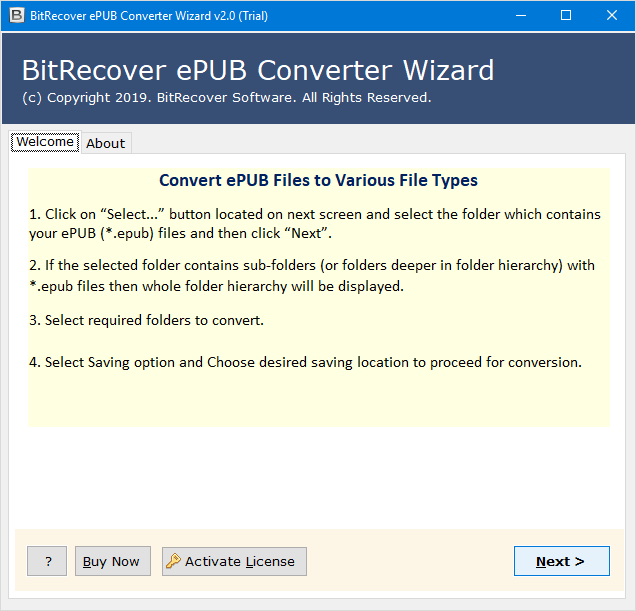
- First of all, start by running the software.

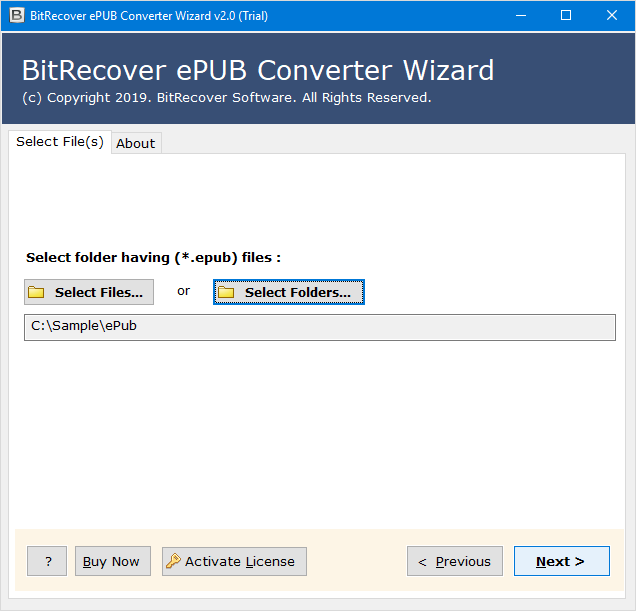
- Next, click Select Files/Select Folders to select Kindle .epub files/folders.
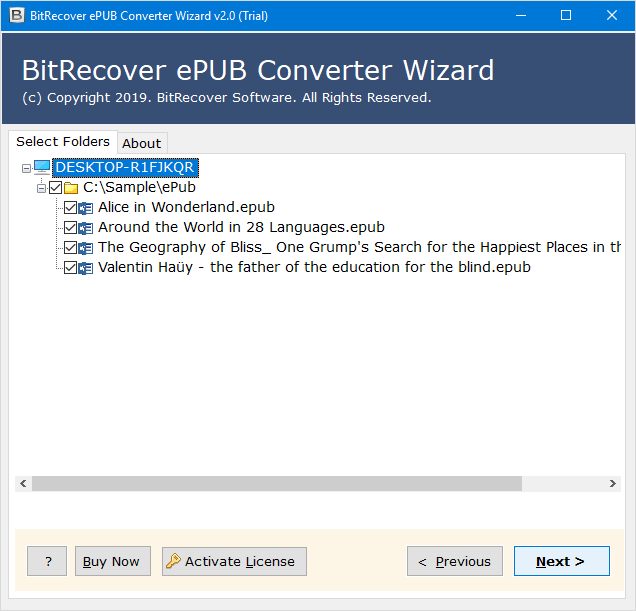
- Then, check/uncheck the required .epub files.
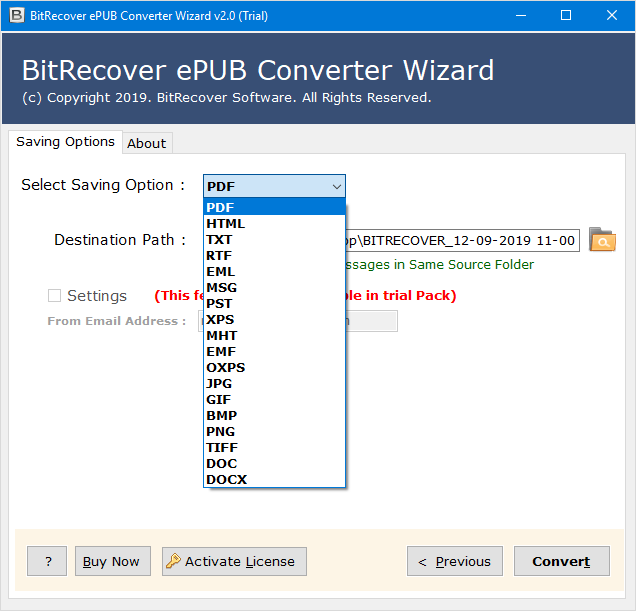
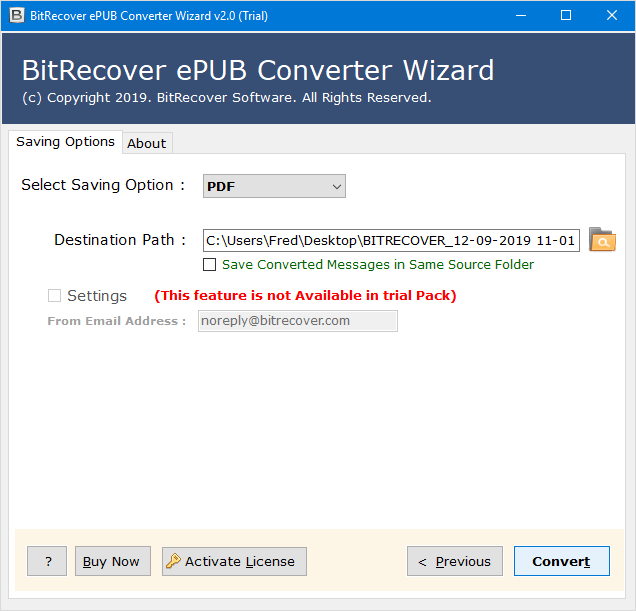
- Now, select PDF format from the list of available saving options.
- After that, define the destination folder for output.
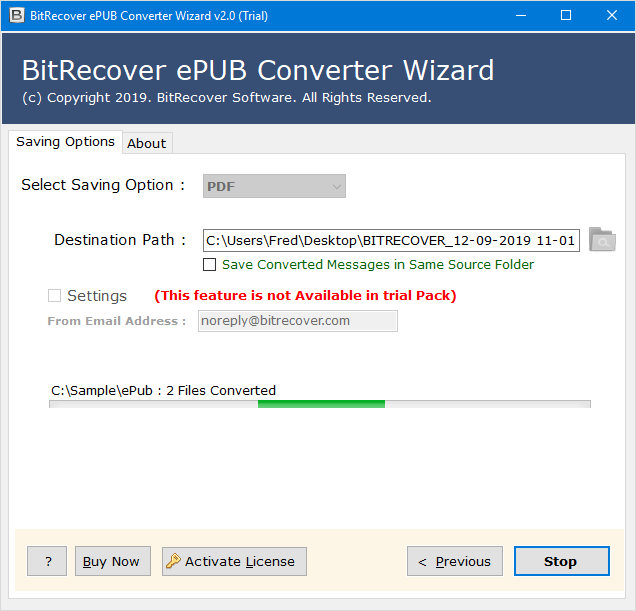
- Finally, initialize the conversion by clicking Convert.
FAQs
Questions lead to answers, and answers lead to better understanding. Here are some of them:
1. Can I legally save Kindle book as PDF?
Answer: You must save Kindle book as PDF for personal usage only and also follow Amazon’s content policies always.
2. Is it secure to convert Kindle eBook to PDF format for personal reading?
Answer: Yes, for personal usage, this is typically safe, but sharing/selling of converted EPUB files might break terms.
3. How can I export Kindle eBook to PDF format on Mac?
Answer: You can try using a trusted 3rd-party tool that supports Mac to export Kindle book to PDF on Mac easily.
4. Which is the best method to save a Kindle EPUB file to PDF format?
Answer: Using a tried & tested Kindle to PDF converter software is ideally the best way known until now.
Final Clarity
To save Kindle book as PDF, you can try using a manual mechanism or, better yet, make use of a pro tool for a quality outcome. Manual ways have various limitations and no certainty of accuracy, whereas a superior 3rd-party Kindle to PDF software makes this happens without any such limitations.
Read Next: How to Convert EPUB Files to Email Formats?