 Blog
Blog  +1 7025533020
Print Kindle Book Using Legal Ways for Offline Reading


Many people enjoy online reading from digital books, but at times, reading from the physical copy in hand seems far more convenient, whether it is for study purposes, note creation, sharing data, or archiving needs for future reference. Here, in this blog, we will walk you through the process to print Kindle book manually and also with the help of a trusted pro tool. We will be discussing the step-by-step methodologies, the limits of traditional ways, and how the specialized tool makes the process simpler.
KEY TAKEAWAYS
- Some manual ways tend to work, but they come with some restrictions.
- Manual mechanisms could turn out to be pretty slow & very risky too.
- The professional tool makes the Kindle book printing job much simpler.
- Use legit ways for printing, and always follow copyright & legal guidelines.
Has this ever happened to you that you bought a Kindle eBook and later desired that on paper form for convenient reading? This is becoming a common thing these days. As per the official Amazon Kindle Direct Publishing (KDP) Help page, Kindle books are created primarily for digital reading purposes. This means direct printing is usually restricted to protect authors’ rights.
Who Needs a Kindle Book Printer?
Digital reading is easy, but paper reading feels more natural for many people. So, even in the digital world, many readers prefer printed pages, as follows:
- Students who wish to highlight some sections & make notes.
- Teachers & tutors who require printed copies for their class discussions.
- Working professionals in offices who require hard copies of some reports.
- Elderly people who prefer reading from paper over digital screens.
- Some people wish to have backup copies for record-keeping to refer to later.
Times When Users Have to Print Kindle eBooks
Users mostly look for a Kindle book printer in the following situations:
- While preparing for their exams.
- When their internet access is somehow limited.
- When they are aware of the medical fact that more screen time leads to eye strain.
- While sharing some content in offline meetings.
- To have some selected chapters in printed form.
Manual Styles to Print Kindle Book
If you wish to do the manual tussle, then there are some ways described below that you can try:
First Manual Way: Use Kindle Desktop App (Best for Selected Pages)
This process works best for printing only certain sections of an eBook. You can follow the steps given below:
- First and foremost, open the Kindle app on your machine.
- Then, open the book that you wish to print.
- Now, navigate to the desired page or chapter of the book.
- Use Ctrl + P (For Windows PC) or Cmd + P (For Mac machines) and then select “Print to PDF”.
- Finally, take the print.
Second Manual Way: Take Screenshots
This process works even if copying is blocked. Such a process would be easy to do if you need only some small portions of the book.
- Firstly, open the required Kindle eBook on a screen.
- Now, start taking screenshots of the required page(s).
- Then, save these images in a folder.
- After that, insert these images(screenshots) into a Word document.
- Next, save this as a PDF.
- Finally, print this file.
Third Manual Way: Copy/Paste (Best for Short Sections)
This simple process needs no outside installation and is quick if you need only some small text sections to be printed.
- First of all, open the Kindle desktop app on your PC.
- Now, open the eBook from where the text has to be printed.
- Then, select the required text (if selection is enabled).
- Next, copy & paste into MS Word/Google Docs by highlighting the text, then Ctrl + C (Copy), and then Ctrl + V (Paste).
- Afterwards, adjust formatting.
- Subsequently, click File > Print.
- Lastly, select your Kindle printer/connected printer to take the print.
Expert Kindle eBook Printer Solution for Professional Results
Manual workarounds are okay for small text segments, but for large content to be printed or multiple files to be printed, these tend to become unsuccessful & ineffective. So, when manual techniques fail to deliver results, the professional solution helps! One such sophisticated tool is RecoveryTools EPUB Migrator.
This software has been designed in such a way that it can convert EPUB files into multiple formats, such as HTML, DOC, TXT, etc. As Kindle eBooks are usually in EPUB, converting them into some other format facilitates easy printing.
Significant Software Qualities
The software is loaded with many interesting features, and these capabilities make it a worthy possession:
- This is a standalone tool not needing any extra 3rd-party installation.
- With dual options to upload eBook data, the tool supports bulk conversion to convert multiple files at once.
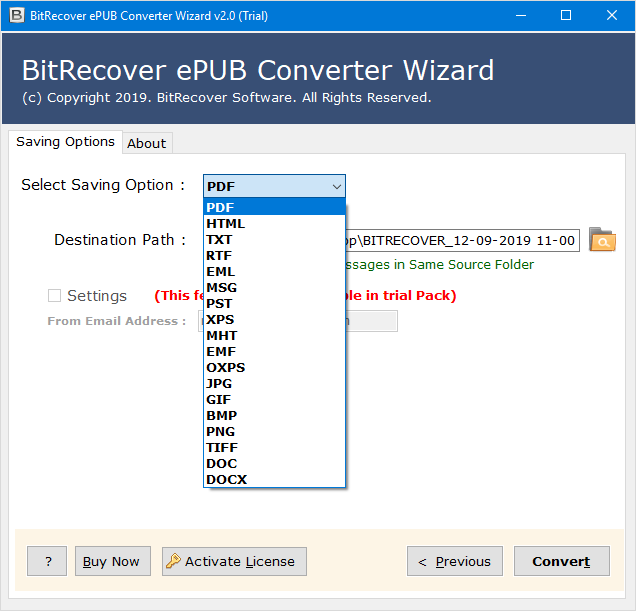
- Kindle eBooks in EPUB format can be saved in any of the 15+ formats available.
- The software keeps formatting intact and also preserves images, layout, & structure. This leads to a clean final copy that’s ready for printing.
- The software supports large file sizes as well with ease.
- Simple UI makes this tool comfortable to use for almost everyone.
- Works on Windows systems as well as Mac machines equally.
- The demo version is available for FREE to test the tool before purchasing.
Steps to Bulk Print Kindle eBook
This method is faster and more reliable compared to manual steps.
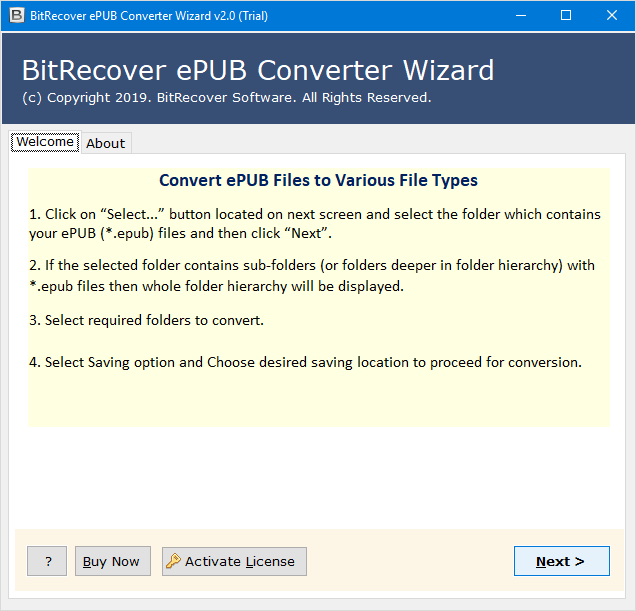
- Firstly, download the Kindle EPUB Printer tool, and run it on your machine.

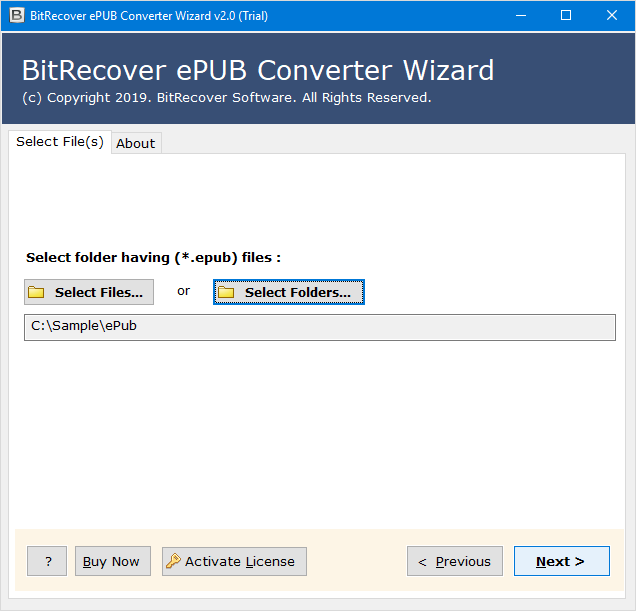
- Then, add your Kindle book’s EPUB file(s)/folder(s) by clicking Select Files/Select Folders.
- Now, choose PDF as the preferred output saving format as it is best-suited for printing.
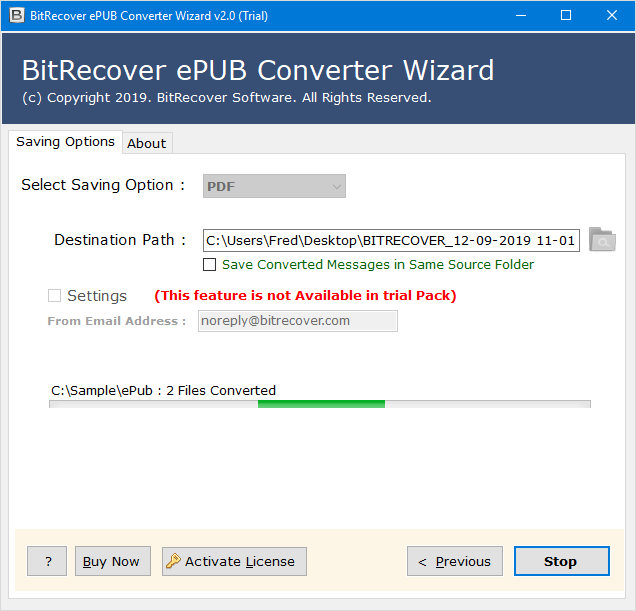
- Next, select a preferred destination location and click the Convert to save Kindle book as PDF.
- Further, open the output file, and use your printer to print Kindle book easily.


Concluding the Discussion
To straightaway print Kindle book isn’t always possible due to protection issues. Risky manual ways work in limited cases only, and they take a lot of time too. So, if you need to do full justice with this task at hand, always go pro! Also, remember to always check copyright rules before printing through safe & legitimate ways only.