 Blog
Blog  +1 7025533020
Outlook Crash Exception Code 0xc00005 – Full Guide


The sudden crash in Outlook that users tend to come across is mainly due to Error code 0xc0000005, a notorious issue that causes Outlook to instantly freeze, crash, and close while operating on the application. In this blog, we will delve into what causes such complications, along with some of the proven methods and their effects, elaborately.
The exclusive designation of Error Code 0xc0000005 on users’ operating systems is often “Access Violation”, meaning, there has been an issue listed where the Microsoft Outlook breaks the code of conduct of memory management. Whether users are facing “Outlook crashes when sending email” or “Outlook 0xc0000005”, an error like this is a clear indication to stabilize Outlook immediately.
When Outlook Crash Exception Code 0xc00005 Appears
Such an error is usually seen when MS Outlook PST file gets damaged/corrupted or when MS Outlook interacts with any faulty 3rd-party add-in. This may also show up when updates tend to be missing, or MS Outlook tends to face memory problems. The crash mostly forces this email program to suddenly close.
Statistics Are Always Eye-Openers
As per Microsoft’s official support (Gartner IT Research) forums, MS Outlook tends to be among the top 3 problems reported by corporate users globally. Additionally, Gartner also reports that email downtime can lead to business losses of up to 5600 dollars per minute.
A Real User Case
Rihana happens to be a finance manager at an MNC firm. She reported that each time she tried to attach an MS Excel file, Outlook crashes when attaching files with this exception code 0xc00005. This delayed her client’s communication for a long time, thus the loss!
What Causes Error Code 0xc0000005?
The mentioned error code is not tied to just one issue, but is also related to numerous traits of matters in Outlook. Below are some of the most common messages users have encountered with the same error code, along with the reasons for their occurrences:
- Access Violation Error Code 0xc0000005: Such errors pop up on users’ operating screens, signifying the complications related to memory corruption while opening the folder, mainly due to faulty RAM caused by damaged disk, infection due to malware attack, outdated drivers, and security updates.
- Windows Update 0xc00005 error: This error takes place when users are unsuccessful while setting up their Windows system to download recent updates. Issues like system memory complications lead to this error with bugs. However, problems like this could be fixed through the system’s built-in troubleshooting process, regardless of the circumstances.
- Outlook 0xc0000005 Application Error: The error occurs as the user’s device fails to configure the essential settings and files for executing a particular program, such as accessing or opening applications, tools, games, and so on, possibly caused by damaged RAM or file failure.
Explore Experts’ Suggested for 0xc0000005 error fix
When easily accessible methods fail to offer a reliable solution for the 0xc0000005 error fix while handling heavily corrupted data files, an automated Outlook PST recovery solution becomes extremely essential. For the complex scenarios mentioned above, the robust RecoveryTools PST Repair Tool is highly recommended for users looking for an instant and secure solution for their corrupted system and files. Such a tool also proves fruitful even when you have a query like – why am I getting spam in my Outlook Inbox. Moreover, the advanced software solution is specifically constructed to rectify PST files that are rigorously damaged and corrupted, which further becomes the main cause of Error code 0xc0000005.
Working Steps of the Automated Tool
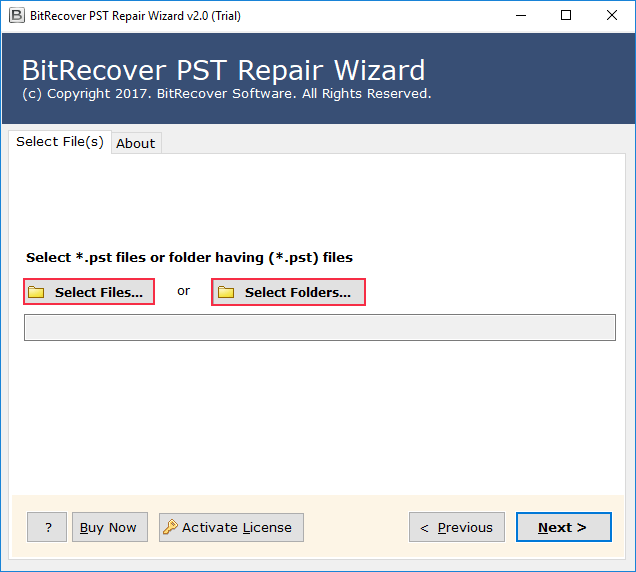
- Start by installing & opening the software.

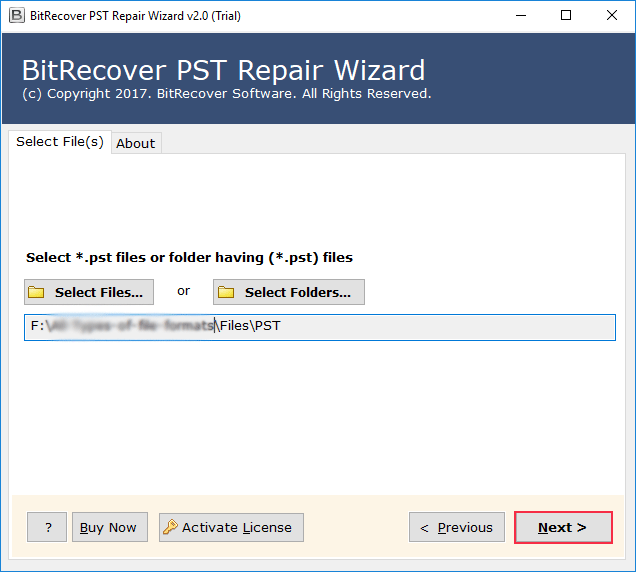
- Proceed by adding the Outlook PST file which shows Outlook crash exception code 0xc00005.
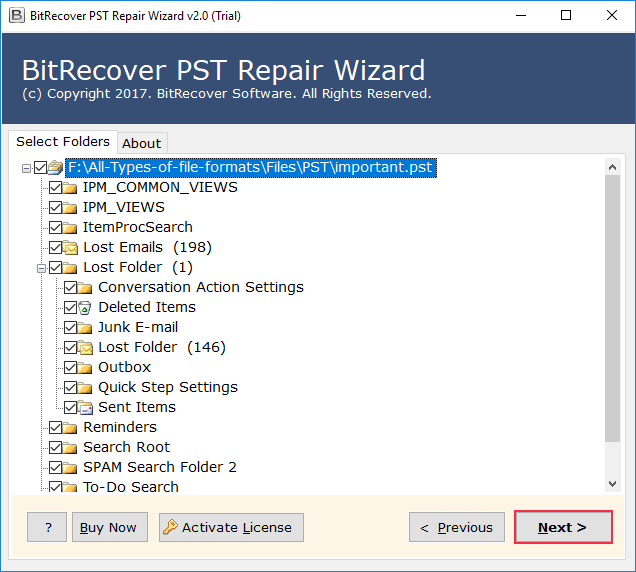
- Go ahead to select recovery mode and preview the data. After that, go on by choosing a saving format.
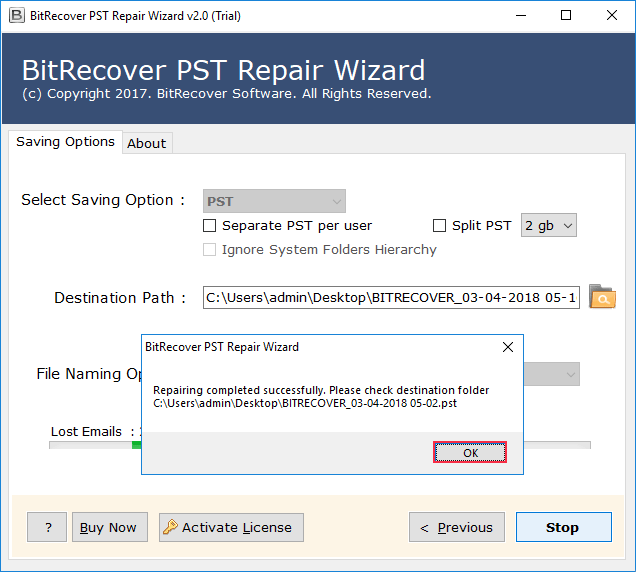
- Complete the process by clicking “Start Repair” to repair the file.
Main Attributes of the Tool That Are Very Helpful:
- The software helps in repairing heavily corrupted PSTs with no data loss at all.
- The tool tends to restore mail messages, contact details, email attachments, calendars items etc.
- This utility tool supports fixing issues such as Outlook crashing 0xc00005.
- The software works with all MS Outlook versions.
- Even large sized Outlook PST files can be repaired using this tool.
Explore Manual Solution for 0xc0000005 Error Fix
While handling 0xc0000005 error, which leads to Outlook crashes when sending email or for files that are not extremely corrupted. It is suggested to try out some of the troubleshooting techniques as these methods can easily address issues like minor corruption, conflicts faced while opening the system or application, and offer an efficient 0xc0000005 error fix.
Method 1. Cross-Check RAM Storage:
Damaged RAM often causes numerous Outlook 0xc0000005 crashes associated to memory violation.
- Open Windows and search for Windows Memory Diagnostic Tool.
- Choose the “Restart now and check for problems” option
- The system will be directed to initiate the test after restart
Method 2. Configure SFC Scan
This type of scan becomes essential when there are damaged or corrupted files that are constantly causing error code 0xc0000005. Follow these steps to easily rectify it:
- Click on “Windows+S” and search for “CMD”
- Now, type SFC/scannow
- Tap on “Enter” and wait for the process to be completed
- After it’s done, restart your entire system to see if the issue has disappeared.
Method 3. Run Clean Boot System:
Use this solution to resolve issues during conflicts between programs, that causes in Outlook crashing.
- Search for “msconfig” in the Windows search bar
- Go to “System Configuration” and click on “Open Taskbar.”
- Click on “Open Task Manager” and choose the required program
- Click on “Disable” and close the window
- Choose “Startup tab” on “System Configuration” and hit “OK”
- Restart your system and check for clean boot
Method 4. Regularly Update Device Drivers:
Users must check and update system drivers regularly to resolve issues related to incompatible or outdated system drivers, as it could lead to conflicts regarding the allocation of system’ resources.
- Go to “Windows+X” and click on “Device Manager.”
- Look for and tap on “Disk drivers” and right-click on “Update driver”
- Select “Select Automatically for Drivers”
- The device will look for a suitable driver, if there is already one on the system, it will suggest to install it and restart the system.
Method 5. Check for Malware Threats:
Another issue faced by users is the risk of malware or cyber attacks that could affect the applications’ memory storage, which violates and cause Outlook crashes when sending email regularly.
- Click on “Windows+S” and go to “Windows Security.”
- Choose “Virus and Threat Protection” among the options given
- Go down and tap on “Scan options”
- Select the type of scan you prefer and hit “Scan Now”
- Once the process is done, restart your system to check for bugs
Method 6. Perform CHKDSK Scan:
- Open “command” and run as administrator
- Type chkdsk /f /r D:
- Click Enter
- Wait for the completion of the scan
- And reboot you system
Method 7. Format Computer System:
- Click on “Windows+I” and go to “Update and Security”
- Next, click on “Recovery” and then “Reset PC”
- Click on the option given to either keep my files or remove everything
- Select “Local Reinstall”
- Finally, close the window and restart your operating system
Method 8. Disable Data Execution Prevention:
DEP, or Disable Data Execution, assists in scenarios that ignite conflicts with programs, which raises security concerns. Additionally, iff the application is not up to the mark for the DEP measures, the attributes automatically trigger a violation associated with access.
- Go to “Cmd” and run as administrator
- Type bcdedit.exe /set {current} nx OptIn
- Enter the code bcdedit.exe /set {current} nx AlwaysOff and click on “Enter.”
- Close the entire Window and restart the system
Drawbacks of Going for Manual Solutions
- The online and built-in solutions are only useful during the repair of minor issues.
- Manual solutions do not consist of the features of recognizing faulty add-ins, corrupting system files, or folders.
- Without the recovery of heavily corrupted files, the chances of regular crashing of Outlook will persist.
- Does not guarantee delivering complete information during and after the repair process, causing in the loss of many crucial elements and information.
- Users cannot process multiple emails with attachments, as such techniques do not support batch repair, making it time-consuming.
- Not suitable for beginners or non-technical users due to the complex instructions.
- Installation of Outlook is mandatory for all manual techniques.
Note the Following Dos & Don’ts
- DO keep your MS Outlook program updated.
- DO make use of a desktop tool for accuracy.
- DO NOT use any manual techniques for very big PST files.
- DO NOT ignore repeated Outlook program crashes; resolve the issues immediately.
Conclusion
The error code 0xc0000005 is known to be one of the most common complications encountered by users, but such a complication can be solved efficiently. While free and online solutions are effective for recovering files that are slightly damaged, they are completely insufficient for data that is severely corrupted, which can only be resolved permanently by a professional method.
Utilizing the latest Outlook Repair solution offers a light, secure, instant, reliable, and hassle-free solution that guarantees to fix errors like this without any risk of data loss. Moreover, the software solution also ensures deep recovery and stability with complete information, suitable for both technical and non-technical users facing the 0xc0000005 error, which leads to Outlook crashes when sending email.
Commonly Asked Questions
Q1: How to resolve Outlook crashes when attaching files issues?
A: You can try compressing the PST file, updating the MS Outlook program, or repairing PSTs using a good pro tool.
Q2: Why it so happens that Outlook crashes on send receive?
A: This happens due to overloaded mailboxes, damaged/corrupted PST files, or faulty add-ins.
Q3: How to resolve Outlook crashes when sending email issues with no tool?
A: Without a tool, you can try manual technique but that is only when corruption is minor; otherwise, it is advised to use a professional repair solution.